

Key Takeaways:
Ripping Blu-ray to MKV is a good choice because MKV supports both re-encoding and lossless remuxing. Whatever your purpose, Tipard Blu-ray Converter can help you do that easily.
- 1. Insert your Blu-ray into your computer.
- 2. Click Load Blu-ray to load your Blu-ray disc.
- 3. Click Output Format dropdown, select Lossless to remux your Blu-ray to MKV or click MKV to choose a desired MKV preset.
- 4. Click Rip All to rip Blu-ray to MKV easily.
You must have an excellent Blu-ray movie disc that you often watch. However, if the disc is damaged, the Blu-ray movie is gone forever. Therefore, why not convert Blu-ray to a digital video? Then, what's the best format you should choose? Perhaps MKV is the choice. You can convert Blu-ray to MKV to gain high video quality and wide compatibility with many devices and platforms.
Then, how do you rip Blu-ray to MKV? This post will introduce 4 gorgeous Blu-ray rippers that can convert your Blu-ray discs. Check how to rip Blu-ray to MKV on Windows and Mac.

Part 1: The Best Way to Rip Blu-ray to MKV on Windows/Mac
Tipard Blu-ray Converter can help you rip Blu-ray to MKV on Windows and Mac. This program can quickly detect your Blu-ray disc and rip it to your desired video format. Moreover, you can upscale the video to enhance the definition and resolution. If there's no enough storage on your computer, this program can also compress the video a fter you rip Blu-ray to MKV format.
If you want to edit the Blu-ray movie, you can clip the video or add filters to it. There are also many video and audio codecs you can choose to make the output video much better. What's the most impressive is that you can remove encryption on your Blu-ray disc.

- Rip Blu-ray to MKV with original video quality or transcode to a customized preset.
- Rip 3D Blu-ray, 4K Blu-ray, and standard Blu-ray to MKV with GPU acceleration.
- Offer clipping, cropping, filters, and many other editing features.
- Upscale or compress your Blu-ray disc to enhance or shrink the video.
- Bypass the latest and common encryptions on your Blu-ray discs.

Step 1 Download and launch Tipard Blu-ray Converter on your Windows or Mac. At the top left. Click the Load Blu-ray button, and the software will scan the disc you inserted on your computer. Import the one you prefer to convert to MKV.
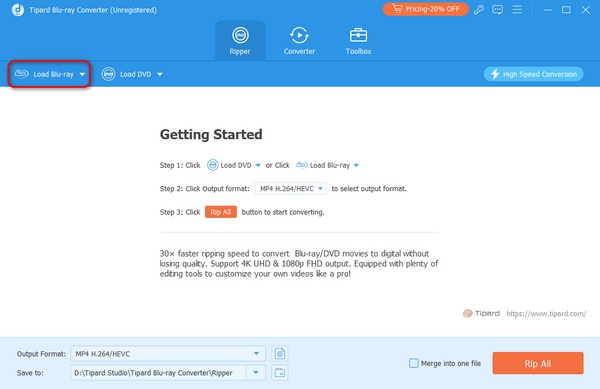
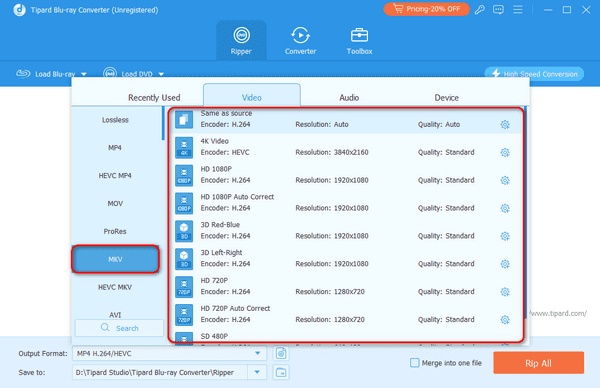
Step 2 Click the Format button(which is set to MP4 by default) and select the MKV button. Later, choose the associated format at the right. Later, click the Rip All button afterward.
If you want to rip Blu-ray to MKV lossless, you should select the Lossless category. Then, select MKV Lossless. This preset will save all the original videos, audio files, subtitles, titles, chapters, menus, and more.
Part 2: How to Rip Blu-ray to MKV with MakeMKV
As shown in the name of the software, MakeMKV is built to rip Blu-ray or DVDs to MKV formats. Therefore, you don't have to find and select the MKV format manually. This software can preserve the audio and video tracks, including the HD files.
MakeMKV can rip Blu-ray to MKV as fast as your drive reads data because it supports fast conversion. Also, it will never modify the converted files because it preserves all the meta-information. Check how to rip Blu-ray to MKV in MakeMKV.
Step 1 Download, set up, and launch the tool on your computer. Drag the Blu-ray disc you prefer to convert and wait for the process.
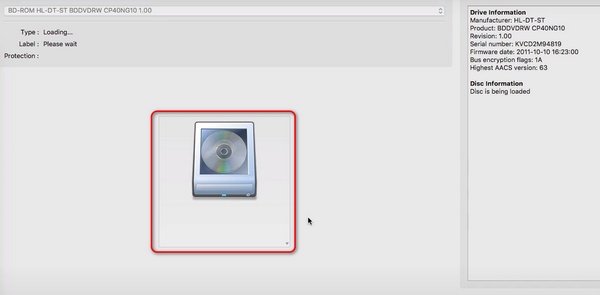
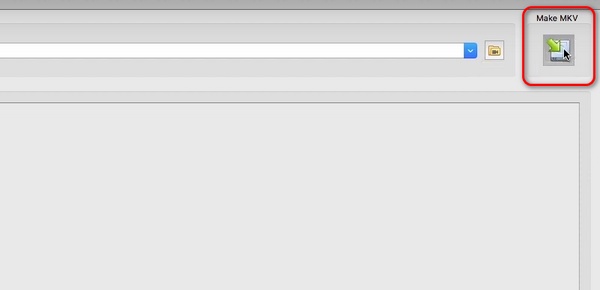
Step 2 The software will load and start to decrypt and open the Blu-ray. Select the destination path, then select the file to convert and click the Make MKV button to rip Blu-ray to MKV in MakeMKV.
Part 3: How to Rip Blu-ray to MKV with HandBrake
Maybe you've heard of HandBrake because it is famous among users who want to rip Blu-rays or DVDs. It is an open-source video transcoder that is free and accessible to all users. You can download it on the computers running Windows, Linux, and macOS computers operating systems.
The program is totally free. You can rip Blu-ray to MKV and keep the high video quality because it supports high-quality video codecs like HEVC. Check how to convert Blu-ray to MKV in HandBrake.
Step 1Download, install, and launch HandBreak. After that, locate the Blu-ray you want to convert to MKV by dragging to the software.
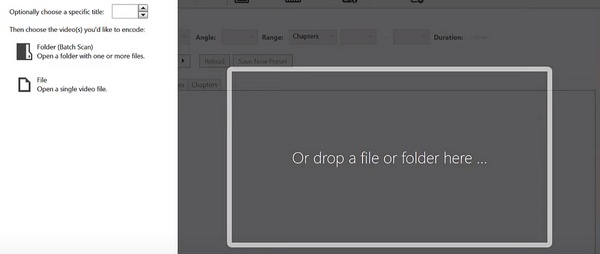
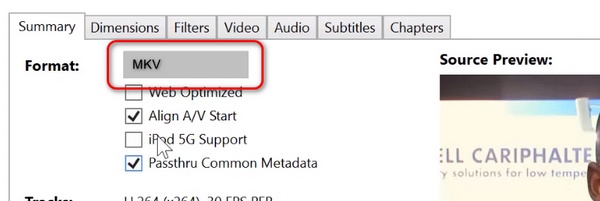
Step 2Go to the Format section at the top and select MKV. Click the Start Encode button to start ripping Blu-ray to MKV in HandBrake. If your Blu-ray disc has encryption, then you should download HandBrake libdvdcss to remove the encryption.
Part 4: How to Convert Blu-ray to MKV in DVDFab
DVDFab Blu-ray Ripper can help you rip Blu-ray to MKV in a few minutes only. You can play the video on any device, including media players. Another excellent fact is that it can remove common Blu-ray disc copy protections.
However, unlike the previous software, this tool needs to be purchased at a high price to access all its features. Anyway, you can still check how to rip Blu-ray to MKV in DVDFab.
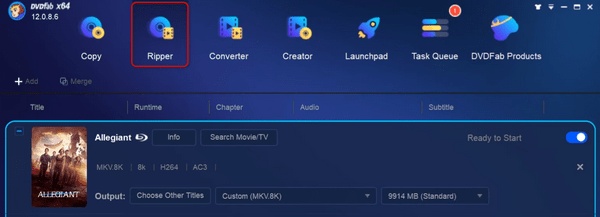
Step 1 Download the on your computer. Set it up and launch it afterward. After that, click the Ripper button at the top. Later, Click the Add Source button import the Blu-ray to DVDFab.
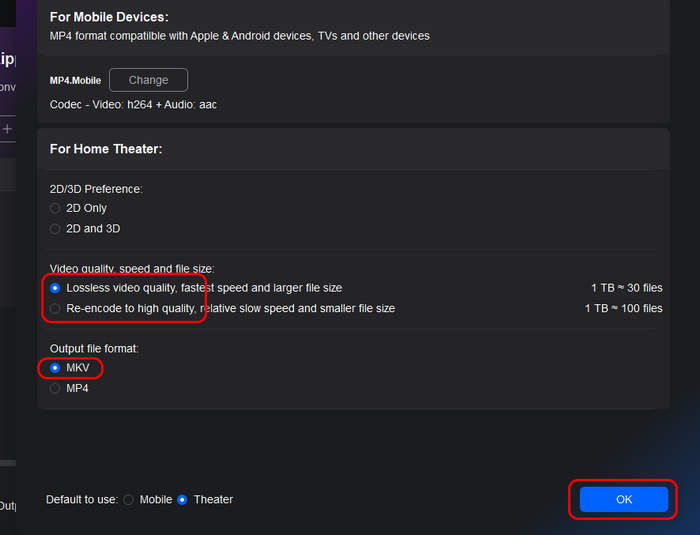
Step 2 Select MKV on the popup panel. Then, you can select Lossless or Re-encode. Then, click the OK button to confirm.
Step 3 Click the Output button to select a desired output folder. Then, click the Start button to rip Blu-ray to MKV on Mac or Windows computer.
Part 5: Reasons to Convert Blu-ray to MKV Conclusion
You may be wondering why some individuals choose to convert their Blu-ray discs to MKV, wherein there are multiple file formats that they can choose from. Sometimes, it depends on their preference, especially with the convenience that the format brings to them. Below are some reasons why MKV is one of the most convenient file formats.
Quality Preservation
Once you convert your Blu-ray discs to MKV, the original videos, audio files, subtitles, menus, titles, chapters, and entire Blu-ray structure can be kept. That's because MKV supports lossless ripping (remuxing). Although Blu-ray is getting outdated, 3D and 4K Blu-rays still have excellent visuals. Compared to other formats, MKV can highly retain the original quality, which is terrible. That's why there are still many users who want to rip DVD or Blu-ray to MKV lossless.
Small File Size
MKV is a very versatile format that can hold many popular and rare codecs. Whether you convert 4K or 3D Blu-ray to MKV format, you can use H.264/HEVC/AV1 codec to highly compress the Blu-ray movies while keeping high video quality.
Device Compatibility
You can rip your Blu-ray discs from multiple computers with different operating systems. The good thing about MKV is that a wide range of devices widely supports it. You can play them on computers, smart TVs, mobile devices, and media streams.
Conclusion
In conclusion, there are various things to consider before using a tool to rip Blu-ray to MKV. You must ensure that the software preserves the quality of the Blu-ray and does not delete the original one. It serves as a backup when something terrible happens to the converted Blu-ray. What's the best way to convert Blu-ray to MKV while keeping the best video quality? Tipard Blu-ray Converter is the most suggested. It supports 4K to 3D Blu-ray to MKV conversion and removes all types of encryptions, which makes your conversion smooth.
More Reading




About the Author

 Click here to join the discussion and share your comments