

Are your MPEG files too big? Do they look blurry on modern screens? Do they fail to open on smart TVs or web browsers? Do you struggle to share or upload them online? Maybe it is time to convert MPEG to MP4?
In this post, you will see why converting your MPEG to MP4 is smart. We will also show you easy ways to learn how to convert MPEG to MP4. It is very useful in 2026, where smooth playback, smaller files, and fast online streaming are a must.

Part 1. MPEG vs. MP4: Why You Need to Convert in 2026
Old MPEG files still play, but MP4 fits modern use better in 2026. Most devices, apps, and websites now favor MP4 because it is smaller, faster, and easier to handle.
A quick comparison below will show why many people convert MPEG to MP4 before sharing, storing, or watching videos.
| Factor | MPEG | MP4 |
|---|---|---|
| File Type | Older video format standard. | Modern video container format. |
| File Size | Usually larger files. | Smaller files with better compression. |
| Compatibility | Limited on some new devices. | Works on almost all devices and apps. |
| Streaming Use | Slower for web playback. | Best for online streaming. |
| Video Quality | Good, but less efficient. | High quality with less space. |
| Codec Support | Often uses older codecs. | Supports H.264 and H.265 easily. |
| Sharing | Harder to upload and send. | Easy to share online. |
| Show MoreShow Less | ||
In simple terms, converting MPEG to MP4 helps your videos stay easy to play, store, and share in 2026.
Part 2. Best Ways to Convert MPEG to MP4: Online and Desktop
Go through each MPEG to MP4 converter and learn step-by-step how to use them! There are desktop and online tools you can rely on!
1. Tipard Video Converter Ultimate
For Windows and Mac users, Tipard Video Converter Ultimate is a top choice for converting MPEG to MP4. It supports a large number of input and output codecs so that you can work with almost any video.
You can pick 1080p MP4, 4K MP4, 720p MP4, and many more presets for perfect quality. It also supports batch conversion at 120× faster speed. Want more? It offers easy-to-use editing features and AI-driven enhancements to improve your videos effortlessly.
Step 1 Download, install, and open Tipard Video Converter Ultimate on your Windows or Mac computer.
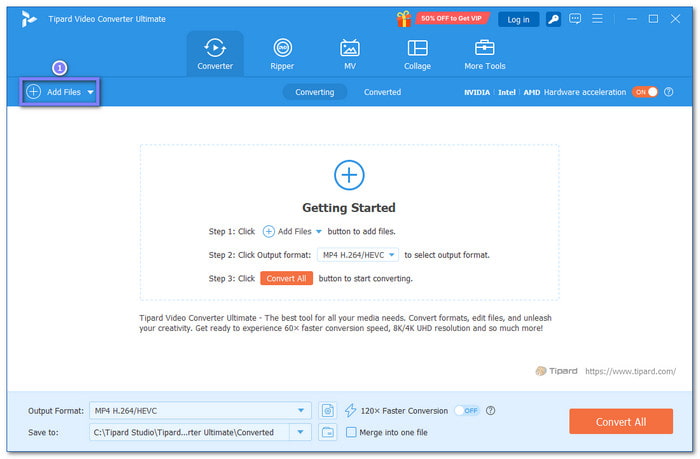
Step 2 Click Add Files to select the MPEG videos you want to convert. You can add one or many files at once.
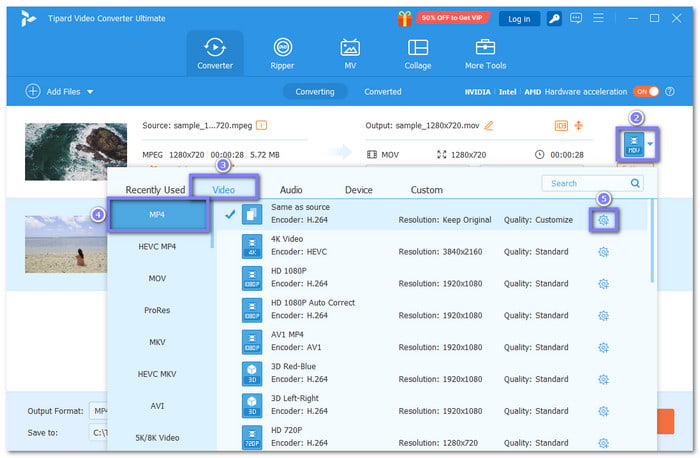
Step 3 After your files appear in the list, click the Format drop-down on the right. Under the Video tab, choose MP4. You can also choose the resolution, such as 4K, 1080p, 720p, or lower. For more control, click the Custom Profile option to fine-tune the bitrate or the codec.
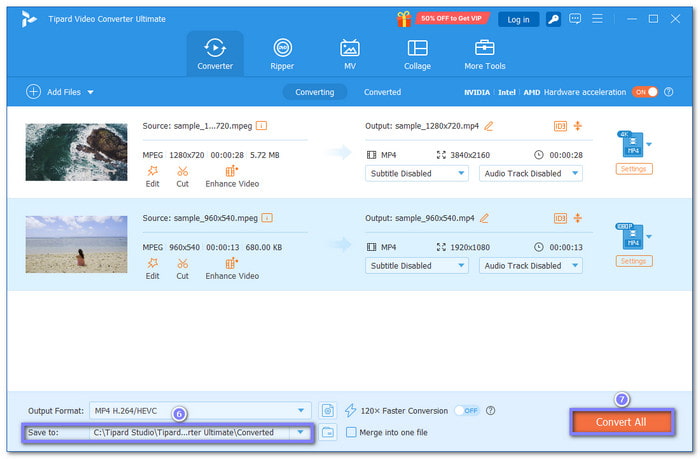
Step 4 Choose the folder where you want to save the converted files and rename them if needed. Then, click the Convert All button in the bottom-right corner. Please wait for the process to finish, and your MP4 files will be ready in your chosen folder.
2. VLC
Are you aware that VLC is more than a video player? It can also convert files, allowing you to turn MPEG into MP4 easily. You can also control the video and audio clarity. Do not worry; it is free, safe, and fast to use. It is really recommended if you want to convert files offline immediately and reliably.
Step 1 Open VLC. Click Media in the top menu, then select Convert / Save or press Ctrl + R.
Step 2 Click the Add button to pick the MPEG file you want to convert.
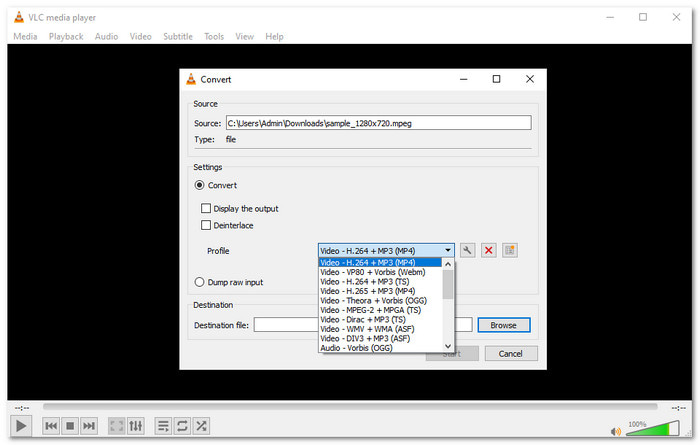
Step 3 Click Convert / Save. In the Profile drop-down, choose Video - H.264 + MP3 (MP4). Then, click Browse to pick where to save your new MP4 file. Give it a name ending in .mp4.
Step 4 Hit Start. Please wait a bit while VLC converts your file. After it finishes, your MP4 is ready to use.
3. CloudConvert
CloudConvert is an online converter that handles almost any video. You can convert MPEG to MP4 for free. It lets you trim videos, add subtitles, or crop. It also works as an MPEG to MKV converter, which helps you keep video, audio, and subtitles in one flexible format. Do not worry about your uploads because your files stay private.
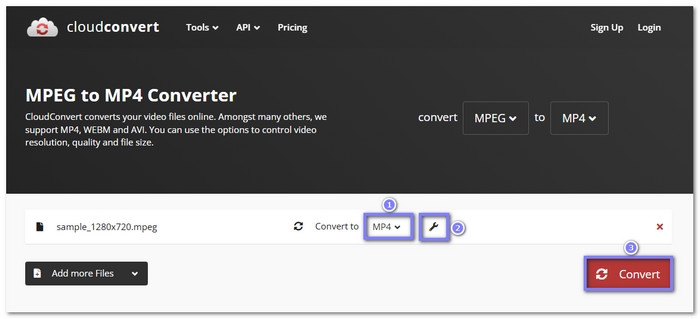
Step 1 Open your browser and go to CloudConvert - MPEG to MP4 Converter.
Step 2 Add your MPEG file. You can upload from your computer, link, Google Drive, Dropbox, or OneDrive.
Step 3 MP4 is set as the output by default. If you want, click the Wrench button to adjust video or audio settings.
Step 4 Click Convert. Please wait for the process to finish. Preview your file if needed, then click Download to save your MP4.
4. FreeConvert
Another simple free MPEG to MP4 converter is FreeConvert. You just upload your file, and it is ready to convert. You can also modify video size, frame rate, and rotate or flip the video. The audio option lets you boost volume or apply fade-in and fade-out effects. You can also add subtitles. However, the free version has a 1-gigabyte limit.
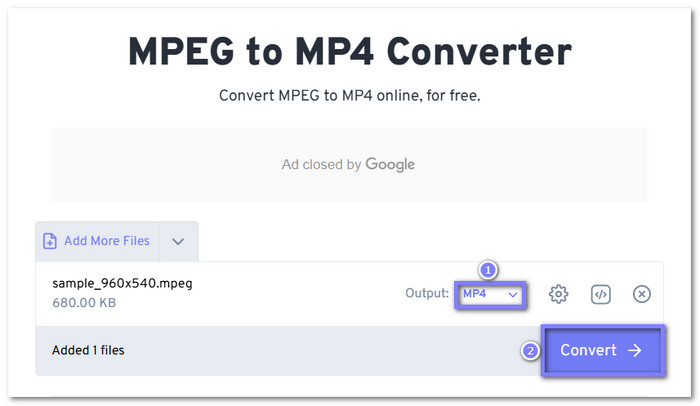
Step 1 Go to FreeConvert - MPEG to MP4 Converter in your browser.
Step 2 Drag and drop your MPEG file into the import area.
Step 3 MP4 is automatically set as the output. You can click the Cogwheel to change video, audio, subtitle, trim, or crop settings.
Step 4 Click Convert. Please wait until it shows Done, then click Download button to get your MP4 file.
Comparison of the Best MPEG to MP4 Online and Desktop Converters
| Factors | Tipard Video Converter Ultimate | VLC | CloudConvert | FreeConvert |
|---|---|---|---|---|
| Platform | Windows & Mac | Windows, Mac & Linux | Web | Web |
| Ease of Use | Beginner-friendly interface. | Simple but less modern layout. | Easy upload and convert flow. | Very easy for beginners. |
| Conversion Speed | Up to 120× faster batch conversion. | Normal conversion speed. | Depends on the internet speed. | Depends on the internet speed. |
| File Size Handling | Good for large files. | Good for local large files. | Limited by upload speed and plan. | Free version up to 1 gigabyte. |
| Quality Control | Full control of bitrate, codec, and resolution. | Basic profile selection. | Detailed video and audio options. | Simple advanced settings. |
| Video Editing | Built-in editing tools and AI enhancement. | Very limited editing tools. | Basic trim and crop tools. | Basic trim, crop, and subtitle tools. |
| Best for | Fast, high-quality, full control conversion. | Free offline basic conversion. | Flexible online conversion. | Quick and simple online tasks. |
| Show MoreShow Less | ||||
Part 3. Pro Tip: Upscaling Old MPEG Files to Higher Resolution
Old MPEG videos often come from older cameras, DVDs, or archived files. Many of them use low resolutions such as 480p or lower. That used to look fine, but on the bigger screens of today, it can look fuzzy or soft.
Modern laptops, phones, and TVs now use sharper displays, so old video quality stands out more. A helpful tip is to upscale these MPEG files before or during conversion, so they look cleaner and fit better on modern screens.
Conclusion
With so many benefits, do not wait too long to learn how to convert MPEG to MP4. This simple step gives you smaller files, smoother playback, and better support on modern devices. It also makes sharing and storing videos much easier.
You have four good options. Use Tipard Video Converter Ultimate or VLC for desktop work. Choose CloudConvert or FreeConvert for online use. Just pick the one that fits your needs and start converting today!
More Reading
About the Author

 Click here to join the discussion and share your comments
 Tipard Video Converter Ultimate