

- Part 1: Things to Prepare Before Copying DVD in Windows 7
- Part 2: How to Copy a DVD on Windows 7 in High Quality
- Part 3: How to Copy a DVD in Windows 7 with Windows DVD Maker
- Part 4: How to Copy a DVD in Windows 7 with DVD Shrink
- Part 5: How to Copy DVD to ISO on Windows 7 with Windows Disc Image Burner
- Part 6: FAQ about Copying DVD on Windows 7
If you use Windows 7, it's much easier to copy a DVD in Windows 7 than on Windows 10 or 11. What should be the most efficient method to copy a DVD in Windows 7? Actually, as a dated OS, Windows 7 offers high compatibility with DVD and Blu-ray because it has a built-in Windows DVD Maker.
You can also find other methods to copy a DVD for free. This article provides some popular methods to copy a DVD in Windows 7. Just check out more details below.

- Part 1: Things to Prepare Before Copying DVD in Windows 7
- Part 2: How to Copy a DVD on Windows 7 in High Quality
- Part 3: How to Copy a DVD in Windows 7 with Windows DVD Maker
- Part 4: How to Copy a DVD in Windows 7 with DVD Shrink
- Part 5: How to Copy DVD to ISO on Windows 7 with Windows Disc Image Burner
- Part 6: FAQ about Copying DVD on Windows 7
Part 1: Things to Prepare Before Copying DVD in Windows 7
Although Windows 7 has better compatibility for copying DVDs, there are some necessary things you should prepare.
1. Blank or rewritable DVD disc: You want to copy a DVD in Windows 7, and then you should have a blank or rewritable DVD as the target DVD. Also, the data on a rewritable disc will be erased and replaced by new data.
2. DVD copy software: You should also have a DVD copy software. Fortunately, there are many reliable programs on Windows 7 to copy DVDs.
3. Two optical drives: DVD or Blu-ray optical drives are necessary because you need to put your source DVD and target DVD into different disc drives and connect them to your computer. Then, you can start copying DVD in Windows 7.
Part 2: How to Copy a DVD on Windows 7 in High Quality
If you are new to Windows 7, you'd better have a professional and easy-to-use program to copy a DVD to DVD in Windows 7. Tipard DVD Cloner is specially designed to meet users' particular demand of making up-to-date DVD backups.
Tipard DVD Cloner is a good choice to copy a DVD in Windows 7/8/10 because it provides multiple DVD copy modes – you can one-click copy entire DVD to another DVD, copy only the main movie, and select certain files you want to copy. After just a few clicks, you can copy favorite DVD discs in Windows 7 with ease.

- Quickly copy DVD in Windows 7 with original quality.
- Copy full disc, main movie, or your desired files to another disc.
- Copy DVD to DVD or hard disk or hard drive on Windows 7, 8, 10, and 11.
- Support copying or burning a DVD folder to a DVD disc.
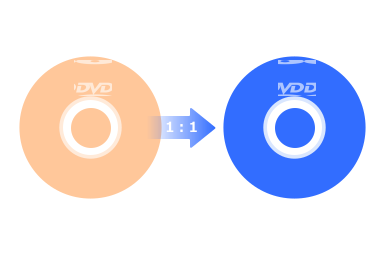
How to Copy DVD in Windows 7 with Tipard DVD Cloner
Preparation work:
Insert your source DVD into a disc drive and connect it to your computer. Then, insert a blank disc as the target disc into another disc drive, and then connect it to your computer as well.
Step 1 Download and install the program
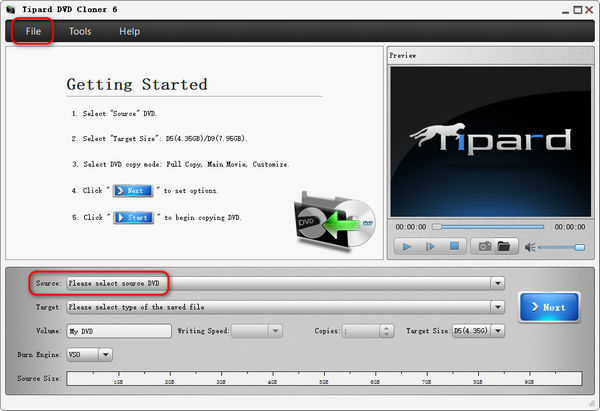
Download and install Tipard DVD Cloner on your computer, and then launch it. The main interface will appear. It should be able to recognize your source DVD.
Step 2 Select a copy mode
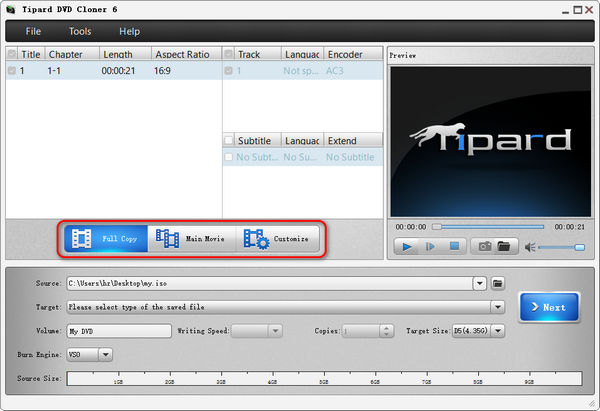
It will go to the next window. Here, you can choose a desired copy mode. Full Copy will copy the entire DVD to DVD on Windows 7; Main Movie will copy only the main movie in a DVD; and Customize lets you choose whatever you want in a DVD to copy to another DVD.
Step 3 Choose output format
After the selection of the DVD source, do not forget to choose the type you want for the saved files. And then click the dropdown button. Then you can choose the target you like. Save as DVD Folder or Save as ISO both are accessible for you to select.
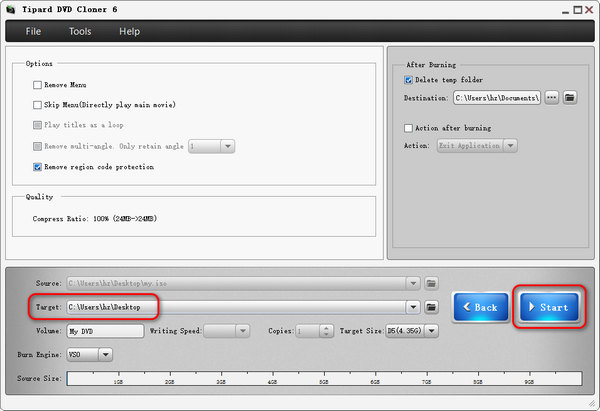
Step 4 Copy a DVD in Windows 7
Click the Target dropdown list to select your target DVD. Then, click the Next button to copy a DVD in Windows 7. After only a few minutes, you can make it to clone a DVD.
Disclaimer: Tipard doesn't advocate copying encrypted and commercial DVDs for any commerical and non-fair use.
Part 3: How to Copy a DVD in Windows 7 with Windows DVD Maker
Windows DVD Maker, a professional DVD copying app for Windows users, is available and free on Windows Vista and Windows 7 only. It means you can use this DVD copy free software on Windows 7 to copy a movie DVD for free. Let's check its detailed steps.
Step 1 Run Windows DVD maker
Click the Start Menu and type in Windows DVD maker or just change the Blank DVD options to using Windows DVD Maker after an AutoPlay window pops up when you insert a blank DVD into your
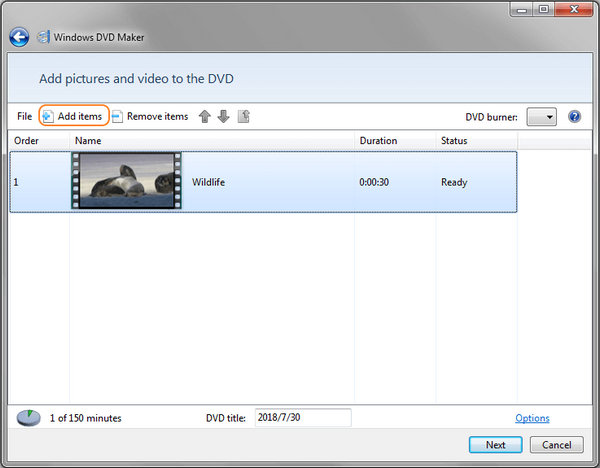
Step 2 Add source DVD
When the main screen shows, click the Choose Items button at the bottom right of the window. Then, select your source DVD and click the Add button to start copying a movie DVD in Windows 7.
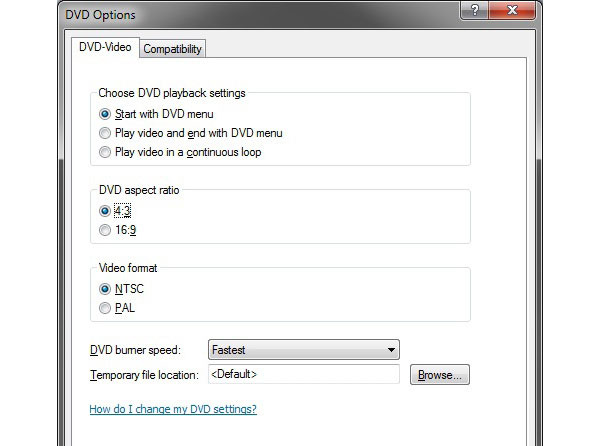
Step 3 Settings for Output DVD
DVD Video is optional. You can arrange the output DVD by changing the settings of Choose DVD playback settings, DVD aspect ratio, Video format, and other parameters to adjust the output DVD before you click the OK button.
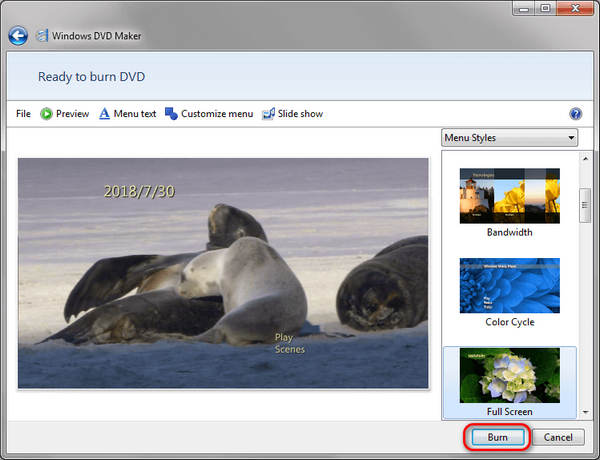
Step 4 Burn a DVD in Windows 7
You can customize the DVD menu. Choose the one you want and click the Burn button to copy a DVD in Windows 7 for free with the default Windows DVD Maker.
Part 4: How to Copy a DVD in Windows 7 with DVD Shrink
DVD Shrink is also a nice choice to copy DVD in Windows 7. This program works well on Windows 7 and is totally free. You can copy DVD-9 to DVD-5 easily, which can compress the source DVD content to make it available on a smaller-sized DVD. This free DVD copier for Windows 7 also offers full disc, main movie, and customized copying modes for you to easily copy DVD on Windows 7.
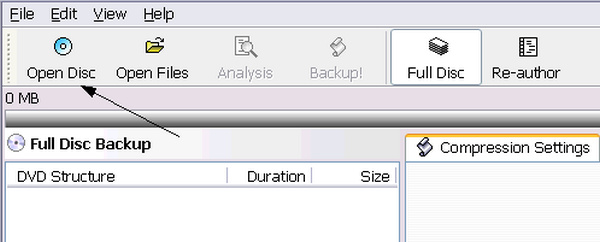
Step 1 Launch DVD Shrink and insert your 2 DVDs into different disc drives and connect them to your computer. Click the Open Disc button to load your DVDs.
Step 2 Now, you can choose your desired content or copy the full disc. If you want to customize DVD copying, you can adjust many things, like audio track, subtitle track, title and chapter, etc.
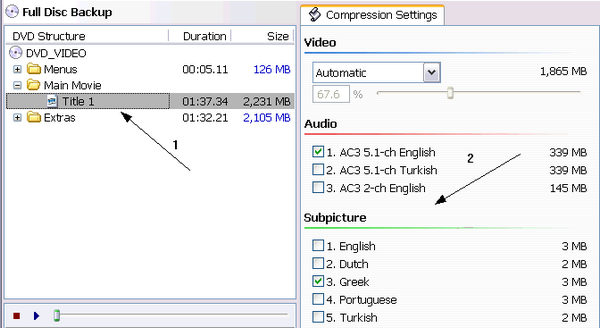
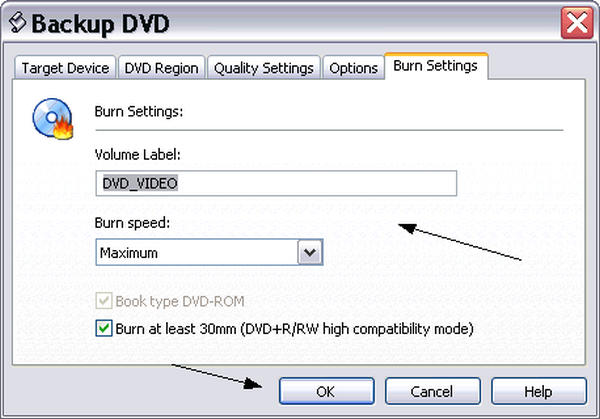
Step 3 Go to the target device section. You can choose your target DVD and adjust the burning settings. For example, you can adjust the quality, volume label, and DVD region, etc. Finally, click the OK button to copy a DVD in Windows 7.
Part 5: How to Copy DVD to ISO on Windows 7 with Windows Disc Image Burner
What should you do if you just need an ISO DVD instead of a DVD disc? When you have only ISO image, you can still copy the ISO to a DVD with full DVD structure in original quality. Just learn more details about the process to copy ISO DVD as below.
Step 1 Insert a blank DVD and make sure the computer can recognize the DVD disc. And then you can access to the recognized driver on Windows 7.
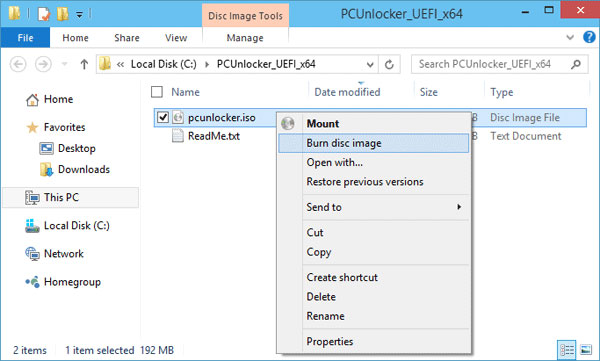
Step 2 Right click DVD on an ISO file, and then select Burn Disc Image, which leads to the Burn Disc Image window. Select the drive that contains the blank disc.
Step 3 After that, you can copy an ISO DVD on Windows 7 by clicking the Burn button. Choose to verify the disc after burning.
Part 6: FAQ about Copying DVD on Windows 7
Can I copy a DVD using Windows Media Player?
No, you can't copy a DVD with Windows Media Player. Windows Media Player can only pay multimedia files and rip CDs, but cannot help you copy or rip DVDs.
Does Windows 10 have a free DVD to DVD copy software?
NO. Even Windows 10 does not come with any DVD player software. They removed Windows Media Center software from Windows 10 onwards. So, if you want to copy DVD on Windows 10, you would need a third-party software. We recommended Tipard DVD Cloner to you. It can make up-to-date DVD backups swiftly and simply.
How do I copy DVD to Mac computer?
Here are details about ripping unprotected DVDs. Open Disk Utility. Locate your DVD and click on it. Then choose New Image shown in the center along the top. After this , you need to choose Image Format. Set Encryption to None. Finally, click Save and the DVD will start copying to the destination you selected. If you want to rip copy-protected DVDs on Mac, you would need Tipard DVD Cloner. It can copy DVD for backup and supports a wide variety of video formats.
Conclusion
The article offers 4 frequently used methods to copy DVD for Windows 7. If you pursue speed, stability, and good performance, Tipard DVD Cloner should always be the first choice. Of course, you can also access free DVD to DVD copy software for Windows 7, such as Windows DVD Maker and the Windows Disc Image Burner. They can all help you copy DVD to hard drive on Windows 7 or clone DVD to another disc.
More Reading



About the Author

 Click here to join the discussion and share your comments
 Tipard DVD Cloner