

Taking a screenshot on Snapchat can be an ideal way if you want to save and collect memorable snaps and conversations. However, the process is not straightforward due to privacy features created by the app. Well, whether you are using an iPhone or an Android device, there are simple ways to capture your screen while being mindful of the notification system. In this guide, we will teach you how to take a screenshot on Snapchat without notifying the user. You will even learn the safest way to capture your screen. Thus, read here and get more information on how to take a screenshot on Snapchat.
Part 1. Common Ways to Take a Screenshot on Snapchat
Snapchat is among the most popular applications you can access on your phone. You can trim videos on Snapchat, upload images, and connect with other users. With this app, there are times when you need to take a screenshot on your platform, especially when collecting images, conversations, and snaps. The good thing here is that there are various ways you can take a screenshot on your device. To discover some of the methods, you can check the instructions provided below.
Method 1. Use the Standard Screenshot Methods
The most effective method to take a screenshot is by using the buttons on your device. Whether you are using an Android or an iPhone, you can ensure to take a screenshot when using the Snapchat app. You can use the steps below to get the Snapchat screenshot pics.
Step 1 Download and install the Snapchat app on your device. After that, you can start launching the app.
Step 2 After that, you can go to any content that you want to capture. You can capture snaps, images, conversations, and more.
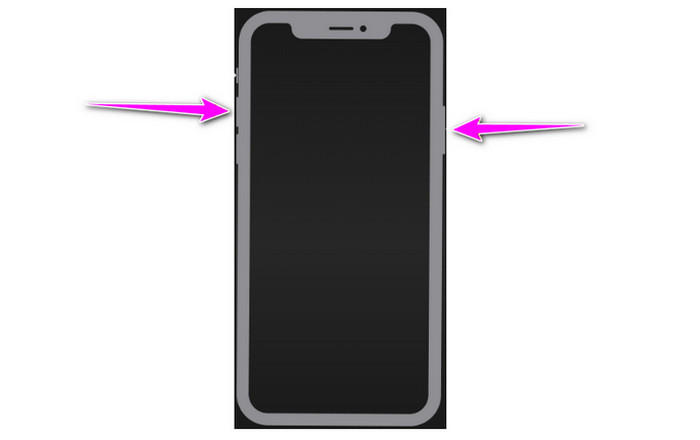
Step 3 Then, you can start taking a screenshot by tapping the Power button and Volume Up button at the same time. After that, you can view the captured screen in your Gallery or Photos app.
If you are dealing with an older device, you can use the Volume Down button and Home button.
Method 2. Screenshot on Snapchat Using Recording Feature
Another way for you to capture your screen is by using the mobile phone's built-in recording feature. With this feature, you can ensure to save and collect all the information from your Snapchat platform. The best part here is that the recorder is simple to access, making it ideal for non-professional users. To start capturing your screen, you can use the steps below.
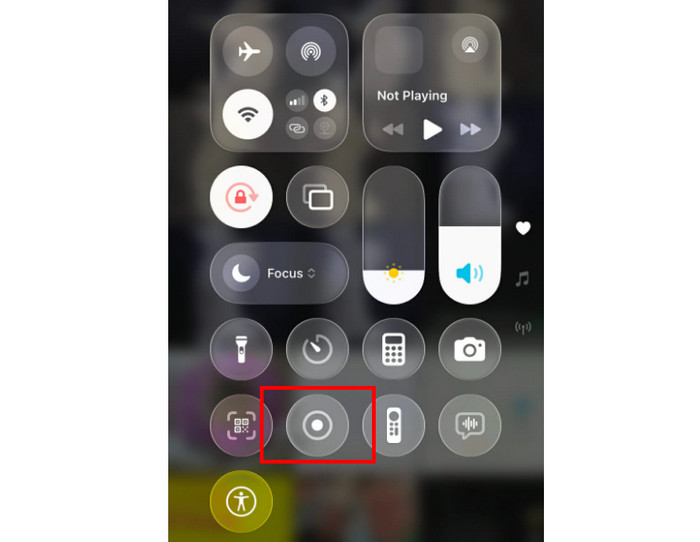
Step 1 Open your mobile device and start sliding down the panel above.
Step 2 Then, start pressing the Recorder feature. The recording process will begin after the countdown. After recording, you can tap the Stop button.
Step 3 Finally, you can view the recorded screen on your Gallery or Photos app and tap the Pause option to see the content you need.
Snapchat is an excellent app that you can use in many ways. You can send GIFs on Snapchat, videos, snaps, and connect with other users. With these capabilities, there are times when you have to take a screenshot of certain content. So, if you want to capture your screen, feel free to use the methods we have provided above. However, you must learn that when taking a screenshot, the user will get notified for privacy concerns.
Part 2. Does Snapchat Notify You When Taking a Screenshot
Absolutely, yes. Snapchat alerts users when you take a snapshot of their chats, stories, or snaps. This ensures that senders are aware when their content is being saved and is a fundamental component of the app's privacy design. However, you must know that there are some exceptions. You won't get notified when taking a screenshot of friendship profiles or public profiles. With recent updates, Snapchat's stringent notification system has gotten even more precise. The sender will nearly always be notified when you take standard screenshots using your phone's buttons or built-in screen recording features. Although there are several alternatives, such as utilizing a different device to record the screen, they are not perfect and frequently sacrifice security or quality.
Part 3. Why Most Snapchat Screenshot Hacks Don't Work Anymore
The Snapchat screenshot hacks don't work anymore since the app strengthened its security and privacy measures. Techniques or tricks like airplane mode, clearing cache, and using third-party apps were once the best methods. However, Snapchat already deals with these loopholes. Nowadays, Snapchat's detection system is far more advanced, making it perfect to bypass screenshot notifications without restoring risky or unreliable methods.
Part 4. Safe Ways to Screenshot on Snapchat
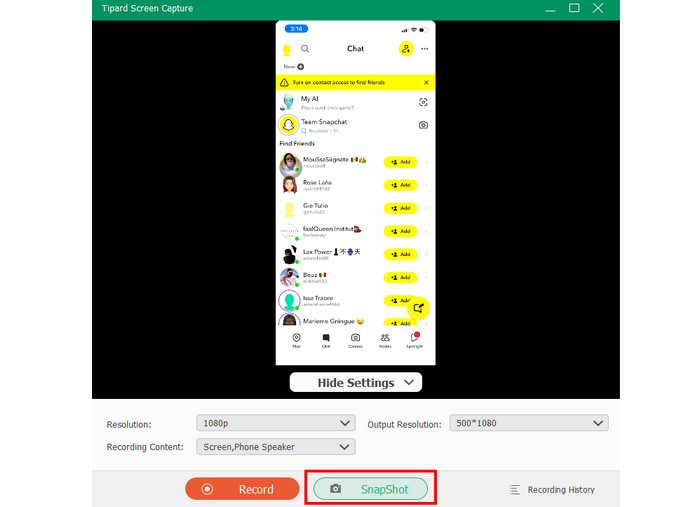
Do you want to learn how to screenshot on Snapchat using an iPhone without them knowing? In that case, we suggest using Tipard Screen Capture. This screenshot tool is perfect if you don't want others to get notified after capturing the screen. You can even record the screen and take a screenshot with the best quality, allowing you to get the result and view the content clearly. You can even save the screenshot up to 4K. In addition, the software can let you save your screenshot in various image formats, such as PNG, GIF, JPG, and more. With that, we can tell that Tipard Screen Capture is among the most powerful tools you can access to take a screenshot.
To learn how to screenshot on Snapchat without notifying, you can follow the steps below.
Step 1 Download Tipard Screen Capture on your computer. After that, run it to begin the process.
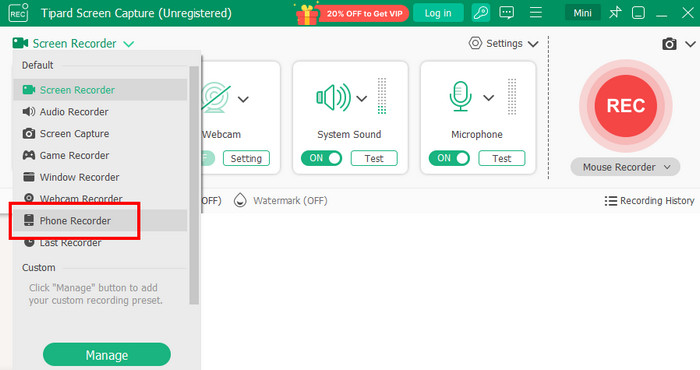
Step 2 From the interface, tap the Dropdown button and choose the Phone Recorder. After that, you can start connecting your device to your iPhone.
Step 3 You can start going to the Snapchat platform and take a screenshot by hitting the Snapshot feature below. Once done, the screenshot will be automatically saved on your computer.
Part 5. Privacy and Ethics: A Warning About Saving Private Snaps
There are major privacy and ethical issues when private photos are saved without any permission from the other user. Taking screenshots or using screenshot hacks to get around notifications betrays the trust that Snapchat was built to offer consumers control over their content. This may violate Snapchat's terms of service and jeopardize your account in addition to harming relationships.
Respecting other user's privacy means asking permission/consent before saving or sharing their snaps, especially when the content is sensitive or personal. Giving digital interactions the same respect as actual conversations helps maintain trust and safety online. Therefore, the ethical choice is to prioritize consent and transparency rather than secretly saving private snaps.
Conclusion
Well, there you have it! If you want to learn how to capture a screen on Snapchat, you can just use all the methods we have provided below. However, you must learn that when taking a screenshot, a user will also get notified. With that, if you want a safe method to take a screenshot on Snapchat without any notification, you must try using Tipard Screen Capture. With its SnapShot feature, you can capture the screen from your mobile phone and save it to any format you need with the best quality.
More Reading



About the Author

 Click here to join the discussion and share your comments
 Tipard Screen Capture