

Key Takeaways
A scrolling screenshot allows for the capture in one image long content. Important points for effective captures:
- Device Techniques: Capture more (Pixe-Phone) or arrows (Samsung) on Android; Full Page on iOS; Shottr on Mac.
- Software Options: Tipard Screen Capture for windows; Shottr for mac.
- Editing & Saving: You can save the trimmed, noted, or highlighted screenshot in PNG, JPG or PDF formats.
- Cross-Platform Functionality: Lastly, it can be used on mobile, desktop, and external devices.
- Specific Content: Ideal for App windows, documents, long content, web pages, and Chats.
A scrolling screenshot is perfect when you need to capture an entire webpage, long chat thread, or document in one image. Whether on Android, iOS, Windows, or Mac, this guide shows step-by-step how to save extended content efficiently.
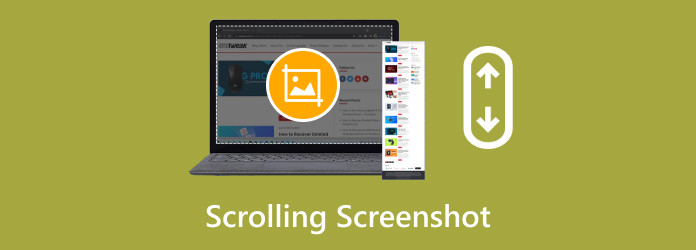
Part 1. How to Take a Scrolling Screenshot on Android
Scrolling screenshots on Android let you take screenshots of things that are not currently visible on the screen. This is useful for long documents, web pages, long social media threads, chats, or any content that needs to be captured in one screenshot. Instead of having to take multiple screenshots of the same thing, you capture everything in one long image.
On Pixel Phones
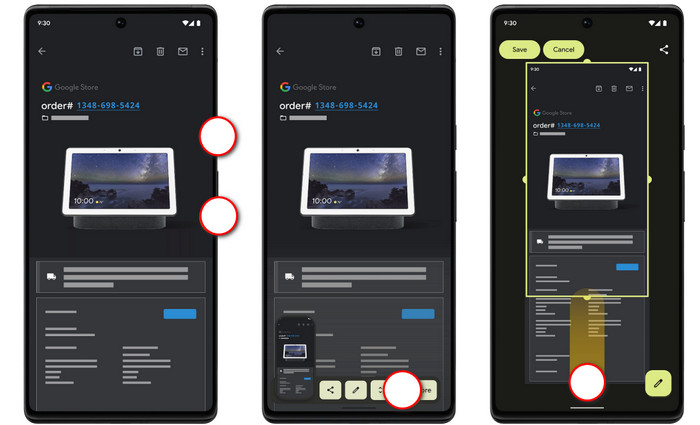
Step 1 You are to simultaneously press the Power and Volume Down buttons.
Step 2 A screenshot thumbnail should appear in the lower left corner as you wait.
Step 3 If the content extends to more than one screen, click on the Capture more button.
Step 4 Once you do this, a preview of the page should appear. You can adjust the content you want to capture from the top and bottom by using the drag handles.
Step 5 Press Save, and the scrolling screenshot will be saved to your gallery.
On Samsung Phones
Step 1 To begin, press the Power button and the Volume Down button at the same time.
Step 2 After this, a thumbnail will appear. Look for arrow buttons under the thumbnail pointing downwards.
Step 3 For the thumbnail to extend and scroll down, press and hold the arrow.
Step 4 To capture the content on the page, release your finger from the arrow buttons.
Depending on the version of your Android and the company that made your phone, the buttons for Android screen capture may have different names.
Part 2. How to Take a Scrolling Screenshot on iOS
Scrolling screenshots, which capture content beyond what is currently displayed on the screen, are a feature supported by iPhones. This is useful when trying to capture a long webpage, document, or long text message. To do this, capture a screenshot and then select the option to capture the whole page.
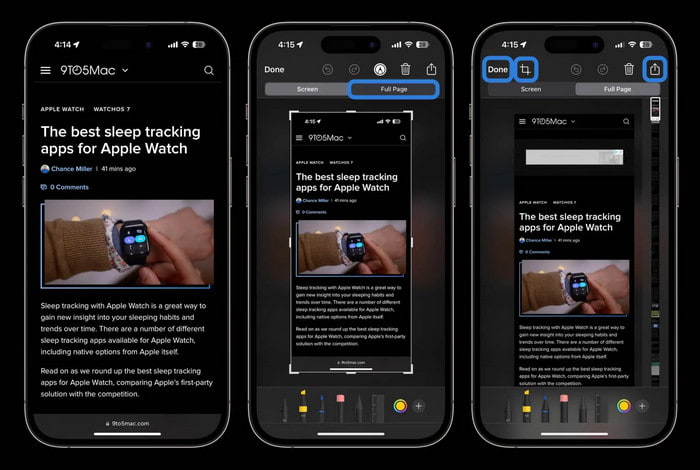
Step 1 To capture a screenshot on an Iphone, do the following:
- If your iPhone has Face ID, press the Power and Volume Up buttons.
- If your iPhone has Touch ID, press the Power and Home buttons.
Step 2 A thumbnail will appear on the bottom-left of your screen. Tap on it.
Step 3 There is a Screen and a Full Page tab at the top of the screen. Select Full Page.
Step 4 If you wish to adjust what is captured in the preview of the page, select the crop button and adjust the captured area to your liking.
Step 5 Tap Done, then select an option to:
- Save to Photos
- Save as a PDF to Files
- Copy to clipboard
- Delete
Part 3. How to Take a Scrolling Screenshot on Windows
You can easily capture lengthy webpages, documents, app windows, or chat threads with Tipard Screen Capture; it is a unique scrolling capture function. It automatically gathers all of your data as one image, so there is no need to capture individual sections manually. This app retains the original quality of your images and lets you edit them with integrated functions.

- Capture extended pages automatically in one continuous image.
- Keeps text and visuals sharp and clear.
- Works on Windows and Mac, and supports recording iPhone and Android screens.
- Capture full screen, specific windows, custom areas, and scrolling sections.
- Annotate, crop, preview, and manage screenshots before saving.
Step 1 Download and Install
Visit the official Tipard Screen Capture site. Download the Windows installer, launch the app, and follow the instructions to install. Make sure to run the app after the installation is complete.
Step 2 Select the Snapshot Tool
The screen capture will open, and the Screen Capture function will need to be selected. With this SnapShot option, you can only capture still images of the screen, and you will not be able to capture any on-screen video recordings.
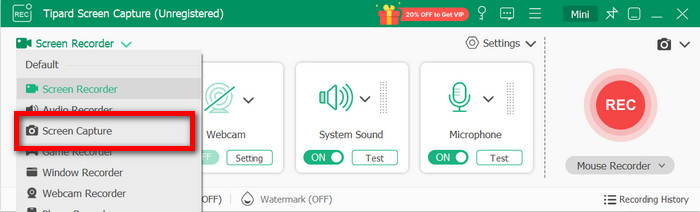
Step 3 Select the Scrolling Window
Go to the webpage, document, or app that you would like to capture. Select the Scrolling Screenshot option.
Step 4 Capture the Scrolling Screenshot
Click to start capturing. The Tipard Screen Capture app will automatically scroll through and capture the entire document.
Step 5 Capturing a Screenshot
Once you finish capturing the screenshot, a window preview pops up with several editing options. You can draw on the screenshot, add text, highlight, and crop the screenshot.
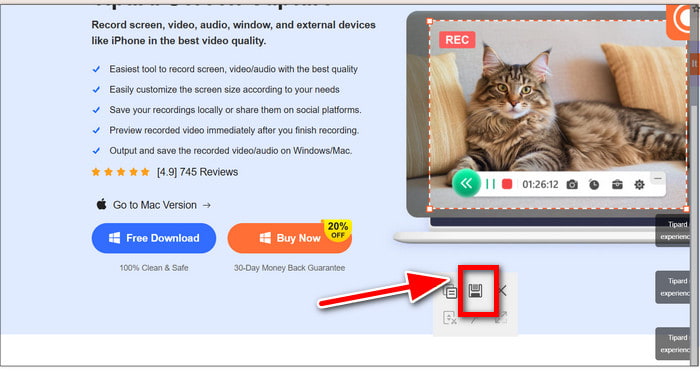
Step 6 Save Screenshot Captured
Once everything looks good from the editing options, click on the Save button. You can choose the format for your screenshot; the options available are JPG and PNG. After selecting the format and destination folder, the screenshot will be saved to your computer.
Part 4. How to Take a Scrolling Screenshot on Mac
macOS does not support scrolling screenshots with its default shortcuts, so using a screenshot Mac tool is recommended for capturing long webpages or documents. Shottr is a lightweight Mac utility with built-in scrolling capture, letting you quickly grab full webpages, long documents, and app windows in one high-quality image.
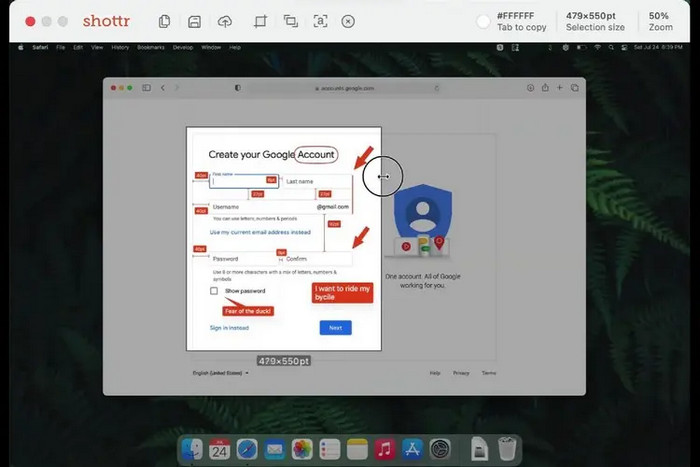
Step 1 Go to the Shottr official website and download the Mac version. Once the Mac version downloads, you will be able to follow the on-screen steps to finish the Shottr installation. Once finished, open the app.
Step 2 Access the web page, document, or app window you want to scroll.
Step 3 Choose the Shottr button on the upper side of your Mac screen.
Step 4 Choose the screen you want to capture.
Step 5 The tool will scroll through all the captures and combine everything into one huge image.
Step 6 Preview the captured image. You can annotate, crop, or highlight sections if needed. Click Save to store the scrolling screenshot on your Mac.
Conclusion
A scroll capture screenshot lets you save long webpages, chat threads, documents, or app windows in a single, continuous image, making it simple and efficient. By using the step-by-step methods for Android, iOS, Windows, or Mac, you can capture extended content accurately, maintain original quality, and easily edit, annotate, or save your screenshots professionally for later use.
More Reading




About the Author

 Click here to join the discussion and share your comments