

Factory resetting your Windows can help fix system errors, remove malware or viruses, and protect your personal data before selling your PC. If your PC is running slowly, infected with viruses, or experiencing startup problems, a factory reset may restore the system to normal. In this guide, you will learn several effective methods to factory reset Windows 8/7 with or without disc.

Part 1. How to Restore Windows 7 Without Disc via System Recovery Mode
Most Windows computer manufacturers provide either a system repair disc or a recovery partition to help users restore their computers. Major computer brands such as HP and Dell usually include a built-in recovery partition for restoring Windows. You only need to enter System Recovery Mode and use the System Restore feature. This is one of the easiest ways to restore Windows 7 without disc.
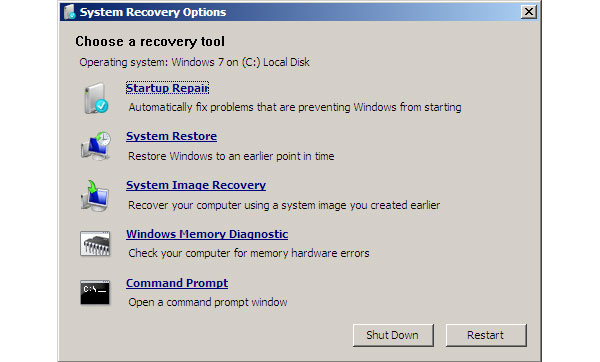
Step 1 Power on your Windows 7 computer. Once the logo shows up, hold down the F8 key to boot into the Advanced Boot Options screen. You can press the F8 key repeatedly to make sure the menu appears.
Step 2 Choose Repair Your Computer among Advanced Boot Options and hit the Enter key to open System Recovery Options window.
Step 3 On system recovery window, select the System Restore option and click on the Next button to continue.
Step 4 By default, system restore feature will choose the most recent restore point available. If you want to select a different restore point, check the box of Show more restore points and choose an appropriate one. Click on the Next button and then the Finish button to confirm the settings.
Step 5 Once you click on the Yes button, the restore process will begin. When the process is done, you can restart your computer to verify whether resetting Windows 7 to factory settings succeeds.
About Windows 10 computer reset, please click it here.
Part 2. How to Factory Reset Windows 7 Using a Repair Disc
The methods above are only available when you could access to your Window 7 or Windows 8 computer. If the operating system did not start normally, you have to utilize the system repair disc to fix the problems and factory reset Windows.
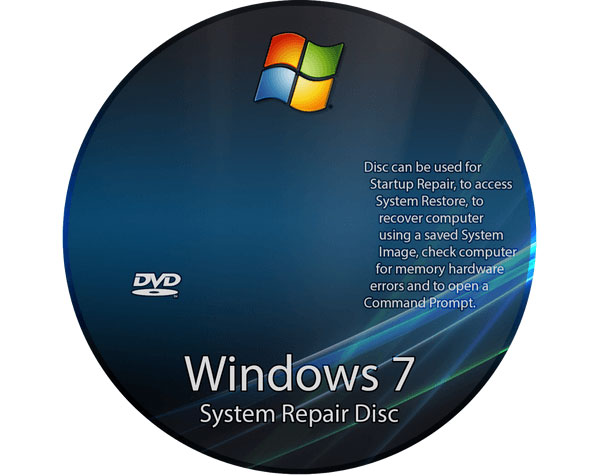
Step 1 Insert the system repair disc into CD-ROM drive. And reboot your computer as normal.
Step 2 When the message "Press any key to boot from CD/DVD or USB drive" appears, press any key on your keyboard. Otherwise, the computer will boot from the operating system normally.
Step 3 Click on the Next button to start recovering operating system. When system recovery is done, choose Windows installations and then click on the Next button.
Step 4 In recovery options window, choose System Restore and click on the Next button to move on. In next window, choose a restore point and follow the instruction to start factory reset Windows.
Step 5 Finally, when the factory reset finishes, reboot your computer as normal.
Your laptop gets no DVD drive? Check this post to learn about how to reset a laptop here.
This way is available for both Windows 7 and Windows 8. If you purchase the Windows systems from stores, you can find the system repair disc in the case. Or you can create a personal system repair disc on an accessible computer.
Part 3. How to Factory Reset Windows 7 without Password
The methods above only work when you can access your computer normally. However, if you forgot your Windows login password, you need to reset the Windows password first.
If you've created a Windows password reset disk earlier, you can use it to recover your account directly. However, many users do not have a reset disk prepared in advance. In this case, Tipard Windows Password Reset can help you reset Windows passwords without deleting personal files. It supports Windows 11/10/8/7/XP/Vista, and Windows Server 2003/2008, allowing users to regain access to locked computers easily.
1. How to make a bootable USB
Users could create a bootable DVD or a bootable USB drive. We use bootable USB as the example here.
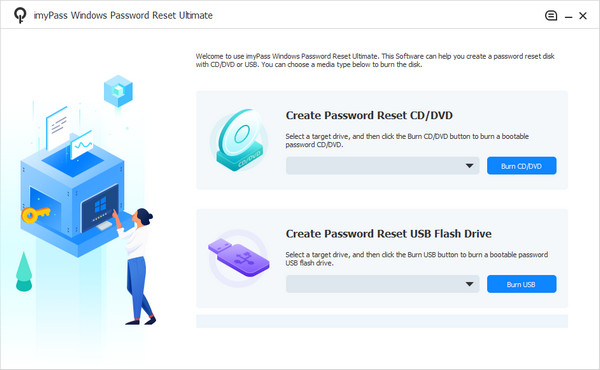
Step 1 Install and open Windows Password Reset/images/windows-password-reset/ultimate-reset-code.jpg on an accessible computer and plug a formatted USB flash drive.
Step 2 In the interface, click on the Burn USB button, Windows Password Reset/images/windows-password-reset/ultimate-reset-code.jpg will do the rest of the work automatically.
Step 3 When the bootable USB is done, tap on the OK button and unplug the bootable USB.
2. How to reset Windows password
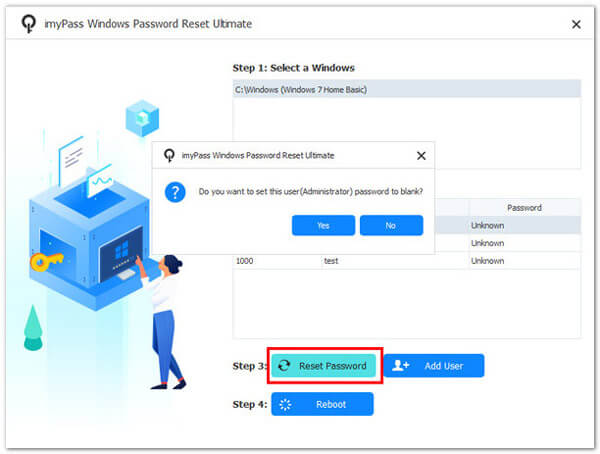
Step 1 Plug the bootable USB into your computer when you forgot Windows password.
Step 2 Before load operating system, the password manager screen will open automatically.
Step 3 Choose your account and reset the password by clicking on the Reset Password button.
Step 4 When you are done, unplug the bootable USB and reboot your computer with the new password.
For more details about Windows 7 password reset or bypass, check it here.
Resetting a Windows password may change account access settings. It is recommended to back up important data before making system changes.
Part 4. How to Factory Reset Windows 8/8.1 from Recovery Partition
Factory resetting Windows 8 or Windows 8.1 is much easier than in previous Windows versions. Microsoft introduced built-in recovery features that allow users to reset the system without using a repair disc. If you can still access your Windows 8/8.1 computer, you can use the built-in recovery option to reset the PC to factory settings.
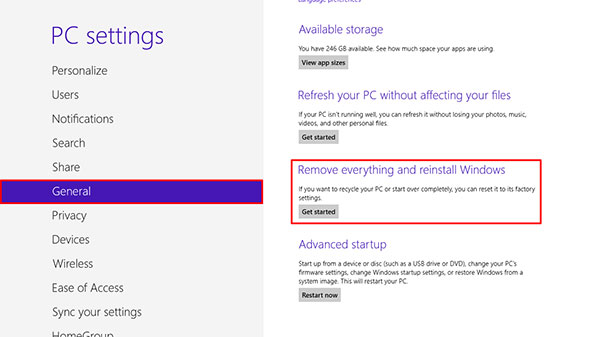
Step 1 Swipe at the left of screen to evoke the charm bar and choose Settings menu with a gear icon.
Step 2 In settings dialog, press the Change PC settings option.
Step 3 When the PC settings screen opens, locate to Remove everything and reinstall Windows section under the General tab. If your computer runs Windows 8.1, you have to select Remove everything and reinstall Windows in Update and recovery tab.
Step 4 Click on the Get started button and then press the Next button on Reset your PC window.
Step 5 Choose to remove Only the drive where Windows is installed or All drives to continue. And then select to Just remove my files or Fully clean the drive to move on.
Step 6 Finally, click on the Reset button to start factory reset Windows 8. A few minutes later, you will get a new operating system without malware or virus. Considering it removes all personal data from your computer, you'd better backup before resetting.
Conclusion
Now you should understand how to factory reset Windows 7 and Windows 8/8.1 efficiently. Depending on your situation, you can reset Windows using built-in recovery features or a system repair disc. Always remember to back up important files because the process may erase personal data. If you forgot your Windows password, Tipard Windows Password Reset can help you regain access without deleting your files.
More Reading

About the Author

 Click here to join the discussion and share your comments
 Windows Password Reset