

Fixing the OBS Encoding Overload issue is crucial, especially for skilled streamers and content creators who need professional and smooth broadcasts. This problem occurs when your system is having a hard time keeping up with the demand of real-time encoding, resulting in lag, choppy output, and dropped frames. In this guide, we will show you various solutions/methods you can use to deal with the issue. Thus, read here and get all the information you need.
Part 1. What Does Encoding Overload Mean on OBS
Have you encountered the 'Encoding Overload' issue when using your OBS Studio? Well, this issue or error shows up when your computer's hardware and OBS settings are incapable of handling the demands of real-time video encoding. It means that your GPU or CPU is struggling to process the video stream at the selected resolution, bitrate, and frame rate. When encountering this issue, you might encounter any problem with your video. The video recording will drop frames, be choppy, and become unstable.
Part 2. Quick Fixes: How to Stop OBS Encoding Overload Immediately
Are you struggling because of the Encoder Overload issue on OBS? Then, see the methods below to learn how to fix Encoder Overload on OBS.
Method 1. Run OBS as Administrator
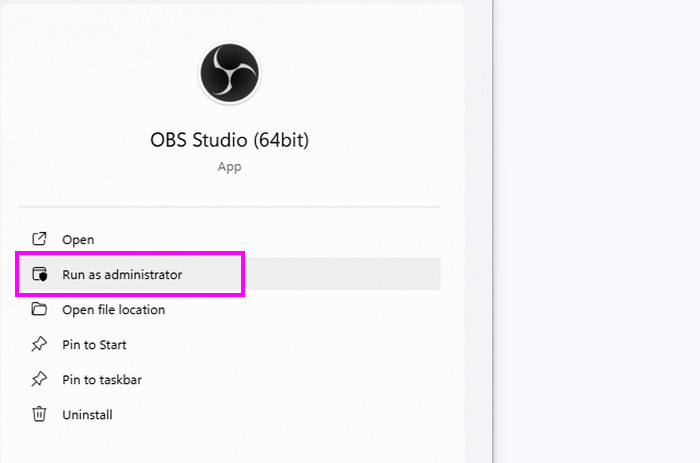
To deal with the OBS encoder overload issue, you can start running OBS as an administrator. With this method, you can access system resources more efficiently and focus on encoding tasks. It can also help OBS handle video processing without encountering any restrictions.
Method 2. Switch to Hardware Encoding (NVENC/AMD/QuickSync)
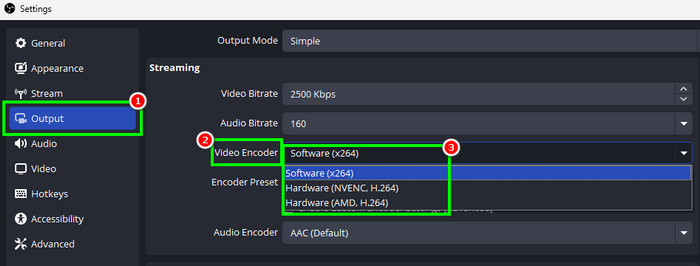
You can also switch to hardware encoding. It can help you reduce the usage of the CPU and help prevent overload, especially when playing and streaming at higher frame rates and resolutions. To change the encoder, you can proceed to the File > Settings options. Then, go to the Output section and start choosing your desired encoder from the Video Encoder section.
Method 3. Change Encoder Preset
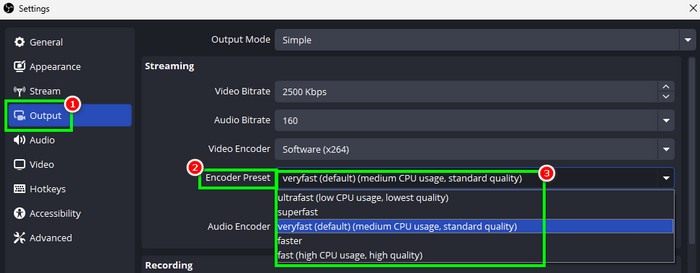
To learn how to fix encoding overload on OBS, you can also change the encoder presets. From the Settings section, you can choose your desired presets. You can choose Fast, Faster, Very Fast, Super Fast, and Ultra Fast. Selecting a faster preset can reduce the strain on the CPU by speeding up the encoding process. To change the Encoder preset, go to the File > Settings options. After that, navigate to the Output section and choose your preset from the Encoder Presets section.
Method 4. Reduce Output Resolution
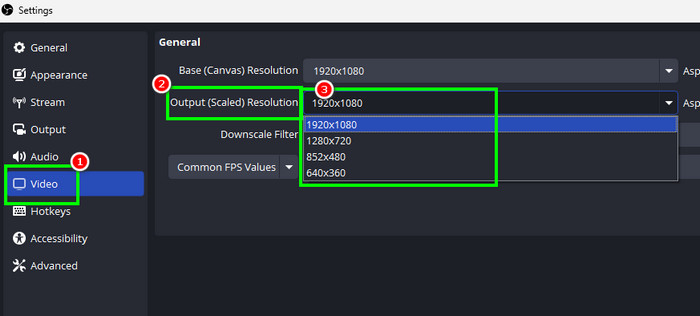
When streaming a video with a higher resolution, it may affect the CPU. So, if you want a smoother streaming and recording process, reducing the output resolution is one of the best solutions you can do. To start the process, go to the File > Settings options on your OBS. Then, select the Video options from the left interface and choose your desired resolution under the Output Resolution option.
Method 5. Close Other Programs in the Background
When using OBS, it is highly recommended to close other programs, like Discord or NVIDIA Overlay. Some programs can be the main cause of the encoder overloading problem. With that, it is best to close or 'end tasks' the background/software processes for a smoother process.
Using the best settings for OBS can be helpful for dealing with the encoder overload issue. So, you can try all the methods above to ensure that you can stream and record smoothly and effectively.
Part 3. Why OBS Studio Frequently Causes High CPU/GPU Usage
Do you wonder why your OBS Studio causes high GPU and CPU usage? Well, it is because it operates in real-time video encoding, compositing, and scene rendering. As we all know, all of these tasks are resource-intensive. When using complex scenes, high frame rates, high resolutions, and software encoding, it will load the CPU and GPU heavily. So, to deal with this problem, running OBS as an administrator, lowering the frame rate, and simplifying the scene can be the best solution.
Part 4. The No-Lag OBS Alternative: Tipard Screen Capture
Do you want to record or stream videos without encountering any overload issues? In that case, you must use an exceptional alternative to OBS Studio, like Tipard Screen Capture. With this recorder, you can record video smoothly since it can offer ultra-lightweight engineering. It can even give you an intuitive user interface, allowing you to navigate all the functions easily, making it ideal for all users. The program also has an automatic bitrate and other preset optimizations. What makes it more powerful is that you can even record the audio from the video and save it with the best quality. You can also have the final output in various formats, such as WMV, MP4, AVI, FLV, MKV, MP3, AAC, FLAC, and more.

- It can record the screen, video, and audio with the best quality.
- The recorder can customize the screen according to your needs.
- The program can offer its Preview feature to play the video after the recording process.
- It is available on both Mac and Windows platforms.
To start recording any content from your screen, you can use the instructions below.
Step 1 Download Tipard Screen Capture on your desktop. To easily access the recorder, click the buttons above.
Step 2 From the interface, you can customize your screen. Choose Full to record the whole computer screen and tap Custom to record a certain part of your screen.
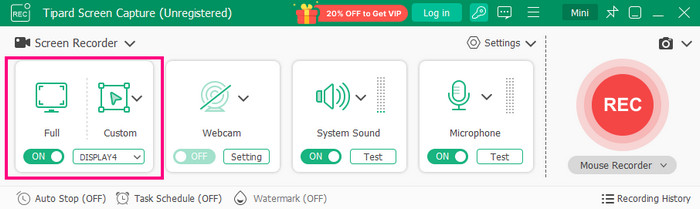
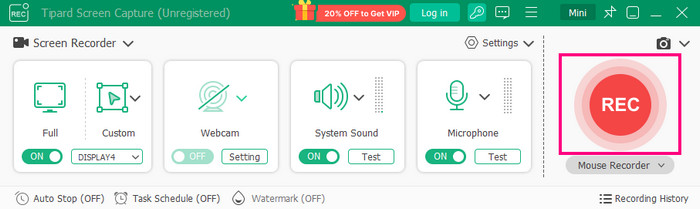
Step 3 To begin the recording process, hit the REC button. After the 3-second countdown, the software will begin recording your screen. Hit Stop to finish the recording.
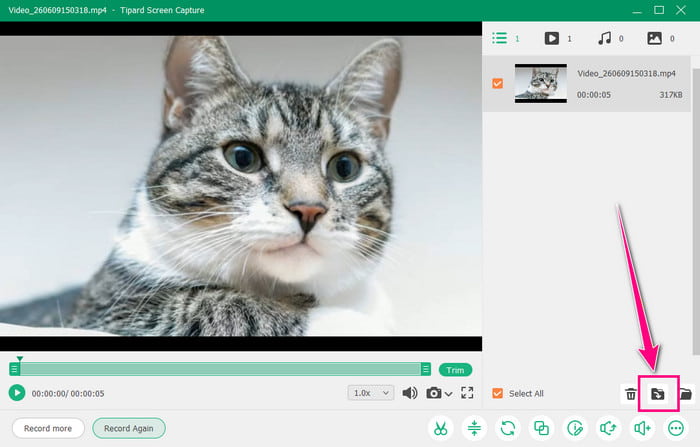
Step 4 Once the preview shows up, you can start hitting the Export button below to save the recorded screen on your computer.
Part 5. FAQs about OBS Encoding Overload
Is OBS easy to operate?
Using OBS to stream and record video is a simple task. With its simple-to-understand user interface, you can easily and smoothly achieve the result you need after the process.
Is OBS free to use?
OBS is an open-source and free-to-use platform. With this program, you can operate it based on your needs without spending a penny. It is also available on Mac and Windows, making it a top choice for content creators and streamers.
Can OBS offer a better recording process?
OBS is helpful as a recorder. However, if you are dealing with high-quality output, it may cause lag or encoding overload. So, if you want the best recorder, it is best to use Tipard Screen Capture. This recorder ensures that you can record any content without any lag or issues.
Conclusion
To learn how to fix the OBS Encoding Overload issue, you can use all the solutions we have offered in this post. You also get more insights on why OBS can cause high GPU and CPU usage. Plus, if you need the best replacement for OBS to record content without any problem, always rely on Tipard Screen Capture. With its recorder feature, you can record any content and save it with a higher video quality, resulting in a better viewing experience.

Record full screen, portion, window, game, and phone seamlessly without lag
100% Clean & Safe
100% Clean & Safe

More Reading


About the Author

 Click here to join the discussion and share your comments