

Key Takeaways
The best GIF maker depends on your needs:
- Tipard Video Converter Ultimate → Best for professional GIF creation
- Canva → Best for beginners
- Giphy → Best for memes and quick sharing
- Kapwing → Best online editor
GIF makers are in demand today because memes keep popping up everywhere online. People share trending jokes with GIFs for fun. But with many tools to choose from, it can be hard to know which one to use. Some are simple and fast, while others give more ways to edit and design. This guide will show the best desktop and online makers, compare their pros and cons, and explain some common concerns about GIF makers.
Part 1. Master Comparison of Online vs. Desktop GIF Makers
Online GIF makers shine in accessibility and convenience, letting you edit from any browser without installing software. They are perfect for quick tasks, light editing, or creating memes on the spot. However, they can feel limited when handling large or high-quality clips. For that reason, shifting to a moving GIF maker app may offer better performance and flexibility.
An animated GIF maker software is the way to go if you want a more reliable and full-fledged environment. Such programs provide you with complete quality control, frame rate, and editing without the need to have an internet connection. Online resources may be faster, but desktop ones provide the most impressive outcomes. If you prefer something ready to install, a GIF maker download will meet your needs perfectly.
| Aspects | Online GIF Makers | Desktop GIF Makers |
|---|---|---|
| Accessibility | Easy to access without installation. | Must be installed on a device. |
| Performance | Often struggle with large files or high-quality materials. | Perform with stability and consistency. |
| Dependency | Highly relies on the internet. | Work without an internet connection. |
| Editing Features | Usually support basic editing only. | Advanced editing tools and other features. |
| Output Quality | Quality can be limited; only recommended for casual creation. | Produce high-quality results, suitable for professional use. |
Part 2. Best GIF Makers Desktop
Our Test Standards
- Test Environment: Windows 10 Professional (22H2)
- File types: MP4 / JPG to GIF
- Test Materials: 2 MP4 videos of 13.2MB / 27.2MB to test video-to-GIF performance, and 2 JPGs of 48KB / 52KB to test images-to-GIF.
- Testing Rules: Uploaded each material to the software or website, and tested at least 3 times using the default settings of each tool. The processing time, output quality, and simplicity of use were measured.
- Reminder: The processing efficiency may depend on the device model, system version, carrier restrictions, and network conditions.
Tipard Video Converter Ultimate
When you need a GIF creator downloaded on your PC to create the latest GIF to be posted on the web, Tipard Video Converter Ultimate is here to help. It specializes in creating GIFs from videos, images, and image compilations.
Tipard Video Converter Ultimate is best for users looking for a powerful animated GIF maker that runs smoothly on a PC. It is ideal for creators who want to turn short clips, photos, or image sets into eye-catching GIFs.
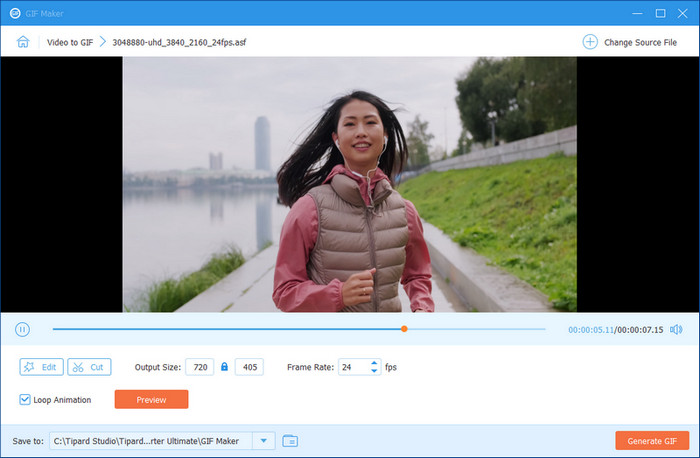
With its built-in editor, you can trim, crop, and fine-tune your files before exporting. The tool also lets you adjust frame rate and size for better results. Whether you are crafting memes, social media loops, or fun animations, Tipard makes the process both easy and professional.
- Supports a variety of media files to turn into a high-quality GIF.
- Intuitive editing tools comparable to other professional software.
- Offers a well-rounded ripper, MV, and collage maker.
- No watermark added to the final product when exported for free.
- GPU acceleration for a fast conversion speed.
- Available to be downloaded on Windows and Mac for free
- The free version is limited.
Wondershare Filmora
Wondershare Filmora works for both GIFs and videos. You can upload a series of videos or images you want to create GIFs with, make edits on them, and Export in the GIF format. With its powerful editing features and high export quality, it can serve as a perfect movie GIF maker.
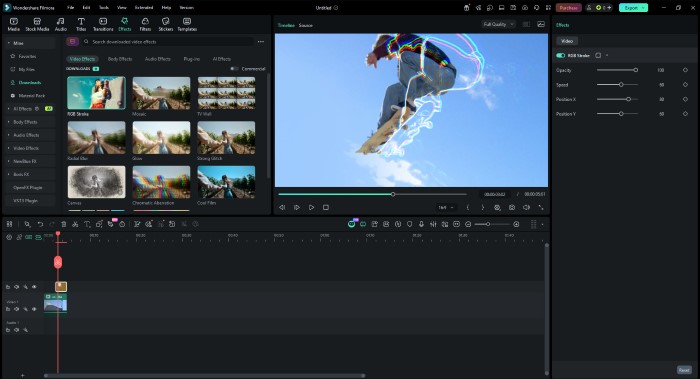
- Excellent GIF maker from images and videos.
- Rich features to trim and edit before exporting.
- Produces results lightning fast.
- Has limited free features.
- Users complain about the company's annoying upselling.
- Because it is a full video toolbox, it may feel overkill if you only want simple GIF creation.
GIF Animator
GIF Animator is a lightweight GIF maker that lets you build animations by importing images, editing frames, or converting short video clips.
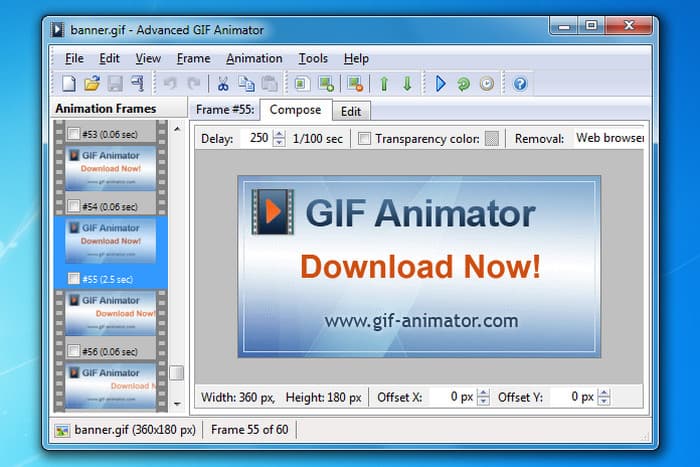
- Accepts numerous image types and allows you to create an animation using text, effects, and time-dragging controls.
- No frills, low-end tool that is excellent for producing GIFs quickly.
- Affordable and portable installation.
- The interface appears dated.
- Low-resolution videos and elaborate editing are not supported
- Not good for massive, multi-frame GIF work.
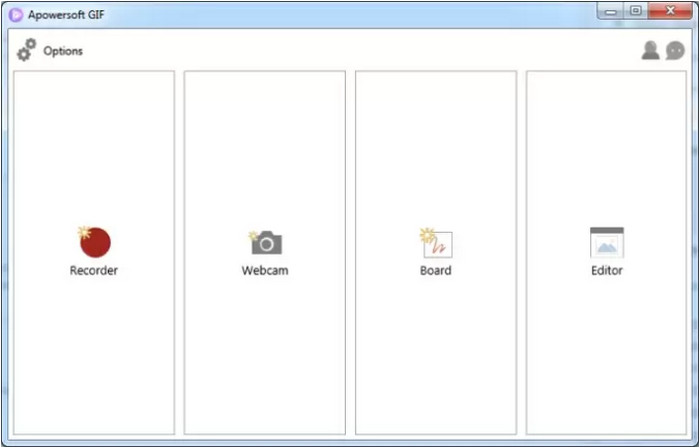
Apowersoft GIF
Apowersoft GIF is a dedicated GIF maker free desktop software that permits you to convert videos, images, or screen recordings into GIFs. You can edit frame-by-frame, add text or watermarks, and crop or resize easily.
- Supports converting videos and images into high-quality GIFs.
- Allows you to trim and edit before exporting.
- Beginner-friendly interface with stable performance.
- Advanced tools are for paid users only
- Limited complex video editing before GIF conversion.
- Performance may slow with large or high-frame-count GIFs.
Part 3. Best GIF Makers Online
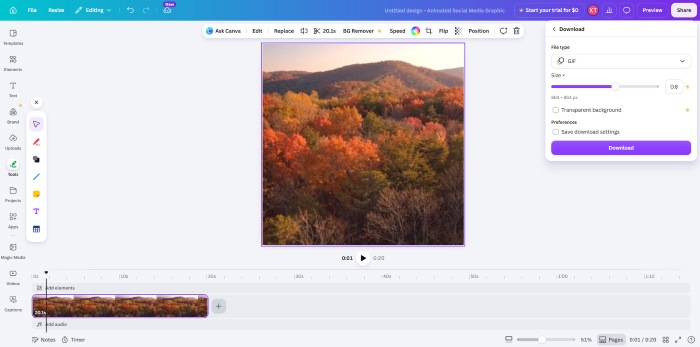
Canva GIF maker
Canva is an all-in-one design tool that also works as a video-to-GIF maker. Canva video editor lets users turn short clips or animations into looping GIFs using its templates, transitions, and text tools – perfect for social media visuals.
- Massive template and design library.
- Easy to promote, advertise, or share on social media.
- Team working space.
- Requires a Pro for full access.
- Web-based, hence relies on the internet stability.
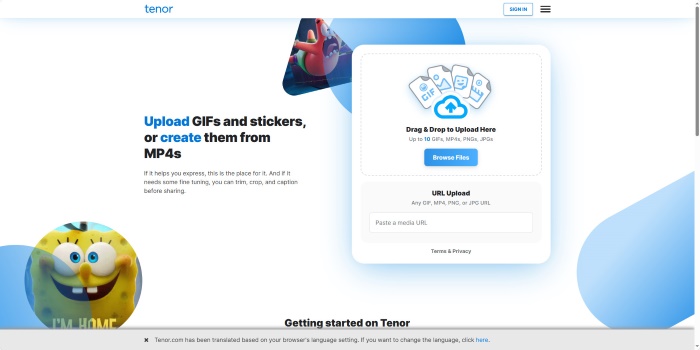
Tenor GIF maker
Tenor is a free animated GIF maker that lets you make GIFs with videos and edit existing GIFs directly in your browser. It also allows you to upload your GIFs to Tenor's library and get feedback from the community. It's best for users who need to quickly create and share a GIF.
- 100% browser-based and free.
- Easy to share with an excellent community.
- Simple and user-friendly interface.
- Limited editing.
- Doesn't support creating GIFs with images.
- Transparent GIFs are sometimes mistaken for stickers.
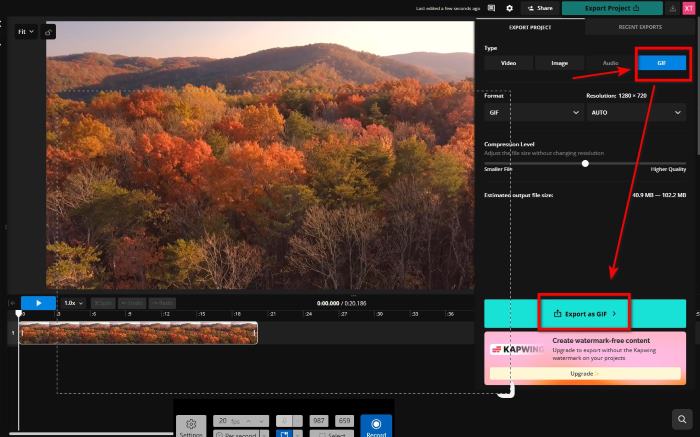
Kapwing GIF maker
Kapwing is a reliable web GIF maker that offers editing tools for resizing, trimming, and adding captions. It also supports transforming YouTube or imported videos into GIFs with full browser-based editing.
- No software needed.
- Supports both video and image inputs.
- Allows adding text, stickers, and filters.
- Watermark in the free version.
- Processing may slow on larger files.
- Requires login for long or HD GIFs.
Adobe GIF maker
Adobe GIF maker is a free video-to-animated-GIF maker provided by Adobe Express. It converts video clips to GIFs completely online. It is designed for quick creation for all kinds of sharing.
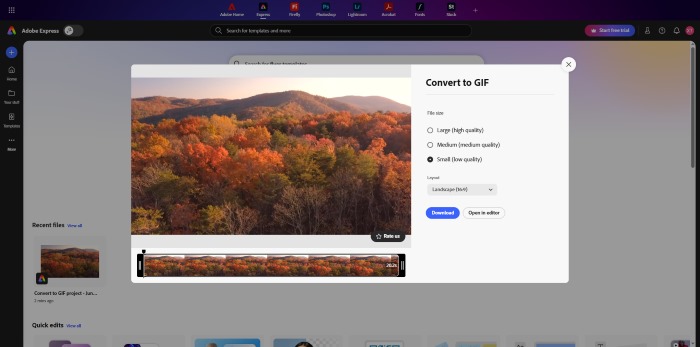
- Supports changing size and aspect ratio.
- Connected to Adobe Express for further editing.
- No installation needed.
- Adobe account needed.
- Converts videos only.
Makeagif
Makeagif is a perfect GIF meme maker that offers a variety of methods to create GIFs, including transforming videos from YouTube, TikTok, or Facebook. It lets you resize, change the speed, and add stickers and filters. If you sign in with your Facebook or Twitter account, you can share the funny GIFs you make directly to your social media.
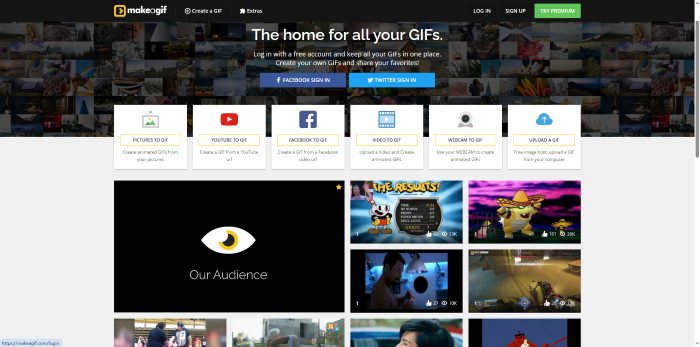
- Supports making GIFs with existing videos or images from social media.
- Basic online editing features.
- Easy to share.
- Watermark on free usage.
- Slow performance.
Giphy GIF maker
Giphy allows you to create with videos, images, or existing media, without downloading any software. It is also a fantastic bulk GIF maker that can edit multiple GIFs at a time.
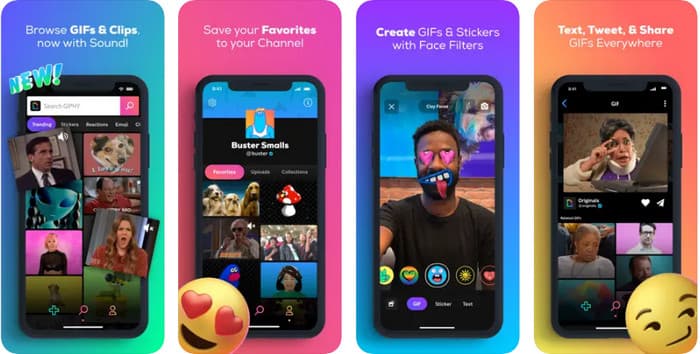
- Capable of bulk edits.
- Supports various file formats of videos and images.
- Clean and modern interface.
- Runs rather slow if the internet isn't working well.
- Login required.
Synthesia
Synthesia is a clever GIF caption creator that also works as an AI GIF maker. It creates GIFs with chatting avatars, text labels, and expressive movements. It is ideal in marketing, tutorials, or memes because it uses AI avatars to make written text come alive. The application automates the creation of videos and GIFs, which saves time and makes the results interesting.
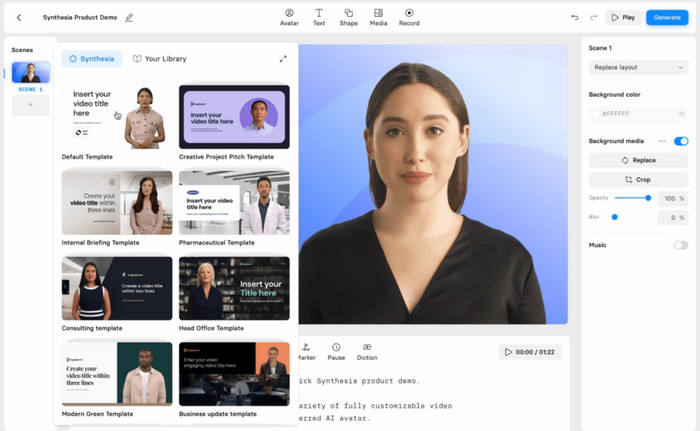
- AI avatars convey a unique and realistic feel.
- Perfect for promotional or educational GIFs.
- Easy-to-use text-to-animation workflow.
- Limited avatar and style customization in the free plan.
- Exports can take longer clips.
- Output may appear robotic in certain templates.
Part 4. What Makes a Great GIF?
Creating a great GIF needs:
Clear purpose. Now we have so many powerful tools, the next step is to make clear what you want from your GIF. Is it for advertising your brand? For a professional demonstration? Or is it a hilarious meme to share with friends and family?
Strong visual composition. Once the purpose is decided, think about what you want in the GIF and how to arrange it. The main subject should be easy to identify. If text is included, it should be clear and readable. A little trick from me: use colors of strong contrast to emphasize your main subject and text.
Correct duration. This is vital for your audience to feel comfortable watching your GIF. A GIF too short can make the audience feel a rush, while a GIF with a long duration wears out people's patience.
Optimized file size. A high-quality GIF is useless if it's too large to be uploaded or shared. Crop unnecessary areas and choose an appropriate resolution to keep the file size moderate.
Seamless loop. Since GIFs play repeatedly, it's important that the transition from the last frame back to the first feels natural. A smooth loop makes the animation more enjoyable to watch, hence gaining more engagement.
Part 5. Why Most Free Online GIF Tools Ruin Your Animations
- Free online tools often compress GIFs strongly. leading to a drop in resolution and frame rate.
- Free online tools may cut colors massively to save space. Since GIFs can only use up to 256 colors per frame, their colors become extremely rough after being cut.
- Some "free" tools produce limited results on purpose to push you into purchasing their advanced licenses.
Part 6. FAQs of GIF Maker
Are online GIF makers safe?
Mostly safe, but there are still potential privacy risks – after all, they store your uploads on their own server. If you worry about this, remember not to upload sensitive or private content to online GIF makers. Or you can use offline software to prevent risks from the start.
Why are my GIFs not moving on social media?
Probably because your GIF file is too large, or there are too many GIFs loading on the same page. Try compressing your GIF with tools like Giphy or converting GIFs to MP4 for certain platforms (Twitter, Instagram, etc.) to improve fluency, which Tipard can help you with.
How to make GIFs on mobile devices?
I recommend dedicated GIF mobile apps: Giphy and ImgPlay work well on both iOS and Android. Also, you can use online GIF makers on your phone's browser, but the quality and speed are not guaranteed.
How to make GIFs with a transparent background?
Some transparent animated GIF makers allow you to remove the background. Adobe Express can do it automatically. If you prefer an online tool, try Canva. The most precise way is to remove it with Photoshop Magic Wand.
Conclusion
Whether it is to make memes, ads, or demonstrations, the best GIF maker depends on what you need. Among the 11 best GIF makers, online tools like Canva and Tenor are perfect for quick, casual creations. Desktop software like Tipard provides professional control and high quality. By understanding your purpose and the tools' strengths and weaknesses, creating an impressive GIF is a breeze.

All-in-one video toolbox: convert, edit, upscale, enhance, and compress your videos easily
100% Clean & Safe
100% Clean & Safe

More Reading
About the Author

 Click here to join the discussion and share your comments
 Tipard Video Converter Ultimate