

Learning how to compress a video for email is essential when sharing clips through platforms with strict attachment limits. Large videos often fail to send, lose quality, or frustrate recipients. This guide explains why compression matters, shows four practical ways to reduce video size, and shares tips for sending large files smoothly. By the end, you will know how to keep videos clear, compatible, and easy to deliver by email securely.

Part 1. Why You Need to Compress a Video for Email
It is helpful to know that compression saves the most time when sending videos over email. Email services are not equipped to handle large files, and sending large videos without compression via email leads to delivery failure.
1. Emails generally allow attachments of 20-25MB.
2. Videos can be compressed to make them small enough to send via email without being blocked or bounced.
3. Recipients with slow or limited internet access will benefit from the quick upload and download speeds of smaller files.
4. When emails and devices are being used, compressed videos tend to work better because there are fewer variables and more compression.
5. When sharing videos, file size and quality are properly balanced, which makes video compression more reliable.
Part 2. 4 Strategies to Compress a Video for Email
When you use the right compression method, sending videos via email can be simple. Here, we show you four quick and easy solutions, starting with a dedicated tool with more control, and followed by simple tricks you can use with almost any video.
1. Tipard Video Converter Ultimate (Recommended)
Tipard Video Converter Ultimate addresses the problem of how to compress videos for email seamlessly. With speed, quality control, and support for a large number of file types, it is suitable for both beginners and advanced users. It is a comprehensive video processing software that lets you compress large videos to size while retaining clarity and quality. The software’s built-in encoder lets you manually set file size, file type, and resolution, which is great for email size restrictions.

- Easily compress videos using a built-in compression controller.
- Set a specific target file size for fast and accurate compression.
- Maintain decent video quality after file size reduction.
- Support multiple video formats and codecs, including MP4, MOV, MKV, AVI, and AV1.
- Use hardware acceleration for faster processing with low CPU usage.

Step 1 Download and Install
Video Converter Ultimate from the official page and run the installer. After the installation is complete, open the application.
Step 2 Access the Built-In Video Compression Tool
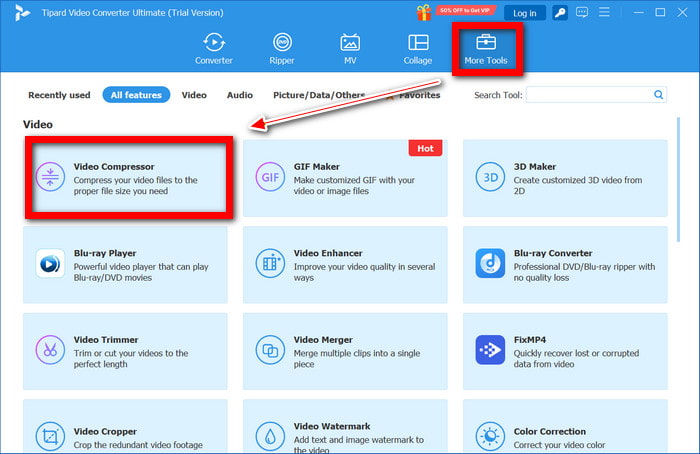
From the main screen, select More Tools, and choose Video Compressor to open the compression feature.
Step 3 Import the Video to Be Compressed
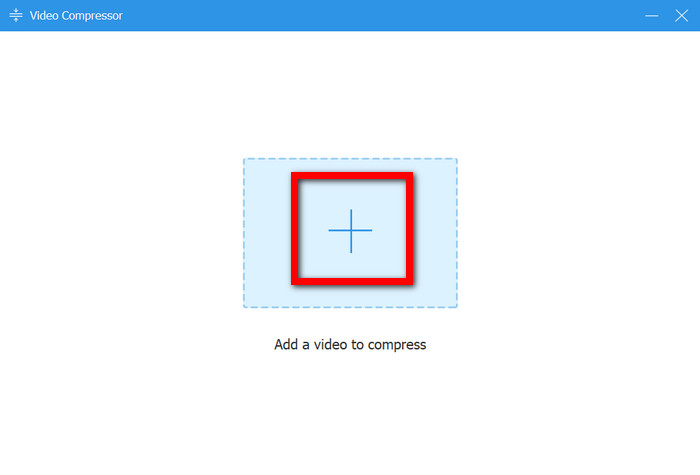
Locate the video file you wish to compress and upload to email, and select the Add video to compress or Plus button.
Step 4 Specify the File Size Limit
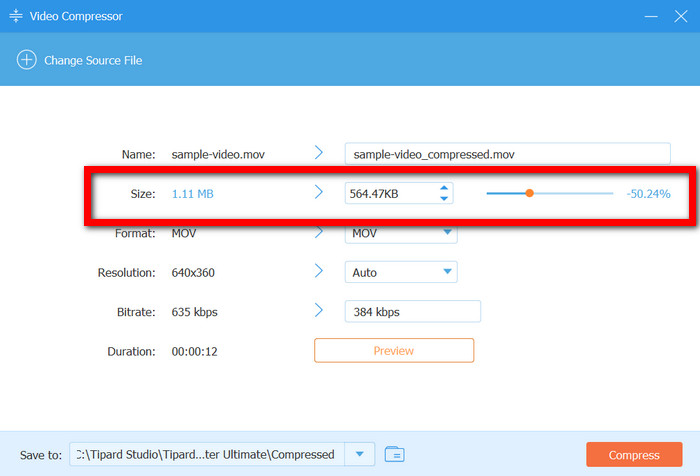
To prevent issues with email uploads, specify the size limit according to your email service provider's attachment policies.
Step 5 Configure the Output Preferences
If you want, adjust the Size slider, including the resolution, format, and bitrate, before previewing the compressed video to check the quality.
Step 6 Export the Compressed Video
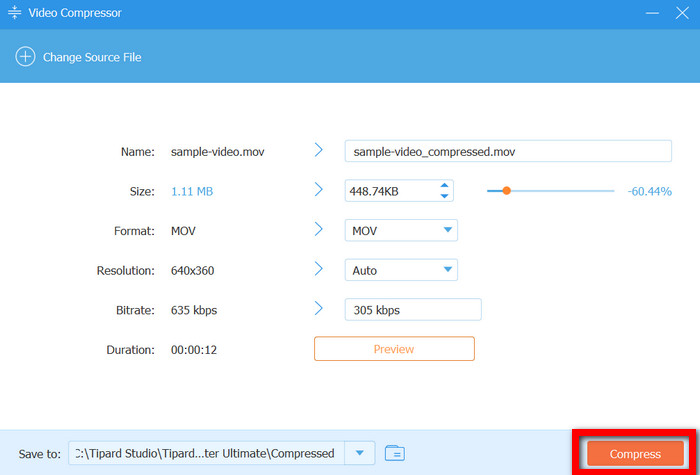
Click on Compress to begin. After the process is complete, you may now attach the compressed video to your email.
Why We Selected It
supports many different formats. This versatility is particularly useful to compress videos on Mac for emailing, where strict size limits apply and maintaining visual quality is still important.
2. Downscale the Video Resolution
To shrink the size of the video file, you could try lowering the video resolution. If you have a video that is 4K or 1080p, converting it to 720p or 480p is a great way to reduce the size of the file. This is a great technique to use for informational and casual videos where the resolution isn’t as important.
3. Clip or Trim Unnecessary Parts
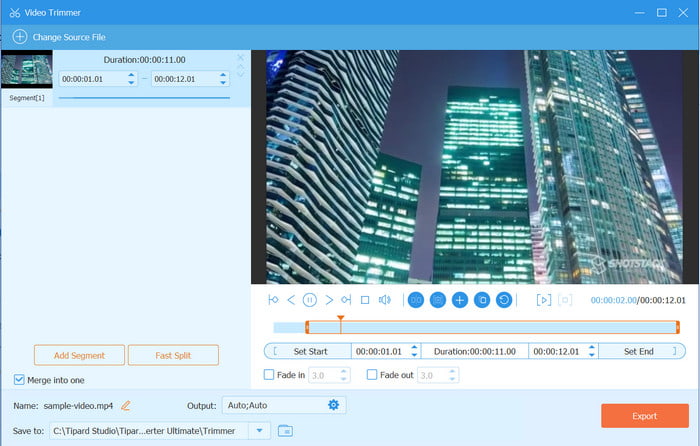
When you shorten the length of a video, you also reduce the size of the file. Trimming the video of its unnecessary intro, outro and filler content keeps the video focused on the content that matters. This is helpful when you want to send quick updates via email.
4. Reduce the Frame Rate
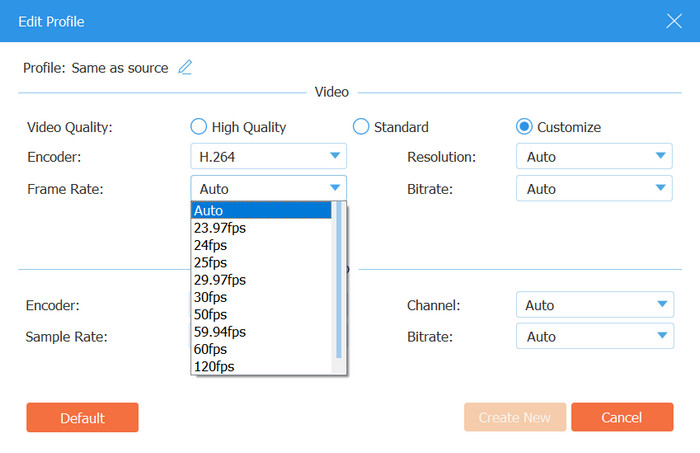
Another great way to reduce the size of a video file is to lower the frame rate. This is especially helpful for videos that are 60, 30, or 24 fps. Lowering the frame rate of a video to 30 or 24 fps is often unnoticeable, but it does reduce the size of the file significantly. This technique is great for speaking videos and presentations that don’t involve a lot of fast action.
Part 3. Tips for Sending Large Videos via Email
Some videos are still too big to send as direct email attachments, even after compressing them. In these cases, using alternative sharing methods can save time and prevent delivery issues.
1. Use ZIP Files When Slightly Over the Limit: Videos can have their size changed via zipping to meet email size restrictions. This works in a pinch for files slightly over the limit and when sending multiple videos together, but extremely large files won’t benefit, regardless of the best video compression format used.
2. Download or Streaming Links: In the case where videos are far over email size limits, the most dependable option is to share a cloud link. This totally removes size restrictions and email bounces.
3. About Links and Permissions: To avoid access issues, make sure the person has the proper access to the video to download or view it.
4. No Automatic Compression: Some email services will automatically compress videos, lowering the quality. Using cloud links or zip files helps to make sure that quality is preserved.
5. State File Sizes and Formats: If the email has a link, say so. Recipients appreciate knowing what to expect, and knowing the file size and format is also helpful.
Conclusion
To compress video files for email, choosing the right method makes sharing faster and more reliable. Whether you use dedicated software, adjust video settings, or share links, proper compression prevents size errors and quality loss. Apply these strategies to send videos smoothly and ensure recipients can view them without hassle.
More Reading



About the Author

 Click here to join the discussion and share your comments
 Tipard Video Converter Ultimate