

Converting AVI to MP4 on Mac ensures smoother playback, smaller file sizes, and better compatibility across devices. This guide covers the top 7 methods, including free, online, and professional tools, helping you choose the best solution for your videos.

Part 1. Why You Need to Convert AVI to MP4
It is easy to convert files and download documents in MP4 format on Mac and other devices. For a smoother MP4 download and playback, sharing and compatibility across devices, convert your AVI files to MP4.
1. Compatible formats: MP4 can be played on iOS, Windows, macOS, and smart TVs. AVI, on the other hand, requires extra apps or codecs that are not compatible across devices.
2. Space: The compression on MP4 formats is efficient and will keep high video quality, ideal for cloud sharing and storage for later access.
3. Uploading: Social media, cloud services, and other websites all have MP4-formatted videos as a sharing standard, making uploading to play on their streams much easier than with AVI formats.
4. Error-free playback: MP4 formats are more stable for playback as they use modern codecs, which cause playback to use fewer resources and be smoother.
5. Convenience: Many windows and free online converters will use the MP4 format for files they convert, making the files much easier to edit, transfer, and keep for a long time.
Part 2. 7 Best Methods to Convert AVI to MP4
1. How to Convert AVI to MP4 with Tipard Video Converter Ultimate
If you are in the market for an AVI to MP4 converter, Try Tipard Video Converter Ultimate for Mac. Unlike free online converters, Tipard is user-friendly and includes advanced editing, video enhancement, and quality modifications not available in online converters. Tipard converts files in high resolutions and is a fast and flexible converter. Choose Tipard Video for reliable offline conversion, free of user file size limitations and quality loss.
Step 1 Download and Install
You need to go to the official website to get Tipard Video Converter Ultimate for Mac, install it, and start the application.
Step 2 Add AVI Files
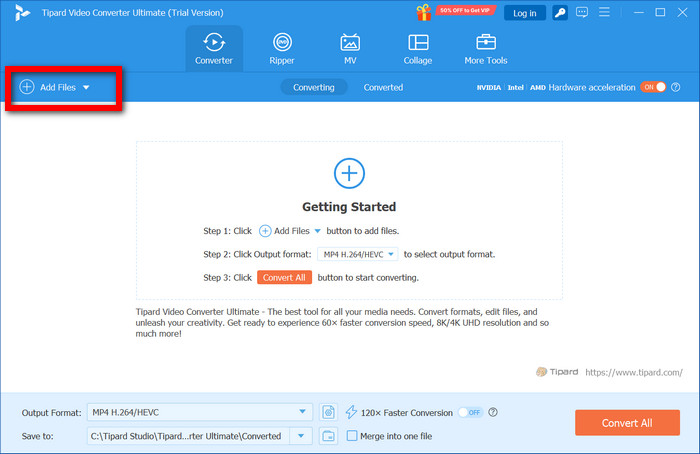
To add one or more AVI videos from your Mac to the conversion queue, click Add Files.
Step 3 Choose MP4 Output
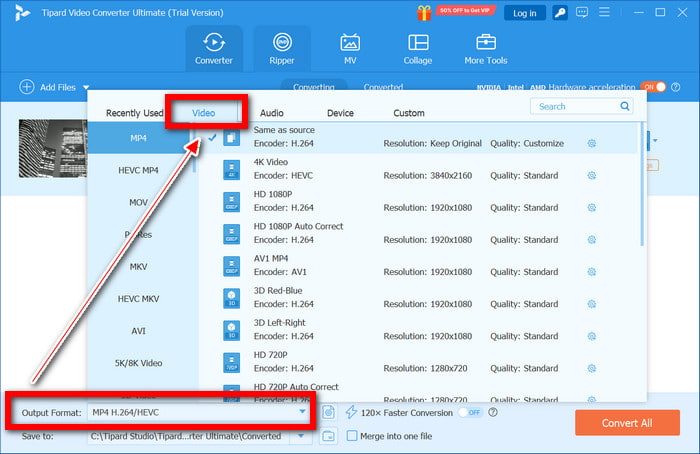
To choose MP4 from within the Video tab, click the Output Format menu. Alternatively, choose one of the presets for Mac, iPhone, iPad, or 4K.
Step 4 Edit Video (Optional)
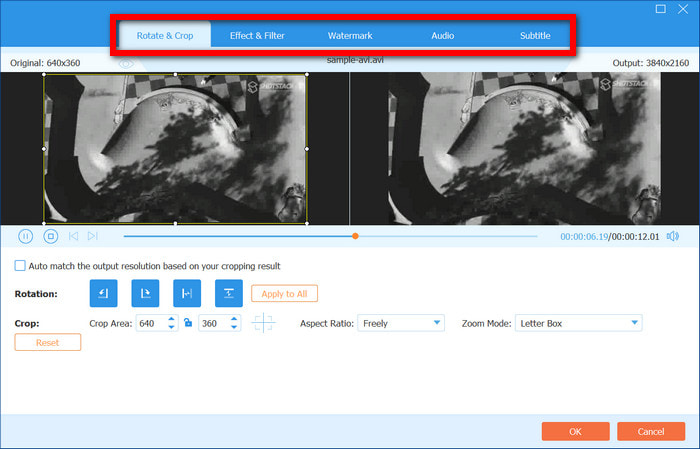
You can use the editing tools to make adjustments to subtitles and audio tracks, add or modify filters and watermarks, and make other changes such as trimming, cropping, or rotating.
Step 5 Convert to MP4
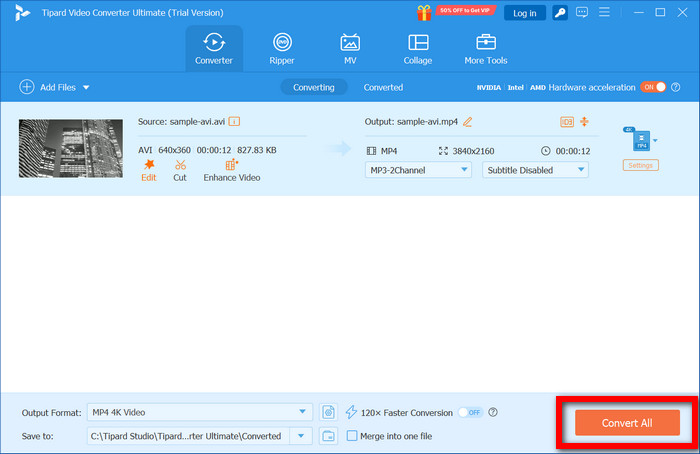
Click Convert All after selecting an output folder. MP4 versions of the AVI files will be produced in a matter of seconds without any loss of quality.
Why We Selected It
1. Batch conversion of 120× faster speed: AVI files are converted to MP4 in batches and in record time due to the use of a powerful GPU, unlike other tools, where the conversion speed is low.
2. Extensive compatibility of MP4 presets: Optimized MP4 presets are available for 4K, iPhone, iPad, Mac, and other devices. Enhanced performance is guaranteed on all Apple devices.
3. Automatic video quality improvement AI: For an output video with good quality, the AI lowers noise, stabilizes the image, and improves the resolution.
4. Sophisticated but user-friendly editing functions: Let the user cut and change the rotation, and adjust the length of videos, along with the ability to apply different filters and watermarks, as well as edit subtitles and audio tracks.
2. How to Convert AVI to MP4 with VLC Media Player
VLC Media Player is a well-known free desktop media player that serves as a basic AVI to MP4 converter. It is a good option if you want an offline alternative to online converters and already have VLC installed.
Step 1 Launch the VLC Media Player. Then, click the Media button located at the menu bar and select Convert/Save.
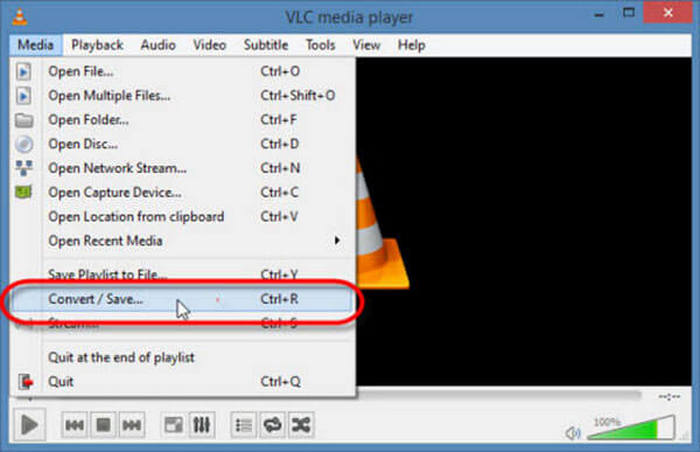
Step 2 Click the Add button, choose the AVI file that you want to convert to MP4, and click Open.
Step 3 Click the Profile drop-down menu and select MP4 as the output profile format.
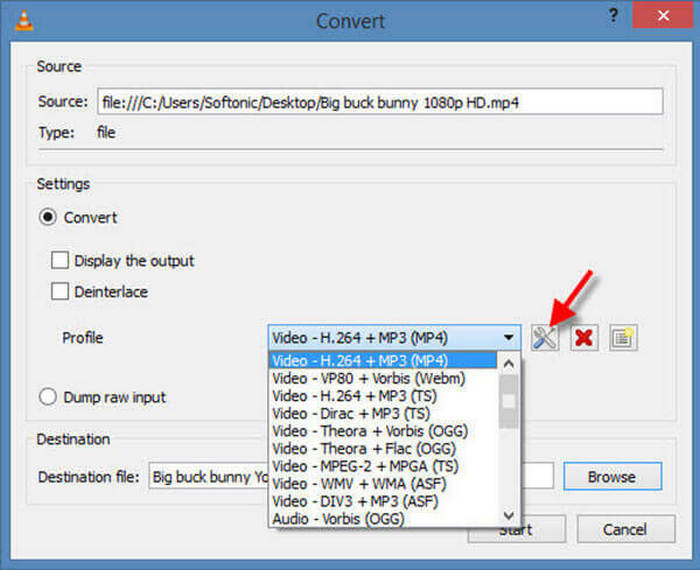
Step 4 Click the Browse button to select a destination folder, and click the Start button to convert the AVI file to MP4.
3. How to Convert AVI to MP4 with HandBrake
HandBrake is a free and open-source video converter that provides reliable AVI to MP4 conversion with several preset options. This converter is the best choice for users who want more control compared to what most free online converters have to offer.
Step 1 Launch HandBrake, and use the integrated file browser to open your AVI file.
Step 2 From the preset panel, choose any preset that is MP4 for the output video.
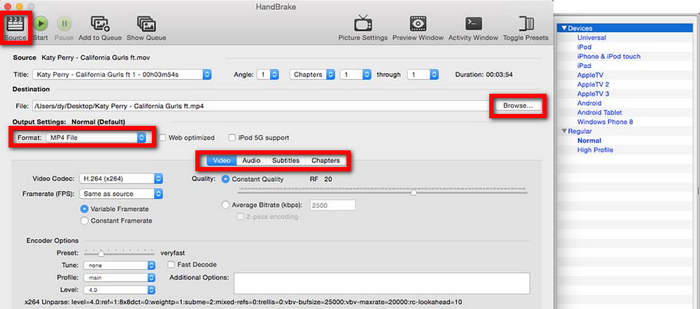
Step 3 Suppose you want to customize video settings. If you do not, the software is set to use the default options for a quicker conversion.
Step 4 Click on Start to convert the AVI to MP4.
4. How to Convert AVI to MP4 with QuickTime Player
In macOS, QuickTime Player is a free built-in app that can convert videos without downloading other applications. This should be done with small AVI files, as it will serve as an exportation method for obtaining MP4 videos. It is efficient for smaller exportations and simple to understand.
Step 1 Launch your AVI file with QuickTime Player click File > Open File.
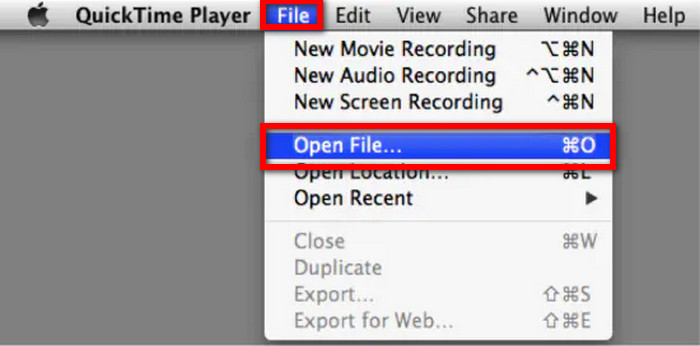
Step 2 From the upper menu, choose File > Export As.
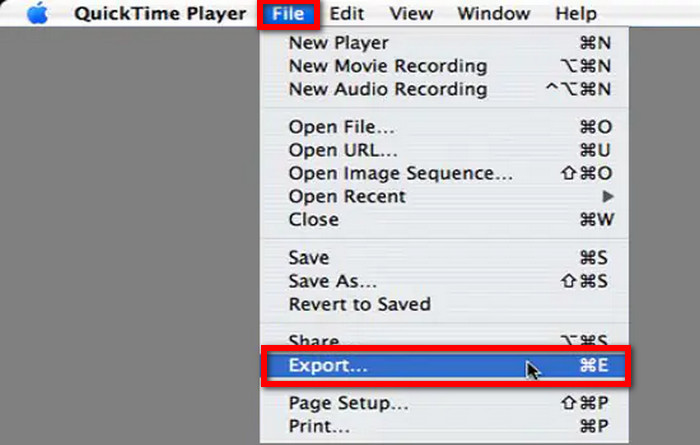
Step 3 Export resolution should be MP4 and should be chosen.
Step 4 Click Save and let QuickTime Export MP4.
5. How to Convert AVI to MP4 with iMovie
Another free video AVI to MP4 converting software is iMovie, a video editor for Mac designed for users who would like to modify videos prior to creating the final version in MP4. Such changes can vary from trimming clips to the addition of effects and audio.
Step 1 Launch iMovie, click on Add Media, then Add Video.
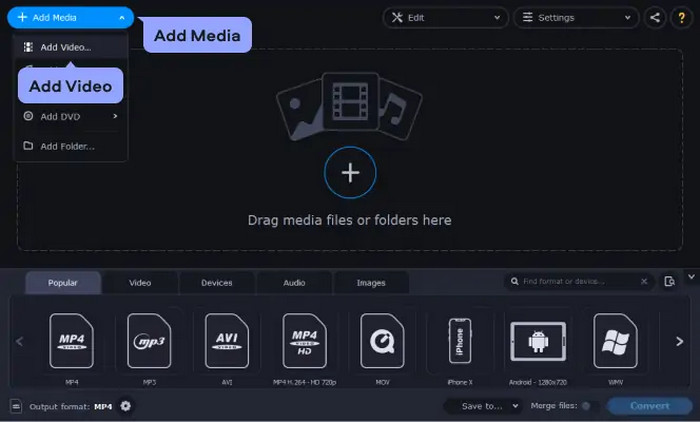
Step 2 Move the video clip to the project timeline.
Step 3 Select and Video, then click on the MP4.
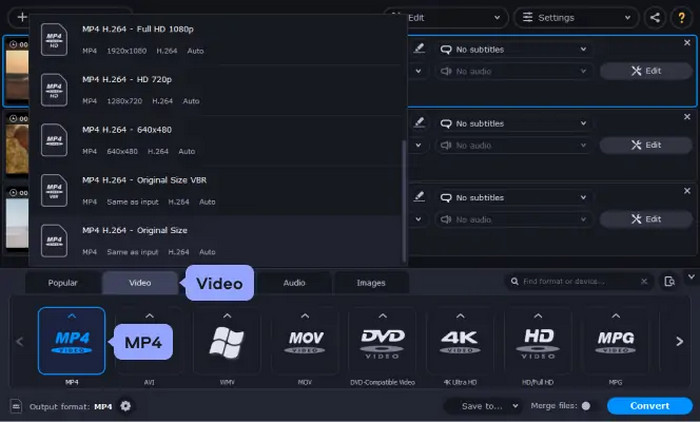
Step 4 Wait for the conversion to MP4 and the file to be processed.
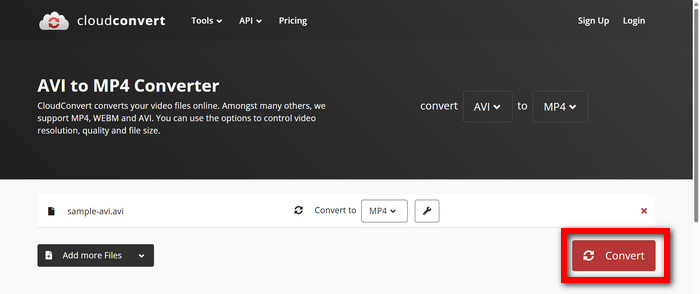
6. How to Convert AVI to MP4 Online with CloudConvert
CloudConvert is a reliable free online AVI to MP4 converter that lets you convert videos quickly without installing software. It is ideal for short or small AVI files, providing a fast, convenient way to get MP4 videos directly from your browser.
Step 1 Go to the CloudConvert website and upload your AVI file.
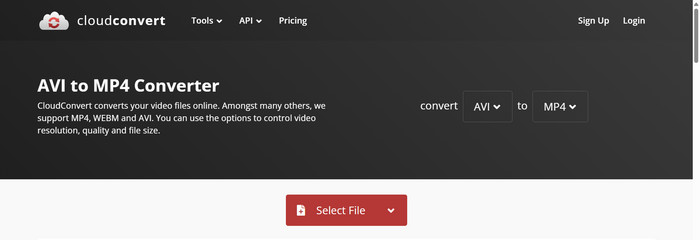
Step 2 Choose MP4 as the output format.
Step 3 Adjust optional settings like resolution or codec if needed.
Step 4 Click Convert and download the MP4 file once the process is complete.
7. How to Convert AVI to MP4 with Online-Convert
Online-Convert is one of the many free and reliable software programs that let you convert AVI files to MP4 without prior downloading. It is ideal for small or lightweight videos, offering a fast and simple way to change file formats without installing software, making quick conversions effortless.
Step 1 Go to Online-Convert and upload your AVI file.
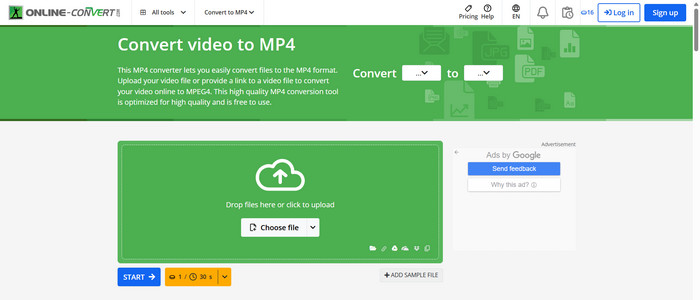
Step 2 Choose MP4 as the output format.
Step 3 Click Start to begin the process; time depends on file size.
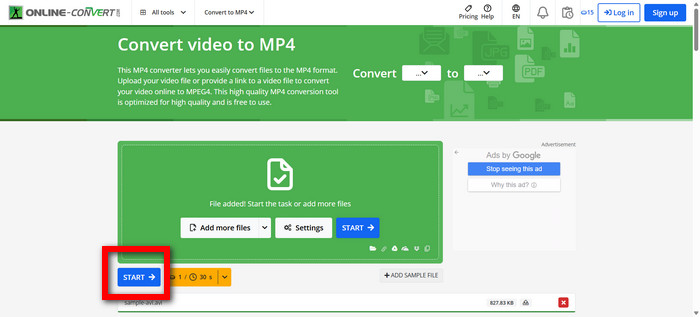
Step 4 When finished, download the MP4 file and check playback.
Part 3. Quick Shorts of Top 7 AVI to MP4 Converters
Here is an overview of the best AVI to MP4 converters in the market, along with their best uses:
1. Tipard Video Converter Ultimate
Best for: Superior, efficient, quicker simultaneous conversions with 4K video resolution, editing, and AI features. Great for users wanting total customization with presets, and offline, no size limit conversion.
2. VLC Media Player
Best for: Conversions for free offline use that do not happen very often. Useful if VLC is already on your computer and you just want to do it.
3. HandBrake
Best for: Open-source folks who want conversions to be customizable, with many options for formats. Great for users wanting control over codecs and over presets.
4. QuickTime Player
Best for: Converting Quick AVI files on Mac to other formats without any other software with little effort. Great for di chores.
5. iMovie
Best for: Converting, along with editing. Great for people wanting to remove portions, do effects, or rearrange sounds with the AVI to MP4 conversion.
6. CloudConvert (Online)
Best for: Quick and free online conversion for small to medium-sized AVI files. Useful if you want to do without software.
7. Online-Convert (Online)
Best for: Fast conversion that works right in the browser with adjustable video frame rate. Ideal for tiny and quick conversions of files, you do not want to download any programs.
Conclusion
To convert AVI to MP4, you can choose from free, online, or professional tools depending on your needs. Whether prioritizing speed, editing features, or simplicity, these top 7 methods make it easy to get high-quality MP4 videos on Mac.
More Reading


About the Author

 Click here to join the discussion and share your comments
 Tipard Video Converter Ultimate