

When it comes to compatibility, MP4 is the best video format you could ever have. It is compatible with different operating systems, including Windows, Mac, iOS, iPadOS, Android OS, and more. However, most MP4 files contain licensing fees.
The mentioned issue is the main reason why people prefer using OGV over MP4. If you want to convert MP4 to OGV, this article will definitely be a big help! In fact, it has the three best tools for conversion. Kindly scroll below to discover their functions, procedures, and other details.

Part 1: What is OGV and Why Convert MP4 to OGV in 2026
OGV is an open-source and royalty-free video container that is developed by Xiph.org Foundation. The mentioned file format is commonly used for storing video streams, including audio streams. It is widely supported with different web browsers, including Firefox, Opera, and Google Chrome. These facts are the common reasons why people prefer to use OGV over MP4.
Though MP4 is widely supported on different devices, others still prefer using OGV. OGV is convenient for people who want to avoid legal or cost issues. It does not have a licensing fee. In contrast, some prefer to convert OGV to MP4 because it has a smaller file size. The table below will help you better understand their differences.
| Features | MP4 | OGV |
|---|---|---|
| Compression Quality | It uses more efficient compression. | It uses less efficient compression. |
| Compatibility | PCs, TVs, phones, and more devices widely support it. | It has limited support, especially in some browsers. |
| File Size | It has a smaller standard file size with better quality balance. | It has a larger standard file size, but it can be reduced, depending on the settings. |
| Liscensing | It uses a patented codec managed by MPEG. | It is fully free and open-source. |
| Main Usage | It is commonly used for streaming, mobile devices, and general video sharing. | It is used in open-source projects, including HTML5 videos. |
Part 2: How to Convert MP4 to OGV on Windows and Mac
Tipard Video Converter Ultimate is your MP4 to OGV file converter that is best for beginners. Its interface allows you to have an easy conversion of your files. It supports the OGV format with different parameters. Additionally, the tool supports batch conversion, which enables you to convert multiple files in one process. Another good thing about it is that it keeps a high quality of video after conversion. You can also convert videos at 120x speed.
Step 1 Download Tipard Video Converter Ultimate
Go to the main website of Tipard Video Converter Ultimate. After that, get the latest version of the tool and locate the downloaded file. Install and open it afterward to start the process.
Step 2 Upload Your Files
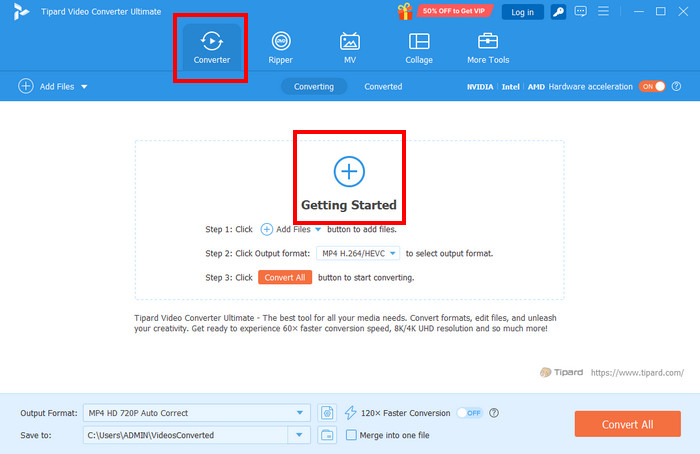
Click the Converter button at the top left. Then, click the Plus button at the center or the Add Files button at the top left. Choose the MP4 files you prefer to convert to OGV. Go to the Output Format section and choose the Video button. Select the OGV button on the left.
Step 3 Convert MP4 to OGV
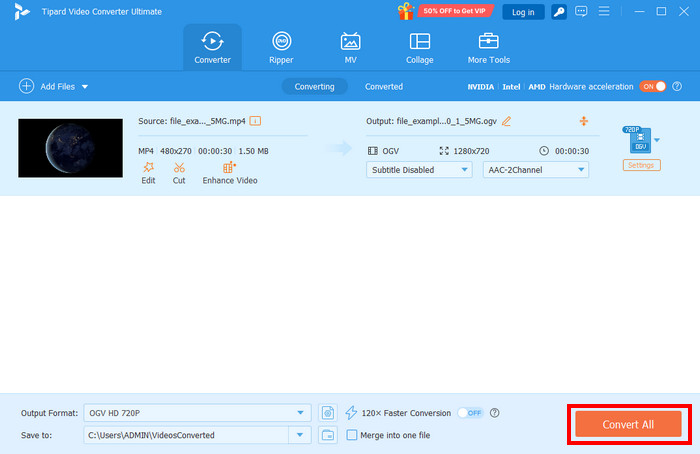
Choose the file quality afterward to save the changes. Finally, click the Convert All button to start the conversion.
Part 3: How to Convert MP4 to GOV Free Online
Alternatively, you can use online MP4 to OGV converters. However, these tools require a strong internet connection. Kindly scroll below to discover them.
1. FreeConvert
FreeConvert is one of the leading online converters nowadays. It allows you to apply advanced settings to your files. You can resize the video, adjust its frame rate, rotate it, choose its video codec, and more. The online tool can also be used to convert OGV to MKV. However, this online tool limits you to 1 GB of files. You need to sign up if you want to exceed this limit. Use the steps below to learn how to use the online tool. Learn how to use this MP4 to OGV online converter with the steps below.
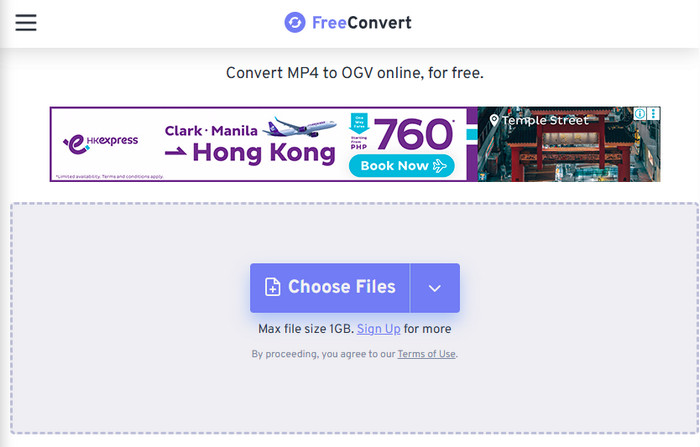
Step 1 Go to the main website of FreeConvert. Then, click the Choose Files button in the center. Choose the MP4 files you need to convert and import them.
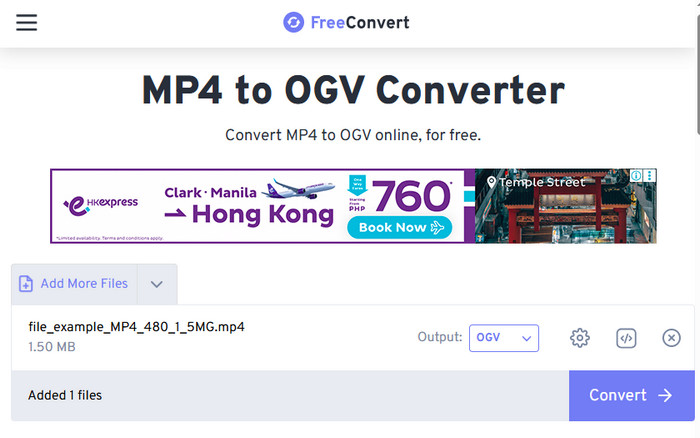
Step 2 Adjust the video settings if you want. Then, click Convert to start the conversion.
2. Convertio
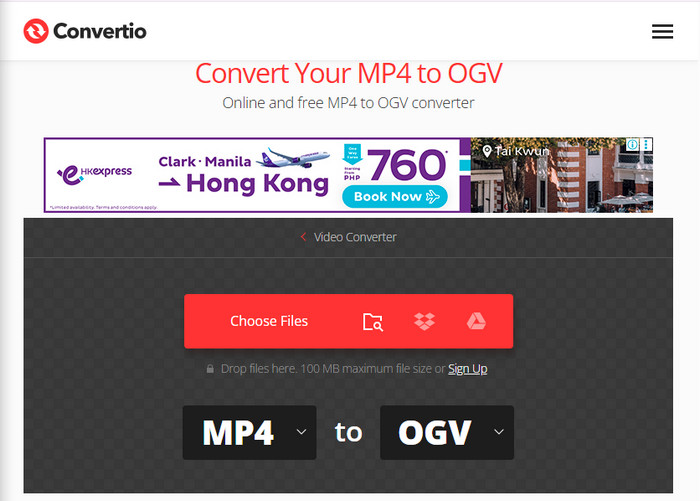
Convertio is almost similar to the previous online tool. You can adjust the video codec, quality, and size. However, the maximum file size it can convert is 100 MB only. Signing up allows you to convert larger file sizes. Convert MP4 to OGV online with Convertio using the steps below.
Step 1 Visit the Convertio website. Then, click the Choose Files button in the center. Select your MP4 files to upload them.
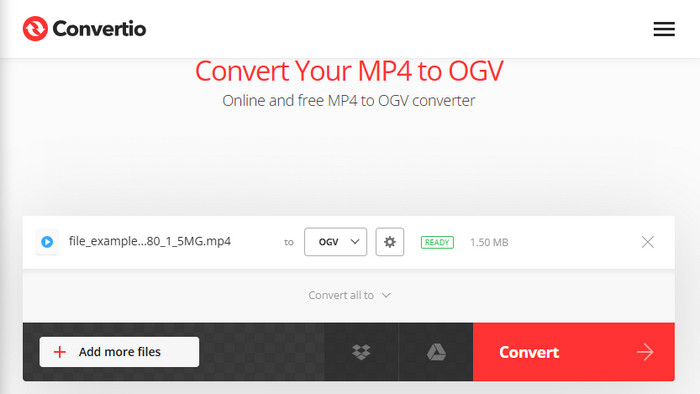
Step 2 Adjust the video settings. Select the Convert button at the bottom right. Then, save the files on your computer to keep them.
Part 4: Tips for Optimizing OGV for Web
OGV is commonly used for the web. Optimizing this file format allows you to load the page faster, improve your experience, and more. Below are the best tips to optimize your OGV files for the web further.
1. Choose OGV Files Right Codec Settings
Use the Theora video codec and Vorbis audio codec for your OGV files. They can lower the bitrate, and it becomes 2-pass encoding for a better quality, yet smaller in size.
2. Reduce OGV Files Frame Rate
Reducing the frame rate of OGV files means that you are also reducing their file size. You can use 24-30 fps and lower to 24 fps in case the motion is not intense.
3. Adjust Video Resolution
It is recommended not to upload a full HD video. You can use 1080p, 480p, and 720p. In this case, your OGV file will have a faster loading time.
Conclusion
All in all, the MP4 to OGV conversion is done to make the files open-source. The three best tools to convert the mentioned files are included in this article. Tipard Video Converter Ultimate is the best one. It does not need an internet connection to convert your files. Download the tool if you want to know more about it.
More Readin
About the Author

 Click here to join the discussion and share your comments
 Tipard Video Converter Ultimate