

Key Takeaways
You can create a picture-in-picture video by overlaying one clip on top of another clip so that both can be viewed simultaneously. The most important factors to consider are:
- PIP Concept: Shows various angles in a single video.
- Editing Tools: Try out Tipard Video Converter Ultimate on desktop and mobile.
- Layout Control: Move and resize overlay clips.
- Quality Output: Better results come from higher resolution clips.
When recording tutorials or reactions, knowing how to create picture-in-picture video helps you show multiple views at once, making explanations clearer, presentations stronger, and content more engaging for viewers across different devices today.

Part 1. Why You Need to Create a Picture-in-Picture Video
PIP (picture-in-picture) serves the purpose of allowing the user to overlay a video or an image on top of another so that both can be viewed simultaneously. The purpose of the use of PIP is to improve communication with an audience by:
Videos are commonly trimmed to:
- Enhanced Communication: one can add a Facecam or instructional audio to a demo or tutorial video.
- Viewer Retention: Multiple angles or streams are far more likely to retain an audience than a single one.
- Enhanced Communication: It reduces the need to correlate or mentally keep track of the disparate angles.
- Professional Appearance: PIP looks more professional and is a common feature in presentations, online courses, and YouTube reaction videos.
- Add creative Flair: The user can add videos of background footage, zooms, and other elements to increase the impact of the videos.
Part 2. How to Create Picture-in-Picture Video Easily on Windows and Mac
Are you looking for a way to engage your audience easily? You can overlay one video on top of another with picture-in-picture (PIP) videos. PIP is great for tutorials, reactions, or presentations. Tipard Video Converter Ultimate makes it easy to create PIP videos on both Windows and Mac.
Step 1 Go to the official Tipard Video Converter Ultimate website to download. When the installer is ready, open it and follow the steps to install it on your computer.
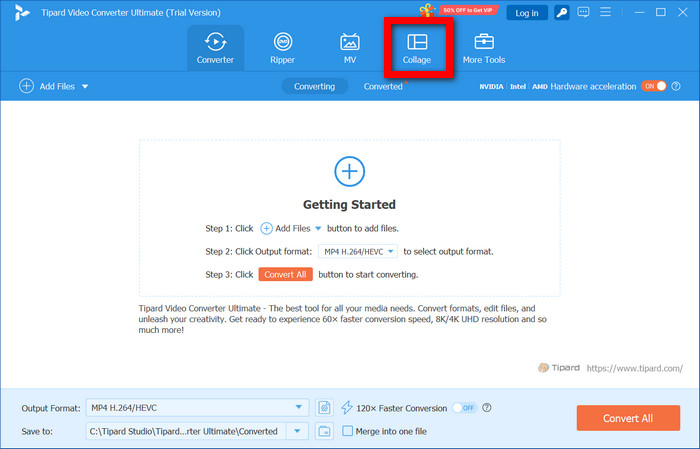
Step 2 After the installation is done, open the program and select the Collage tab to find picture-in-picture templates.
Step 3 Select the PIP template and the main screen video, and then click on the Add button to upload your overlays and main video. If you do not have overlay videos, you can use stock videos provided by Tipard.
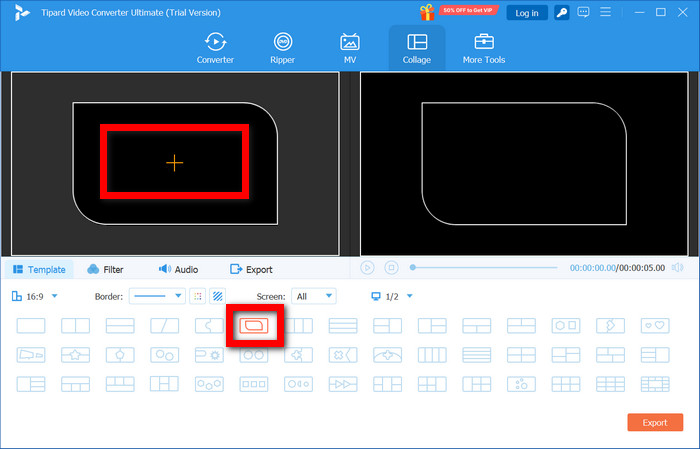
Step 4 There are PIP Templates for different purposes. Select the one that matches your intended use, then position your videos in the frames of the main screen and overlays.
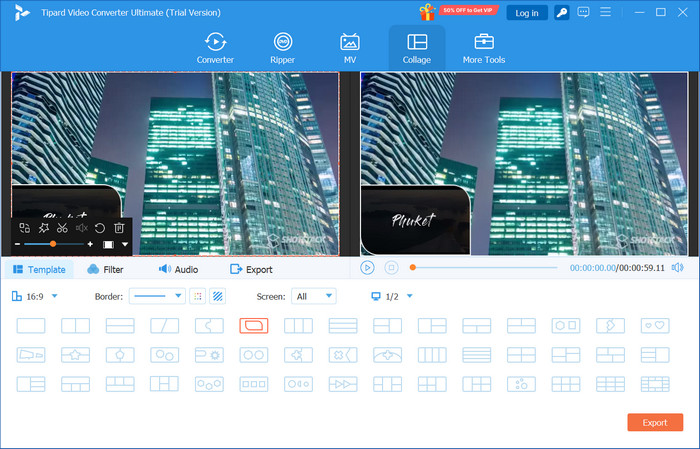
Step 5 Within the PIP template, adjust each overlay video you have uploaded in the previous steps by timing, position, size, and layout.
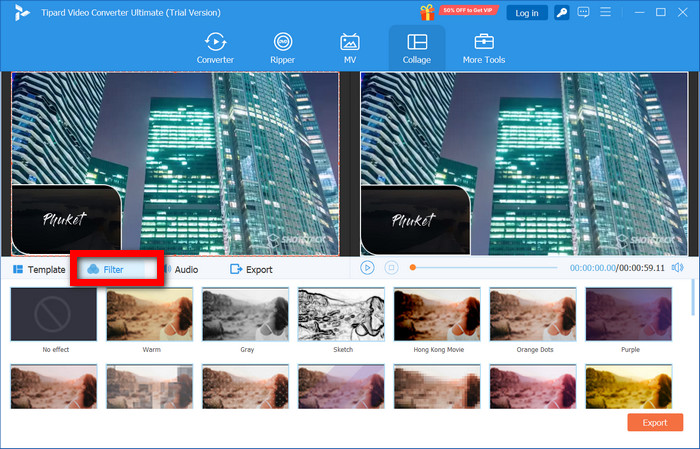
Step 6 Apply various modifications to your video to enhance it, using the Filter tab.
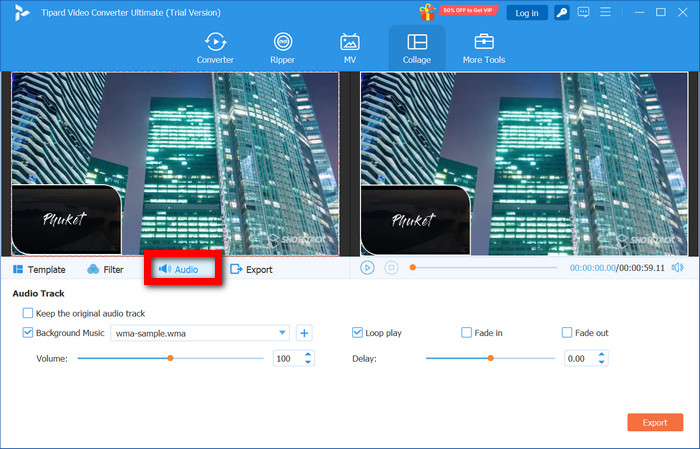
Step 7 Review your video carefully, checking all overlays and effects in the Audio tab before exporting.
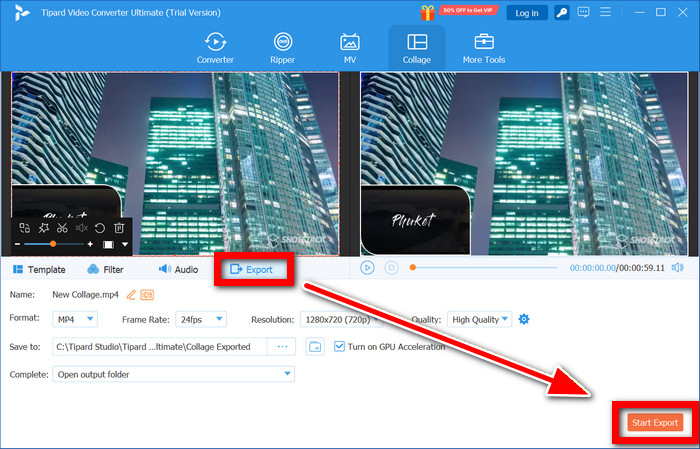
Step 8 Select Export when you are finished, then set the output format as well as the resolution. Select your picture-in-picture PIP video from your computer and save it by clicking the Start Export button.
Why We Select It
Tipard Video Converter Ultimate allows users to customize Picture in Picture layouts using multiple templates. Users are able to edit each individual PIP video by resizing, repositioning, trimming, and using filters to enhance the video, such as brightness and contrast. Users are also able to export videos in HD and 4K without losing quality.
Part 3. How to Create Picture-in-Picture Video on iPhone and Android
Using Picture-in-Picture videos allows one video to be overlaid on top of another. This is useful for making tutorials, reaction videos, and videos from multiple perspectives. Using the right application, you can even create PIP videos in a professional and skillful way right from your mobile device.
On iPhone: Filmora
Filmora on iPhone is beginner-friendly but still very powerful. Users can overlay videos, create PIP videos, add text, filters, and stickers, and use video editor apps to export videos in high quality in just a few steps.
Step 1 Download Filmora from the App Store.
Step 2 Launch the app and select the New Project + button to create a new project.
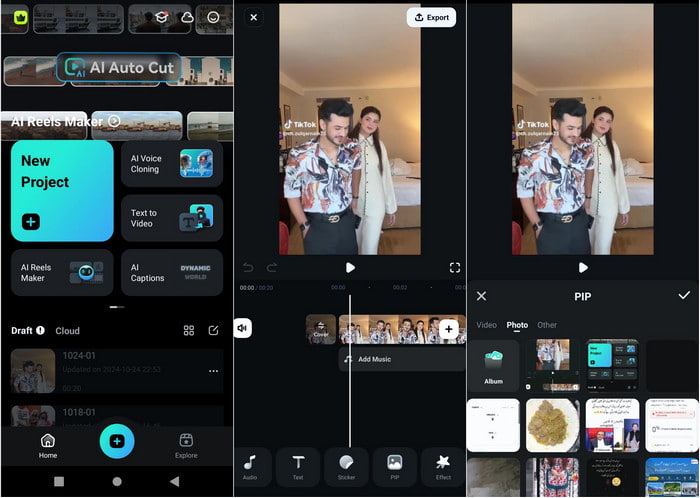
Step 3 Select and import your main video to serve as the background video.
Step 4 Select the overlay video by tapping on the PIP or overlay option.
Step 5 Adjust the size and position of the overlay by dragging and pinching it on the screen.
Step 6 If you want, include some text, filters, stickers, or transitions.
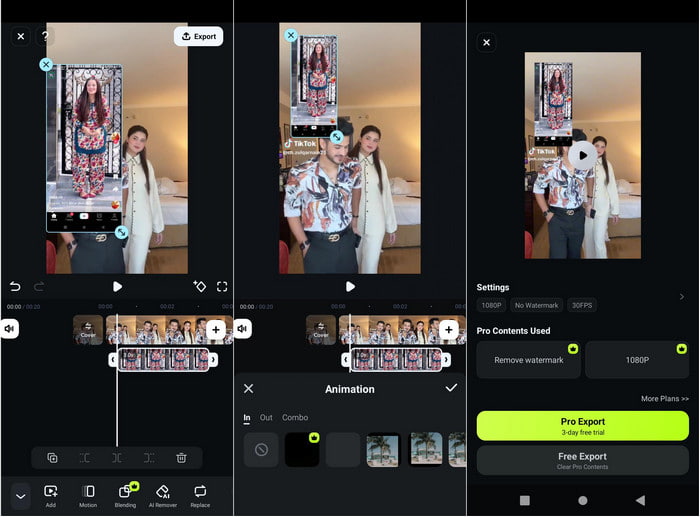
Step 7 Once you are happy with how it turned out, export it in HD.
On Android: CapCut
Creating PIP videos on CapCut for Android is easy and convenient. You can overlay videos, use effects, and add stickers, text, and resize clips, all in a user-friendly interface without any complex steps.
Step 1 Get CapCut from the Google Play Store.
Step 2 Launch the app and hit New Project.
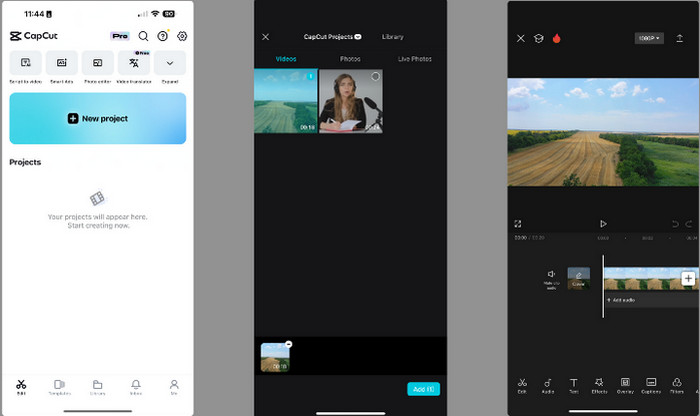
Step 3 Bring in your main video to serve as the background clip.
Step 4 Hit Overlay and choose the video or image to serve as the PIP clip.
Step 5 You can make the overlay smaller or larger and move it by dragging or pinching it on the screen.
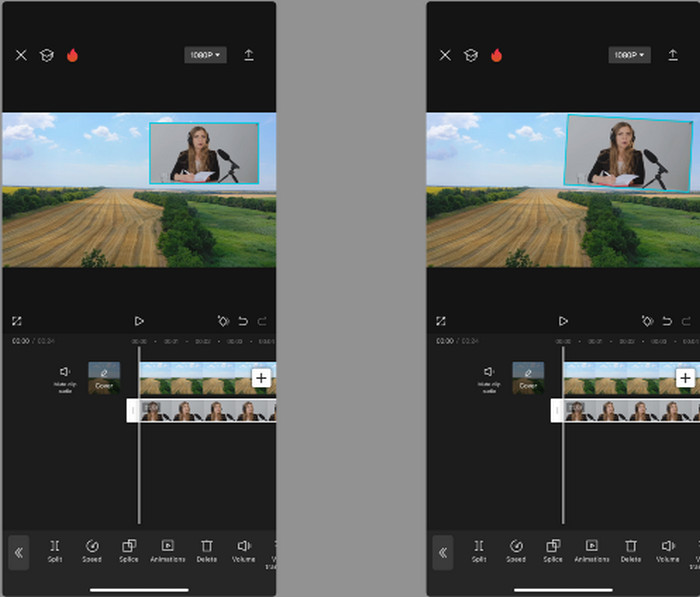
Step 6 You can use text, filters, stickers, etc, to add more to your video.
Step 7 Save your video in the desired format and resolution.
Part 4. Tips for High-Quality Picture-in-Picture Video
When making PIP videos, layering your clips is only half the challenge. Making your content clear and visually appealing is just as important, if not more. Following these steps will help your videos in a number of ways: look more polished, maintain audience engagement, and make your videos easier to watch.
Tips for High-Quality PIP Videos:
- Keep Overlays Simple: Do not combine too many clips or too many effects. Highlight crucial content. Otherwise, viewers might become overwhelmed.
- Use High-quality Clips: Ensure both your main and overlay videos are clear, well-lit, and sharp. Low-quality footage can look unprofessional. You can also make a collage on the iPhone to combine clips easily.
- Carefully Balance Audio: Make sure that the overlay audio does not drown out the main video audio. Tune the audio so that dialogue, narration, or music is easily audible.
- Match the visual style: Use the same filters, color schemes, and text styles throughout your main and overlay clips so that they look cohesive and polished.
- Consider the placement of the overlay: Put your PIP window in an area or corner that does not cover important parts of the main video.
Conclusion
A PIP video maker enables you to combine several clips into one clear and engaging video. Be it editing on mobile or desktop, the tips and right tools ensure that you have polished and professional videos that keep your audience focused and informed.
More Reading



About the Author

 Click here to join the discussion and share your comments
 Tipard Video Converter Ultimate