

A video looks better when it is framed right. Cropping removes extra space and puts the focus on the main subject. Learning how to crop MP4 files can save time and make your videos look professional. This guide shows simple ways to crop videos on Windows, Mac, and online. Each method comes with clear, easy-to-follow steps. Whether for work or personal projects, these tips will help your video stand out. Let us start with the first method for Windows users.
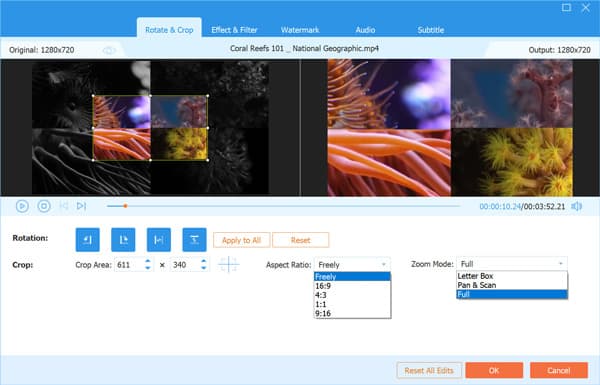
Part 1. How to Compress MP4 on Windows
Editing and adjusting your videos on Windows is easier than it seems. One of the most useful features is the ability to crop MP4 files. Cropping allows you to remove unwanted areas, focus on key subjects, and make your video look more professional. In this section, we will show two powerful tools: Tipard Video Converter Ultimate and Microsoft Clipchamp, and guide you step by step on how to crop your MP4 files efficiently.
1. Tipard Video Converter Ultimate
Tipard Video Converter Ultimate is a versatile tool for both compressing and editing videos. While it helps reduce file size, it also makes it easy to crop an MP4 video. You can remove unwanted edges, focus on key subjects, and adjust the frame exactly how you want. If you are learning how to crop MP4 files, Tipard provides simple controls and previews so you can see changes in real time.
Step 1 Download and install the newest version of the Tipard Video Converter Ultimate on your Windows or Mac by clicking the appropriate button in here.
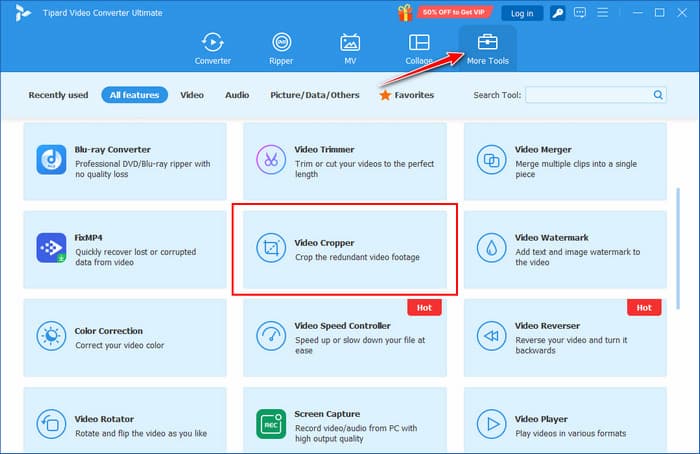
Step 2 Open the More Tools to access the exquisite video editing features that this app has and choose the Video Cropper. After that, click the plus button to import the videotape that you want to crop here.
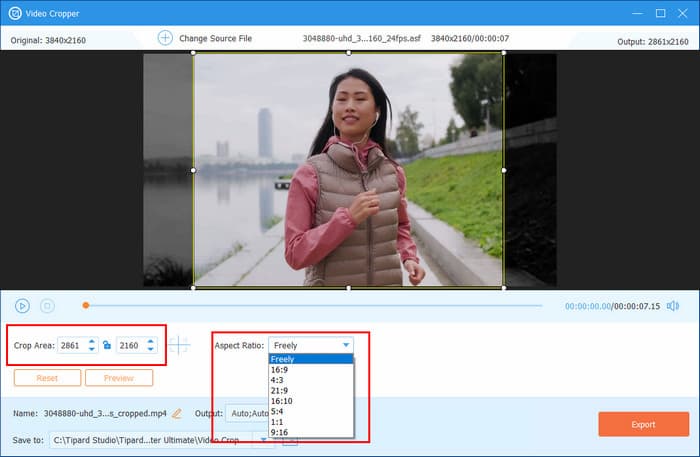
Step 3 You can adjust the video frame to fit the preview area or enter exact numbers to set a specific size. You can also pick the aspect ratio you want to crop from the video. This gives you control to focus on the part of the video that matters most.
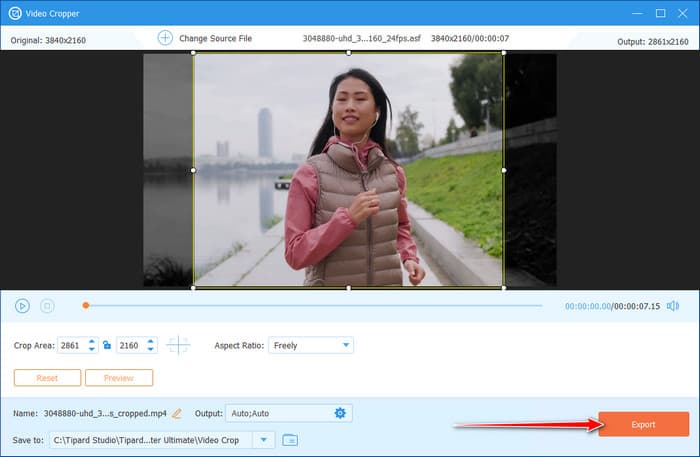
Step 4 After setting the crop size, you can now click the Export button.
2. Microsoft Clipchamp
Microsoft Clipchamp is a Windows-friendly tool that offers basic editing features along with video compression. It is perfect for beginners who want to crop MP4 video files quickly. You can trim edges, change the aspect ratio, and center the subject in just a few clicks. Knowing how to crop MP4s in Clipchamp is simple and efficient, making your videos ready for sharing or storage.
Step 1 Open Clipchamp and create a new video project. Import your MP4 file and drag it onto the timeline.
Step 2 Click on the video in the timeline to select it. Then choose the Crop button from the toolbar above the preview.
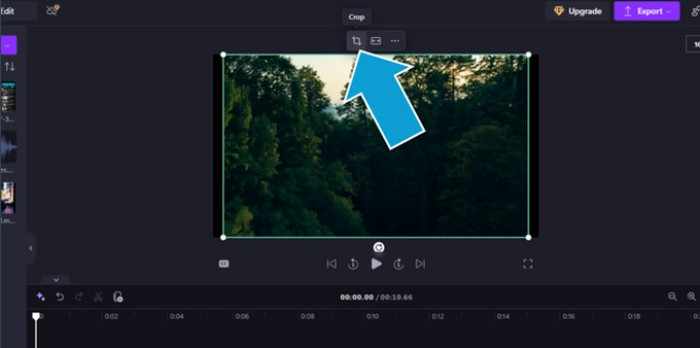
Step 3 Drag the crop handles around the video to select the area you want to keep. When it looks right, click Done.
Part 2. How to Crop MP4 on Mac
iMovie is a free editing app that comes with every Mac. It is ideal when you want to crop an MP4 file to remove unwanted edges or focus on a subject. Using iMovie, you can crop an MP4 easily, adjust the frame, and save a polished video without extra software.
Step 1 Open iMovie and start a new project. Import your MP4 file and drag it onto the timeline.
Step 2 Tick the video clip in the timeline to select it. Then click the crop button above the preview area and choose Crop to Fill.
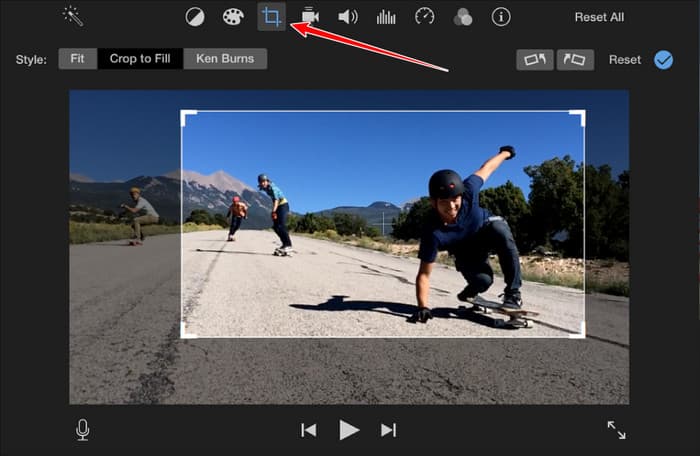
Step 3 Adjust the size and position of the crop box to focus on the part of the video you want to keep. Tick the Apply button to save the change. When finished editing, export the project as a new MP4 video file. With that, you have learned how to crop video on iMovie.
Part 3. How to Crop MP4 Online
If you do not want to install software, online tools make it simple to crop videos from any device. Using an online platform, you can quickly adjust your video frame and save it without needing extra apps. Here, we will introduce three reliable options that let you crop an MP4 video easily.
1. Clideo
Clideo is a browser-based video editing tool that makes it easy to crop an MP4 video online. You can upload your file, drag the cropping frame, and select the area you want to keep. After cropping, the platform allows you to export the video in MP4 format quickly without installing any software.
Step 1 Open the Crop Video Online & Free of Clideo and upload the MP4 file that you want to edit.
Step 2 After uploading the video, choose the cropping option that you want to use, which is already available here. You can pick a specific aspect ratio or set the exact size.
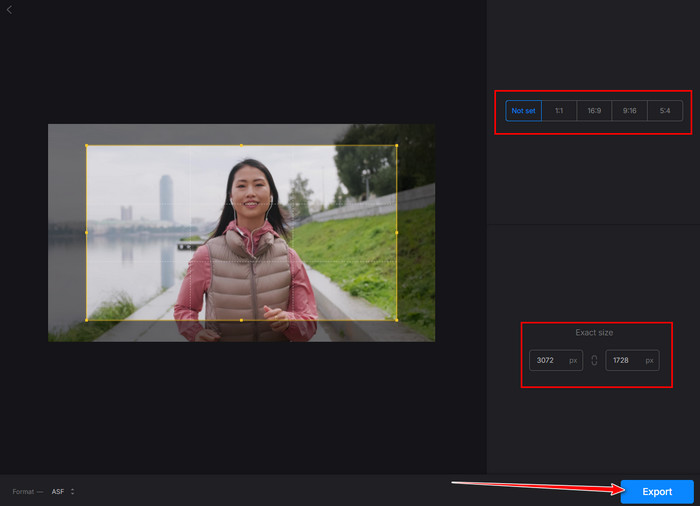
Step 3 Finally, tick the Export button to preserve the cropped video.
2. Kapwing
Kapwing is a versatile online editor for creating and editing videos. Kapwing video editor offers simple cropping tools where you can resize and adjust your video frame to focus on the main subject. You can also add text, effects, or filters before exporting your final MP4.
Step 1 Go to your browser and open the Kapwing crop video, then click the Crop a Video to import the MP4 here.
Step 2 Drag the uploaded video to the editing screen and click the video that appears on the preview to open Crop.
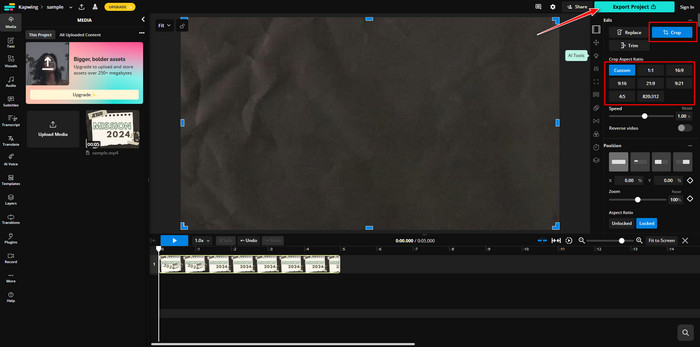
Step 3 Crop now the aspect ratio of the video freely, and click Export Project to get the final result.
3. Online-Video-Cutter.com
Online-Video-Cutter.com is a straightforward tool for quick edits. You can crop your MP4 video by dragging the frame or entering custom dimensions. It supports most video formats and is ideal for users who want a fast, no-frills solution for cropping MP4 files online.
Step 1 After you have opened the main website, click the Video, and choose the Crop Video to upload the MP4 files that you want to edit in here.
Step 2 Choose the aspect ratio that you want to keep, or change the adjustable frame that appears to measure the crop area you want to keep.
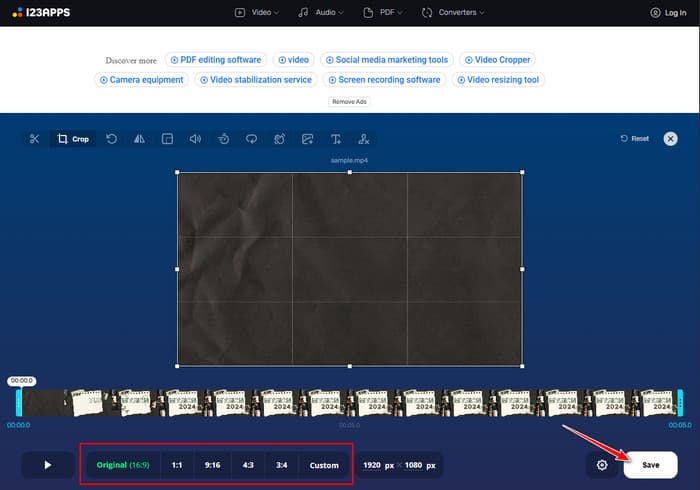
Step 3 Once you are done with that, click the Save button to get the cropped version of the MP4.
Conclusion
Cropping a video helps remove extra parts and keeps the focus on what matters most. Learning how to crop an MP4 is quick and easy with the right tool. You can use Tipard or Clipchamp on Windows, iMovie on Mac, or online tools like Clideo, Kapwing, and Online-Video-Cutter.com. Each option lets you adjust the frame in just a few steps. With these methods, you can crop an MP4 and make your video look neat and ready to share.
More Reading




About the Author

 Click here to join the discussion and share your comments
 Tipard Video Converter Ultimate