

In certain instances, a video may be fantastic until someone finds nuances of space or other background information that grabs their attention. That is where tools to crop video online make editing simple. They help you focus on the main subject, remove distractions, and fit clips for any screen. Whether you edit YouTube vlogs or short social posts, these editors save time and give clean results. In this guide, you will find the best online video cropping tools, their features, and easy steps to crop videos quickly.

| Features | Best Used For | Free | Ease of Use | Special Advantages |
|---|---|---|---|---|
| Kapwing | Fast online video cropping and editing | Yes | Easy | Clean drag-and-drop editor with instant preview |
| Clideo | Social media creators who need quick resizing | Yes | Easy | Pre-set aspect ratios for YouTube, Instagram, and TikTok |
| VEED.io | Beginners wanting all-in-one editing tools | Yes | Easy | Auto subtitle generator and AI-based effects |
| Online Video Cutter | Users who want a lightweight crop too | Yes | Easiest | Works fast with no sign-up or installation needed |
| Media.io | Quick edits and format conversions | Yes | Moderate | Crop, flip, and compress all in one place |
| Adobe Express | Creators posting to YouTube and social media | Yes | Easy | Preset crop templates for each platform |
| EchoWave | Professionals needing clean exports | Yes | Easy | HD export and no watermark, even on the free plan |
| Show MoreShow Less | ||||
Method 1. Kapwing Online Video Editor
Kapwing video editor is one of the easiest tools for cropping video online, right from your browser. It lets you resize clips for YouTube, Instagram, and TikTok without needing downloads. The clean interface and simple controls make it ideal for beginners. You can remove borders, zoom in on key parts, and keep your video perfectly framed.
Step 1 Go to the Kapwing website and upload your video from your device or a link.
Step 2 Click the Crop button and adjust the selection box to focus on your main subject.
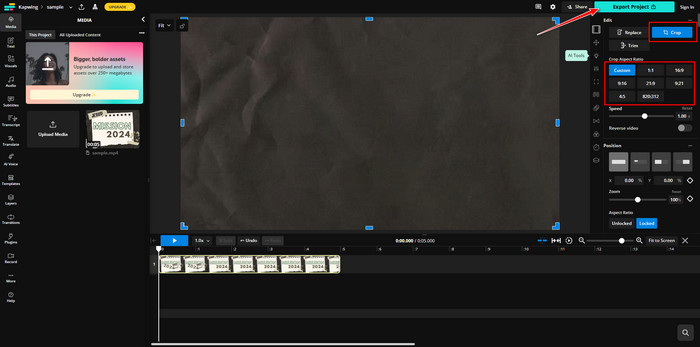
Step 3 Once done, click Export to save and download your cropped video in your preferred format.
Kapwing is a reliable choice for anyone who wants quick online edits without a steep learning curve. It is user-friendly, offers flexible cropping tools, and produces professional-looking results for any platform.
Method 2. Clideo
Clideo makes it easy to crop video online for free, giving you complete control over the frame size and shape. It supports various file formats and includes preset aspect ratios for social media uploads. The process is quick, and the results look clean without losing visual quality.
Step 1 Go to Clideo and select Crop Video from the main page.
Step 2 Upload your video, then use the corner handles to adjust the crop area.
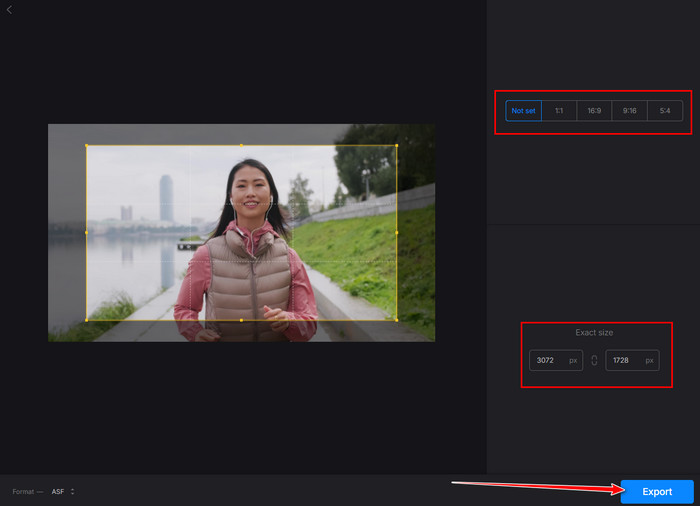
Step 3 Press Export, wait for processing, then save your finished file.
Clideo is best suited for social media users who need to crop videos fast while maintaining quality. Its preset ratios save time, making it a convenient option for YouTube Shorts, Instagram Reels, or TikTok uploads.
Method 3. VEED.io
VEED.io offers a fast and simple way to crop a video clip online for free right in your browser. You can adjust the crop area, add subtitles, and even apply filters to improve your video. It's a great pick for quick social media edits.
Step 1 Open VEED.io and select Crop Video.
Step 2 Resize the frame or use preset ratios like 1:1 or 9:16.
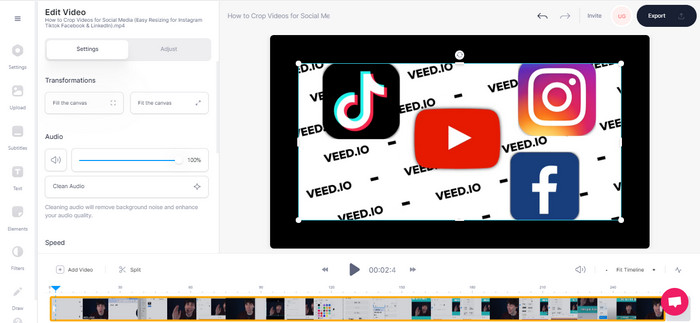
Step 3 Hit Export Video, and download the finished clip.
VEED.io is a strong all-in-one tool for creators who want to crop, enhance, and stylize videos without switching platforms. It is perfect for quick edits with creative control to the extent of recording video with a digital background.
Method 4. Online Video Cutter
Online Video Cutter allows you to cut and crop video online without signing up or paying for a plan. The interface is minimal and loads fast, making it perfect for short, simple edits. It also supports drag-and-drop uploads for convenience.
Step 1 Go to Online Video Cutter and upload your file.
Step 2 Drag the crop box or trim unnecessary sections of your clip.
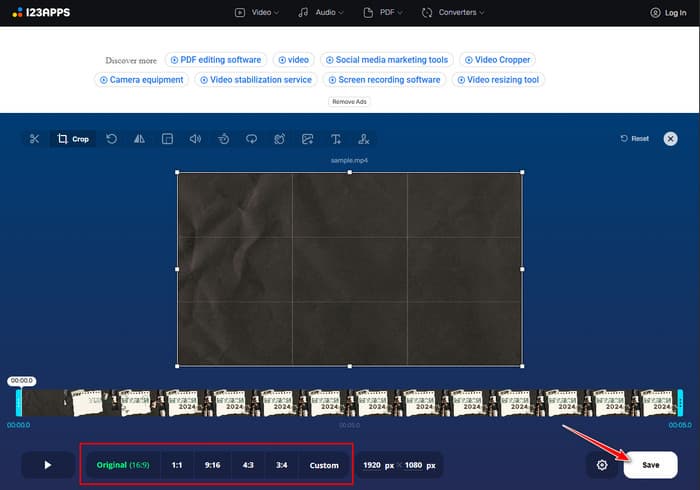
Step 3 Press Save, then choose the format and download the output.
This tool is best for users who value speed and simplicity over extra features. It is lightweight, quick to load, and ideal for trimming or cropping clips on the go.
Method 5. Media.io
Media.io is a handy browser tool that lets you crop and flip videos online with ease. It allows the most popular types of videos and gives a preview in real time prior to the export. The tool is compatible with low-end computers.
Step 1 Visit Media.io and click Upload. Drag the video to the timeline so you can edit it.
Step 2 Crop your video by dragging the preview box or choosing the aspect ratio. Then, click Apply.
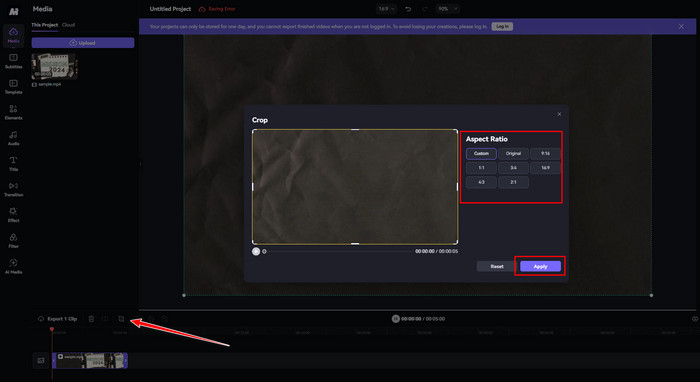
Step 3 Select Export, then download your final result.
Media.io is a moderate choice for users who want to have a stable, yet seamless performance. It is best of all when one is actually working on a lower spec computer or requires a clean and fast workflow.
Method 6. Adobe Express
Adobe Express helps you crop YouTube videos online with presets for different platforms. You can resize, trim, or change your video layout in minutes. It's ideal for creators who want consistent, platform-ready output.
Step 1 Open Adobe Express and post your video.
Step 2 Select the ratio of YouTube, or cut your clip manually.
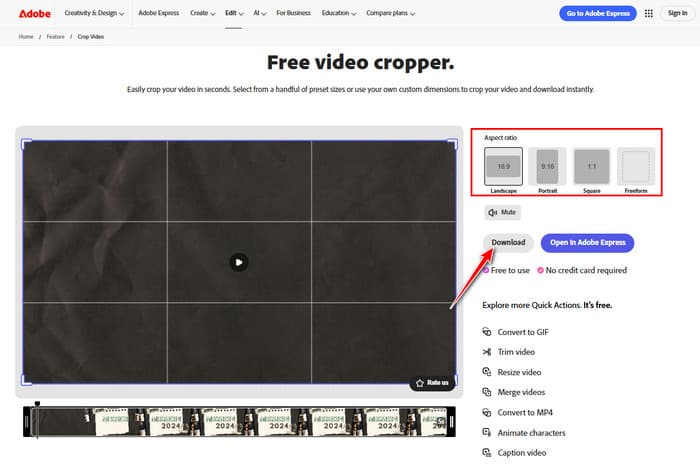
Step 3 Click Download, and save the edited video to your device.
Adobe Express is the place to be when design accuracy and consistency are of high importance to professionals and content creators. It provides high visual quality and platform-optimized results.
Method 7. EchoWave
EchoWave is one of the best platforms to crop video online with no watermark, even on the free version. It supports high-resolution exports and lets you set custom crop sizes. Professionals love it for its precision and fast rendering.
Step 1 Visit EchoWave and upload your video file by clicking Crop Video.
Step 2 Adjust the crop area or input custom width and height values.
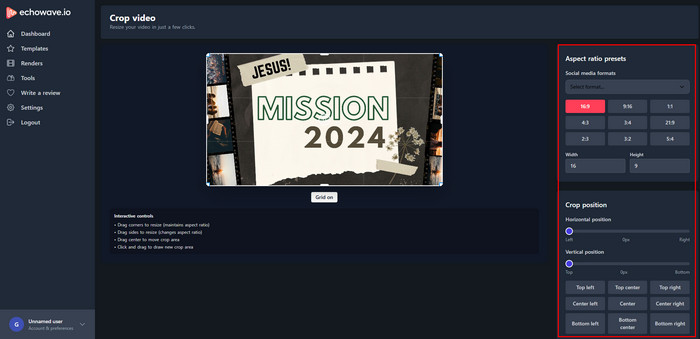
Step 3 Click Export Video, wait for it to render, then download the result.
EchoWave stands out for offering watermark-free results and high customization. It is great for professionals who want full control over their output and top-notch export quality.
Bonus. Best Way to Crop a Video with NO Watermark
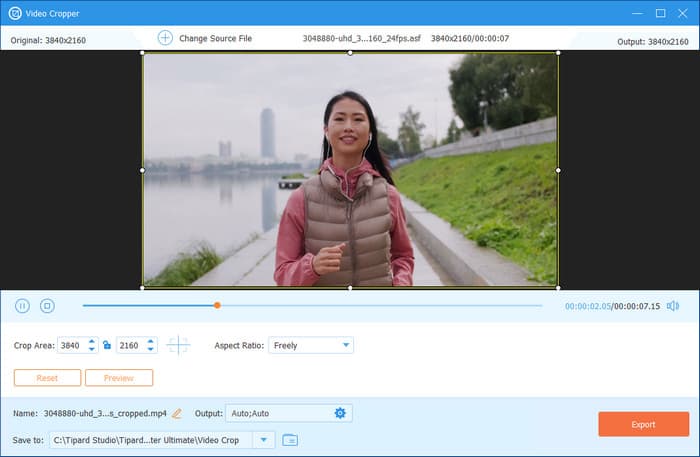
Looking for a better alternative to any online cropping tool? Tipard Video Converter Ultimate is a powerful desktop program that lets you crop videos with no watermark at all. It runs offline, so you can edit faster and avoid upload or size limits. You can adjust the frame, rotate clips, and even enhance video quality in one simple workspace. It is the perfect pick for users who want clear, professional results without relying on an internet connection.
Conclusion
Editing is much easier with video cropping online tools. If you just need a quick trim, Clideo or Online Video Cutter will do great. For more control, try VEED.io or Adobe Express. And if you want clean videos without marks, EchoWave is a solid choice. Try one today and see which tool fits your editing style best!
More Reading



About the Author

 Click here to join the discussion and share your comments
 Tipard Video Converter Ultimate