

- Part 1. Technical Clarification: The Difference Between H.264 and MP4
- Part 2. Remuxing vs.Transcoding: Why You Should Avoid Re-encoding H.264
- Part 3. The Best Way to Remux H.264 to MP4 on Windows and Mac
- Part 4. Turn H.264 to MP4 on Handbrake
- Part 5. Convert H.264 to MP4 Using VLC
- Part 6. FAQs about H.264 to MP4
Key Takeaways
- H.264 is among the video codecs, and MP4 is a container format.
- Remuxing simply changes the container from H.264 to MP4 without changing or modifying any video stream, which can preserve the quality.
- Tipard Video Converter Ultimate is an ideal tool for turning and remuxing H.264 to MP4.
Many users encounter H.264 video files that require conversion for better compatibility. When dealing with H.264, it would be better to turn it into MP4 format. It is because the format is universal and easy to play. It can even ensure a smoother performance on various platforms, editing tools, and streaming platforms. So, want an effective conversion process? Check this tutorial as we give you the best methods to convert H.264 to MP4 format.

- Part 1. Technical Clarification: The Difference Between H.264 and MP4
- Part 2. Remuxing vs.Transcoding: Why You Should Avoid Re-encoding H.264
- Part 3. The Best Way to Remux H.264 to MP4 on Windows and Mac
- Part 4. Turn H.264 to MP4 on Handbrake
- Part 5. Convert H.264 to MP4 Using VLC
- Part 6. FAQs about H.264 to MP4
Part 1. Technical Clarification: The Difference Between H.264 and MP4
It is common to see both MP4 and H.264 used interchangeably. However, you must know that these two are completely different.
H.264 is also known as AVC or MPEG-4 Part 10. It is a video codec or video compression standard. This codec compresses the video frames via advanced algorithms. This codec is popular since it can balance both video quality and file size, making it a global standard for various platforms. On the other hand, MP4 is a multimedia container format. It can store video track, audio track, subtitles, and metadata. The good thing about this format is that it is universal, making it compatible with all browsers, media players, and operating systems.
To get more details about the two, you can check the simple comparison table below.
| Feature | H.264 | MP4 |
|---|---|---|
| Type | Video Codec | Multimedia container format |
| Primary Function | Compress and decompress video data. | Packages audio, video, and text into one file. |
| File Extension | None | .mp4 |
| Data Handled | Only video frames | Video, audio, metadata, and subtitles. |
Part 2. Remuxing vs.Transcoding: Why You Should Avoid Re-encoding H.264
As we have discussed, H.264 is one of the video codecs, while MP4 is a multimedia container format. Since MP4 can natively support H.264, there is no need for you to transcode the video. All you need is to remux it instead. Well, remuxing can only help you change the cover of the file. It can help you move H.264 into an MP4 container without touching the video itself, which can retain the original quality.
In contrast, transcoding means re-encoding the video into a new format. This process is time-consuming and can result in quality loss and a larger file size. Thus, remuxing is the ideal process since it ensures that you get the result you need and can offer a smooth playback across devices.
Part 3. The Best Way to Remux H.264 to MP4 on Windows and Mac
Looking for the best way to remux H.264 to MP4 on your Windows and Mac? Then, you can try using Tipard Video Converter Ultimate. When it comes to remuxing your file, there is no doubt that this software is perfect. It supports a fast conversion process and ensures that you can get the result you need. It can even support lossless H.264 input and lossless remuxing. The program can also retain the original video quality after the conversion process. What makes it more powerful is that it supports a batch conversion feature. With this feature, you can deal with multiple H.264 files without consuming much time. Thus, for a better remuxing process, always consider using Tipard Video Converter Ultimate.

- It can convert files 120× faster than other converters.
- It can save the video for up to 4K, leading to better playback.
- The program can support various formats, such as M4V, MP4, MOV, FLV, AVI, WMV, MKV, and more.
- The software can offer various editing tools for improving videos.

To turn H.264 to MP4 using this program, see the instructions below.
Step 1 Access Tipard Video Converter Ultimate on your desktop by clicking the buttons above.
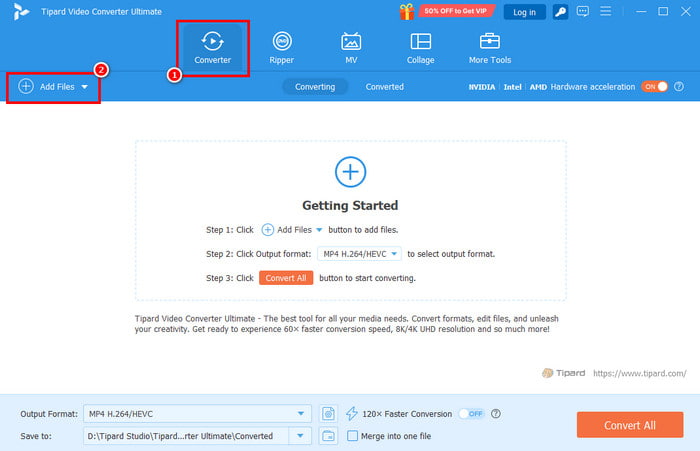
Step 2 After you launch the UI, go to the Converter > Add Files section to start adding the H.264 files from your computer.
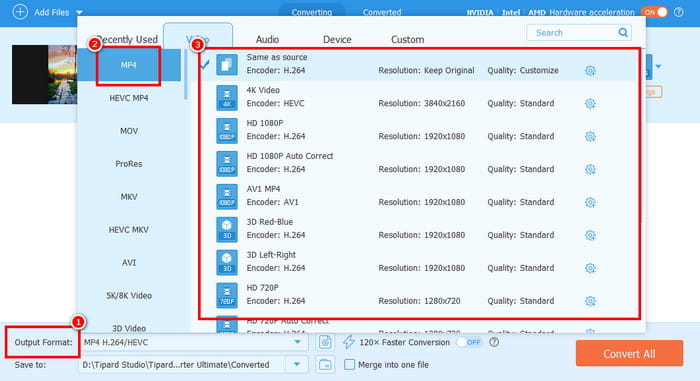
Step 3 After that, start choosing the MP4 format from the Output Format section below. You can also choose the Same as Source option to keep/retain the original quality of the video.
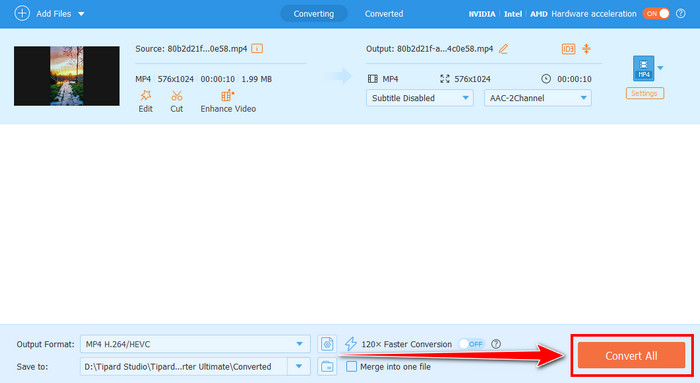
Step 4 To start the H.264 to MP4 conversion process, hit the Convert All button below. Once done, you can now play the video on your device.
Part 4. Turn H.264 to MP4 on Handbrake
To convert H.264 to MP4, you can also use Handbrake. This free and open-source program can offer its conversion feature that lets you achieve the result you need. The best part here is that it has a simple UI, making it ideal for non-professional users. You can also edit your files. You can combine videos on Handbrake, add effects, filters, and more. The only problem here is that there are times when it is not performing well.
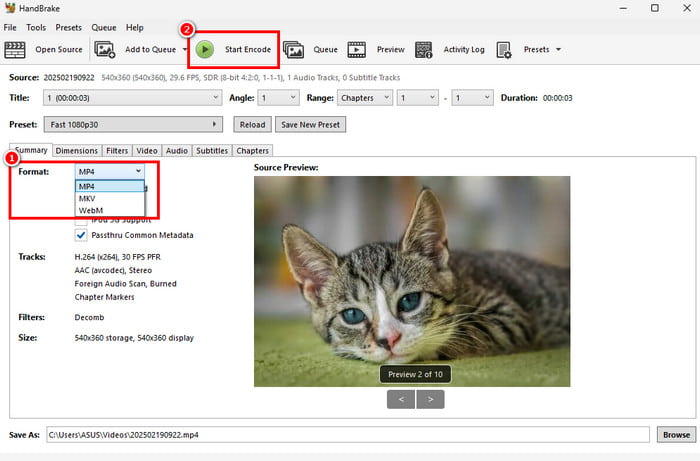
Step 1 Download and install Handbrake on your computer. After that, launch it to start the process.
Step 2 After you open the software, click File to start adding the H.264 file you want to convert.
Step 3 Go to the Format section and select the MP4 format. Then, tap Start Encode above to begin the conversion process.
Part 5. Convert H.264 to MP4 Using VLC
If you need another free H.264 to MP4 converter, you can rely on VLC. With its converter feature, you can turn your H.264 files into MP4 format easily and smoothly. The program can also save the video with the same quality, leading to a better viewing experience. The only drawback here is that its UI is a little bit outdated-looking, which might not be satisfying to some users.
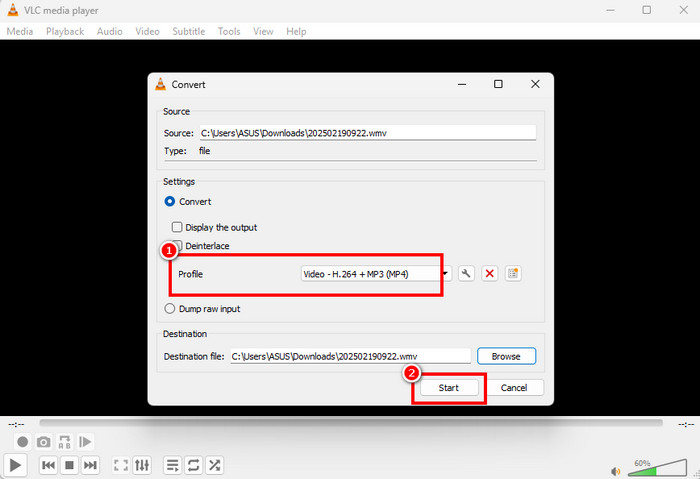
Step 1 Install VLC on your Mac or Windows PC. Then, run it to start the H.264 to MP4 conversion process.
Step 2 Go to the Media section above and select the Convert / Save feature. A mini interface will then appear on your screen.
Step 3 Click Add to start inserting the H.264 file. After that, go to the bottom interface and click the Convert / Save button.
Step 4 From the Profile section, choose the MP4 format. Lastly, click Start to begin turning your H.264 to MP4.
Part 6. FAQs about H.264 to MP4
Why do I need to convert H.264 to MP4?
There are some platforms that don't recognize H.264. So, turning it to MP4 can make the file playable to almost all media players and other programs.
Is MP4 the ideal format for playing your videos?
Absolutely, yes. MP4 is recommended since it is a universal format, ensuring that you can play your videos without experiencing any compatibility issues.
Can I convert H.264 to MMP4 online?
You can convert your files online. Some of the online-based converters you can access are AnyConv, Media.io, Convertio, CloudConvert, and more.
Conclusion
Converting H.264 to MP4 is the best way to have a smooth video playback. Thanks to this tutorial, you have learned how to turn your H.264 file into an MP4 using the best tools. Plus, if you want a better program that helps you remuX H.264 to MP4 successfully, it would be best to use Tipard Video Converter Ultimate. The program ensures that you can get the video format you need while retaining the original quality for a satisfying viewing experience.
All-in-one video toolbox: convert, edit, upscale, enhance, and compress your videos easily
100% Clean & Safe
100% Clean & Safe

More Reading



About the Author

 Click here to join the discussion and share your comments
 Tipard Video Converter Ultimate