

If you have a long birthday video with awkward pauses, a recorded lecture with unnecessary parts, or a gaming clip with mistakes, trimming it can make your video cleaner and more enjoyable.
If you want to focus on the best moments or shorten clips for sharing on social media, knowing how to trim videos on Windows is helpful. This post can help you do that. No matter which version of Windows you have, you can rely on the ways provided to get a clean video.
Part 1. How to Quickly Trim a Video on Windows
Trim your videos quickly and precisely with Tipard Video Converter Ultimate. This program lets you cut videos by the second, so you can remove unwanted parts easily and keep only what matters. You can save the trimmed videos for later use, making it easy to reuse them for projects or sharing.
In addition, it helps you convert videos to a supported format, making them playable on any device without trouble. Plus, it works on all common Windows versions so that you can edit on almost any computer. Use the guide below to learn how to trim a video on Windows quickly using Tipard Video Converter Ultimate:
Step 1 Download and install the software
Start by downloading Tipard Video Converter Ultimate on your Windows computer. Run the installer and adhere to the on-screen instructions. When it is done, launch the program.
Step 2 Open the Video Trimmer tool
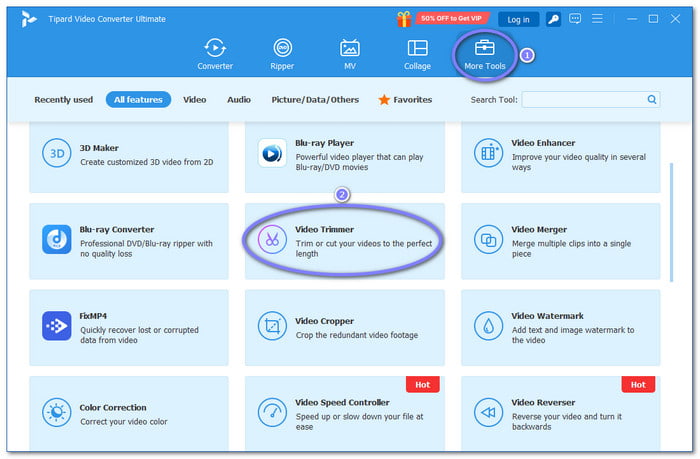
After the main screen appears, navigate to the More Tools tab. This section shows extra editing tools. Find Video Trimmer and click it to open the trimming workspace.
Step 3 Load the video you want to trim
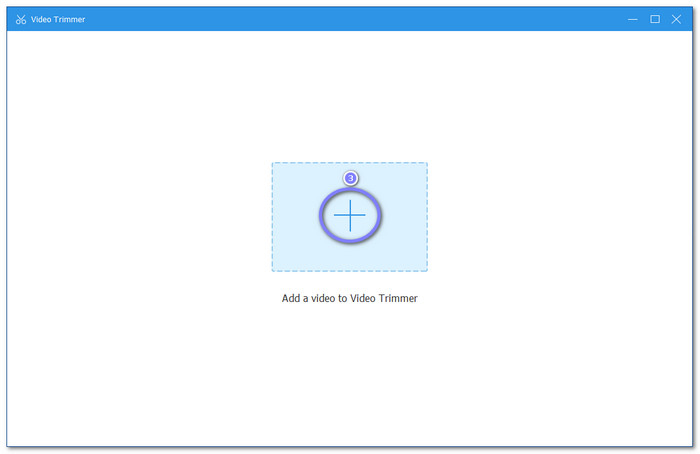
In the center of the screen, click the Add button. Then, choose a video from your Windows folders. The video will load and appear in the preview area.
Step 4 Set the start and end points
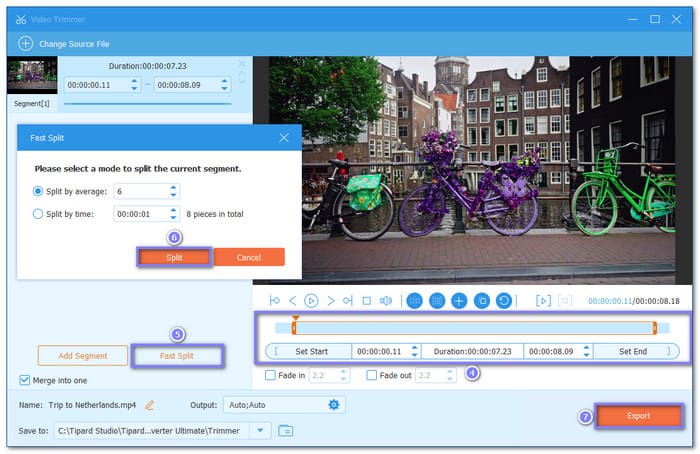
Below the preview, you will see a trimming bar. Please drag the left handle to set the start. Then, drag the right handle to set the end. For exact cuts, type the Set Start and Set End times.
If you want equal clips, use Fast Splits on the left. Choose average length or set time. Then, click Split to create smaller parts.
Step 5 Adjust settings and export the video
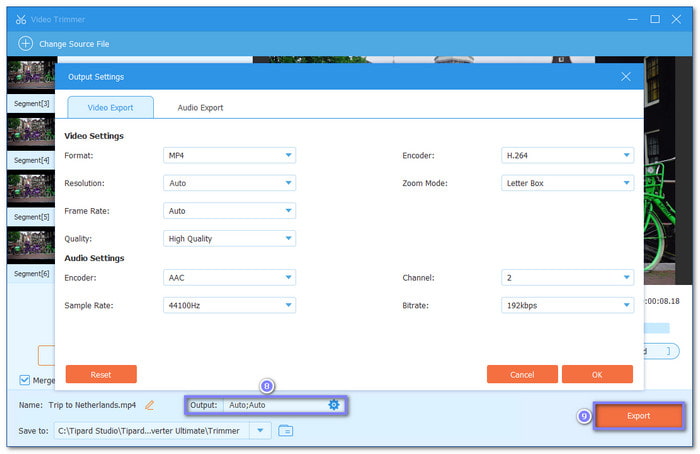
Once the trim looks right, open the Output button to adjust settings. You can change the format, video size, or audio quality. Once ready, it is time to click the Export button. The trimmed clip will be saved to your desktop folder. You can now play or share it right away!
Why We Selected It
Tipard Video Converter Ultimate is not just for Windows. It also works on Mac, so that you can edit on almost any computer. It lets you trim videos manually for precise edits and shows a preview so you can see changes in real time. Best of all, it is easy to use, making it perfect for first-time editors.
Part 2. How to Trim a Video on Windows in the Photos App
The Photos app is built into Windows 10 and ready to use. It gives you an easy way to trim a video in Windows 10. You can cut clips fast and focus only on the part you need. Then, you can preview your changes and save a new copy with ease.
Step 1 Access the Photos app
First and foremost, open the Photos app on your Windows computer. You can find it in the Start menu. Once open, browse your files and click the video you want to trim. The video will open and start playing.
Step 2 Enter the trim tool
Look at the top right of the screen. Click Edit & Create. A small menu will appear. From there, select Trim. It will take you to the trimming screen.
Step 3 Adjust the trim handles
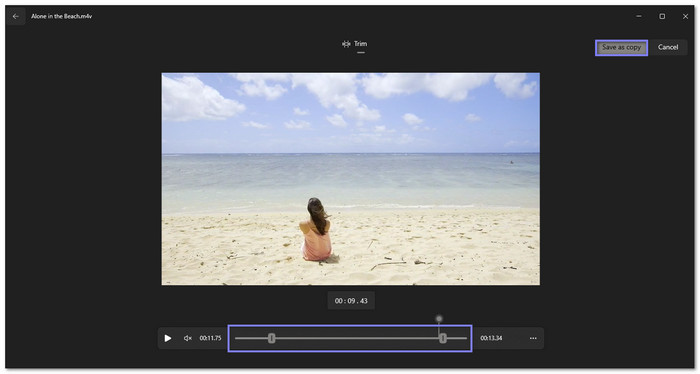
Now, focus on the timeline at the bottom. You will see two white round pins. Drag the left pin to set the start. Next is drag the right pin to set the end.
Step 4 Watch the final clip
Before saving, play the video again. Make sure the cut looks right. If needed, adjust the pins. Take your time here.
Step 5 Save your trimmed video
Lastly, click Save a copy at the top right. The Photos app will create a new video file. The original video stays the same. You can now share or store your trimmed video as you like.
Part 3. How to Trim a Video on Windows in Clipchamp
Clipchamp comes with a clear timeline and simple controls. It makes it easy to trim video in Windows 11 and see your edits in real time. You can cut clips by dragging handles and preview changes right away. You can also use it as an aspect ratio changer. It lets you adjust the video's aspect ratio to fit social media platform requirements.
Step 1 Add your video to Clipchamp
The first thing you need to do is open Clipchamp on your Windows computer. Head to the Your Media tab and click Import Media to upload your video. Once added, drag the video down to the timeline.
Step 2 Pick the clip on the timeline
Click the video clip on the timeline. It will highlight the clip. You are now ready to trim it.
Step 3 Trim unwanted parts
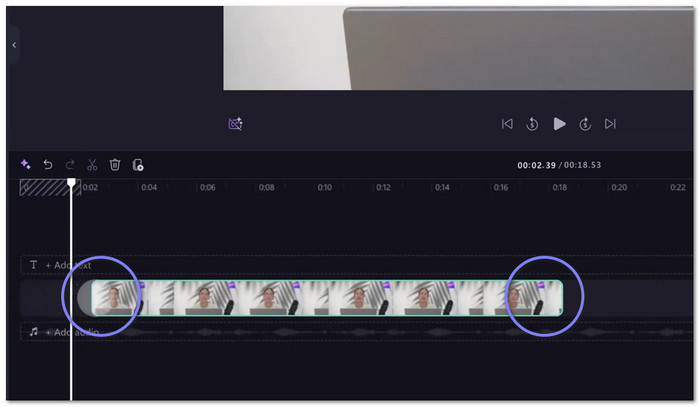
Move your mouse to either end of the clip. Drag the handles inward to cut off parts you do not need. You can preview the result as you trim.
Step 4 Trim the clip to your liking
If you have more than one clip, hold Shift and select them together. Drag one handle to trim all selected clips at the same time. It saves time.
Step 5 Remove timeline gaps
After trimming, gaps may appear on the timeline. Right-click the space. Then, select Delete all visual gaps to clean up the timeline. Your clips will snap together.
Part 4. Troubleshooting: Why Can't You Trim Video on Windows
Sometimes, you may not be able to trim a video on Windows. It usually happens because the video codec is not supported. Another reason is that the Photos app or Clipchamp might not be compatible with your Windows version.
To fix this, try turning the video into a common format like MP4. Also, make sure your app is updated to the latest version. If it still does not work, using a tool like Tipard Video Converter Ultimate can help, as it supports almost all video formats and works on most Windows versions.
Part 5. Comparison of the 3 Ways to Trim Video on Windows
Trimming videos on Windows can be done in different ways. Each tool has its own strengths. Depending on what you need, speed, control, or simplicity, you can pick the best video trimming software for Windows. Below is a look at Tipard Video Converter Ultimate, Photos app, and Clipchamp.
1. Tipard Video Converter Ultimate
Tipard Video Converter Ultimate is powerful and precise. You can trim by second, split large videos and merge them, apply fade-in and out effects, and convert videos to supported formats. It has a preview screen to check edits before saving. It is perfect for users who want full control and more features, yet it is still easy for beginners.
2. Photos
Photos is simple and built into Windows. You can easily trim videos by dragging the start and end handles and save a new copy. Its tools are limited, so it is not ideal for advanced trimming.
3. Clipchamp
Clipchamp uses a visual timeline that makes trimming easy to see and adjust. You can trim multiple clips at once and remove gaps between clips. It also allows for rearranging clips quickly. It is a good choice for casual edits or small projects.
Conclusion
Whether you want to trim out unwanted parts, shorten long clips, or make your videos more focused, Tipard Video Converter Ultimate, Windows Photos, and Clipchamp can help you trim video on Windows.
Among these three, we recommend Tipard Video Converter Ultimate. It is easy to use, supports many video formats, and works on most Windows versions. With it, you can trim videos without errors and save your clips quickly for future use.
More Reading




About the Author

 Click here to join the discussion and share your comments
 Tipard Video Converter Ultimate