

Looking for the best video enhancer apps for iPhone? Well, using an excellent video enhancer can let you upscale and improve your videos for a better viewing experience. The good thing about the tool is that it can even remove the video noise, shakiness, blurriness, and other annoying elements from the video. With that, if you want to enhance your videos using your iPhone, you need an excellent video enhancer. Thankfully, this post will be helpful for you. Read here and explore all the best video enhancers to improve the quality of your videos on your iPhone.
Part 1. Top 7 iPhone Video Enhancer Apps
Are you searching for an ideal video enhancer you can access on your iPhone? Then, check all the apps we have provided in this section.
1. CapCut
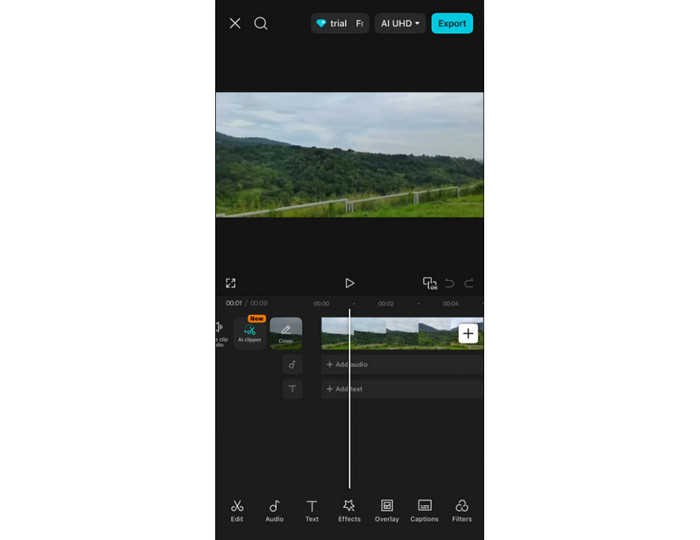
Price: The paid version starts at $9.99.
Features:
- It can enhance videos smoothly.
- It can offer various basic and advanced editing tools.
- The app has a smooth export process.
Capcut is an excellent tool that you can rely on to enhance your iPhone video. It also has a simple layout, allowing you to enhance your videos easily. Aside from that, you can also use various editing functions. You can crop video on iPhone, add filters, rotate, add text, and more. Thus, if you need a remarkable video enhancer, look no further than CapCut.
- Utilizing the app is simple.
- It has various templates you can access for editing videos.
- It can also deal with images.
- To save the video with the highest quality, use the paid version.
- It inserts a watermark on the free version.
2. InShot
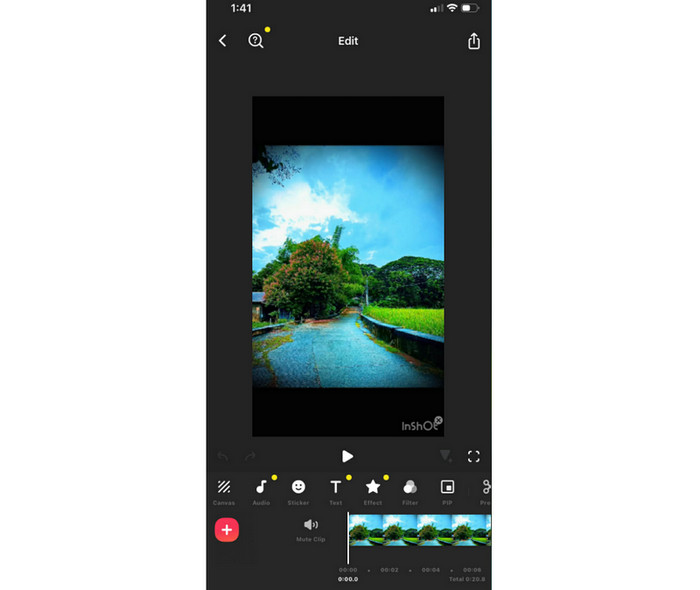
Price: The paid version starts at $2.99.
Features:
- The tool can offer basic video editing tools.
- The video noise reducer is available.
- It can offer filters to improve video output.
The next tool you can access is InShot. It is one of the most popular video editing apps you can access that can help you deal with your videos. With its editing tools, you can enhance your videos in many ways. You can adjust the video color, add a filter, and save it with the best quality.
- The tool's layout is straightforward.
- It lets users add background music to the video.
- The free version inserts a watermark into the video.
3. Filmora - Video Editor
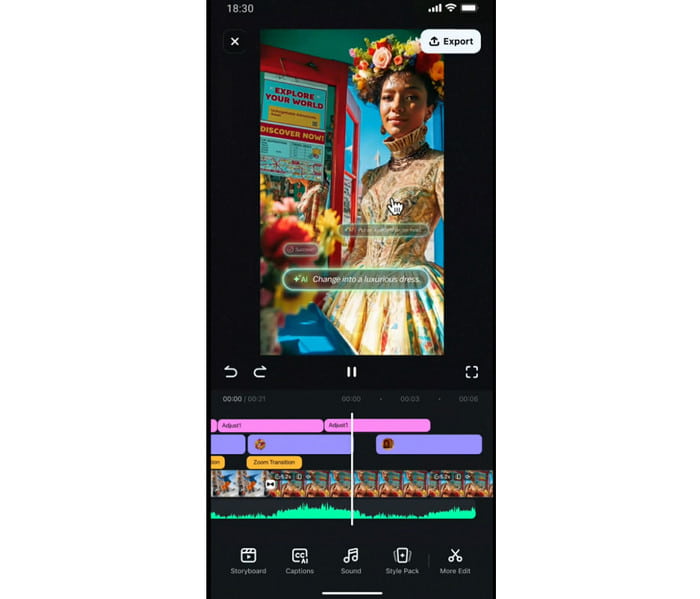
Price: The paid version starts at $6.99.
Features:
- The app can offer a smooth video enhancement.
- It can provide AI-powered technology for better results.
- The video stabilizer is available.
Filmora is an advanced video editing tool that can help you enhance your videos. You can even edit your videos based on your preferences. You can stabilize iPhone video, add text, insert a filter, and more.
- It can give you all the necessary features for effective editing.
- Its AI technology can give you the result you need.
- Some of the advanced features are accessible on the premium version.
4. Adobe Premiere Rush
Price: The paid version starts at $9.99.
Features:
- It has an auto-enhance feature.
- The color correction is available.
- The app can sync audio to video.
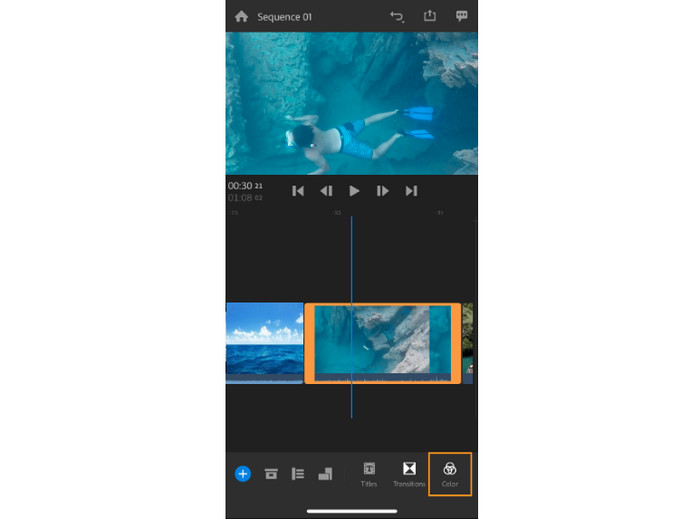
Adobe Premiere Rush is designed to enhance your iPhone videos. With this app, you can ensure you get the best quality for your video. You can even use various video editing tools, such as video colorizer, cropper, trimmer, and more.
- You can sync your videos to the cloud.
- It is an ideal editor for professionals.
- Some features are hard to locate.
- Its paid version is expensive.
5. VN AI Video Editor
Price: Free
Features:
- It can upscale video up to 4K.
- It can enhance video color.
- The video denoiser is accessible.
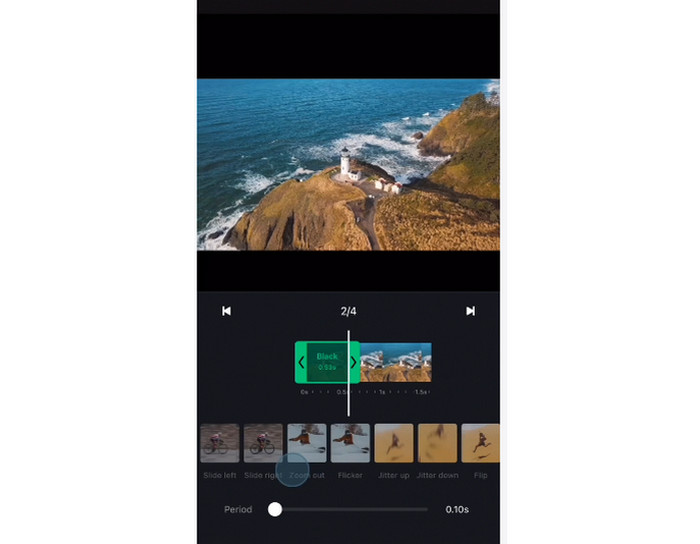
If you want a free video enhancer app for iPhone, there is no doubt that VN AI Video Editor is the best choice. With its capability to enhance videos, you can ensure an excellent quality after the process. What we like here is that you can access more features, such as customizable text, transitions, effects, and more.
- It is free to use.
- There is no watermark after the saving process.
- The app lacks advanced video editing tools.
Part 2. How We Test the Best Video Enhancer Apps for iPhone
Before introducing the best video enhancers for your iPhone, we first tested them in many ways, such as:
- Our team checks the tool's video quality improvement, especially the upscaling performance if the tool can give the best video output.
- We also consider the apps' layout. Some tools must be ideal for beginners, and some for professionals.
- Besides the apps' video enhancement capabilities, we also ensure that the tools can offer various video editing features.
- We also consider the compatibility. We ensure that all the mentioned video enhancers are working well on iPhone devices.
Part 3. Easily Enhance iPhone Videos on PC and Mac
Do you want to enhance your iPhone videos on your Mac or Windows? Then, we suggest using Tipard Video Converter Ultimate. With this program, you can ensure obtaining a better version of your video after the video enhancement process. The software can enhance your video resolution and frame rate based on your preferences. It also allows you to change the video codecs, like H.264 and AV1. What's more, it can offer various iPhone video format presets. Lastly, Tipard Video Converter Ultimate can offer an AI-powered technology to enhance your videos smoothly. Thus, if you want to start enhancing your iPhone videos, use the instructions below.
Step 1 Download Tipard Video Converter Ultimate on your Windows or Mac. You can use the clickable buttons below to access the program easily.
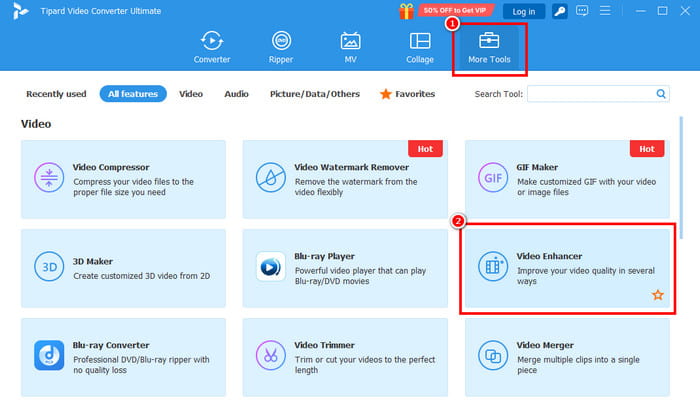
Step 2 After you launch the interface, tap the More Tools above and select the Video Enhancer feature. Then, hit the Plus button/symbol to add the video you want to enhance.
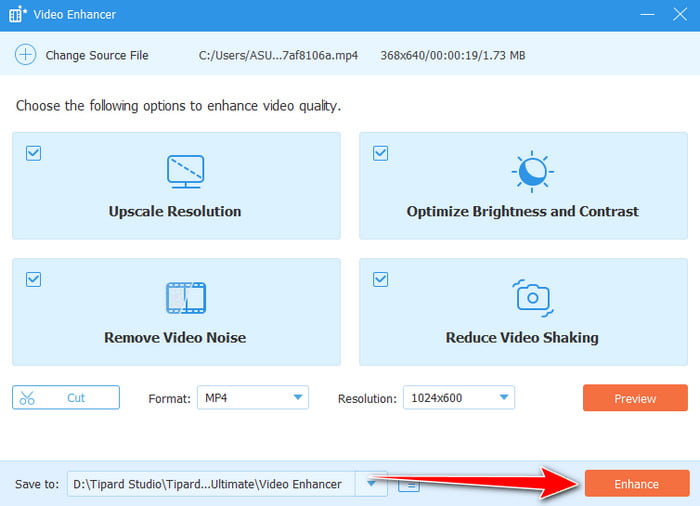
Step 3 Now, you can start enhancing your iPhone video. You can check the boxes to enhance your video by upscaling the resolution, optimizing brightness, reducing the shakiness of the video, and removing video noise.
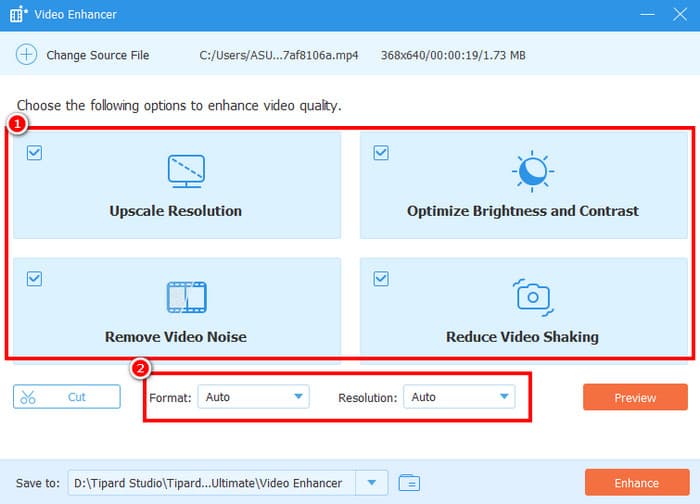
You can also pick/select your preferred resolution and output format below.
Step 4 For the final process, click the Enhance button to begin enhancing your videos.
Bonus: How to Enhance iPhone Video Quality in Settings
Want to enhance iPhone video quality in settings? Follow the simple steps below.
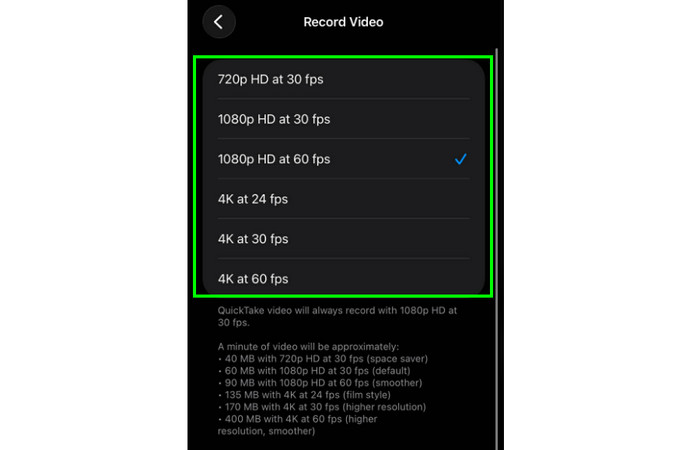
Step 1 Open the Settings app on your iPhone. Then, scroll down and press the Camera option.
Step 2 Tap the Record Video option and start choosing your preferred resolution and fps. You can enhance the video quality from 720p HD at 30 fps to 4K at 60 fps.
Step 3 Once done, you can start capturing your video with the best resolution.
Conclusion
Thanks to the best iPhone video enhancers, you can successfully enhance and improve your videos effectively. With that, you can choose your preferred app and start enhancing your videos. Also, if you prefer enhancing your iPhone videos on your desktop, it would be better to use Tipard Video Converter Ultimate. With its Video Enhancer feature, you can upscale the video's resolution, optimize the brightness, and remove both shakiness and noise from the video, making the program ideal for all users.
More Reading



About the Author

 Click here to join the discussion and share your comments
 Tipard Video Converter Ultimate