

M4P is a file format used by Apple for songs bought from the iTunes Store in the past. The problem with M4P is that it comes with DRM protection, which means you cannot freely play it on all devices or share it easily. That is why you should convert M4P to M4A.
By doing so, your songs become DRM-free, with the same good quality, and can be played on many players and devices. In this post, we will teach you step-by-step how to convert M4P to M4A, so let us start right away.

Part 1. Best Way to Convert M4P to M4A on Windows/Mac
The best way to convert M4P to M4A on Windows and Mac is using Tipard Video Converter Ultimate. It is fast, keeps your audio clarity, and works in just a few simple steps. Not only can it convert M4P to M4A, but it also supports M4P to MP3. If you have many files, you can manage them all at once with batch conversion, so you do not have to convert songs one by one. That is why Tipard Video Converter Ultimate is really the best choice for your audio conversion needs.
Step 1 First and foremost, download and install Tipard Video Converter Ultimate on your Windows or Mac.
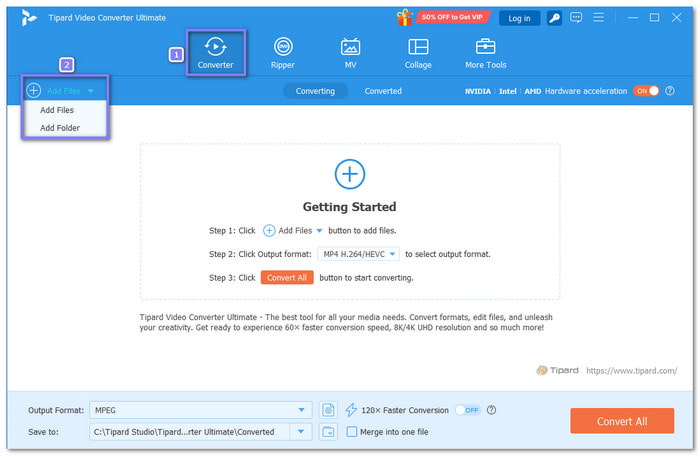
Step 2 Open Tipard Video Converter Ultimate, and you will be directed to the Converter tab. Import your M4P songs by clicking the Add Files button. You can also select and drop the files or a whole folder.
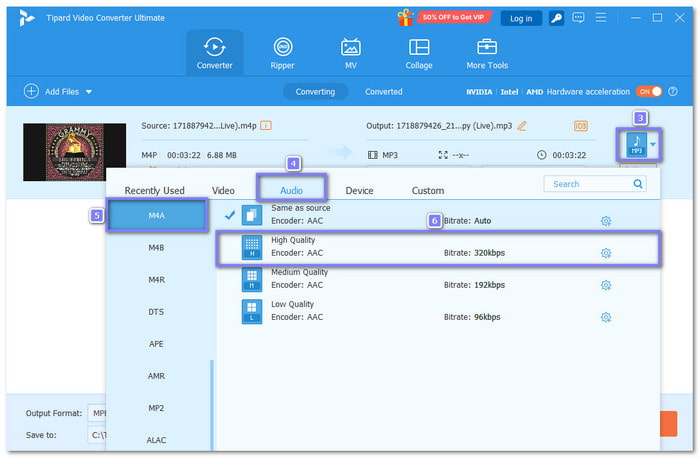
Step 3 Open the Format drop-down menu. Go to the Audio section and choose M4A. You can check the bitrate and select one that is close to your original file for good sound clarity.
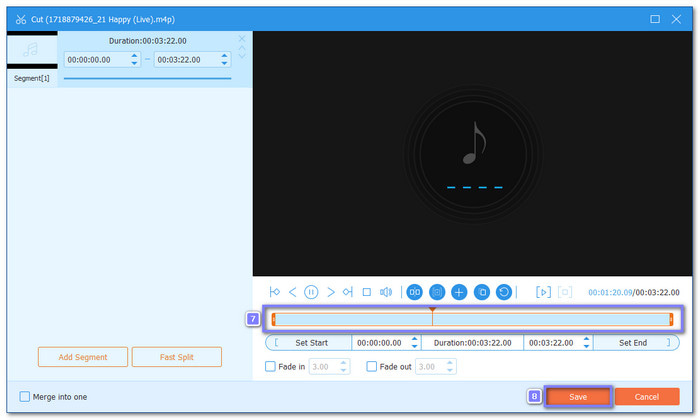
Step 4 If you want, you can trim parts of your song or audio track by clicking the Cut button. You can also check Merge into one file if you want to combine multiple tracks into a single M4A file. Do not forget to press Save to apply the cuts you made.
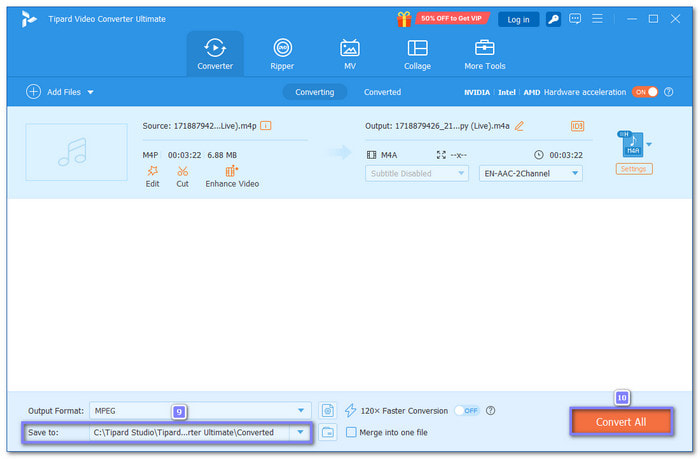
Step 5 Click the Save To button to pick a folder where the new M4A files will be stored. It helps you find them easily after conversion. Once selected, you can now click the Convert All button. Tipard Video Converter Ultimate will start converting your M4P to M4A. Once it is done, the folder with your converted files will open automatically.
Part 2. How to Convert M4P to M4A in iTunes
If your old iTunes songs are saved as M4P, there is a simple approach to unlock them. By removing the protected copies and redownloading from your purchased list, iTunes gives you the same tracks in DRM-free M4A. This method works because Apple changed purchased music to open M4A files. It is safe and quick to do, and a smart choice if you already own the songs.
Here is how to convert M4P to M4A in iTunes:
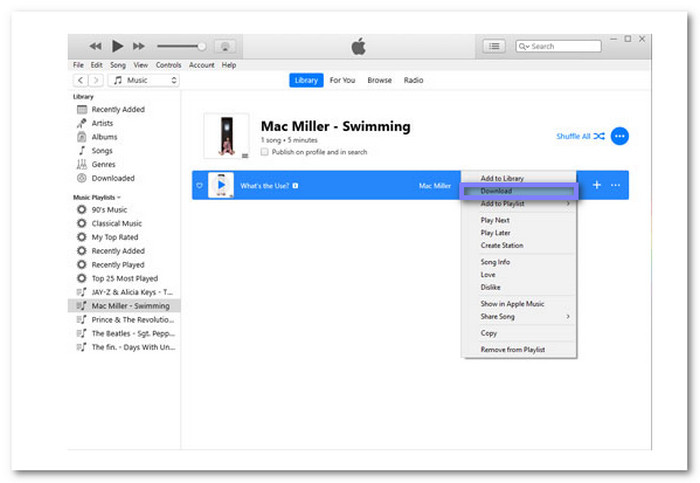
Step 1 Open iTunes on your computer. Go to your library and find the M4P songs you want to change. Right-click on them and choose Remove Download to clear the local copies.
Step 2 Go to the iTunes Store and click Purchased from the menu. From there, go to the Music section. You will now see all the songs you bought in the past.
Step 3 Look for the tracks you removed earlier. Click the Download button next to each one. This time, the songs will be downloaded in M4A format instead of M4P.
Step 4 Go back to your library, and you will find the redownloaded files in M4A. These versions are DRM-free so that you can play them on other devices without issues.
This method only works for songs you purchased from iTunes. It does not work with Apple Music subscription files.
Part 3. How to Convert M4P to M4A Online
If you do not want to use a program on Windows or Mac, or rely on iTunes redownload, you can also convert M4P to M4A online. Online tools work right in your browser, so you do not need to install anything. Below, we will show you the best online options.
1. FreeConvert
One good choice to convert M4P to M4A online is using FreeConvert. It lets you upload songs from your device, a link, or cloud storage. The free limit is 1 gigabyte, which is enough for most audio files. You can even trim, apply fade-in or fade-out, and adjust volume before converting. With this online converter, you can also change M4P to MP3, OGG, WAV, FLAC, and other audio formats.
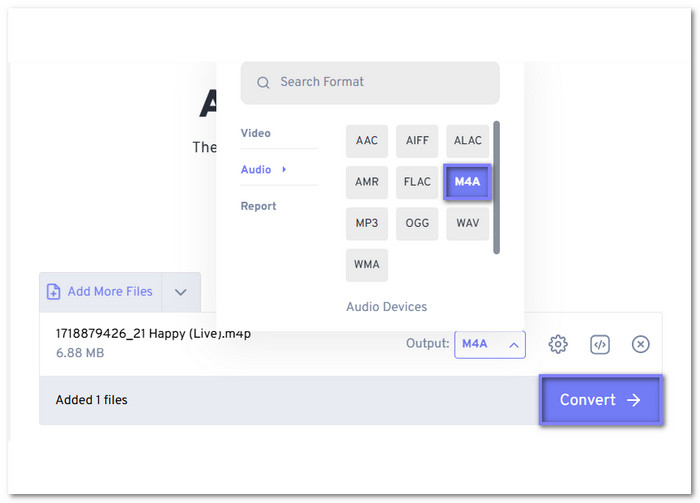
Step 1 Open the FreeConvert - Audio Converter’s main website on your device. After that, press the Choose File button to upload your M4P file.
Step 2 Once the file is uploaded, pick M4A from the Output drop-down menu. You can also click the Cogwheel button if you want to fine-tune clarity or file size.
Step 3 Now, press the Convert button and please wait for the website to process the conversion. It may take a short while, depending on your file size and internet speed.
Step 4 After the conversion is done, hit Download to store the file to your computer or phone.
2. 123APPS
Another free M4P to M4A converter that offers an easy method is 123APPS - Audio Converter. It works with over 300 formats and supports batch conversion so that you can change many songs at once. Free users can upload up to 4 gigabytes per file, which is much larger than most online converters allow. Not only that, it can also extract audio from videos, giving you extra flexibility.
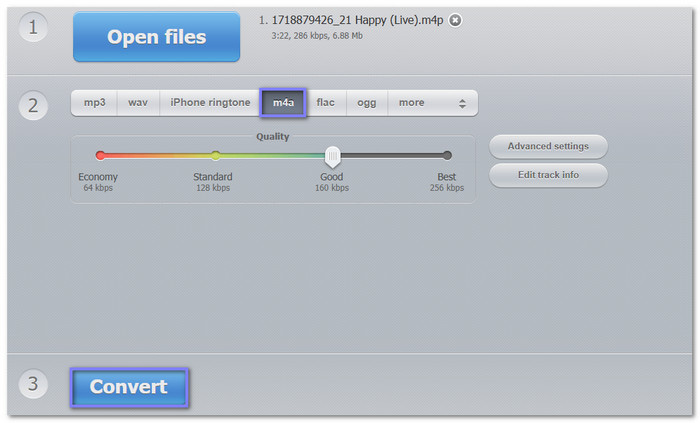
Step 1 Visit the 123APPS - Audio Converter main website on your browser and press Open Files to import your M4P file from your computer, Google Drive, or Dropbox.
Step 2 Once the file is uploaded, choose M4A as the output format. You can also fine-tune advanced settings like bitrate or audio clarity if needed.
Step 3 Click the Convert button and let the online converter process your M4P into M4A format. The platform will redirect you to the download page once the task is complete.
Step 4 Once the conversion finishes, press the Download button to save your new M4A file on your device.
Conclusion
There you go! You have learned how to convert M4P to M4A with the methods presented above. There is an offline converter you can use to convert M4P to M4A, and that is Tipard Video Converter Ultimate. You also have online tools like FreeConvert and 123APPS. The choice is yours! But if you want fast speed, batch conversion, and support for many formats, Tipard Video Converter Ultimate is the best pick.
More Reading


About the Author

 Click here to join the discussion and share your comments
 Tipard Video Converter Ultimate