

- Part 1. What Does Trimming Video Mean?
- Part 2. How to Trim Video Easily on Windows and Mac
- Part 3. How to Trim Video on Windows with the Photos Application
- Part 4. How to Trim Video on Mac with iMovie
- Part 5. How to Trim Video on iPhone and Android
- Part 6. How to Trim Video Free Online
- Part 7. FAQs of Trimming Video
Key Takeaways
Begin Video Trimming with Suite Applications like Tipard Video Converter Ultimate, Windows Photos, iMovie, or any other mobile application.
- Beginner Friendly: It makes trimming videos super easy.
- Multiple Formats: MP4, MOV, MKV, AVI, and other extensions.
- Timeline Controls: Adjust start/end, split, or reorder clips.
- Cross Platform: Supports Windows, Mac, iPhone, Android and online.
Discover how to trim video effortlessly on Windows, Mac, iPhone, Android, or online. This comprehensive guide provides step-by-step instructions, beginner-friendly tools, and tips to remove unwanted footage, improve pacing, and create polished videos for any platform.

- Part 1. What Does Trimming Video Mean?
- Part 2. How to Trim Video Easily on Windows and Mac
- Part 3. How to Trim Video on Windows with the Photos Application
- Part 4. How to Trim Video on Mac with iMovie
- Part 5. How to Trim Video on iPhone and Android
- Part 6. How to Trim Video Free Online
- Part 7. FAQs of Trimming Video
Part 1. What Does Trimming Video Mean?
Video trimming means that you shorten the length of a video by removing footage from the beginning, the end and sometimes both. Trimming is one of the basic or fundamental things that you can do during video editing.
Videos are commonly trimmed to:
- Remove long or monotonous intros and long endings
- Chop out errors, pause the video, or any dead placeholders.
- Fit in limited time content (as in Shorts, TikTok, Reels, etc.)
- Smooth out the pacing so that the audience can be engaged.
Unlike cutting, which eliminates a segment from the middle of the video, in most cases, trimming is usually focused on cleaning up the edges of a clip. From time to time, on desktop, mobile or any internet-based editing tools, trimming is made easy with the use of timeline sliders or simply by drag and drop tools.
Part 2. How to Trim Video Easily on Windows and Mac
Tipard Video Converter Ultimate works great for trimming videos on both Windows and Mac. It has a friendly and simple design that allows you to cut, trim, and rearrange videos, saving you the hassle of losing the video quality. Tipard Video Converter Ultimate helps you smooth and enhance at whatever quality you need, from simple social media videos to 4K videos.

- The built-in editor is easy to use, making video trimming beginner-friendly.
- Videos remain sharp and smooth after trimming, with no unwanted quality loss.
- You can cut unwanted parts and reorder clips to create a clean, polished video.
- Trim videos in popular formats like MP4, MOV, MKV, AVI, and more.
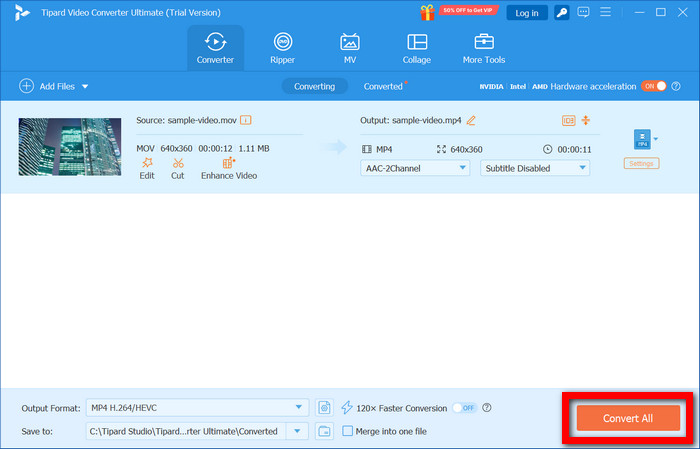
- Trim and export videos up to 120× faster using Intel, AMD, or NVIDIA acceleration.

Step 1 Download and Install
First, complete the installation after downloading the Windows or Mac version from the official Tipard website.
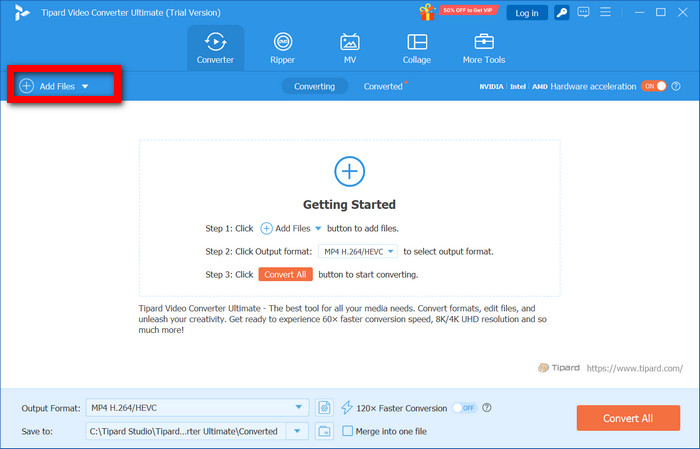
Step 2 Launch the Program and Add Video
Open the program after the installation has been completed, and click Add Files to upload the video that requires trimming.
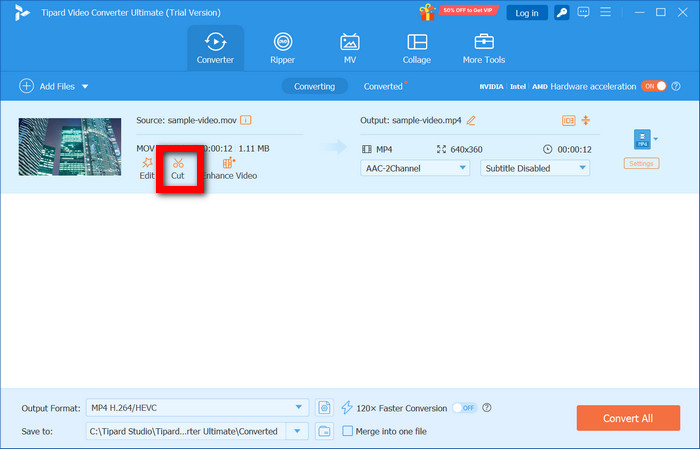
Step 3 Open the Trim Tool
Then, go to the trimming interface by clicking on the Cut button that is located next to or under the video file you want to trim.
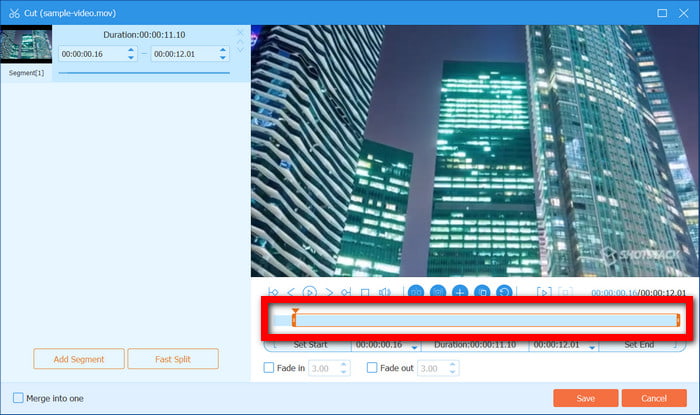
Step 4 Trim the Video
A timeline will become visible with an option for you to manually segment and remove the parts that you do not want to keep. You should be able to see a preview of the changes once the time markers have been adjusted to set the start and end points. Once satisfied, press the Save button.
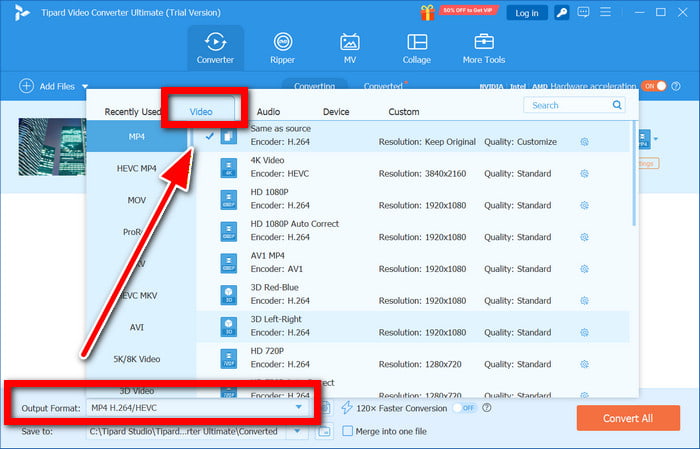
Step 5 Choose Output Format and Settings
After you finish trimming, you can select the Output Format you want and, for the best quality, keep the original resolution and frame rate.
Step 6 Export the Trimmed Video
To finish, select Convert All, specify a destination folder, and your trimmed video will be exported quickly and seamlessly.
Part 3. How to Trim Video on Windows with the Photos Application
If you are on Windows 10 or 11, you do not have to download any additional software to trim a video. The Photos app comes installed and provides a quick, simple way to trim videos from the beginning and/or the end while removing the original file.
Step 1 Access the Photos application from the Start Menu, or right-click the video file and select Open with > Photos.
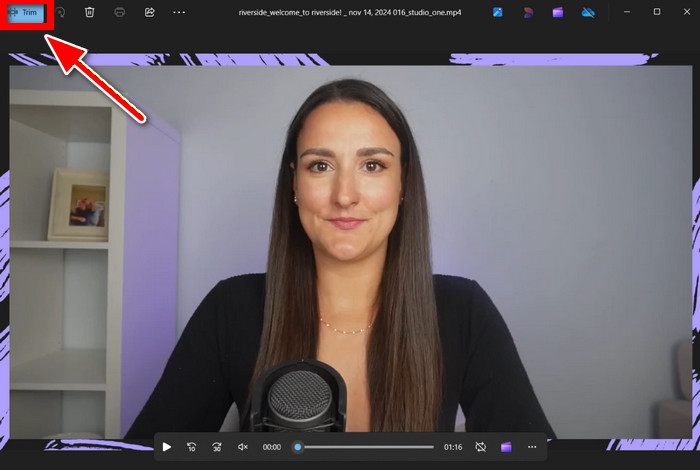
Step 2 After the video loads, select the Trim option located in the upper-right corner.
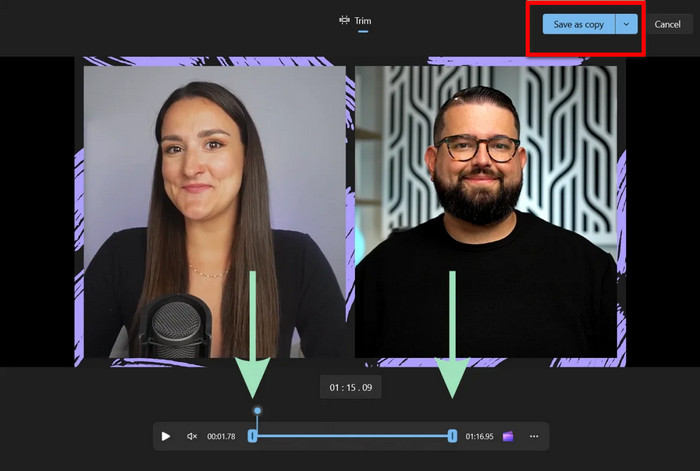
Step 3 A timeline will show at the bottom, where you will see edit handles (one on each end). Drag the left handle to adjust the start position, and the right handle to adjust the end position.
Step 4 Check to see if the preview of the trimmed video looks satisfactory.
Step 5 Select Save a Copy in order to export the trimmed video. The original video will be left as is.
Part 4. How to Trim Video on Mac with iMovie
iMovie is the best for trimming videos on macOS. Most Macs come preinstalled with this software, so users have more trimming and editing control than simple editors.
Step 1 Launch iMovie and start a new project.
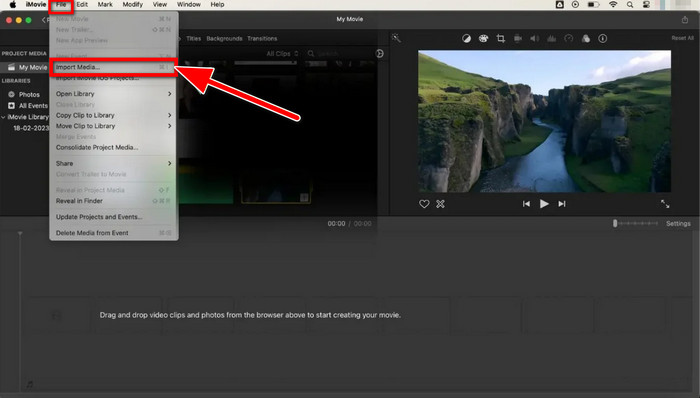
Step 2 Go to the top menu and select File, then select Import Media. After that, select the video that you would like to trim and click Import Selected.
Step 3 Select the imported video in the Media tab (on the upper left), then drag and drop it into the Storyboard section located at the bottom of the screen.
Step 4 If you want to trim the video from the beginning or the end, just click on the video and then drag the edges of the video inwards.
Step 5 If you want to remove a specific section, just move the playhead to that section and press the Command (⌘) + B shortcut.
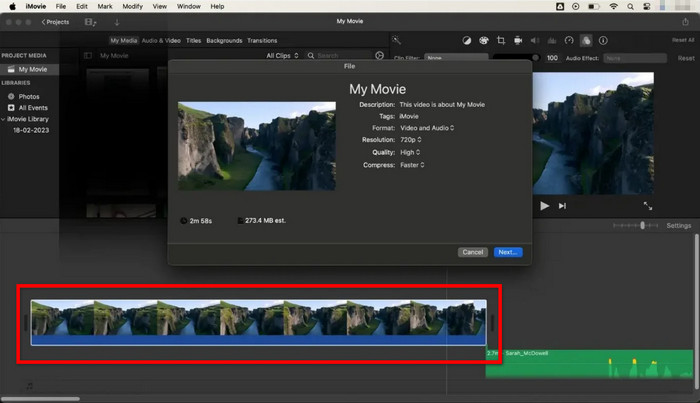
Step 6 Once you are satisfied with your edits, you can export the video.
Part 5. How to Trim Video on iPhone and Android
It is also easy to trim videos on mobile devices, as the built-in apps are designed for that. iPhones and Androids also let you trim videos directly from the Photos app for quick edits.
iPhone
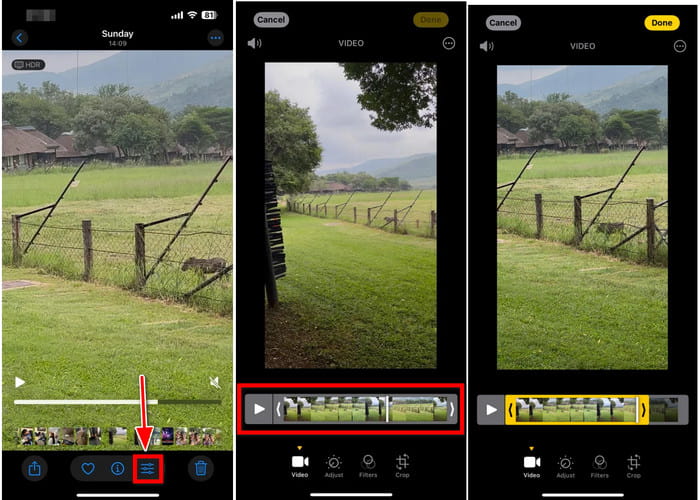
Step 1 Open the Photos app, and find your video from Videos or Recent Albums.
Step 2 Select it and tap on Edit in the bottom right corner.
Step 3 You can then adjust the start and end points by using the two small lines at the bottom and moving to the right.
Step 4 Press Play to preview the video, and after you are done, tap on Done.
Step 5 Choose either Save Video or Save Video as New Clip.
Android
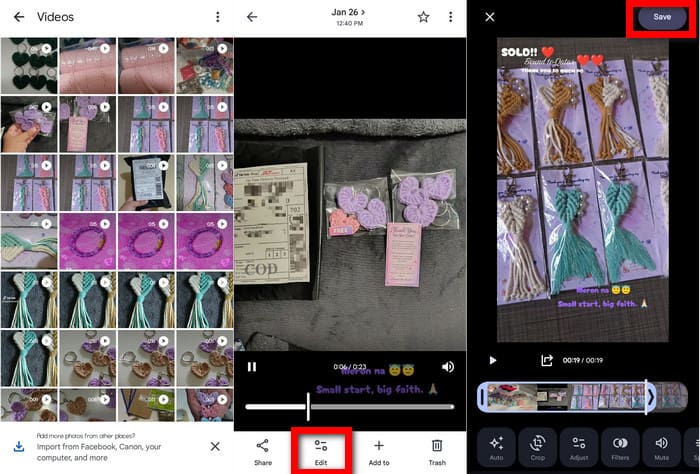
Step 1 Open the Google Photos app and select your video.
Step 2 Press Edit under the video.
Step 3 Use the sliders along the timer to cut the start and the end.
Step 4 Press Save to save the video with the new duration.
Part 6. How to Trim Video Free Online
If you would rather not install apps, there are video trimmers that work online for free. Tools that run in web browsers, like Kapwing, let you cut videos using a simple visual editor that runs in your browser for free.
Step 1 Go to the web video editor and import the video you want to edit.
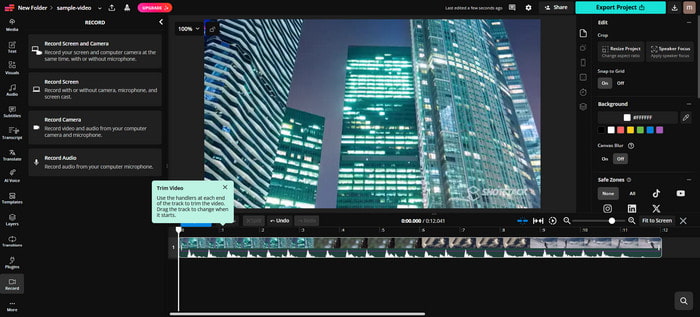
Step 2 Decide how you want to cut the video:
- Timeline editing, where you drag the edges of the clip you want to adjust to shorten the video, use the playhead to visually split the clips, or add audio to the video for enhanced content.
- Then there are manual cut tools, where you can one-click to cut out unwanted video sections.
Step 3 Check the video preview to be sure the video flows correctly, and all the cuts are in the right places.
Step 4 Press Export Project, select your video quality, and save your edited video.
Part 7. FAQs of Trimming Videos
What is the quickest way to trim a video?
The easiest way to cut a video is by using built-in tools or online editors that allow you to remove clips using handles or edit via text. These types of tools allow you to remove unwanted sections easily without the need for elaborate timelines, and are great for fast editing and for beginners.
What is the difference between cut and trim in video?
When you trim a video, you shorten it by removing some of the footage from the beginning or the end. Cutting is when you remove a specific section from the middle of a video. Cutting usually means you have to split the clips and then reconnect them, so that is a bit more advanced than just trimming.
Is it possible to edit a video on an iPhone?
Yes, you can shorten a video on an iPhone using the Photos app or other apps. You can trim, cut, and add filters, and even export the videos directly from your iPhone without a computer.
Conclusion
All in all, knowing how to trim a video allows you to remove unnecessary parts and enhance your content quickly. With easy-to-use tools on Windows, Mac, mobile, or online, anyone can create polished, engaging videos effortlessly.
More Reading




About the Author

 Click here to join the discussion and share your comments