

Key Takeaways
The following are important to consider when upscaling:
- Resolution Scaling: Videos are resized from 1080p (1920×1080) to 4K (3840×2160).
- Detail Preservation: Footage remains sharp using advanced algorithms.
- Batch Processing: Tipard Video Converter Ultimate supports upscaling in bulk.
- Hardware Acceleration: Processing is sped up by GPU support.
- Output Control: Quality and size are managed by adjustable codecs and bitrates.
To upscale 1080p to 4K, you need the right tools and methods to improve how videos look on modern displays. This guide explains whether upscaling helps and shows desktop, online, and professional workflows for fast, reliable results across different platforms.

Part 1. Does Upscaling 1080P to 4K Really Help?
Upscaling 1080p to 4K means using software or hardware to stretch a Full HD video (1920×1080) to fit a 4K screen (3840×2160). This can improve how the video looks on a 4K display, but it does not add real detail that was not in the original file.
When Upscaling is Helpful:
- Better Viewing on 4K Screens: Upscaling reduces softness or pixelation that happens when 1080p is shown full-screen on a 4K TV or monitor.
- AI Upscaling Looks Cleaner: AI upscalers are the most advanced because, unlike other upscalers, they can sharpen edges, smooth noise, and enhance textures.
- Good for Remastering Older Content: Especially useful for DVDs, old recordings, or online videos.
Part 2. How to Upscale 1080P to 4K in Batch Quickly
Manually upscaling videos one at a time can be time-consuming and tedious. Tipard Video Converter Ultimate makes this easier as it allows batch upscaling of videos from 1080p to 4K, utilizing GPU acceleration for quick and effortless processing, great for users with little technical experience.

- Batch conversion for multiple videos.
- Support for 4K, 5K, and even 8K output.
- Flexible codec options including H.264, H.265/HEVC, and AV1.
- Built-in editing tools for basic enhancements.
- Up to 120× faster processing with GPU acceleration.

Step 1 Video Upload
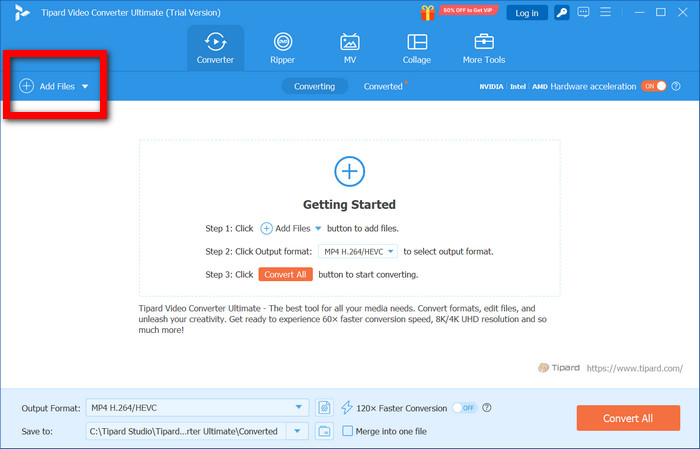
Open Tipard Video Converter Ultimate and click Add Files, or you can drag and drop several videos at 1080p into the application.
Step 2 Set a 4K Preset
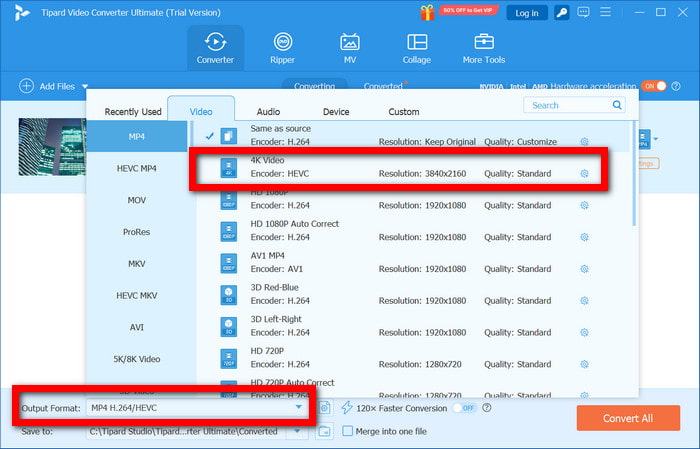
Click on the Output Format tab and select any 4K preset, such as 4K MP4 (H.265/HEVC) or 4K MP4 (H.264).
Step 3 Adjust Video Settings (If you want)
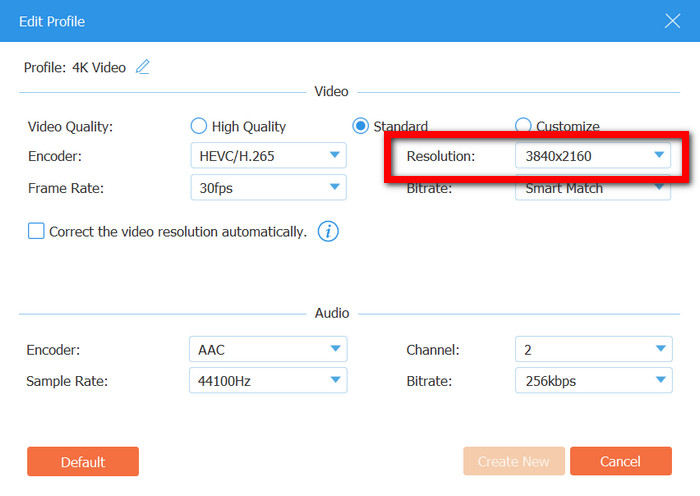
Open the Settings and change the resolution to 3840×2160. You can also select a different video codec and adjust the bitrate or frame rate if you want.
Step 4 Turn on GPU Acceleration
Make sure you have Intel, NVIDIA, or AMD GPU acceleration to speed up the decoding and encoding processes.
Step 5 Begin Batch Upscaling
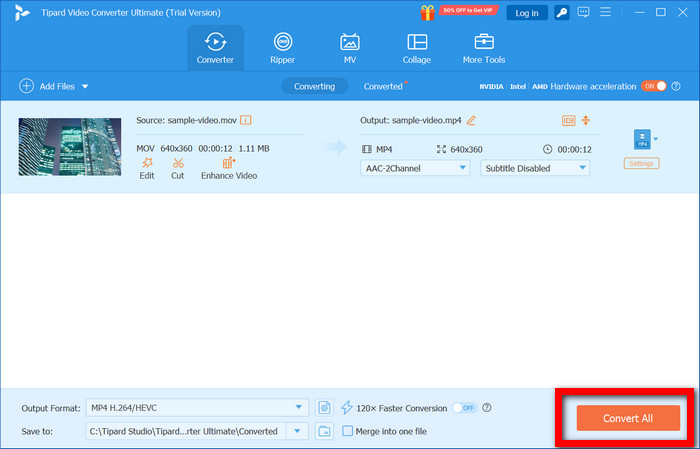
Select a folder for the output files and click on Convert All to upscale all the videos to 4K simultaneously.
Why We Selected It
With Tipard Video Converter Ultimate, you can use GPU acceleration for faster video decoding, encoding, and processing, which makes converting 1080p videos to 4K much easier. You can also customize the video resolution and codec, giving you the most efficient workflows while still having control over video quality and file size.
Part 3. How to Upscale 1080P to 4K Free Online
Tool 1. CapCut Web
CapCut Web is an online video editor that lets you modify your project settings to 4K to enhance your videos. It is easy to use, even for beginners, and contains basic tools for color adjustments and video enhancements.
Step 1 Head to CapCut Web and register for a free account.
Step 2 Hit Create a new project and add your 1080p video.
Step 3 Go to the Video Exporting and click the resolution 4K (3840×2160).
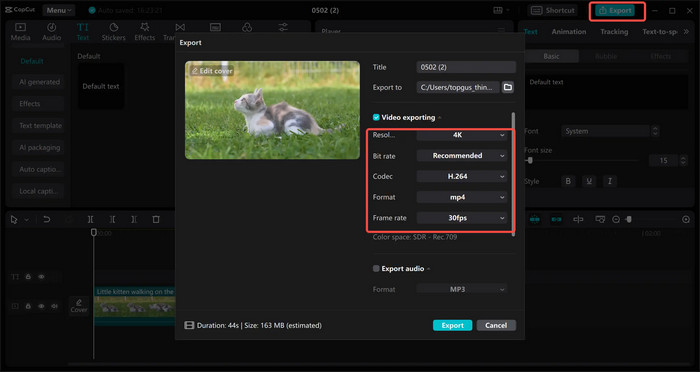
Step 4 Make color or sharpness adjustments if necessary.
Step 5 Hit Export and save the 4K video that you upscaled.
Best for: Visual adjustments, simple upscaling and quick edits, social media videos.
Tool 2. VEED.io
VEED.io is an online video editor that offers 4K video exporting and lets you upscale videos to the 4K resolution. It is also user-friendly and is suitable for short videos.
Step 1 Go to VEED.io and upload your 1080p video.
Step 2 Drag your video to the timeline.
Step 3 Go to Export Settings and choose 4K resolution.
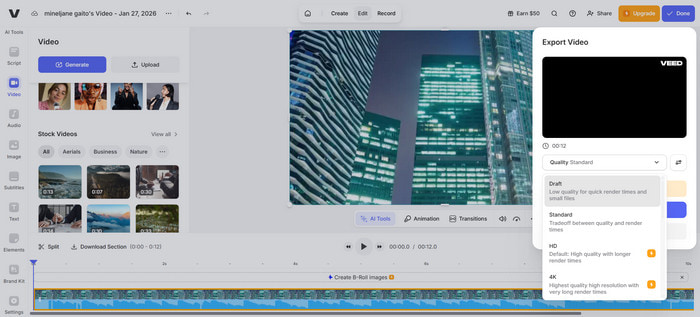
Step 4 Check the clarity of the output with the preview.
Step 5 Export and save the video that is now in 4K (free plans may have a watermark).
Best for: Creating quick videos and fast upscaling online is especially useful when comparing formats like 1080p vs 1080i, where progressive resolution offers smoother results for modern displays.
Part 4. How to Upscale 1080P to 4K with Premiere Pro
Adobe Premiere Pro does not have true detail-preserving upscaling natively. Enlarging a 1080p clip to a 4K sequence usually results in a very soft image. For better quality, Adobe After Effects Detail-Preserving Upscale via Dynamic Link helps retain detail when interpolating pixels, especially when working across resolutions like 480p vs 720p vs 1080p before scaling to 4K.
Step 1 Import 1080p footage into Adobe Premiere Pro and place it in a 4K (3840×2160) sequence so that the lower resolution clip is smaller in the frame.
Step 2 Right-click the clip in the timeline and select Replace With After Effects Composition to send it to After Effects without having to export it.
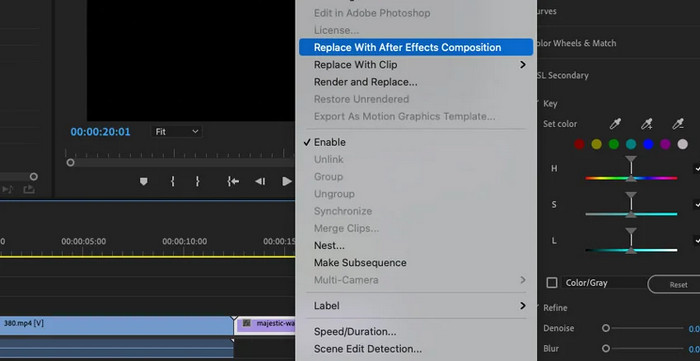
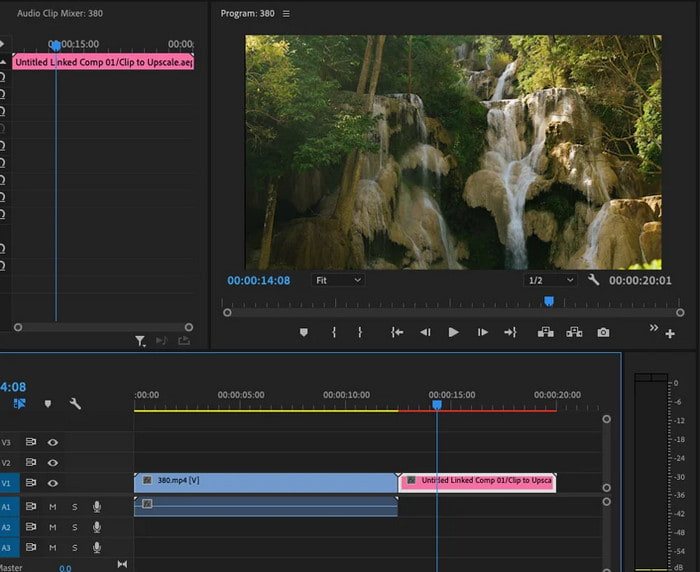
Step 3 When prompted, save the After Effects project. This will create a live link between Premiere Pro and After Effects.
Step 4 In After Effects, go to the Effects & Presets panel and type in Detail-Preserving Upscale. Apply that effect to the clip.
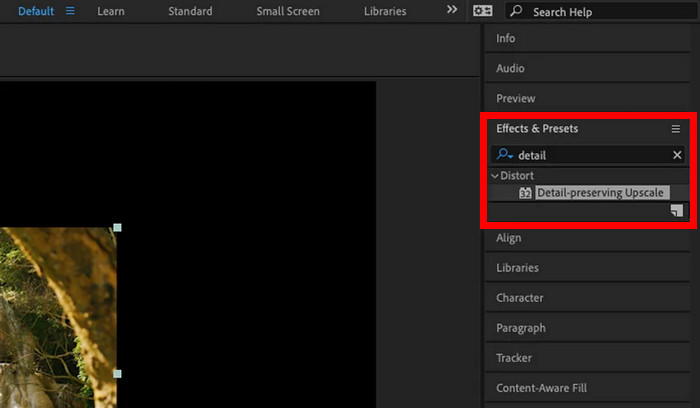
Step 5 In the Effect Controls panel, click the Fit to Comp Width button to scale the footage to the 4K resolution, then move the Detail slider to the right to increase the sharpness and texture.
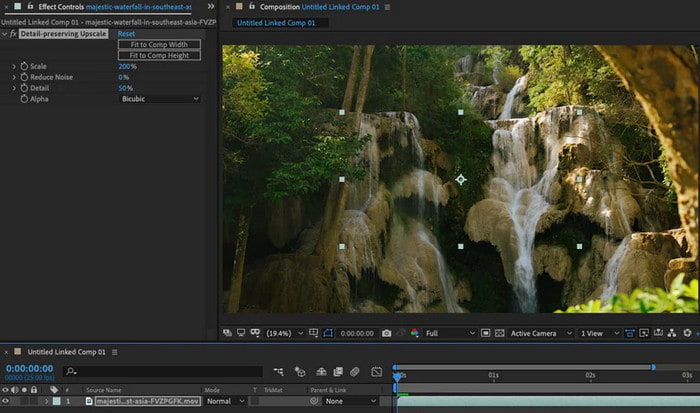
Step 6 Save the After Effects project and return to Premiere Pro. The clip will have the upscaled 4K result automatically.
Conclusion
Upscaling 1080p to 4K is a practical way to make videos look better on modern high-resolution screens, even though it cannot create true native 4K detail. By choosing the right method, batch upscaling with desktop software, quick edits using online tools, or professional workflows with Premiere Pro and After Effects, you can balance quality, speed, and flexibility. Each approach fits different needs, from casual viewing to advanced video production.
More Reading




About the Author

 Click here to join the discussion and share your comments
 Tipard Video Converter Ultimate