

Has it ever happened to you that playing a vintage video resulted in an error? Often, this happens with videos that were downloaded several years ago. Most of the time, what is missing is just a proper codec. The Xvid codec download is useful because it maintains high video quality while occupying less space. We will explain what Xvid is and show you the appropriate way to install it.

Part 1. History of Xvid
Xvid video codec was created in 2001 as a free alternative to DivX after DivX became a paid, private company. Starting with the same early code, Xvid was released for free under an open-source license. This allowed developers worldwide to work together to improve it. Eventually, the video codec Xvid became even better and more popular than DivX for sharing videos online.
Due to its supportive standards, the Xvid codec proved to be a hit for its ability to compress videos while still maintaining clarity. The popularity of DVD and digital video distribution increased because it was compatible with computers running different operating systems on PC, as well as mobile devices.
As more people used mobile devices in the 2010s, the Xvid video codec for MX Player on Android and iOS enabled smooth video playback. Even in the current era, Xvid video remains an optimal method for storing, watching, or sharing videos across different devices.
Part 2. Main Features of Xvid Video Codec
What makes Xvid special in digital video compression is its versatility, speed, and compatibility with various applications. Whether you are playing videos on a desktop or streaming on your mobile device, the Xvid codec for Android ensures that quality and performance go hand in hand. This section will examine the main features and demonstrate their use on platforms such as VLC and Android.
1. Compression that preserves quality
Because Xvid video codec utilizes the MPEG-4 Part 2 standard, it compresses large video files while maintaining clarity and sharpness. Therefore, it is a good choice for anyone who wants a clear image but conserves space. You can archive your videos, make DVDs, or upload your media to the internet with it.
2. Wide compatibility with media players
The smooth functioning with top Xvid media players is among the most important benefits of Xvid. If you use VLC, you are in luck; the Xvid video codec for VLC works right out of the box. All Xvid-encoded videos can be played on your browser without having to set up extra software. Users who wish to use many file types without extra setup will find this feature very helpful.
3. High-quality playback for Android phones
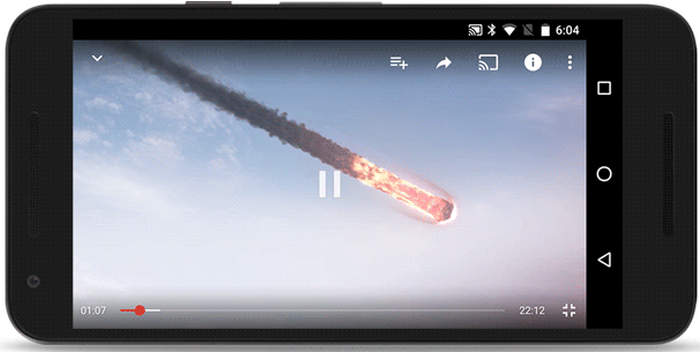
Are you currently using your phone to enjoy videos? Xvid video codec ensures that you can watch videos in high quality using tools like VLC or MX Player. Due to the wide availability of Xvid codec in Android media apps, you do not have to convert your videos before playing them. The Xvid video codec for Android makes it easy to stream or view videos anywhere, whether offline or online.
4. Cross-platform performance
Flexibility is one reason why lots of people still use Xvid video codec today. You can use it on preferred operating systems, including Windows, macOS, and Linux. Its compatibility with both desktop and mobile environments, especially through tools like Xvid video codec VLC, makes it a go-to choice for those needing a universal codec that just works. However, note that Xvid is not as compatible as H.264 or HEVC today. You may fail to play Xvid videos on some devices or platforms.
If you have decided to convert your videos to Xvid format, you will need to download an Xvid converter to make the process run smoothly and easily. But if you want to play an Xvid video on your device, you will need to learn how to download a codec that supports Xvid files in the next part.
Part 3. How to Download Xvid Codec
You can download and install Xvid video codec when your device or a specific player cannot play Xvid videos. This guide will show you how to safely download and set up the Xvid codec, which Windows 10 and 11 users often rely on for smooth, high-quality playback on Xvid videos.
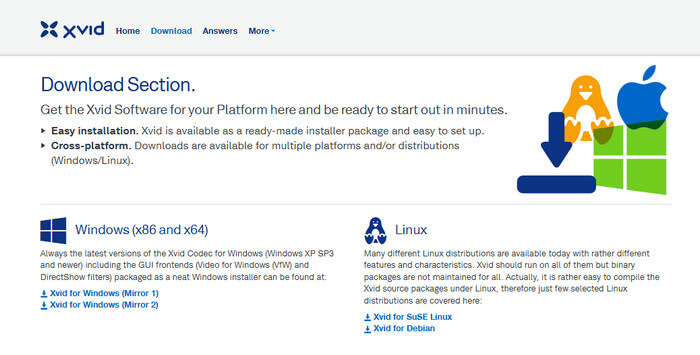
Step 1 Go to the Xvid official webpage - www.xvid.com/download/. Here, you can see it only has Windows and Linux versions.
Step 2 Press the download link to get the file and save it on your device. Once the download is complete, click the file to initiate the installation process.
Step 2 Click a download link based on your OS. You'll also find that the latest version is Xvid video codec 2019.
Step 3 Go through the step-by-step directions given by the installer. This step can be completed easily within a short period. After you finish the installation, make sure to restart your media player, especially if you are using Windows Media Player.
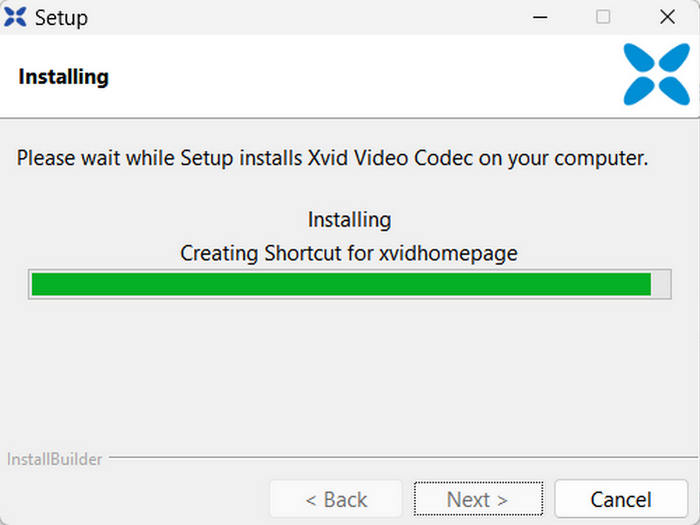
Step 4 After you have installed the Xvid video codec, try playing the video one more time.
Note:If you use VLC, there is no need to install the codec, as the player supports Xvid. Additionally, adding the codec may improve the performance of your other apps and compatible file formats on your device.
How to Download Xvid Video Codec 2023/2024/2024
The official Xvid codec has not been updated since 2019. You should be cautious of sites offering Xvid 2024 or 2026 versions, as these are often scams that simply repackage the 2019 release with a new name. To ensure your system's security, we recommend that you keep using the official Xvid video codec 2019 version from trusted sources.
Are Xvid Codecs considered viruses?
If you have ever looked up the Xvid codec virus on the internet, you could have noticed various warnings. Most of the time, they originate from suspicious third-party websites that distribute counterfeit software. Always choose to download the Xvid codec from the official site to stay safe from any such issues. Conduct searches for legitimate Xvid software so you can ensure nothing on the web will harm your system.
Part 4. How to Convert Video to Xvid Codec
If video files from Xvid appear blurry and are difficult to play, Tipard Video Converter Ultimate can help. You can use Any Video Converter to get your old files into the Xvid format, so they work well with your current technology without losing any quality. Its major benefit is that it can improve clarity and sharpen Xvid videos when viewed on larger displays. Using the built-in tools, you can easily cut, crop, or change your video frames before you save the file.
Platform: Windows 7 or higher; macOS 10.12 or above
Key Features of Tipard Video Converter Ultimate
- Convert many video codecs, like H.264, HEVC, AV1, VP8/VP9, to Xvid codec.
- Support hardware acceleration and batch conversion.
- Offer many high-quality or high-compression Xvid presets.
- Provide easy workflow and clear interface.
For users seeking to make the Xvid video codec compatible with Windows 11, Tipard provides a smooth and beginner-friendly way to modernize old content without the technical hassle. Would you like to give it a try too? This is how you begin the process:
Step 1 You can get the latest version of this Xvid converter on your PC by clicking the appropriate download button that we have here. After having it, follow the setup and installation process it requires before you can launch and use it.
Step 2 Now, click the Add Files button to locate the video file that you want to convert to the Xvid codec. Here, you can select multiple different file types and process them to Xvid simultaneously.
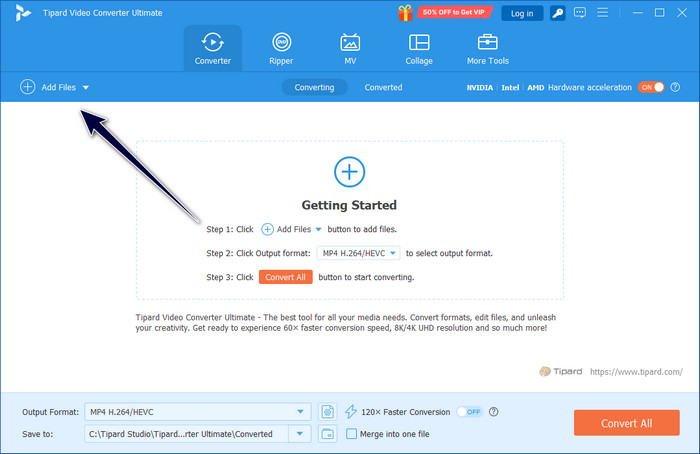
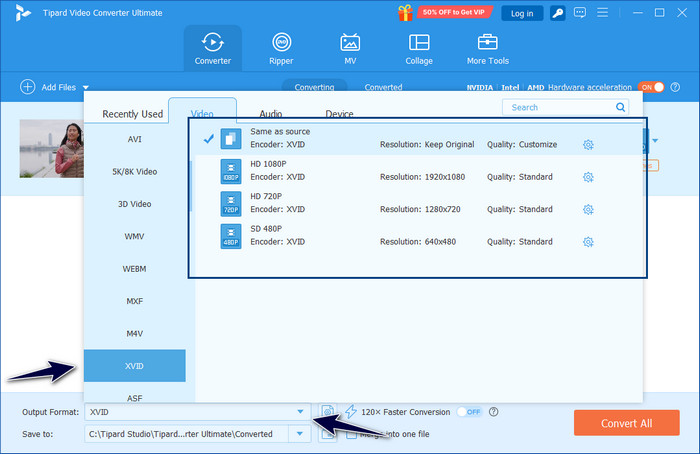
Step 3 Click the drop-down button on the Output Format and locate the Xvid from the Video section. Here, choose the video setting type you want to achieve with the Xvid encoding added to it.
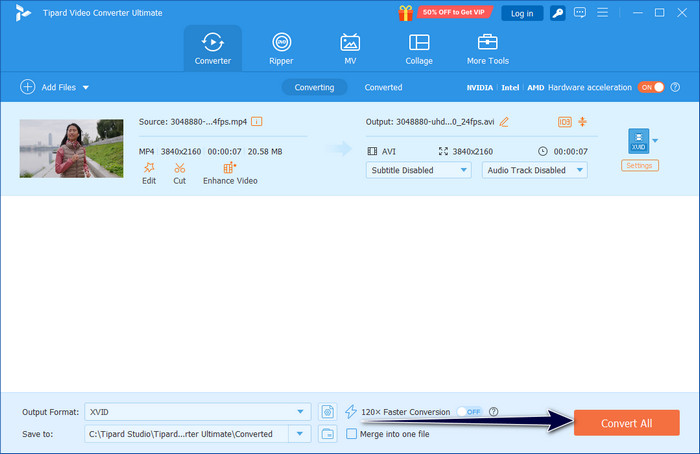
Step 4 Lastly, click the Convert All button to start converting to the Xvid encoder, and after a few minutes, your video file will be ready to use.
Part 5. FAQs of Xvid Video Codec
Is Xvid still used today?
Yes, Xvid is still used today. Some legacy systems and older hardware players (TVs, DVD players, etc.) only support the MPEG-4 ASP, so Xvid is still needed. but it's much less common than it used to be.
Is Xvid codec free?
Yes, it is. Xvid codec is free and open-source.
Does Windows 7 support Xvid video codec?
Windows 7 doesn't have a built-in Xvid 7. You still need to install the Xvid codec on your Windows 7, and then you can play Xvid video with Windows Media Player. You can also use a player that supports Xvid.
Conclusion
It's very easy to download the video codec Xvid on your computer. You can also directly use a versatile multimedia player that supports Xvid, like VLC Media Player or MX Player. If you need to convert a video to Xvid to play it on a specific device, you can use Tipard Video Converter Ultimate to easily and quickly convert any video to Xvid codec with hardware acceleration.

All-in-one video toolbox: convert, edit, upscale, enhance, and compress your videos easily
100% Clean & Safe
100% Clean & Safe

More Reading

About the Author

 Click here to join the discussion and share your comments
 Tipard Video Converter Ultimate