

The administrator account is important for managing system settings and troubleshooting issues in Windows 10. If you accidently forget your administration password, you may search for how to find administrator password on Windows 10. In most cases, Windows does not allow users to directly view the current administrator password. The practical solution is to reset the password instead. In this guide, we'll explain several effective ways to help you unlock your admin account.

Part 1. How to Find Administrator Password with Command Prompt
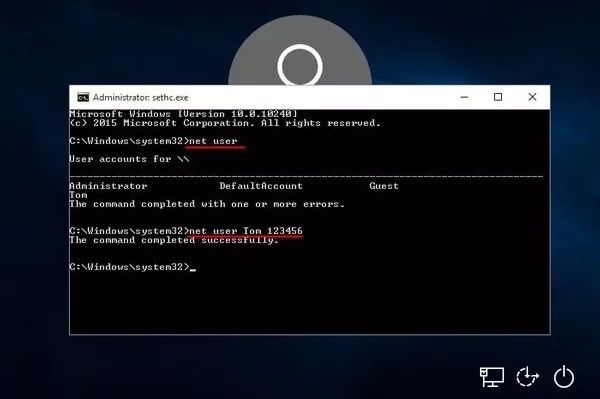
Using Command Prompt can help you regain access to an administrator account on a Windows computer. However, this method only works if you can access an administrator account or open Command Prompt with administrator privileges. This method may also help you change a user account name in Windows 10.
This method is for legitimate purposes only, such as regaining access to your system, and should not be used for unauthorized activities!
Step 1 Search for Command Prompt in the Windows Start menu and right-click it. Then, select Run as administrator. This is important to ensure that you have the necessary privileges.
Step 2 In the CMD window, type the command "net user username newpassword" and press Enter. Replace "username" with the administrator account name and "newpassword" with the password you want to set.
Step 3 You'll be prompted to enter a new password for the account. Once done, confirm the new password by entering it again.
Step 4 Once you see a confirmation that the command was executed successfully, the new password will be set for the administrator account. Use the new password to log in to the administrator account.
Part 2. How to Reset Administrator Password with a Microsoft Account
If your Windows 10 administrator account is linked to a Microsoft account, you can reset the password through Microsoft's official password recovery page. This is the quickest method and does not require additional software.
Step 1 Go to the Microsoft password reset page (https://account.live.com/password/reset). Then, enter the email address or phone number linked to your administrator account and click Next.
Step 2 Select I forgot my password, then choose a verification method to confirm your identity.
Step 3 After verifying, you can create a new password for your Microsoft account. Restart your PC and sign in with the new password.
Part 3. The Easiest Way to Find Your Administrator Password
If you are completely locked out of your Windows PC or cannot open Command Prompt with administrator privileges, Tipard Windows Password Reset may be a simpler solution. This powerful software simplifies the password reset process, making it available to users of all technical levels. Unlike the Command Prompt, Tipard offers an intuitive graphical interface that doesn't require advanced command-line knowledge. It allows users to reset the administrator password without needing complex commands. Here’s more you can get when using Tipard Windows Password Reset.
Key Features
- Reset Windows local administrator passwords and Microsoft account passwords.
- Create a bootable password reset disk using a USB flash drive, CD, or DVD.
- Reset Windows passwords without reinstalling the operating system.
- Support multiple Windows versions, including Windows 11/10/8/7/XP/Vista.
- Provide a simpler solution for users without admin privileges.
Step 1 Install the Tipard Windows Password Reset
If you don't remember administrator password Windows 10, you can install the software on an open computer using the Free Download button below. Follow all the details on the dialogue window to install it successfully. Once installed, launch the software.
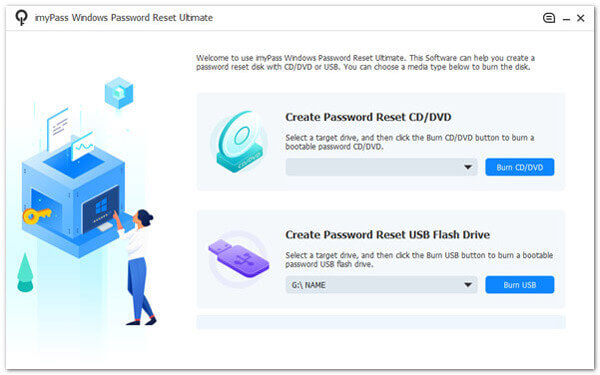
Step 2 Create and Burn the Bootable Media
After that, get an available blank bootable media (CD, DVD, or USB drive) and plug it into the computer. Then, choose the appropriate disk from the tool’s main menu and burn it. When completed, hit OK to exit the software and remove the disk.
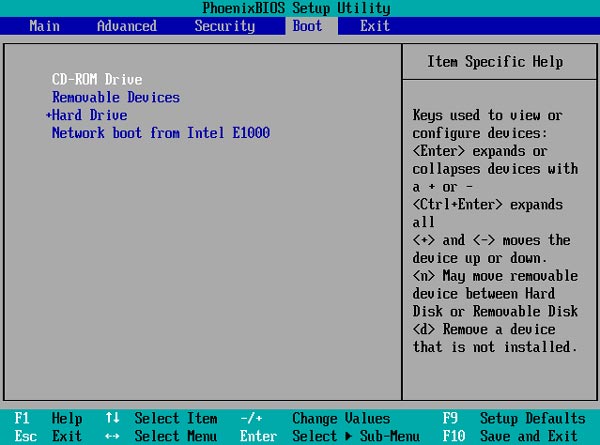
Step 3 Access Boot Menu
Next, move to the computer you want to reset the administrator password and link the burned password reset disk you created. Afterward, highlight the inserted drive and hit Enter on your keyboard to confirm it. Once done, select Save and Exit.
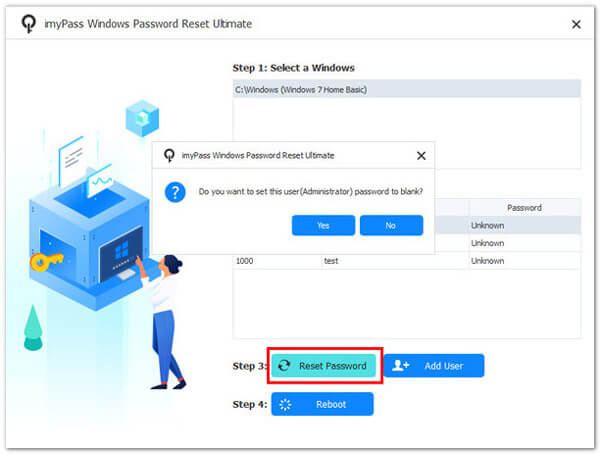
Step 4 Restart the Computer and Reset the Password
Your computer will restart automatically. Then, the tool’s reset interface will appear. Select a Windows OS and your preferred account for the process. Lastly, click the Reset Password and Yes buttons to reset the administrator password.
Step 5 Check and Find the Administrator Password
After the password reset process is complete, restart your computer normally. Then, sign in to the administrator account using the new password you created. If necessary, you can also create a new user account after regaining access to Windows.
Part 4. FAQs About Finding Administrator Password Windows
Is it possible to find the administrator password in Windows 10 using brute force methods?
While it's theoretically possible to use brute force techniques, it's time-consuming and can be detected as suspicious activity. Additionally, it may lead to account lockouts or even legal consequences, making it an impractical and risky approach.
Can I find the administrator password without using third-party software?
Yes, you can regain access without third-party tools. Windows provides built-in features like security questions or password hints. If these aren't available or don't work, you may need to use a password reset disk or seek help from the system administrator.
Are there any legal restrictions in finding or resetting the administrator password on Windows 10?
Generally, it's legal to reset or recover a forgotten password on a system you own or have explicit permission to access. However, unauthorized attempts to reset another person's password may be illegal.
What risks are involved in finding or resetting the administrator password on Windows 10?
Risks include potential data loss and system instability. It's important to follow best practices and use reliable methods to avoid unintended consequences.
What should I do if I can't find the administrator password or reset it on Windows 10?
If you've exhausted all options and cannot access the administrator account, it's recommended to seek help from a professional technician or your organization's IT support. They can guide and assist in regaining system control while preserving your data and settings.
Conclusion
This article introduced several practical ways to find your Windows 10 administrator password. If you forgot administrator Password, you can open Command Prompt or use a Microsoft account to regain access to your computer. If these methods do not work, Tipard Windows Password Reset can provide an effective alternative for resetting the administrator password.
Before resetting your Windows password, keep in mind that the process may affect encrypted files, saved passwords, or BitLocker-protected data. Always back up important files before proceeding!
More Reading
About the Author

 Click here to join the discussion and share your comments
 Windows Password Reset