

Key Takeaways:
- Album art enhances your music library's visual appeal and helps you quickly identify your favorite tracks.
- Tipard Video Converter Ultimate is a fast and user-friendly tool for adding album art to MP3 files on both Windows and Mac.
- Windows Media Player and iTunes offer built-in options for adding album art, but they may have limitations compared to dedicated software.
- For mobile users, apps like Star Music Editor (Android) and Melodista (iPhone) provide easy ways to add cover art to MP3 files on the go.
Ever noticed those blank icons in your music library? A striking album cover does more than just look good; it helps you instantly spot your favorite tracks and truly connect with the music. Stop letting missing artwork make your playlists look dull. It's time to give your MP3s the visual identity they deserve.
Looking to add album art to MP3 across all your devices? You're in the right place. This guide covers the fastest ways to embed high-quality covers on Mac, Windows, Android, and iPhone. Read on to give your music collection the professional, polished look it deserves.
Part 1. How to Add Album Art to MP3 with High Res
Platform: Winodows and Mac
Adding album art to an MP3 file can be tricky, but we've got a very fast solution for you - Tipard Video Converter Ultimate. You can quickly add album art without any hassle. Once you download and install the program, simply launch it, import your MP3 file, and select your preferred image. Its clean, user-friendly interface makes the process smooth - even for beginners.
Beyond adding cover art to MP3 files, Tipard Video Converter Ultimate also lets you edit audio metadata. You can freely modify details like the title, album, artist, year, genre, and even rename the file. With these features, you can give your MP3 files a professional, well-organized finish. Follow the simple tutorials below to easily add album art to your MP3 music.
How to Add Album Art to MP3 with Tipard Video Converter Ultimate
Step 1 Get Tipard Video Converter Ultimate
Download Tipard Video Converter Ultimate on your Mac or Windows computer. You can easily access the program by clicking the Download button below. Click the buttons based on your device. When the installation process is finished, launch the program immediately.
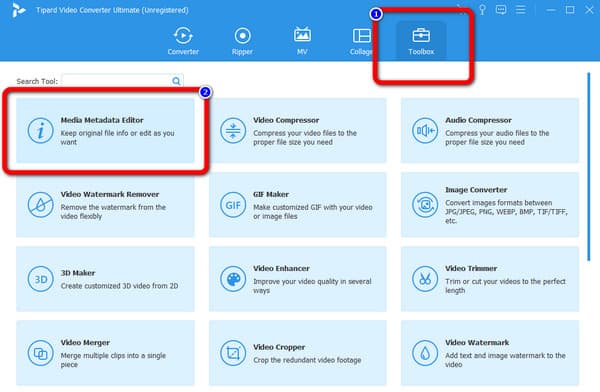
Step 2 Open Media Metadata Editor
Select the More Tools menu on the upper part when the main interface is already there. After that, various tools will appear. Click the Media Metadata Editor tool to launch it.
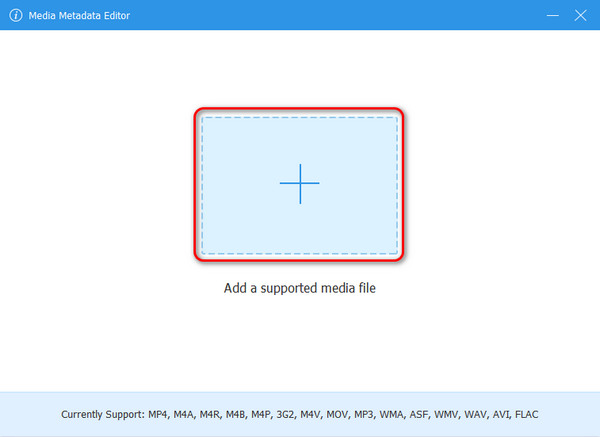
Step 3 Add MP3 File
On the middle part of the interface, there is an Add button. Click it to add the MP3 music from your file folder.
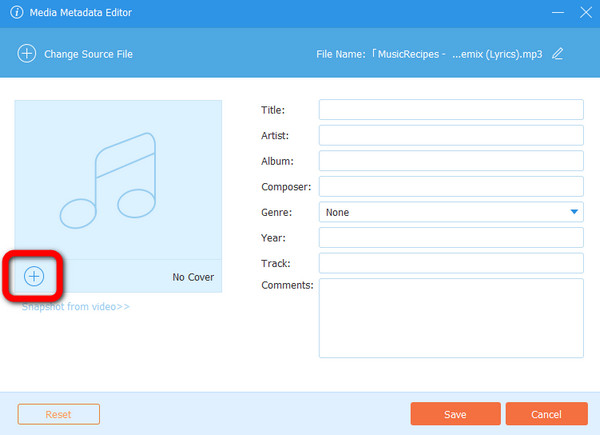
Step 4 Add Album Art
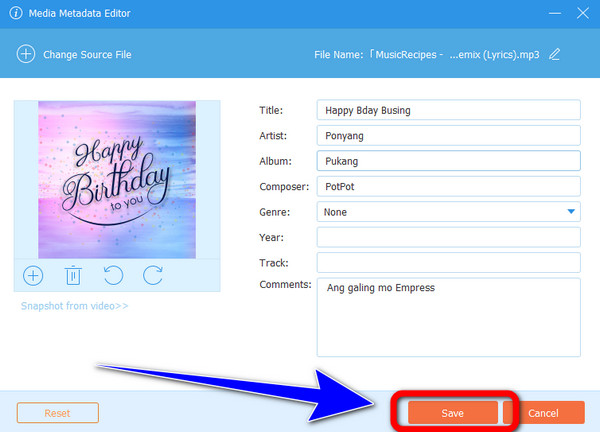
Click the Add button, and then select a high-resolution cover for your MP3 file. After that, you can also edit other ID3 tags, like title, album name, artist, and more.
Step 5 Save MP3 File with Cover Art
Finally, click the Save button. Then, you can see that your MP3 file will have album art.
- You'd better prepare a cover art with 600:600 or 1000:1000 resolution for your MP3 file.
- Tipard Video Converter Ultimate is also an excellent MP3 editor that can trim, split, merge, and remove background noise.
Part 2. How to Add Album Art to MP3 on Windows and Mac
How to Assign Album Art to MP3 with Windows Media Player
Platform: Windows 7 or above
In this section, you'll learn the default way to add album art to MP3 files using Windows Media Player. This built-in program provides a simple and intuitive interface, making it easy for anyone to use. With just a few clicks, you can embed your preferred image as album art to MP3 FILES, and your music library will look more creative and unique.
If your goal is simply to add album art, this tool works perfectly for the job. Follow the steps below to learn how to add album art to MP3 files on Windows 7, Windows 10, Windows 11, and more.
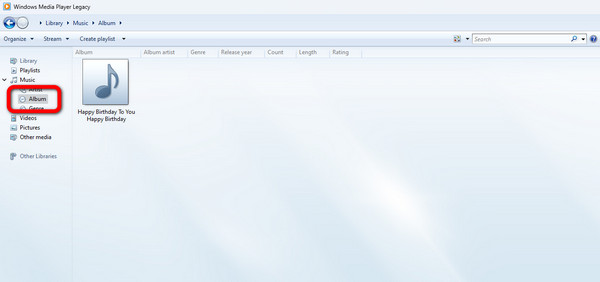
Step 1 Launch Windows Media Player on your computer. After that, navigate to the Album section.
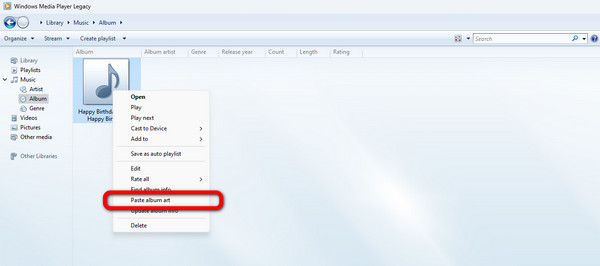
Step 2 Then, you can go first on the internet to see the album image of the MP3 music. You can also use your preferred image as your album art. If you already have the image, you only need to copy it. Afterward, return to your MP3 music, right-click the file, and click the Paste album art option.
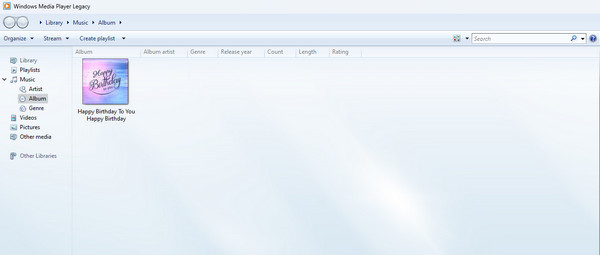
Step 3 Here is the result. Your MP3 music already has album art in it. You can follow the same procedure to add album art with other MP3 music.
You May Need to Know: However, Windows Media Player comes with limited features. It's not ideal if you want to make advanced audio adjustments. If you want to explore more editing features, you can resort to Tipard Video Converter Ultimate.
How to Insert Album Art in MP3 on Mac
Platform: Mac OS X 10.0 or above
You can also use a default way to add album art on your Mac device. Follow the steps below.
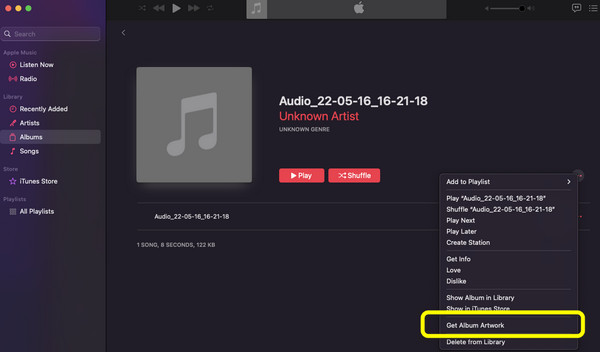
Step 1 Launch your Mac and go to Library > Album. Then open the MP3 file.
Step 2 After that, click the three-dot on the right part. Select the Get album artwork option. Then, select the image you want on your MP3.
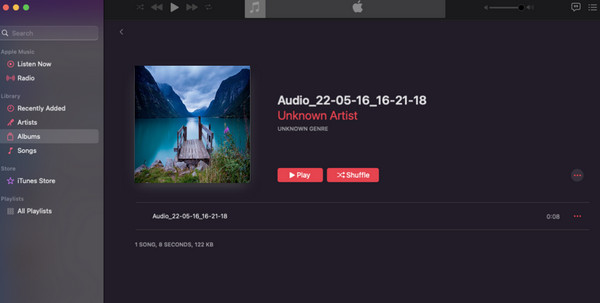
Step 3 After choosing the image or artwork, you can see it on your MP3 profile. This is the best and easiest way to add album art to MP3 on Mac.
Part 3. How to Add Album Art to MP3 on Android and iPhone
How to Add Album Art to MP3 on Android
To add album art to MP3 files for free on Android, you can use Star Music Editor. This free app, available on the Google Play Store, lets you quickly and easily embed album covers into your MP3 music. However, keep in mind that it's not available for iPhone users, and occasional glitches may affect its performance. Follow the steps below to learn how to add album art to MP3 files using this app.
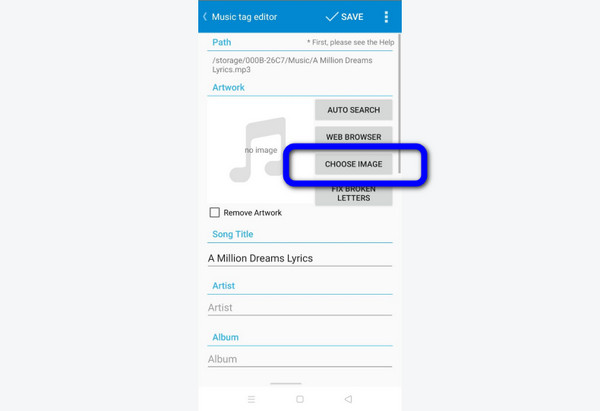
Step 1 Download Star Music Editor on your Android device. Then, launch the application after the installation process.
Step 2 Then, select the MP3 music you want to edit. Select the Choose Image button and select your preferred image for album art.
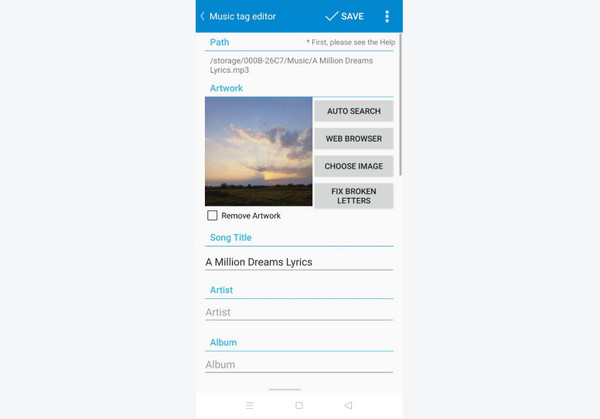
Step 3 After that, you can see the profile of the MP3 music already has album art. That's how easy you can add album art to MP3 files on Android.
How to Add Album Art to MP3 on iPhone
To add album art to MP3 files for free on an iPhone, you can use Melodista. This app offers a simple interface and easy-to-follow steps. It's ideal for all users, especially beginners. However, keep in mind that if you're connected to the internet, ads may occasionally appear on the screen while using the app.
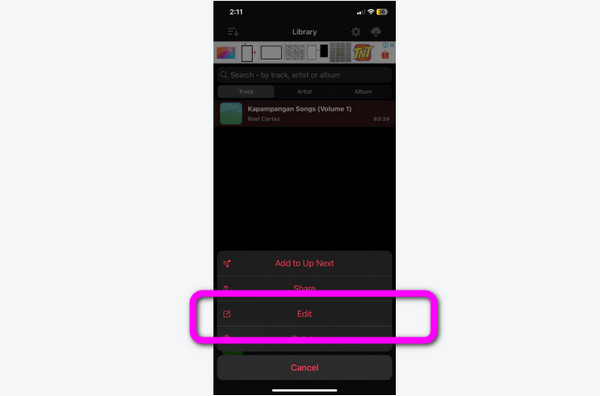
Step 1 Download Melodista on your iPhone. Then, launch it after installation. After that, choose the MP3 file you want. Press the file for a few seconds and select the Edit option.
Step 2 To add the album art to MP3, press the Pick Image option. Select the image you want from your Photos app.
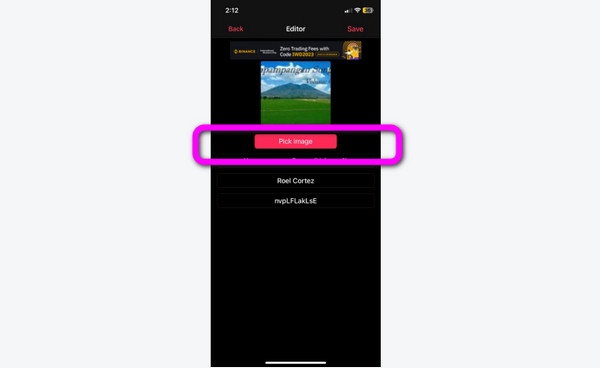
Step 3 You can see that the image is already attached to the MP3. That's how to add album art to MP3 on an iPhone.

Part 4. FAQs about How to Add Album Art to MP3
How do I add album art to MP3 on Apple music?
Open iTunes. Select the MP3 in your library. Right-click, choose Song Info (or Get Info). Go to the Artwork tab. Click Add Artwork, and select your image. Click OK to add album art to MP3 in iTunes.
How to add album art to mp3 online?
You can use many online tools to add album art to MP3. You can use Online Converter.com. On the web page, click Choose File to add the MP3 music. Then click another Choose File option to add your desired image. After that, click Create with MP3 Album Art Cover. Lastly, select the Add option. Wait for the process, and there you go! You can download the MP3 with the album artwork.
How can I change the album art of multiple MP3 files?
You can use Windows Media Player. Go to the Music Library and select all the MP3 files you want to update. To change the album art of all MP3 files, right-click the album, choose Paste album art, and the image you copied will be applied to all songs in that album.
Conclusion
This article shows you how to add album art to MP3 on Windows, Mac, iPhone, and Android devices. They can help you assign high-res album cover to MP3 files. While some methods may have limitations, Tipard Video Converter Ultimate stands out as a quick solution to insert cover art without stretching or losing quality. It also has many other metadata editing options and can enhance your songs' audio quality.

All-in-one video toolbox: convert, edit, upscale, enhance, and compress your videos easily
100% Clean & Safe
100% Clean & Safe

More Reading

About the Author

 Click here to join the discussion and share your comments
 Tipard Video Converter Ultimate