

- Part 1. Why You Should Convert Blu-ray to MP4
- Part 2. How to Convert Blu-ray to MP4 with Tipard Blu-ray Converter
- Part 3. How to Rip Blu-ray to MP4 with HandBrake
- Part 4. How to Convert Blu-ray to MP4 in VLC
- Part 5. How to Rip Blu-ray to MP4 in Leawo Prof. Media
- Part 6. How to Rip Blu-ray to MP4 in Acrok Video Converter Ultimate
- Part 7. How to Rip Blu-ray to MP4 with CloneBD
- Part 8. How to Choose Your Best Blu-ray to MP4 Solution
- Part 9. FAQs of Converting Blu-ray to MP4
Key Takeaways
We have tested 13 Blu-ray DVD rippers and selected 6 reliable programs. Among them, Tipard Blu-ray Converter stands out as the best way to rip Blu-ray to MP4 without quality loss due to its advanced transcoding and remuxing technologies and full support for all copy protections. HandBrake is the best open-source and free Blu-ray to MP4 converter due to its strong GPU acceleration and wide output compatibility even if it cannot natively bypass encryptions.
I'm trying to convert my blu-rays to MP4. Keep getting the copyright protection message. I googled it and have downloaded the libdvdcss file and put it in the handbrake folder - but still no joy. Please help!! - from Reddit
Blu-rays offer amazing video and sound quality, making them a popular choice for movie watching. However, when you want to store or share your Blu-ray discs, you may be concerned about potential physical damage. There's a better solution: you can convert your Blu-ray to MP4 and store it on your PC or in the cloud for safekeeping. However, one of the biggest challenges is encryption, especially when you use a free and open-source DVD and Blu-ray ripper, like HandBrake and VLC.
This article will show you 6 reliable ways to convert Blu-ray to MP4 on your Windows or Mac while bypassing copy protections (encryptions and region locks). Professional Blu-ray to MP4 rippers can automatically handle copy protections, while free methods require manual decryption, installation, or even compilation. You can choose your desired way to rip your Blu-rays and DVDs to MP4 videos.

- Part 1. Why You Should Convert Blu-ray to MP4
- Part 2. How to Convert Blu-ray to MP4 with Tipard Blu-ray Converter
- Part 3. How to Rip Blu-ray to MP4 with HandBrake
- Part 4. How to Convert Blu-ray to MP4 in VLC
- Part 5. How to Rip Blu-ray to MP4 in Leawo Prof. Media
- Part 6. How to Rip Blu-ray to MP4 in Acrok Video Converter Ultimate
- Part 7. How to Rip Blu-ray to MP4 with CloneBD
- Part 8. How to Choose Your Best Blu-ray to MP4 Solution
- Part 9. FAQs of Converting Blu-ray to MP4
Our Test Standards
To ensure 100% authentic and independent results, our team conducted a hands-on evaluation of 13 Blu-ray DVD rippers over 48 hours. We rigorously verified each tool's performance to shortlist these 6 reliable programs. Our standardized testing environment included:
- Test Disc: A standard 25GB single-layer Blu-ray disc.
- Output Settings: MP4 with H.264, H.265, or AV1 (prioritizing AV1 for its superior efficiency).
- Ripping Workflow: Full-disc ripping with title merging to stress-test each software's CPU acceleration and hardware optimization.
- Test Bench: Intel Core i9-14900K, NVIDIA GeForce RTX 4090 (24GB VRAM), and ASUS BW-16D1HT disc drive.
Part 1: Why You Should Convert Blu-ray to MP4
Converting your Blu-ray collection to digital is the best way to keep your favorite movies safe and easy to watch. While physical discs look great, they are easy to scratch and require a bulky player. By ripping your Blu-rays to MP4, you can move your high-def movies onto your iPhone, Android phone, iPad, Android tablet, or smart TV, making your collection much more flexible and portable.
Why MP4 is the industry standard for Blu-ray rips:
- Universal Compatibility: MP4 (MPEG-4 Part 14) is supported by virtually every device, from iPhones and Android tablets to Smart TVs, and more.
- Superior Compression Efficiency: Using advanced codecs like H.265 (HEVC) or AV1, MP4 can retain perceptually lossless video quality while reducing the original 30GB-50GB Blu-ray file size by up to 80%.
- Hardware Acceleration: Most modern processors and GPUs are optimized to decode MP4 files at the hardware level, so it will be very seamless to watch MP4 files.
Quick Guide for Blu-ray to MP4 Conversion:
When you want to convert Blu-ray to MP4, the key factor is to keep the original video and audio quality, especially the TrueHD/DTS-HD audio. Thankfully, some reliable Blu-ray rippers can help. They can perform seamless and precise disc ripping and output MP4 videos with subtitles and original video and audio quality.
- Tools included: Tipard Blu-ray Converter, HandBrake, Leawo Prof. Media, VLC, Acrok, CloneBD.
- Free vs. Paid Tools: Free Blu-ray rippers like HandBrake and VLC also have strong capabilities and fast ripping speed, but they cannot deal with encryptions like 99-title. Paid tools like Tipard Blu-ray Ripper and Leawo Prof. Media can keep update to solve old and new encryptions.
- Customization: Sometimes, you'll need to customize the output settings like video codec, frame rate, and resolution, to well suit different displays.
Part 2: How to Convert Blu-ray to MP4 with Tipard Blu-ray Converter
Platform: Windows and macOS
Best for: Fast rip Blu-ray and remove copy protections.
Among the six Blu-ray rippers, Tipard Blu-ray Converter is the fastest for ripping Blu-rays to MP4 files while also retaining the high video quality of a Blu-ray disc. It allows you to rip DVD and Blu-ray to 4K MP4 with HDR. Excellent audio quality is also an important quality of Blu-ray, and Tipard Blu-ray Converter can let you enjoy the crisp definition of your Blu-ray video with high frame rate and the original TrueHD or DTS HD audio quality and 5.1 surround sound. When you convert Blu-ray to MP4 on a computer, you have many presets available for different displays, devices, and platforms.
You don't need to worry about the large file size of a Blu-ray or 4K Blu-ray movie, for the MP4 container with H.264, H.265, or AV1 codec can greatly compress the file size and keep the original quality. The level-3 hardware acceleration (supporting NVIDIA, Intel, AMD, and Apple Silicon) can also help you quickly decode, edit, and re-encode Blu-ray to MP4 with a small file size while keeping the best visual quality.
After ripping, you can also watch your DVD or Blu-ray on different displays and devices, including Apple TV, Plex, iPhone, iPad, Samsung phone, Android phone, and tablet. Tipard can also rip DVD and Blu-ray with multiple subtitles to MP4 and fix audio and video out of sync to ensure an immaculate playback and immersive watching experience.
Main Features of Tipard Blu-ray Converter:
- Automatically bypass DVD and Bu-ray encryptions and region codes.
- Rip DVDs and Blu-rays to MP4 without watermark on Windows 7/10/11 and macOS 26.
- Support level-3 hardware acceleration for fast decoding, editing, and transcoding.
- Provide H.264, H.265, AV1, and VVC codecs to reduce Blu-ray file size while keeping the original quality.
- Rip Blu-ray to MP4 with subtitles, audio tracks, and customize them easily.
- Offer video editing features like clip, trim, crop, filters, and more.
- Simple workflow and clear interface.
- Allow beginners to quickly rip DVD and Blu-ray to a standard MP4 format and advnaced users to manually customize the output MP4 parameters.
- Allow you to change, customize, and export the subtiltes.
- The ripping speed is very fast.
- Able to rip standard, 4K, 3D, homemade, and highly customized Blu-rays and DVDs.
- The interface can be more fashionable.
Steps to Rip Blu-ray to MP4 with Tipard Blu-ray Converter
Step 1 Get Tipard Blu-ray Converter
To get Tipard Blu-ray Converter, simply click the Free Download button below and then install the software on your Windows or Mac computer. Launch it afterward and insert your Blu-ray disc into your computer.
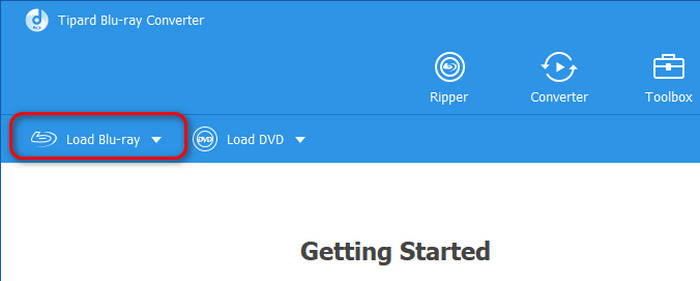
Step 2 Load Blu-ray
Click the Load Blu-ray button on the top left side. Then, you can select the Blu-ray disc you wish to digitize to MP4.
Step 3 Select an MP4 Preset
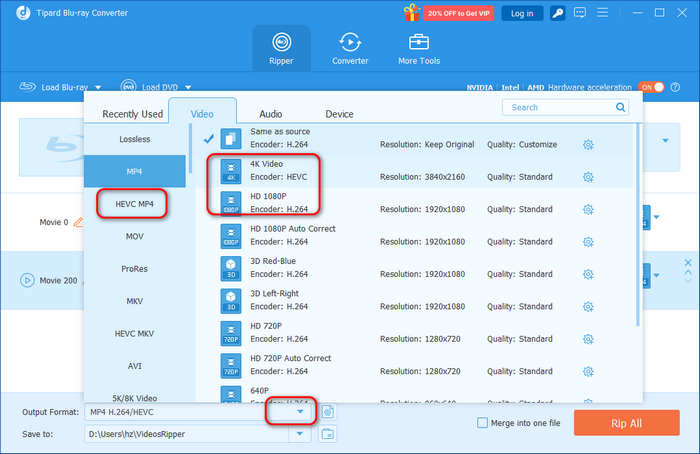
Click the Output Format dropdown button and choose the an MP4 preset. This program will also automatically set MP4 as the default output format. But there are some recommended presets:
- HEVC MP4: Blu-ray movies are large, while HEVC codec can highly compress the videos and keep high video quality.
- 4K MP4: Many modern displays can support 2K and 4K, so 4K MP4 is also a good hoice. Also, HEVC codec is recommended.
- HD 1080P: 1080p is Blu-ray resolution, so it can keep the original resolution to keep the quality while taking short time to rip Blu-ray.
- 3D Presets: If your Blu-ray is 3D Blu-ray, then select a corresponding 3D MP4 preset.
You can also convert Blu-ray to AVI with it.
Step 4 Start Converting Blu-ray to MP4
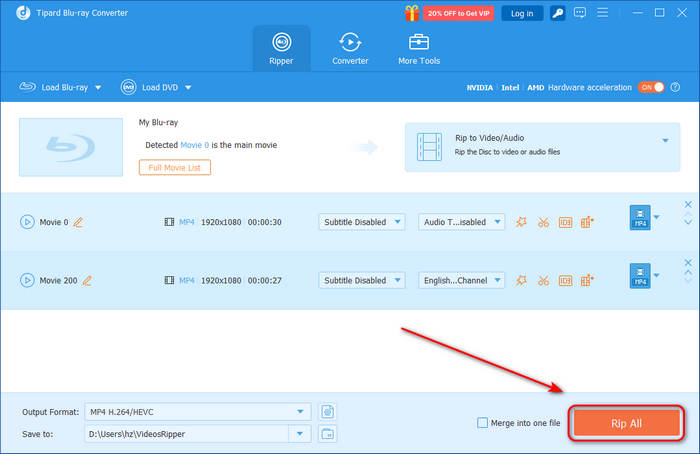
Then, click the Rip All button to convert Blu-ray to MP4 on Windows or Mac. It will take about 12 minutes to 25 minutes to finish digitizing.
Why We Select It
Tipard Blu-ray Converter supports level-3 GPU and CPU acceleration, which is very important and helpful for Blu-ray ripping. It can quickly digitize large Blu-rays or 4K Blu-rays to save much time. Also, the ripping process is smooth without problems. The output MP4 video has crisp definition, high frame rate, true color, and clear audio.
- Total CPU Usage: 15% to 21%
- Time Consumption: 13 minutes and 25 seconds
- Output quality: High video quality with smooth playback
- Decryption: Automatically deal with copy protection and region code
Part 3: How to Rip Blu-ray to MP4 with HandBrake
Platform: Windows, macOS, and Linux
Best for: Rip Blu-ray to MP4 for free with high customization.
HandBrake is an open-source multimedia tool that can convert digital files which can also help you convert Blu-ray to MP4 on Windows and Mac. It offers detailed settings for output video or audio formats and helps you maintain the high video quality of a Blu-ray disc movie. But if you want to convert Blu-ray to MP4 without copy protection, you should install corresponding library files, such as HandBrake libdvdcss.
Main Features of HandBrake:
- Support various input and output formats, including MP4, MKV, H.264, H.265, and more.
- Offer detailed video and audio settings for you to customize the output MP4 video.
- Support GPU acceleration to speed up the ripping process.
- Provide presets for different devices and platforms for easy ripping.
- It's totally free and open-source.
- As a free Blu-ray to MP4 transcoder, it provides stable and fast ripping prcess.
- Have strong control on the output video bitrate.
- The preview function is user-friendly.
- It's difficult to manage each title in a Blu-ray or DVD, and you cannot apply a customization for all titles.
- The software may have a steeper learning curve for beginners.
Steps to Rip Blu-ray to MP4 with HandBrake
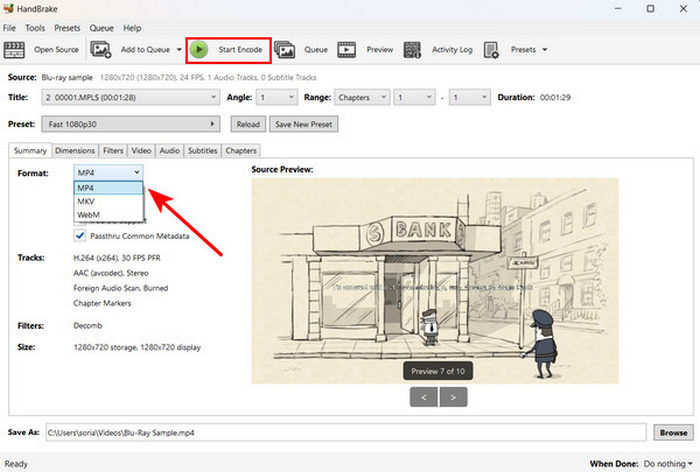
Step 1 Click the Open Source button from the top-left corner to select your Blu-ray.
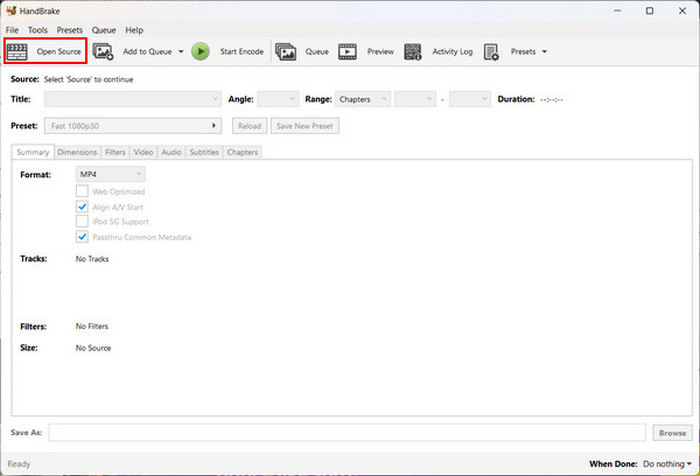
Step 2 In the format settings, select the MP4 format. You can customize the dimensions, filters, video, audio, subtitles, and metadata of your Blu-ray before converting it. Finally, click the Start Encode button to convert Blu-ray to MP4 on HandBrake.
Testing Result
HandBrake can really work stably and output a high-quality MP4 file. Although it cannot merge videos into a Blu-ray, it can deal with different videos one-by-one and offer many customization features, especially the Constant Frame Rate feature.
- Total CPU Usage: 18% to 30%
- Time Consumption: 32 minutes and 22 seconds
- Output quality: High
- Decryption: Require manual library file installtion
Part 4: How to Convert Blu-ray to MP4 in VLC
Platform: Windows, macOS, and Linux
Best for: Rip Blu-ray to MP4 for free and then quickly play.
VLC is an excellent multimedia player that can also play and rip your Blu-ray to MP4 for free. If you want to save storage on your computer, you can also use VLC to compress the video. However, it's a bit complicated to rip Blu-ray to MP4 on VLC. Also, this open-source program can't help you convert encrypted Blu-ray to MP4 directly. You have to add different kinds of library files to the root folder of your VLC program. Check how to convert Blu-ray to MP4 with VLC.
Main Features of VLC Media Player:
- Digitize Blu-ray quickly and then directly play it.
- Offer common MP4 presets compatible with most devices.
- Support hardware acceleration to take low CPU usage.
- Output MP4 files seamlessly with high quality.
- It's totally free and open-source.
- Able to rip multiple Blu-rays and DVDs if you have multiple optical drives.
- Provide many playback effects.
- It's complicated to manage each title and subtitle track.
- VLC has poor support for GPU acceleration.
Steps to Rip Blu-ray to MP4 with VLC
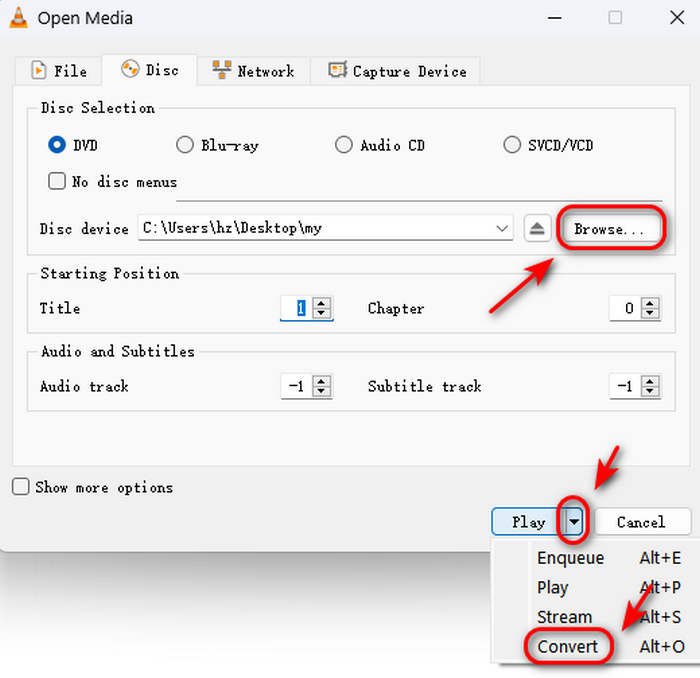
Step 1 Open VLC and click the Media button in the top left corner, and then the Open Disc button. In the new window, you should click the Browse button to load your Blu-ray disc. Then, click the dropdown button at the bottom and choose Convert to start ripping Blu-ray to MP4 in VLC.
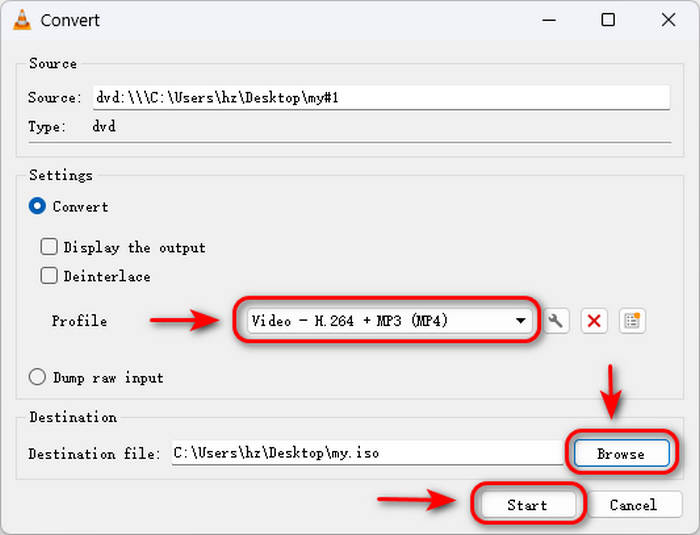
Step 2 You can see that the output format is set MP4 by default, so you just need to click the Browse button to choose a destination folder for your MP4 file. Finally, click the Start button to convert Blu-ray to MP4 in VLC on Windows or Mac.
Testing Result
VLC doesn't work as well as HandBrake or Tipard Blu-ray Converter; however, it can output high-quality and seamless MP4 video. It may take longer to digitize physical media, it's free and work stably.
- Total CPU Usage: 30% to 60%
- Time Consumption: 35 minutes and 56 seconds
- Output quality: High
- Decryption: Require manual library file installtion
Part 5: How to Rip Blu-ray to MP4 in Leawo Prof. Media
Platform: Windows and macOS
Best for: Quickly rip Blu-ray to digital format with wide compatible presets
Leawo Prof. Media is a popular tool for converting Blu-ray to MP4. It's favored for its compatibility with over 180 file types. It also allows direct ripping of Blu-rays. However, it costs a lot of money to rip Blu-ray to MP4 when you want to remove copy protections.
Main Features of Leawo Prof. Media:
- Support new and old Blu-ray encryptions.
- Provide many MP4 presets like HEVC, AV1, and 4K MP4.
- Offer advanced video editing features for Blu-ray movies.
- Re-encode Blu-rays with low CPU resources.
- It can offer fast and stable ripping process.
- Support batch conversion with flexible customization on the output MP4 format.
- Quickly handle copy protections on DVDs and Blu-rays.
- Lack of advanced editing features.
- The workflow is a bit complicated for beginners.
Steps to Rip Blu-ray to MP4 with Leawo Prof. Media
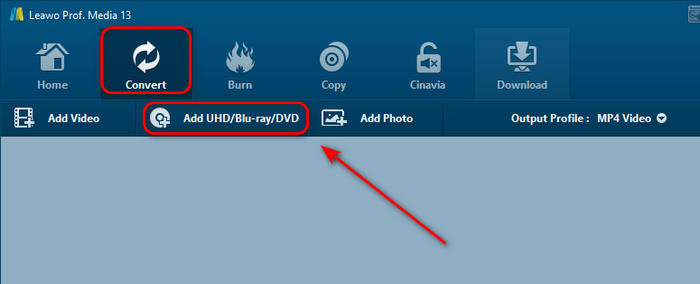
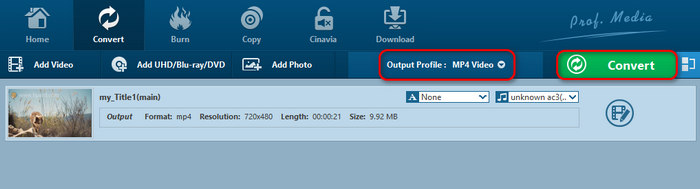
Step 1 Open the program and go to the Convert tab. Click the Add/UHD/Blu-ray/DVD button to load your Blu-ray disc. Then, you can choose the full movie or select a specific chapter and click the OK button to start converting Blu-ray to MP4 with Leawo.
Step 2 You can see that the output profile is MP4 by default. Just click the Convert button to convert Blu-ray to MP4 on Windows or Mac.
Testing Result
The interface of Leawo Prof. Media is a bit complex. However, it has strong capabilities to rip physical media to digital formats. The ripping speed is very fast and the output MP4 can play smoothly in 1080p, HD, and even 4K quality.
- Total CPU Usage: 19% to 27%
- Time Consumption: 20 minutes and 02 seconds
- Output quality: High
- Decryption: Automatically deal with Blu-ray encryptions
Part 6: How to Rip Blu-ray to MP4 in Acrok Video Converter Ultimate
Platform: Windows and macOS
Best for: Rip 3D Blu-rays with wide 3D effects.
Maybe you haven't heard of this program, but it's an excellent and lightweight program that can convert Blu-ray to MP4 on Windows and Mac computers. It has a clear interface with friendly video and audio settings for you to quickly rip a Blu-ray or DVD disc. Check how to convert Blu-ray to MP4 with Acrok.
Main Features of Acrok Video Converter Ultimate:
- Rip 3D or 2D Blu-ray with many 3D video effects.
- Provide H.264, H.265, and AV1 codecs for MP4 output.
- Keep audio tracks and subtitles in Blu-rays.
- Support GPU acceleration.
- Provide some output configurations that are compatible with editing tools.
- It has strong decryption capabilities.
- It provide full output format support, not only MP4.
- The price is high.
- Difficult to manage each title and subtitle track.
Steps to Rip Blu-ray to MP4 with Acrok Video Converter Ultimate
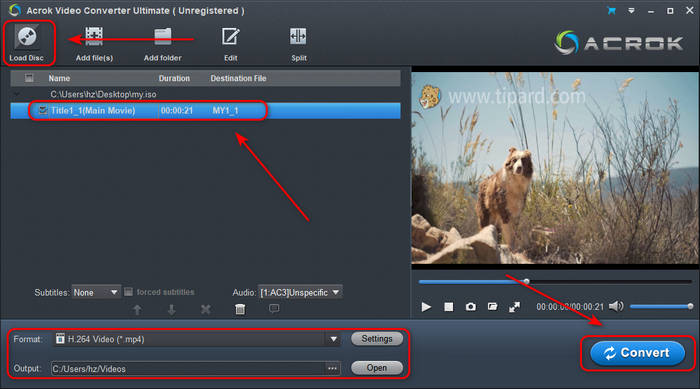
Step 1 Open the program and click the Load Disc button in the top left corner to load your Blu-ray disc.
Step 2 Then, your Blu-ray disc is loaded successfully. You can choose your desired Blu-ray chapter to convert to MP4.
Step 3 The output format is set MP4 by default. Just choose your desired output folder and click the Convert button to convert Blu-ray to MP4 with Acrok.
Testing Result
Acrok has a clear and easy interface that can help you quickly rip Blu-ray discs, ISO images, and BDMV folders. This Blu-ray ripper also supports hardware and software acceleration to help you quickly edit and convert media.
- Total CPU Usage: 18% to 29%
- Time Consumption: 26 minutes and 22 seconds
- Output quality: High
- Decryption: Automatically deal with Blu-ray encryptions
Part 7: How to Rip Blu-ray to MP4 with CloneBD
Platform: Windows
Best for: Fast ripping with visual selection and previewing
CloneBD is a famous Blu-ray copy software, but it can also help you convert Blu-ray to MP4 on Windows and Mac. However, the interface of CloneBD may confuse you to figure out what you should do to load your Blu-ray disc. It's also not that easy to find the MP4 output format. Don't worry; check the guide below to learn how to convert Blu-ray to MP4 easily.
Main Features of CloneBD:
- Offer user-friendly visual check, selection, and other features.
- Quickly rip standard, 4K, and 3D Blu-ray discs.
- Burn subtitles in videos after MP4 re-encoding.
- Support GPU acceleration to quickly compress BD-50 to BD-25 or enhance the video quality.
- CloneBD offers strong compression function to compress Blu-ray to MP4 with a small file size.
- It offers a clear interface with friendly prompts.
- Allow users to easily select titles, chapters, audio and subtitle tracks.
- CloneBD cannot natively deal with copy protections.
- Lack of advanced video editing features and filters.
Steps to Rip Blu-ray to MP4 with CloneBD
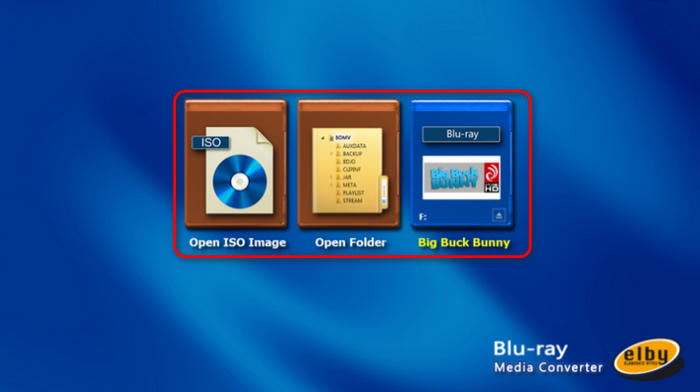
Step 1 Open CloneBD on your computer. It will automatically detect your Blu-ray disc, ISO, and Blu-ray folder. Just choose your desired input profile in the middle of the interface. Your Blu-ray disc will display its title, such as the film Big Buck Bunny.
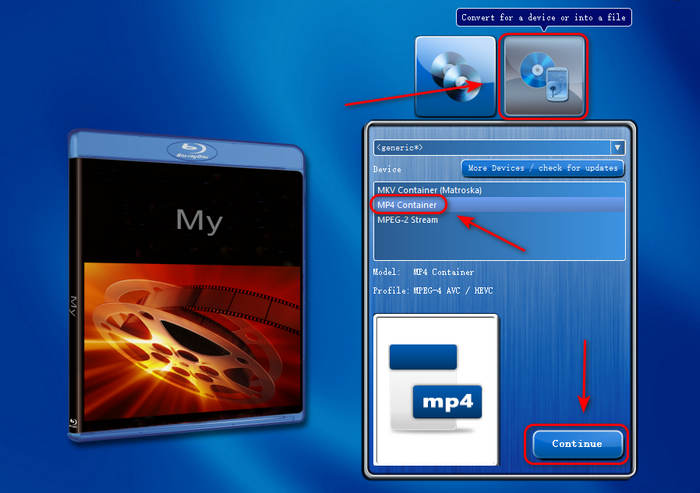
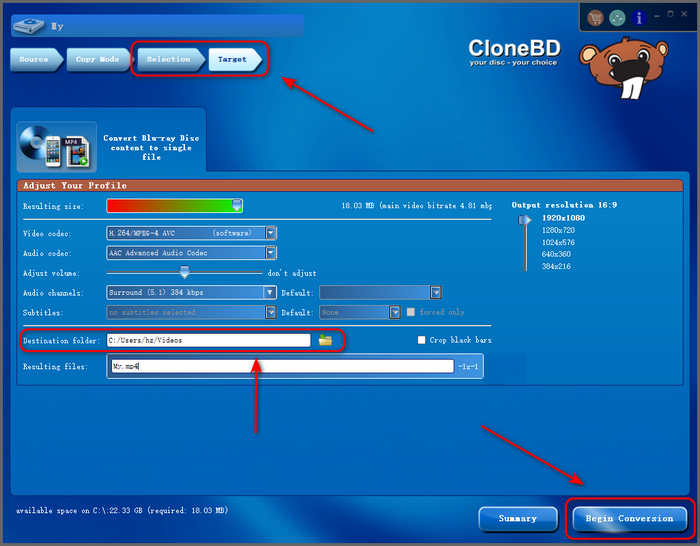
Step 2 After CloneBD loads your Blu-ray disc, you should choose Convert for a device or into a file. It lets you choose the MP4 output format. Choose MP4 Container and then click the Continue button to start converting Blu-ray to MP4 in CloneBD.
Step 3 In the next window, you should select your desired title and audio tracks. If you want them all, you don't need to change any settings but click the Continue button to go on. Then, in the Target window, you should choose a destination folder for the MP4 file, and then click the Begin Conversion button to convert Blu-ray to MP4 in CloneBD.
Testing Result
CloneBD offers a highly visual and streamlined experience for Windows users, featuring an integrated preview player that simplifies title selection. It is purpose-built for speed, utilizing advanced multi-core CPU optimization and full hardware acceleration to handle heavy transcoding tasks like converting BD-50 to a mobile-friendly MP4.
- Total CPU Usage: 12% to 29%
- Time Consumption: 18 minutes and 45 seconds
- Output quality: High
- Decryption: Requires third-party tools (like AnyDVD HD) for protected commercial discs
Part 3: How to Choose Your Best Blu-ray to MP4 Solution
This article shows you 6 excellent Blu-ray rippers that can convert your Blu-ray disc to MP4 format. How can you choose your best one? Just check the specific features and tech specs below to decide which one is your best method to rip Blu-ray to MP4 on Windows or Mac.
| Products | Transcoding Feature | Decryption | Lossless Conversion | Hardware Acceleration |
|---|---|---|---|---|
| Tipard Blu-ray Ripper | Expert support for AV1, HEVC (H.265), and 4K/8K presets, balancing high compression with lossless quality. | Yes |  |
|
| HandBrake | The best for codec depth, offering granular control over x264, x265 (10/12-bit), and SVT-AV1. | Yes (not built-in) |  |
|
| VLC | Basic support for H.264 and MPEG-4; lacks advanced optimization for modern high-efficiency codecs. | Yes (not built-in) | |
|
| Leawo Prof. Media | Reliable H.265 and H.264 presets tailored for mobile devices and smart TVs. | Yes | |
|
| Acrok Video Converter Ultimate | Specialized in professional codecs like Apple ProRes and DNxHD for video editing. | Yes | |
|
| CloneBD | Fast, hardware-accelerated HEVC and H.264 encoding with excellent retention of HDR metadata. | No | |
|
Part 9: FAQs of Converting Blu-rays to MP4
Why are Blu-rays being phased out?
Blu-rays are being phased out primarily due to the dominance of streaming services (like Netflix and Disney+), which offer instant access and convenience that physical discs can't match. Additionally, the decline in hardware production, with many laptops, consoles, and even dedicated players no longer including disc drives, has pushed the market toward a digital-only future.
Is disc rot a real thing?
Yes, it's a real thing. Disc rot refers to the chemical and physical degradation of the reflective layer (usually aluminum) inside a disc. When this layer oxidizes due to air exposure (often through tiny scratches or manufacturing defects), it becomes unreadable.
Is 4K Blu-ray coming back?
It's not exactly a "mainstream" comeback, but 4K Blu-ray is experiencing a significant "Boutique Era" revival in 2026. While the mass market has moved to streaming, 4K discs have successfully transitioned into a high-end, collectible niche.
Conclusion
Converting your Blu-rays to MP4 is made simple with dedicated software designed for this task. Although Blu-rays still offer superior video quality, the physical discs could be damaged by mistake. That's why you can convert Blu-ray to MP4 to store the videos easily and watch them on different platforms.
What's the fastest way to rip Blu-ray to MP4? Choose Tipard Blu-ray Converter. It can quickly rip your Blu-ray and offer you the best video quality, supporting 4K resolution and HEVC codec. You can store your Blu-ray movies as digital files and experience the ultimate video quality for an unmatched movie-watching experience!
More Reading



About the Author

 Click here to join the discussion and share your comments
 Tipard Blu-ray Converter