

Rip 4K Blu-ray discs on Windows to enjoy unrestricted playback, reliable backups, and flexible digital storage without sacrificing quality. This guide covers required hardware, firmware considerations, and step-by-step methods using MakeMKV, HandBrake, and Tipard Blu-ray Converter, plus troubleshooting tips for common UHD ripping errors.

Part 1. Why Digitize Your 4K Blu-ray
4K UHD Blu-ray has incredible quality, but the medium has limited hardware, DRM, and disc usage restrictions. Digitizing your collection allows you to sidestep limitations and keep the same quality.
• Digitizing is Saving Your Collection
Drive failures, scratch discs, and out-of-print titles will damage your collection. Avoid the loss with digital backups.
• No More Playback Headaches
Ultra HD playback restrictions are notorious for motivating users to relinquish rights to their content. Some discs are even designed to require you to have certain hardware, like the correct CPU, in order to play the disc.
• Instant Access
Once you have your collection digitized, the days of disc swapping and the sounds of your DVD drives are gone. In fact, you can access any of your movies at any time through streaming from your computer or NADS.
• Original Quality Remainders
Ripping means you keep the original ultra high definition video (HDR, lossless), and the original quality of the audio, but you will remove the encryption.
Part 2. What You Need to Rip 4K Blu-ray in 2026
Unlike older Blu-rays, UHD protection is more advanced. You will need to have the correct hardware in order to do so.
1. A Drive for UHD: Only certain Blu-ray drives will work. A commonly accepted drive is the LG BH16NS55. Internal SATA drives are the most reliable.
2. Patched Drive Firmware: By default, drive firmware in the stock state prevents you from accessing UHD content. When patched, it allows your computer to see the disc properly.
3. Appropriate Software
MakeMKV will do the decryption and give you the option to:
- Remux (main movie only)
- Full backup (menus + extras)
4. Sufficient Storage: A single 4K movie could take up 60-100GB. Be sure to plan your storage ahead of time, prior to ripping your collection.
5. A Decent Windows PC: Windows 10/11 with a solid SATA connection. You do not need a monster PC, just stability and storage.
Part 3. Rip 4K Blu-ray to Video with Lossless Quality
If you want to rip 4K Blu-rays quickly and easily, without having to deal with firmware, Tipard Blu-ray Converter is your solution. It has built-in decryption, as well as GPU acceleration, and you can preserve full 4K quality with ease.

- Rips commercial 4K Blu-ray discs to digital files.
- Exports to MP4, MKV, ProRes, AVI, MOV, WebM, and more.
- Supports batch conversion.
- Preserves 4K, HDR, audio tracks, subtitles, and chapters.
- Uses NVIDIA, AMD, or Intel GPU acceleration for faster ripping.

Step 1 Install the Software
Download Tipard Blu-ray Converter from the official website, install it on your Windows PC, and then launch the program.
Step 2 Insert and Load the Disc
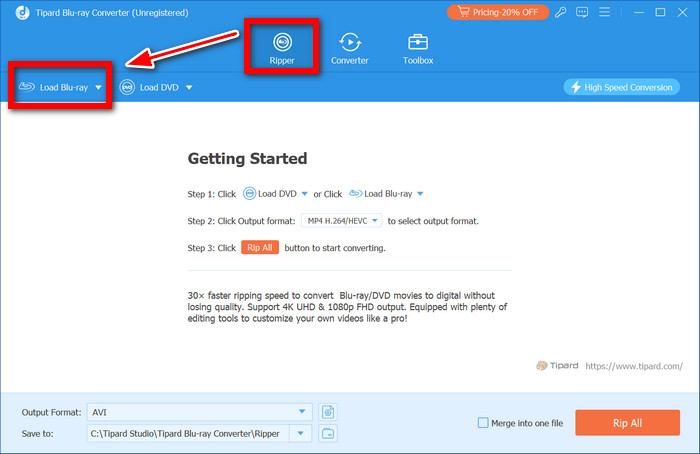
Insert your 4K Blu-ray disc into the Blu-ray drive, head to the Ripper tab, and click Load Blu-ray. This will prompt the software to scan the disc and display the content.
Step 3 Choose Output Format
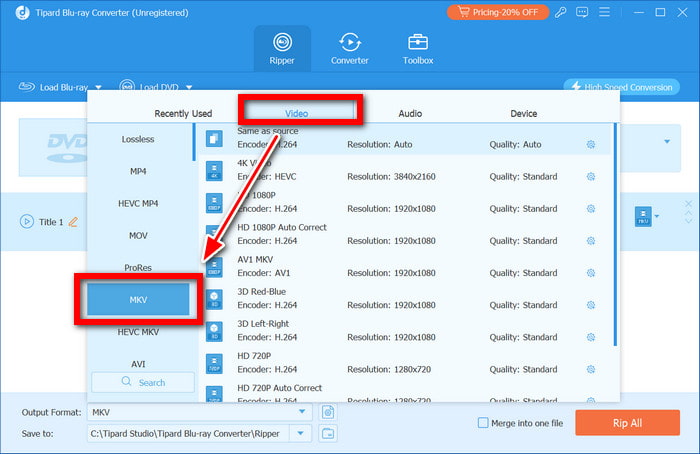
Open the dropdown menu and select Lossless MKV if you want original quality, or select 4K MP4 (H.265) for better compatibility.
Step 4 Select the Main Movie Title
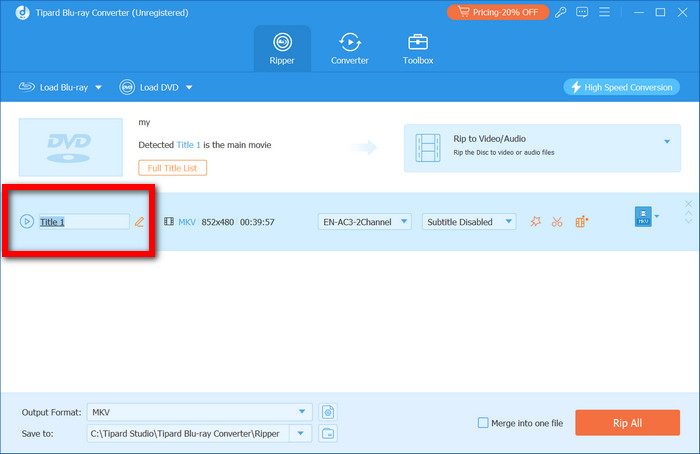
After the disc is loaded, select the main movie title. It is usually the title with the longest run time.
Step 5 Start Ripping
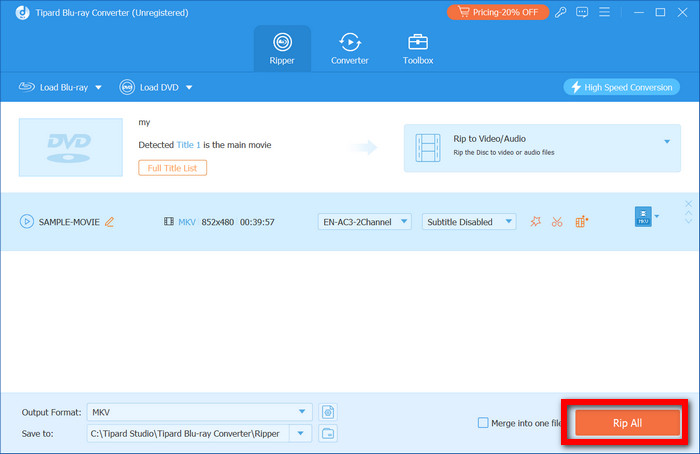
Wait for the ripping software to finish ripping by pressing the Rip All button located on the bottom left of the screen.
Test Results
After ripping the test result file, we evaluated the video on a 4k screen, and it was still sharp, had the same HDR effects, and the same color accuracy. The lossless MKV output copy did have audio tracks and subtitles and played back smoothly without any audio-sync problems.
Once the GPU acceleration was turned on, ripping was completed in a noticeably shorter amount of time, and the CPU-only processing was no longer a hinder to the entire 4k workflow.
Part 4. Rip 4K Blu-ray to ISO Image
An ISO copy of a 4K Blu-ray is a 1:1 copy of the original with all menus and extras. MakeMKV decrypts it without re-encoding.
Step 1 Download and install MakeMKV on your Windows PC, then launch the software.
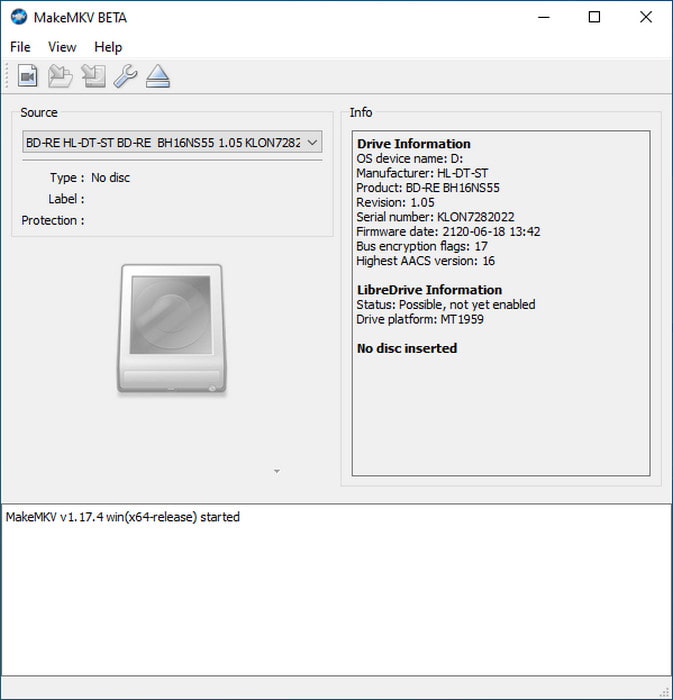
Step 2 Insert your UHD Blu-ray disc into a compatible UHD drive and wait for MakeMKV to recognize it.
Step 3 Click the Backup button instead of opening the disc for MKV conversion.
Step 4 Check the Decrypt video files option to ensure the backup removes AACS protection.
Step 5 Select a destination folder with sufficient free space (at least 100GB recommended).
Step 6 To start the process of copying the entire disc structure to your computer, click OK.
Part 5. Rip 4K UHD Blu-ray with HandBrake
HandBrake is a helpful tool for compressing your videos, as long as the videos aren’t UHD Blu-rays. Use MakeMKV for these specific videos.
Step 1 MakeMKV will turn the Blu-ray into an MKV file as a lossless and decrypted copy of the Blu-ray backup.
Step 2 Get HandBrake installed on your device so that you can open it to continue.
Step 3 HandBrake will have a tab called Open Source. Click it and find the MKV file you got from MakeMKV.
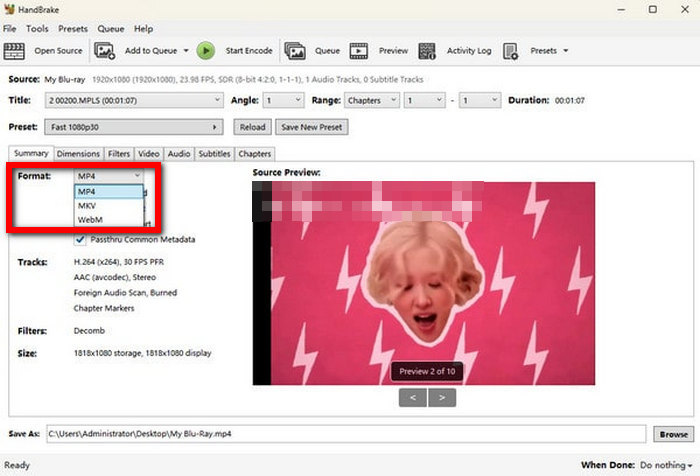
Step 4 Select to save the file as an MP4 or MKV, then choose the H.265 (HEVC) option to compress the 4K file and make it smaller.
Step 5 Make sure the resolution is still set to 4K, then adjust the RF setting to a desired point for that optimal quality-to-file-size ratio.
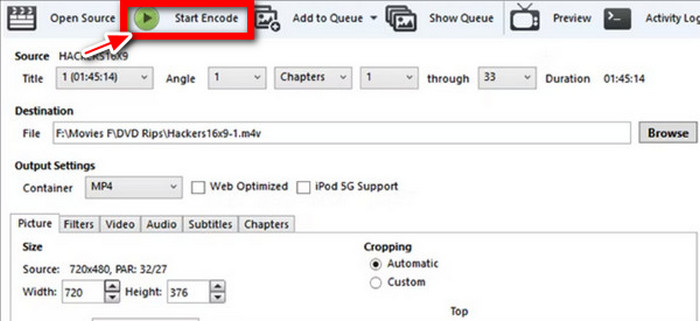
Step 6 Click Start Encode and wait for the compression process to finish.
Part 6. Fix Common 4K Blu-ray Ripping Errors
There are multiple reasons why ripping the 4K UHD Blu-ray could pose an issue, and they will usually stem from the firmware, encryption, or even the hardware itself. Four of the biggest problems are suggested.
1. 4K Blu-ray Not Detected
Cause: This is typically due to the firmware of the drive being incompatible or the UHD access not being enabled.
Fix: Use a UHD-compatible drive along with an active LibreDrive setting. If you are not able to see the disc, try updating or patching your drive firmware, even if it works on top-rated Blu-ray players.
2. AACS or Decryption Error
Cause: You likely have outdated encryption keys or the disc protections are too strong.
Fix: Always ensure your MakeMKV is updated so that your computer is able to access the updated keys.
3. Ripping Stops or Fails Midway
Cause: Scratched disc, unstable USB connection, or insufficient storage.
Fix: Clean the disc, use a stable SATA connection if possible, and make sure you have at least 100GB of free space for UHD backups.
4. HDR or Audio Issues After Ripping
Cause: Incorrect encoding settings or unsupported playback device.
Fix: Use lossless MKV output to preserve HDR and audio tracks, and avoid changing frame rate when compressing with HandBrake to prevent sync problems, especially if you plan to use Blu-ray authoring software later for disc creation or backups.
Conclusion
Learning how to rip 4K Blu-ray ensures you preserve your movies in full quality while enabling flexible playback and storage. Using Tipard, MakeMKV, or HandBrake makes the process efficient and reliable.
More Reading




About the Author

 Click here to join the discussion and share your comments