

Do you want to know how to create custom DVD menu? When you play a DVD on your DVD player, the first screen is the DVD menu. Sometimes, you will discover that those well-designed DVD movie menus could help you select a scene to watch the movie easily, and a confusing DVD menu will make it difficult. It's very necessary to create custom DVD menu with a good DVD menu maker. In this post, you will see some excellent DVD menu creators and the guidance to make a custom DVD menu on Windows or Mac.

Part 1. How to Create a DVD Menu with Tipard DVD Creator
Do you want to make custom DVD movie menus effortlessly? In our test, Tipard DVD Creator is the best DVD menu creator if you pursue simple workflow and high customization. It's a great DVD menu maker that lets you customize the DVD menu when you create your own DVD.
Tipard DVD Creator allows you to select from a wide range of DVD menu templates, and then customize the menu background image and music. You can also add an opening film for your DVD menu. With this DVD menu design software, you can easily author a video DVD with your preferred menu style and unique navigation.

- Support both DVDs and 4K UHD Blu-ray discs burning.
- Create custom DVD menu with templates or your own design.
- Easily arrange the videos to create an excellent sequence.
- Set the playback mode to play the main movie or the full DVD.

Steps to Create DVD Menu with Tipard DVD Creator
Necessary preparation: Insert your blank DVD disc to an optical drive and connect the drive to your computer. Maybe your computer has a built-in optical drive, and then you just need to insert your disc into it.
Step 1 Add audio and videos
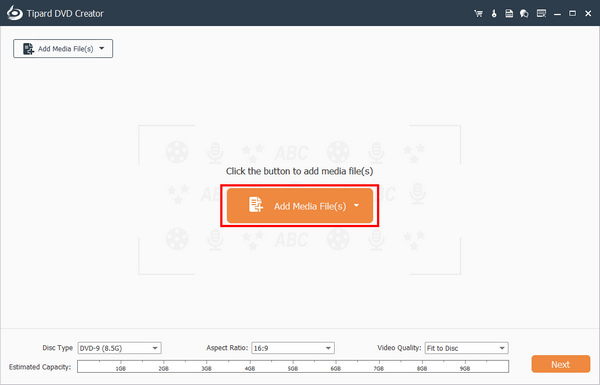
Download Tipard DVD Creator and launch it. Click the Add Media File button to add your desired videos and audio files for DVD authoring.
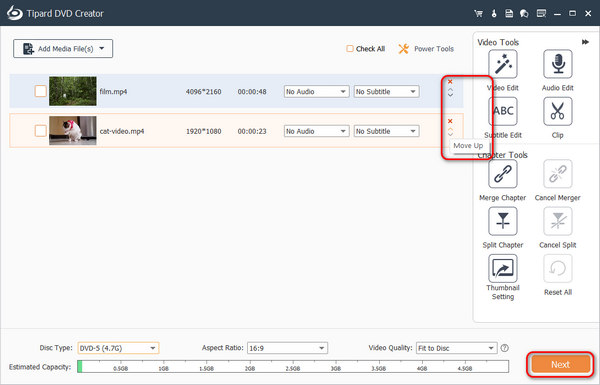
After that, you can click the Move Up or Move Down buttons to arrange the sequence of each video. Click the Dropdown buttons for audio and subtitle to add audio and subtitle tracks if needed. You can also select a video and then click the Split Chapter button split the video into multiple chapters. Then, click the Next button to select a desired DVD menu template.
Step 2 Customize DVD menu
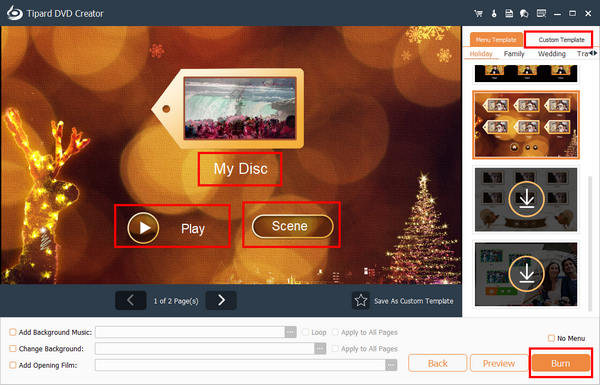
You can customize a DVD movie menu for your DVD. You can change the Title name of your video and the names of buttons on the menu. You can also drag them to change their positions.
Moreover, this DVD menu creator has great customization:
- Select Add Background Music to add or change the BGM for your DVD menu.
- Select Change Background to change the background image.
- Select Add Opening Film to add a video as the opening film.
After your customization, you can click the Burn button.
Step 3 Author DVD with a DVD Menu
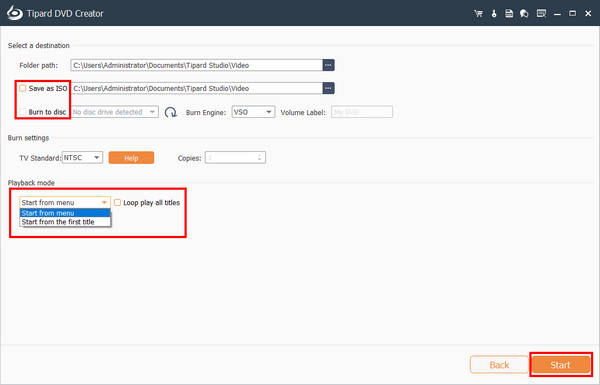
You can burn the videos to your disc or save them as ISO files on your computer. Finally, click the Start button to author your DVD while creating a DVD menu with Tipard DVD Creator.
Why We Select it
We select Tipard DVD Creator as the best DVD menu maker software because:
- It's lightweight and stable on most Windows and macOS systems, and has a clear interface with simple workflow.
- This DVD menu builder offers many stylish and free DVD menu templates in different themes.
- It offers great customization and supports many audio and image formats for background music and photo.
- It utilizes GPU acceleration to quickly author your DVD and Blu-ray - it takes 5 minutes and 15 seconds to author a 5.8 GB video.
- The Fit to Disc feature can automatically transcode your digital files.
Part 2. How to Create a DVD Menu on Mac with DVDStyler
You can also find many DVD menu creators on Mac. When you want to figure out how to make a DVD menu on a Mac computer easily, DVDStyler may be an answer to burn DVDs on Mac. It is an easy-to-use DVD menu maker that provides extensive features to customize your DVD menu. Check the detailed guide below to create a custom DVD menu on Mac.
Steps to Create a Custom DVD Menu on Mac with DVDStyler
Step 1 Create a new project
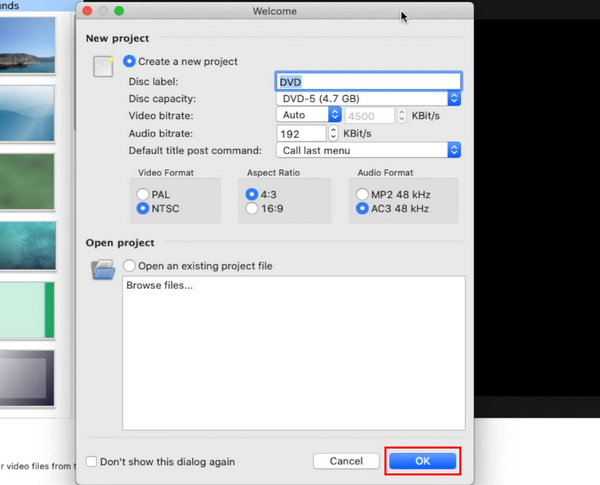
Open DVDStyler and customize the options related to DVD creation according to your situation on the welcome window. Then click on the OK button to continue to create custom DVD on Mac.
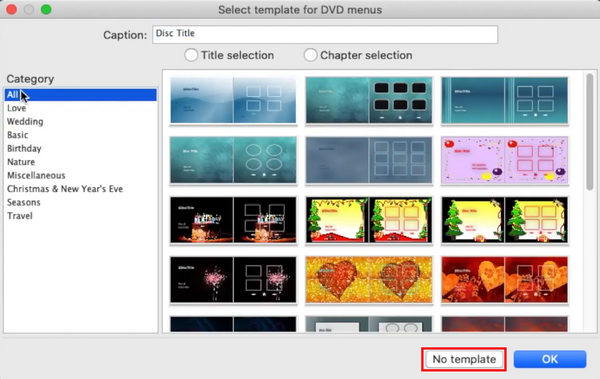
In the template window, you can choose No template. Then drag and drop the video, audio, and subtitle files you want to use to create DVD menu into this DVD menu creator.
Step 2 Choose a background
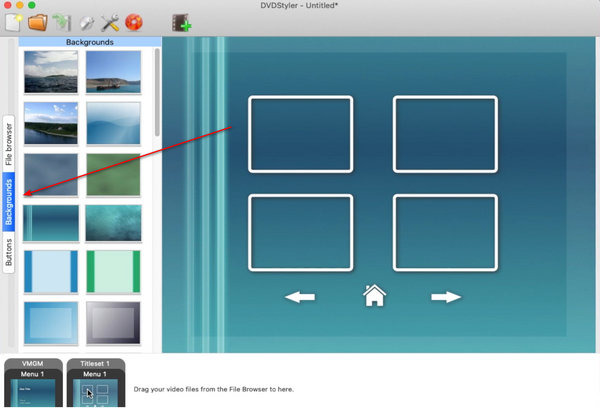
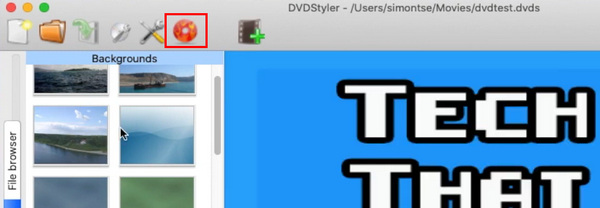
To create a custom DVD menu, select your favorite background on the left Background panel. Or you can import a personal image as the background.
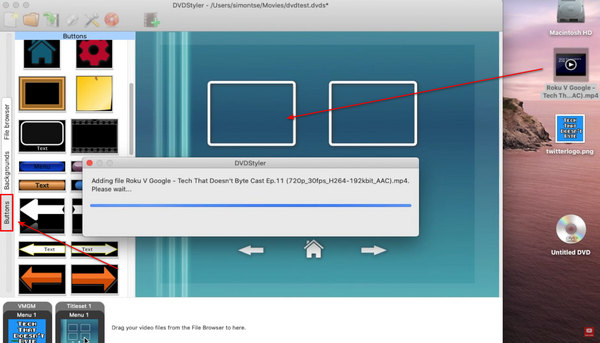
Then click the Buttons button on the left side, and drag the video clips or other media files and drop them on appropriate position of the background.
Step 3 Save the project
Finally, click on the Burn button with a DVD symbol on top ribbon to complete custom DVD menu creation. DVD menu creators usually provide many templates and button styles. You can choose a template directly or customize a personal DVD menu. Then, what you need to do is wait for the program to create custom DVD menu.
Why We Select it
We choose DVDStyler as a reliable DVD menu creator on Mac. Actually, it's really not easy to find a good DVD author with a menu feature and great customization. We admire the factors below:
- Many free DVD menu templates and great customization.
- Support the drag-and-drop feature to easily make custom DVD menu.
- Support opening film for your DVD menu.
- Fast DVD burning or authoring with GPU acceleration.
You may note: From out test, DVDStyler has a great limitation - it doesn't support Fit to Disc. You need to manually convert your videos to DVD-supported format, which is really complicated.
Part 3. How to Create a DVD Menu with Wondershare DVD Creator
If you are looking for a free way to make a custom DVD menu on Windows, you can try Wondershare DVD Creator. It offers many DVD menu templates, and you can also customize the DVD menu. It's a fast and powerful DVD burner. You can burn DVD to computer on Windows in just about 6 minutes and create unique and beautiful DVD menu with it easily.
Steps to Customize a DVD Menu with Wondershare DVD Creator
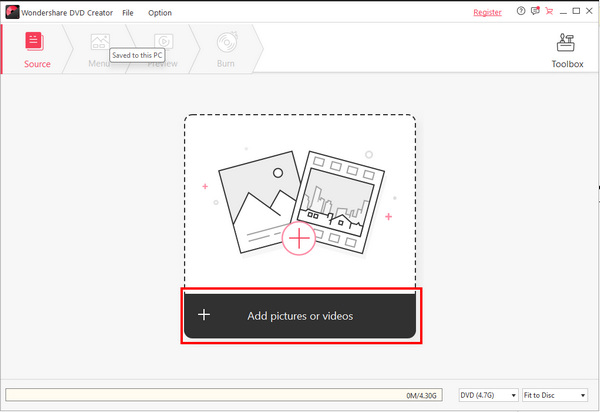
Step 1 Open the program and select Create a Video DVD Disc. Then, click the Add pictures or videos button to add your desired files to this program for creating custom DVD menu.
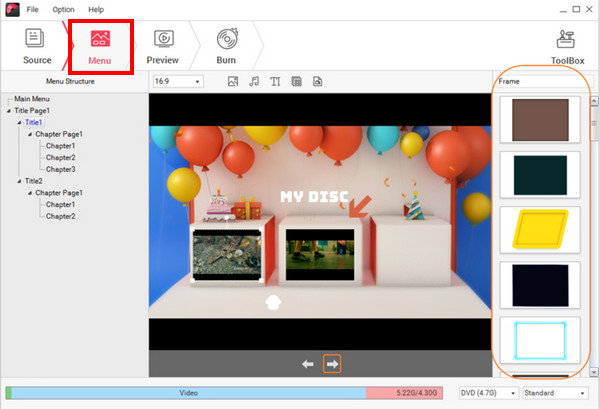
Step 2 Click the Menu button to choose a free DVD menu template. You can select and customize DVD menu for each chapter (video). For example, you can customize the buttons, video name, video position on menu, and more.
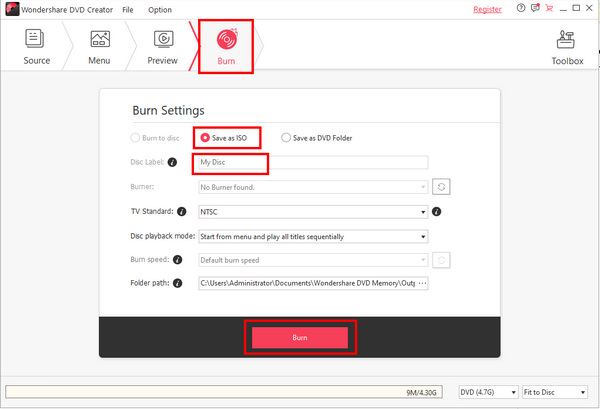
Step 3 Click the Burn button on the top menu bar. You can choose to save the DVD menu as an ISO file or burn it to your DVD disc. Finally, click the Burn button to create your custom DVD movie menu.
Why We Select it
Wondershare DVD Creator is a good choice because it works stably, precisely, and outputs high-quality DVD with seamless playback. You can check the key aspects we highlight:
- Provide great menu customization options.
- The interface can help you easily customize DVD menus.
- Offer beautiful and fascinating DVD menu templates.
- Support GPU acceleration to speed up DVD creation.
Part 4. How to Create a DVD Menu in DVD Flick
DVD Flick is also an excellent way to create a custom DVD menu. This famous DVD authoring software is lightweight but can offer many practical features. This DVD menu builder supports many video codecs and lets you add custom subtitles and background. If you want to create a custom DVD menu for free, DVD Flick is your excellent choice.
Steps to Create DVD Menu with DVD Flick
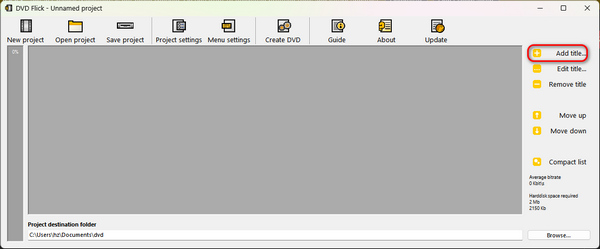
Step 1 Launch DVD Flick on your computer and click the Add Title button to add your video and audio files to DVD Flick.
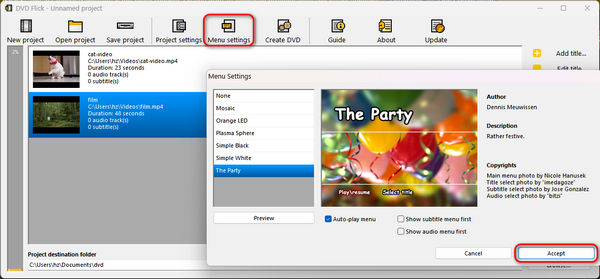
Step 2 Then, click the Menu settings button to add a free menu template. Here, you can customize the menu background photo, music, and font. It offers stylish menu templates that you may like. Then, click the Accept button to create the custom DVD menu.
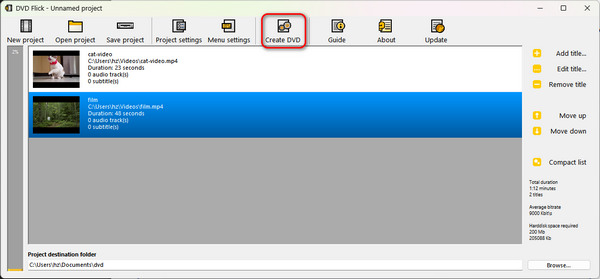
Step 3 Finally, you just need to click the Create DVD button to burn your DVD with custom DVD menu.
Why We Select it
DVD Flick is a powerful DVD creator. Although it's DVD menu feature is not that customizable, its comprehensive capabilities make it outstanding. You can check the following aspects we prefer:
- Lightweight, fast, and easy-to-use.
- Offer many beautiful DVD menu templates and stylish fonts.
- The interface is easy-to-understand for beginners.
- Customize DVD menu for each chapter.
Part 5. FAQs of How to Make a Custom DVD Menu
How to rip a DVD and keep menus?
You should rip the DVD to a video format or DVD folder (with VIDEO_TS folder). A DVD ripper like Tipard DVD Ripper lets you select the DVD menu and convert it to a video. If you choose DVD folder as the output, you can directly find the DVD menu in the folder.
How to create a DVD with chapters?
Chapters are made when you add and edit the videos. You can split a video into different chapters. Many DVD creators support making chapters and adding a DVD menu. For example, you can use Tipard DVD Creator to easily split chapters and then add a DVD menu.
Can I make DVD movie menus with Windows Movie Maker?
Yes, you can. However, you need to pay to unlock the DVD creation feature in Movie Maker. Also, you need to download the DVD Creator program from the Microsoft Store.
Conclusion
You've learned how to make a custom DVD menu on different platforms. Mac users can follow the guidance above to easily create a custom DVD menu with DVDStyler. If you are a Windows user, you can create a custom DVD menu with simple steps in Wondershare DVD Creator. DVD Flick is also a convenient way to create a custom DVD menu easily. Our recommended DVD menu creator is Tipard DVD Creator. It can make a DVD menu with multiple editing features, incredible templates, and flexible customization features.
More Reading



About the Author

 Click here to join the discussion and share your comments