

Using VLC subtitle tools makes watching and editing videos simple. In a few clicks, you can add, sync, or fix captions for your clips. This is handy if you create tutorials, watch foreign films, or edit your own projects. This guide shows every step in a clear way - from adding subtitles to fixing their timing and trying advanced tools. You will also see how to add subtitles on your phone and learn about other good apps. Before we begin, be sure your videos are ready to use.
Part 1. How to Add Subtitles to VLC (The Basics)
1. The Drag-and-Drop Method (Easiest)
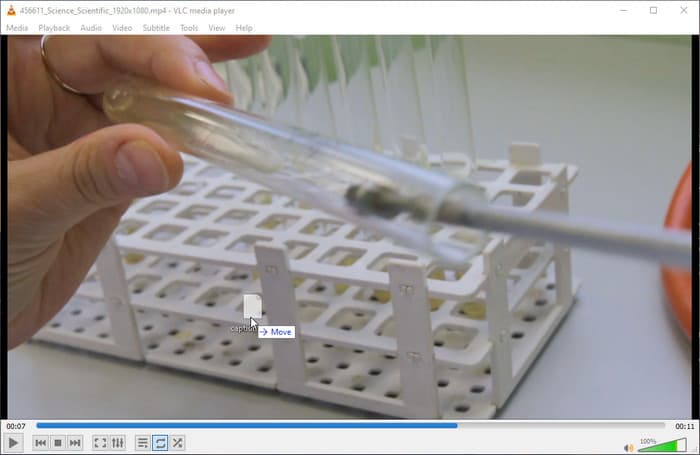
To start using VLC Media Player subtitles, open your video in VLC and drag the subtitle file, for example, an .srt file, straight into the player window. The subtitles will appear instantly and sync with your video as it plays. It is the quickest and simplest way to get captions working.
2. The Menu Method (Manual Load)
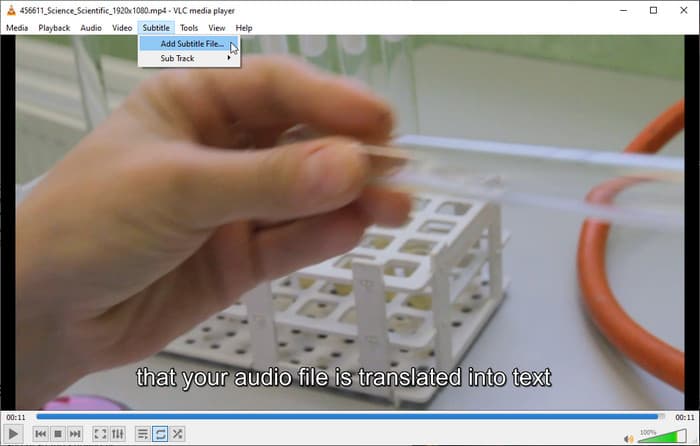
If you prefer to load VLC Player subtitles manually, you can do it directly while playing your video. Open VLC Media Player and load the video first. Then click Subtitles on the top menu bar and choose Add Subtitle File from the drop-down list. A window will occur where you can browse your folders, find your subtitle file, and click Open. Once selected, the subtitle will automatically appear and sync with your movie. This method gives you full control over which subtitle file to use.
3. Naming Subtitles Automatically (Pro Tip)
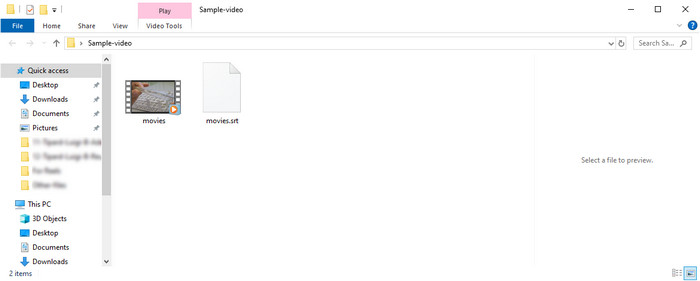
You can add a subtitle file to a video in VLC automatically by naming the subtitle file the same as your video file. For example, if your video is movie.mp4, name the subtitle file movie.srt after you download the subtitle. This method is great for saving time, especially when you have multiple videos.
Part 2. How to Fix Subtitle Sync & Appearance
1. Fixing Sync (Timing) Issues
If your subtitles appear too early or too late while watching, you can adjust them by fixing the VLC subtitle delay. When playing your video, press the H key to delay the subtitles if they appear before the dialogue, or press G to make them appear sooner. Each tap changes the timing by about 50 milliseconds.
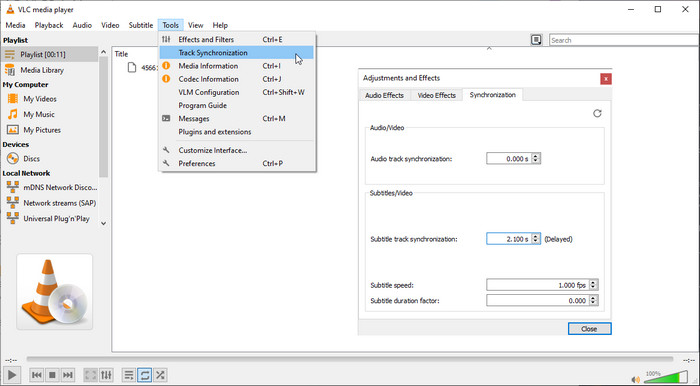
For a more precise fix, open the Tools menu, go to Track Synchronization, and enter a positive or negative value under Subtitle Track Synchronization. It lets you match the text perfectly with the audio.
2. Fixing Stretched or Ugly Subtitles
When you notice subtitles stretched in VLC or appearing too large, uneven, or oddly placed, it usually comes from formatting or font issues. You can fix this by switching to a standard subtitle format like SRT, which displays text more cleanly.
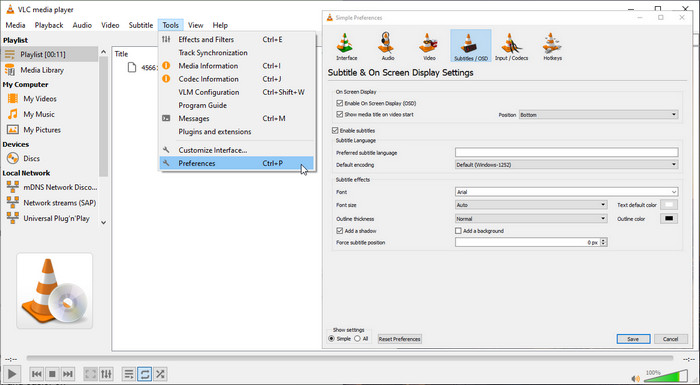
Another option is to open Preferences, go to Subtitles/OSD, and adjust the font size, color, or style until it looks right. If the subtitles still seem distorted, turn off the Force subtitle position option to restore the original alignment. Making your viewing experience clearer and easier on the eyes.
Part 3. Advanced VLC Subtitle Feature
1. Downloading Subtitles Automatically
If you prefer not to search for subtitle files manually, you can use subtitles on the VLC player to download them automatically. Open VLC and load your video, then go to the View menu and select VLSub.
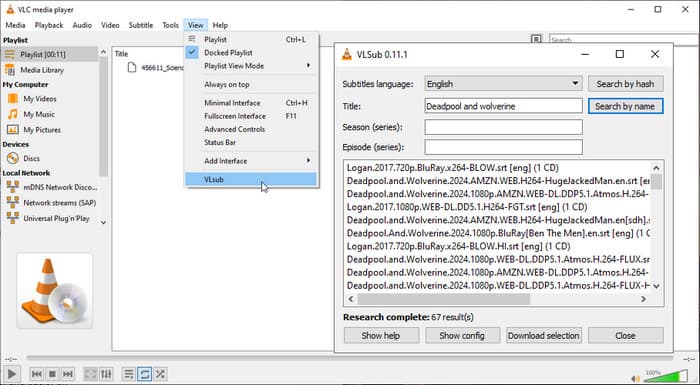
This built-in extension lets you search for subtitles directly from online databases. Simply enter the name of the movie or show, and VLSub will display a list of available subtitle files. Choose the one that matches best, click Download, and VLC will load it instantly. It saves time and ensures your captions sync with the correct version of your video.
2. Hardcoding Subtitles (Burning In)
When you want captions to appear permanently on your video, you can hardcode subtitles in VLC by embedding them into the file. This process, also known as burning in, ensures the subtitles stay visible even when playing the video on another device or platform.
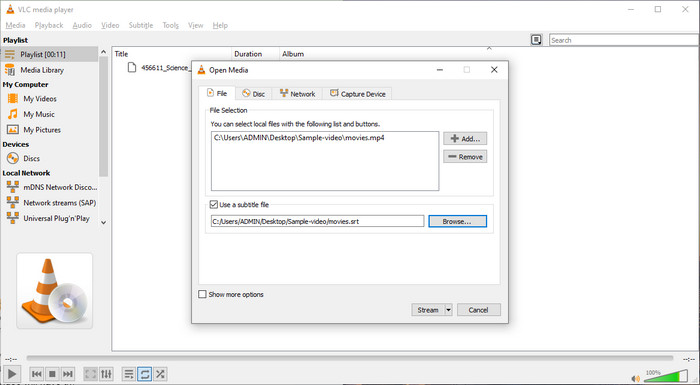
To do this, open VLC, go to Media and select Stream or Convert/Save. Add your video file and check the option Use a subtitle file. Next, open the profile settings, find the Subtitles tab, and tick Overlay subtitles on the video. Once the conversion finishes, your new video will have the subtitles burned in permanently.
Part 4. VLC AI Subtitles (The Future)
The new VLC AI subtitle feature will make adding captions faster and smarter. It was first shown at CES 2026, where the VLC team demonstrated how the player can create and translate subtitles automatically without using the internet. Meaning the app will soon be able to recognize speech and display accurate subtitles in real time.
As for the VLC AI subtitles release date, the developers have not shared an exact time yet. Reports suggest it may come with VLC version 4.0. Once released, users will be able to watch videos with instant captions and translations, making VLC more useful for everyone.
Part 5. Add VLC Subtitles on Mobile (iPhone & Android)
Learning how to add subtitles in VLC for iPhone is useful when you want to watch videos with clear captions on the go. With just a few steps, you can make your viewing experience smoother and more enjoyable.
Step 1 Open the VLC app on your iPhone or Android and load the video you want to play. You can select it from your files, downloads, or cloud storage.
Step 2 Click the Subtitle tab and select the SRT file that you have download from your device to import it here.
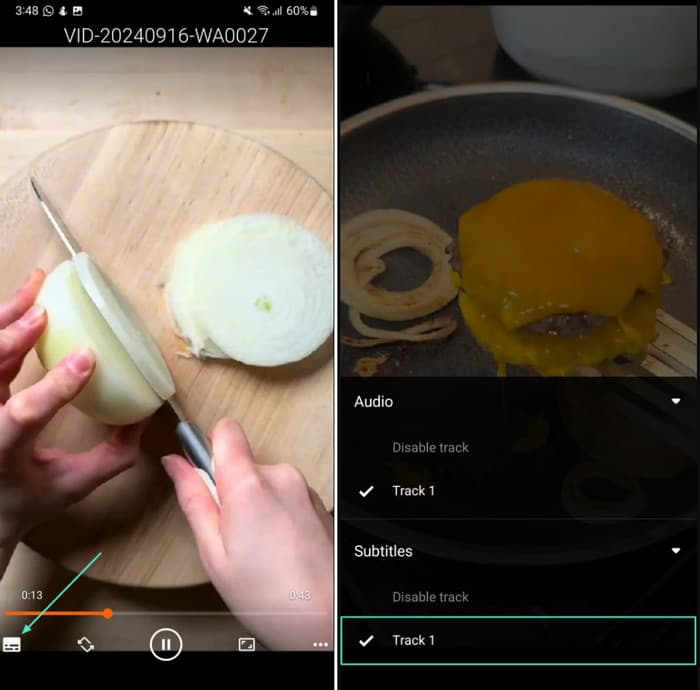
Step 3 The track will show on your screen, tap the track to activate it, and it will automatically sync into the displayed video.
Part 6. Best VLC Alternative to Add/Edit Subtitles
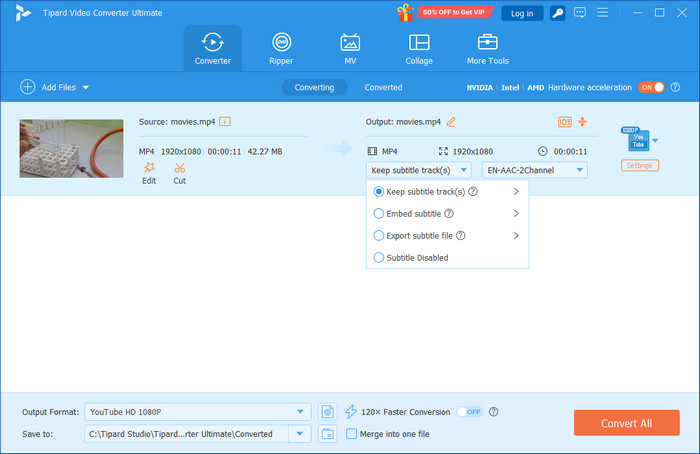
Tipard Video Converter Ultimate is a good choice if you need more features than VLC. It allows you to add, edit or burn subtitles into your videos easily. With the number of clicks, you can edit the font, size, and color or eliminate the delay issues. The tool is also compatible with 4K videos and converts files in a short time. It is easy to use because of its simple design. Although it is not free, Tipard is more controllable and smooth when compared to VLC, thus a wise choice when it comes to editing subtitles.
Conclusion
Knowing how to add and fix subtitles in VLC makes watching videos easier and more enjoyable. If your subtitles do not match the audio, you can use the VLC subtitle sync shortcut to fix the timing quickly. To have additional editing capabilities, such as the ability to burn subtitles onto videos or edit the styles, Tipard Video Converter Ultimate should be considered. You can use these tools to make your videos straight and clean as well as synchronized to be watched at any time.

All-in-one video toolbox: convert, edit, upscale, enhance, and compress your videos easily
100% Clean & Safe
100% Clean & Safe

More Reading
About the Author

 Click here to join the discussion and share your comments
 Tipard Video Converter Ultimate