

Old discs can fail at any time, so many users now try to convert DVDs to MP4 before they lose important videos. The challenge is picking a tool that works fast and keeps the quality clear. I have worked with many programs and seen how each one handles discs differently. This guide will show you which options are safe, simple, and worth using today.

Part 1. Why You Need to Convert DVD to MP4
You need to transfer a DVD to MP4 because MP4 is safer, smaller, and easier to use than a physical disc. DVDs can scratch, fade, or fail over time, but an MP4 file stays clear and stable. MP4 also plays on almost any device, including phones, laptops, smart TVs, and tablets, so you are not tied to a disc drive. It is simple to store, back up, and organize on a hard drive or cloud folder. This makes your movies, shows, and home videos easier to watch and much harder to lose.
Part 2. How to Convert DVD to MP4 for FREE (The Best Methods)
1. Tipard DVD Ripper
Tipard DVD Ripper stands out as a smooth and dependable DVD to MP4 converter. It reads discs with steady accuracy and keeps the picture clean even when you lower the file size. The interface is simple, but the quality controls feel more polished than most free tools. It is a strong pick if you want fast results without giving up clarity.
Step 1 To download the latest version of this DVD ripper, you need to click the download button that we have here. Then, follow the instructions to install it and use it freely on your desktop.
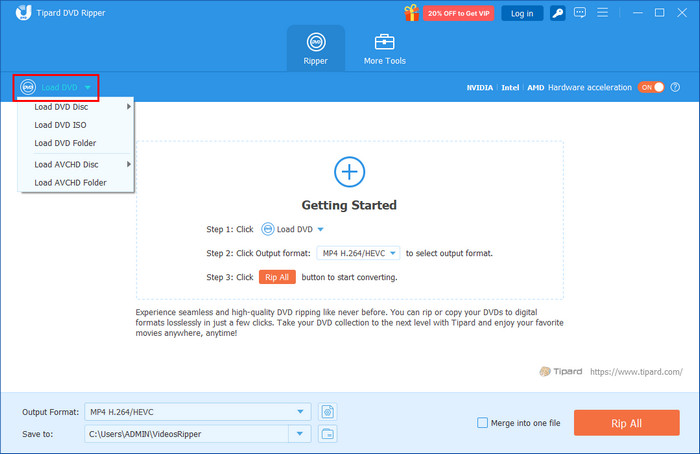
Step 2 Put the DVD in the optical disk drive to load it up on your PC or Mac. Now that the app is launched, click the Load DVD and choose what you want to rip from it.
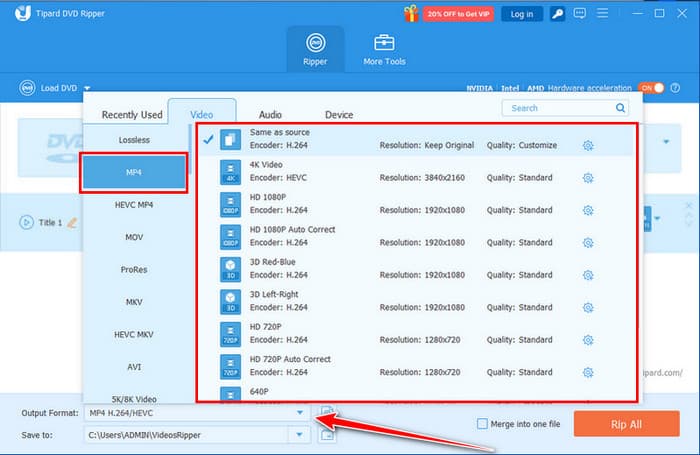
Step 3 Go to the Output Format, click the MP4 format, and video settings you want to achieve that are under the MP4.
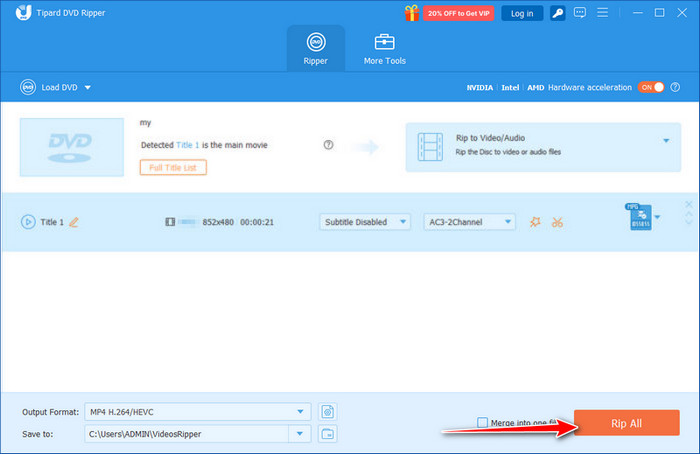
Step 4 After that, click the Rip All button to export it as an MP4 format digitally on your desktop.
2. Handbrake
HandBrake gives you deep control when you need to rip a DVD to MP4, making it great for users who want to fine-tune output. It handles bitrate, codecs, and resolution with precision. The learning curve is real, but once you know the basics, the results are sharp and stable. It is the best free choice for custom settings.
Step 1 Download and install HandBrake on your computer. If your DVD is protected, download libdvdcss-2.dll from the VideoLan site and place it in the HandBrake folder. This allows HandBrake to read and convert protected discs.
Step 2 Open HandBrake, insert your DVD, and select it under Source Selection. The program will scan all titles. If your disc has many similar titles, choose the correct main title based on what you see when playing the DVD.

Step 3 Go to the Summary tab and set MP4 as the output format. Select a preset that fits your needs, such as General or Device, and keep the resolution at DVD level. You can adjust video, audio, and subtitle settings if you want more control.
Step 4 Click Browse to set where the MP4 file will be saved. Use Preview to check a short clip if needed, then click Start Encod to begin the conversion.
3. VLC
VLC Media Player lets you how to save a DVD as MP4 through its built-in Convert tool. It is not as advanced as dedicated rippers, but its biggest strength is convenience. You open the disc, choose MP4, and export. The quality options are limited, yet it works well for quick tasks when you do not want extra software.
Step 1 Open VLC Media Player, then go to Media > Convert/Save.
Step 2 Click Disc, select DVD, and confirm your DVD drive.
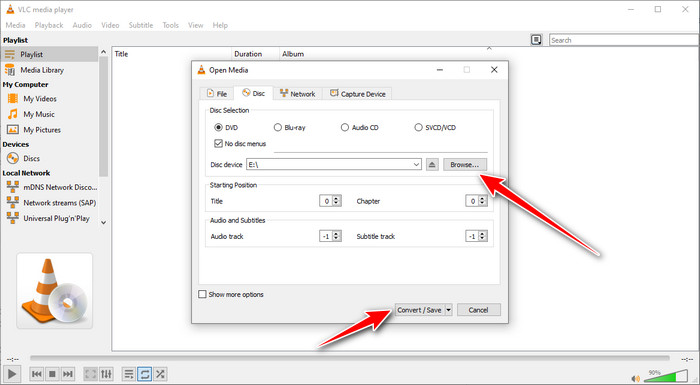
Step 3 Hit Convert/Save, then choose Video - H.264 + MP3 (MP4) under Profile.
Step 4 Click Browse to set your output folder, then push Start to convert the DVD to MP4.
4. Redstream VOB to MP4 Converter (Online)
Redstream VOB to MP4 Converter offers an easy way to copy a DVD to an MP4 file right in your browser. You upload the VOB files from the disc, and the site handles the conversion. It is simple and does not need installation, though upload speeds can slow down long videos. It is best for small clips or users who want a no-setup option.
Step 1 Open the Redstream VOB to MP4 Converter website on your browser.
Step 2 Click Choose File and select the VOB files from your DVD folder, usually inside the VIDEO_TS folder.

Step 3 Choose MP4 as your output format.
Step 4 Hit Convert, then download the finished MP4 file once processing is complete.
Part 3. Other DVD to MP4 Conversion Methods
5. WinXDVD
WinXDVD is a useful application, and one can easily extract a DVD to MP4 of a secured and unsecured disc. It has a rapid conversion speed, adjustable output parameters, and quality output. The interface itself is user-friendly yet offers more control options, including cropping, subtitles and choice of codecs, to members who are more advanced users.
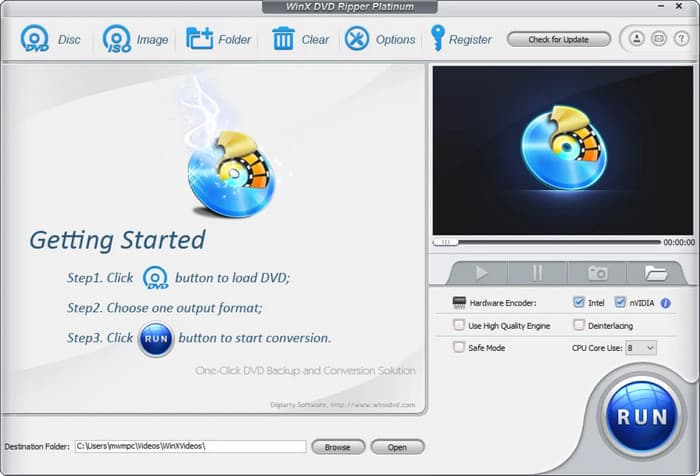
This is why it is a good option among users who wish to have both speed and flexibility.
6. DVDFab
DVDFab is a versatile option for Mac users looking to convert DVDs to MP4 Mac. It supports almost all DVD formats, including copy-protected discs, and provides presets optimized for Mac devices. DVDFab also allows adjustments to video quality, file size, and audio tracks.
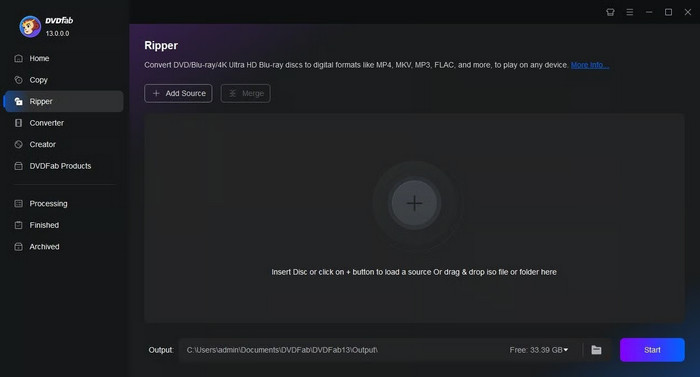
While the software is more feature-rich than basic free tools, its clear interface keeps it approachable for both beginners and advanced users.
Part 4. Troubleshooting Common Problems
Problem 1: "No valid source found" or Can't Read the DVD
This problem normally arises when the DVD is scratched, damaged or copy-protected. When converting a free DVD to MP4, you should verify that the software can handle encrypted discs or that it has the decryption libraries, such as libdvdcss used by HandBrake. Reading errors can also be sorted out by cleaning the disc or by selecting another drive.
Problem 2: The Converted File is Huge/Quality is Poor
Large file sizes or poor quality often happen when output settings are incorrect. To fix H.264 video, you need to check your video codec, resolution, and bitrate. Adjusting these settings will help you know how to export a DVD to MP4 without losing quality or creating unnecessarily large files.
Problem 3: Conversion is very slow
Large file sizes or poor quality often happen when output settings are incorrect. To fix this, check your video codec, resolution, and bitrate. Adjusting these settings will help you learn how to turn a DVD into an MP4 without losing quality or creating unnecessarily large files.
Conclusion
Digitizing your discs will preserve your movies and videos and make them easy to view. An online converter allows you to quickly back up your collection, whether you are using a free tool, a desktop, or an online converter. This article will help you easily manage your media and have a wash and a smooth conversion of your DVDs to MP4.
More Reading
About the Author

 Click here to join the discussion and share your comments
 Tipard DVD Ripper