

Key Takeaways:
After testing 14 DVD and Blu-ray rippers over four days, we've identified five reliable methods for digitizing protected discs. Tipard DVD Ripper stands out as the fastest solution, easily bypassing complex encryptions like Sony ARccOS, 99-title protections, and Disney X-project DRM. While open-source tools like HandBrake and VLC are popular, they require manual installation of decrypters (such as libdvdcss) and complex configuration. This makes them less beginner-friendly, as finding reliable download sources and managing technical settings can lead to playback errors or failed conversions.
Disclaimer: Tipard does not endorse or support any illegal activities related to DVD copying. Please ensure that your use complies with all applicable laws and regulations..
While encryption aims to prevent piracy, it often hinders legitimate owners who want to rip copy-protected DVD for personal backups. If you're struggling to watch your DVDs and Blu-rays on other platforms due to DRM, you're in the right place. Follow our comprehensive 2026 guide to discover how to bypass common encryption methods and successfully digitize your DVD collection without quality loss.

Method 1. Tipard DVD Ripper
Platform: Windows and macOS
Best for: Fast and seamless DVD decryption
When dealing with DVD copy protections, you need a versatile ripper that can keep up with the latest encryption methods. Tipard DVD Ripper is a top-tier solution for ripping copy-protected DVDs. It can automatically bypass both common and complex protections, such as APS, 99-titles, and various region codes. With its powerful decoding ability, you can easily start ripping your copy-protected DVDs without hassle.
In addition, this DVD ripper supports a wide range of standard and popular output formats, such as MP4, MKV, MOV, and ProRes, along with device-optimized presets for iPhone, PS5, Xbox, TVs, and more. It also offers robust support for HEVC and AV1 codecs, allowing you to output high-quality videos with smaller file sizes. Most importantly, it features level-3 hardware acceleration to help you quickly decode, edit, and convert DVD videos.
Main Features of Tipard DVD Ripper
- Deal with all types of DVD copy protection methods.
- Support high compression rate or lossless ripping.
- Offer many popular and rare output formats and codecs.
- Support GPU acceleration to faster DVD ripping with little CPU resource.
- Offer AI 4K-upscaling for output DVD videos.
How to Rip Copy-Protected DVD with Tipard DVD Ripper
Step 1 Download and Install
Click the Download button below to download Tipard DVD Ripper. Then, install and launch it on your Windows or Mac computer.
Step 2 Load Your DVD to Tipard DVD Ripper
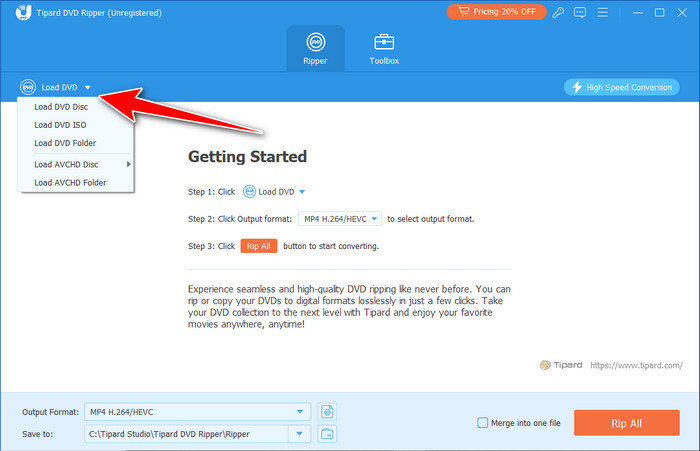
Click the Load DVD button and choose DVD Disc after you have inserted the DVD into your computer's optical drive. This program will recognize your disc.
Step 3 Choose Output Format
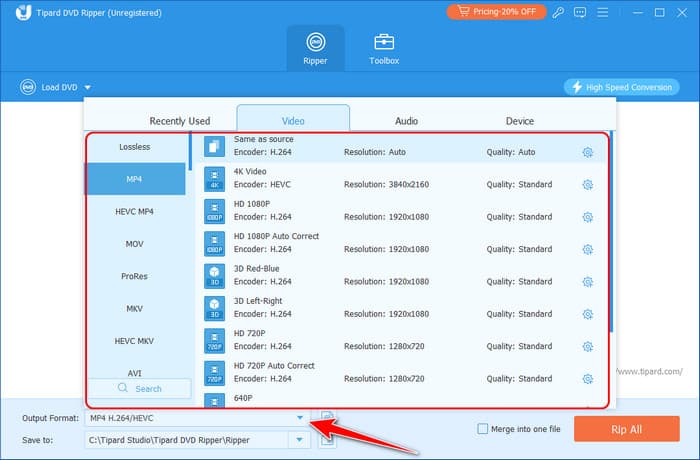
Before ripping the copy-protected DVD, you can select a desired output format. Click the Output Format dropdown button to unlock more formats, like HEVC MP4, 4K MP4, Lossless MKV. Double-click a format to select it.
Note: When the DVD is successfully loaded, it means Tipard DVD Ripper has recognized your disc and bypassed the encryption method.
Step 4 Start Ripping Copy-Protected DVD
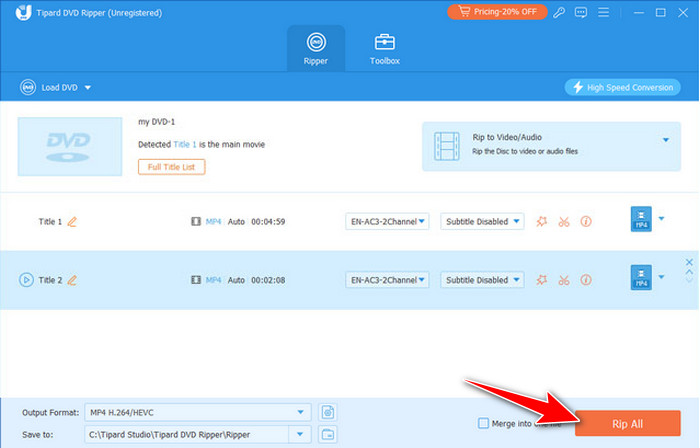
Click the Save to dropdown button to select an output folder for your video. Then, click the Rip All button to decrypt and rip your copy-protected DVD.
- Keep updating to deal with new DVD copy protection methods.
- Fast and stable DVD ripping.
- Clear interface with simple workflow.
- Highly compatible with all common Windows and macOS version.
- The interface can be more fashionable.
- The preview feature is not very intuitive.
Method 2. HandBrake
Platform: Windows, macOS, and Linux
Best for: Customize the output video settings
HandBrake is widely known as a video encoding program and also works as a DVD ripping tool. By default, it does not include built-in support for bypassing Blu-ray and DVD copy protection. However, it can work with external decryption libraries, such as HandBrake libdvdcss, which can be added as a plugin to help decrypt protected DVDs. With it, you can rip copy-protected DVDs for free.
One of HandBrake's main advantages is its flexible encoding options, offering multiple formats to convert DVD and Blu-ray content into files optimized for different devices. The following steps show you how to use HandBrake to rip DVDs with copy protection.
Main Features of HandBrake
- Offer high compatibility and customization.
- Support GPU acceleration to decode and re-encode DVDs.
- Support Constant Frame Rate and Variable Frame Rate.
- Offer a versatile video preview feature.
How to Rip DVD with Copy Protection in HandBrake
Step 1 Get HandBrake and Decryption Library
- 1. Download HandBrake from its official website and install it on your computer.
- 2. Download the libdvdcss file (libdvdcss-2.dll) from the official repository or a trusted mirror in GitHub.
- 3. Locate your HandBrake installation folder, usually C:\Program Files\HandBrake on Windows.
- 4. Copy libdvdcss-2.dll into that folder and restart HandBrake.
You May Need to Know: Finding a reliable source for the libdvdcss file is very difficult today. Hope that you can make it, but you can save time if you switch to a professional tool with updating and decryption methods.
Step 2 Load DVD in HandBrake
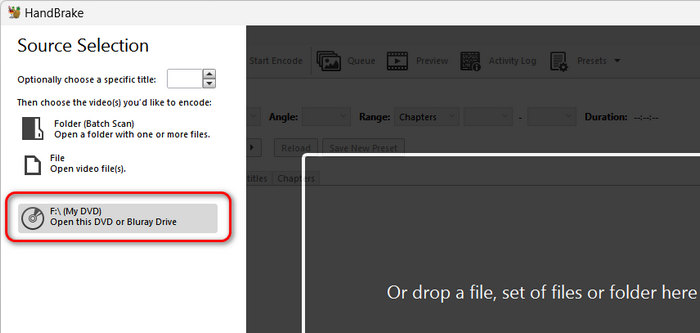
Insert the copy-protected DVD into your computer's optical drive. Open HandBrake, and select your DVD on the left side of the panel.
Step 3 Decrypt and Rip DVD with HandBrake
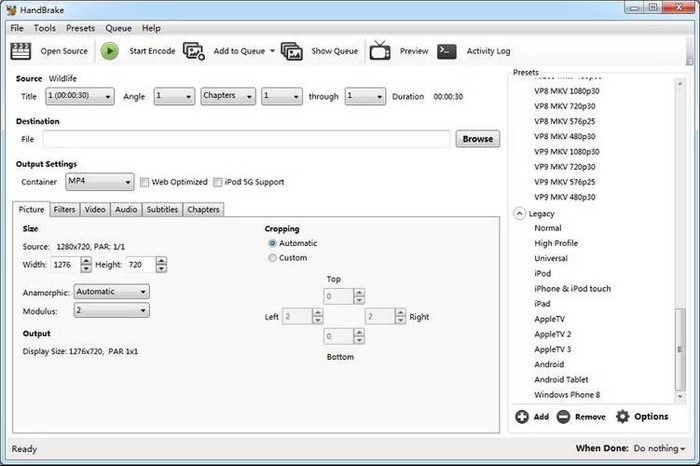
With libdvdcss library, HandBrake can deal with copy protection on your DVD. You just need to click the Format dropdown button to sleect a desired output container, like MP4, MKV, or WebM. Then, click the Browse button to choose a destination folder for your video. Finally, click the Start Encode button to rip the DVD with copy protection.
- Free but robust.
- Fast decoding and re-encoding.
- Available on modern Windows, macOS, and Linux versions.
- Offer many output codecs.
- Don't have built-in decryption methods.
- Not easy for beginners to customize output file.
Method 3. MakeMKV
Platform: Windows and macOS
Best for: Lossless ripping DVD and Blu-ray to MKV file
For users seeking uncompromising functionality, MakeMKV stands out as a reliable tool. It can remux your DVD or Blu-ray to an MKV file with original structure and files, which means the files are not compressed. Unlike standard alternatives, MakeMKV excels at bypassing complex copy protections, like common APS and region codes, while preserving 1:1 video quality, all audio tracks, and subtitles—completely without compression. If you don't need to compress videos, MakeMKV is a good choice to rip copy-protected DVD for free on Windows and Mac.
Main Features of MakeMKV
- Remux DVD and Blu-ray to lossless MKV files.
- Keep the original video/audio quality and entire structures and files.
- Bypass common APS and region code protections.
- Offer a clear and straightforward interface.
How to Rip Copy-Protected DVD with MakeMKV
With such a clear layout, the ripping process is easily carried out with a few steps, making it advantageous to people who prefer efficiency and high quality. Follow this guide to rip copy-protected DVDs.
Step 1 Launch MakeMKV; then, on the main interface, click the Source dropdown button to select your DVD.
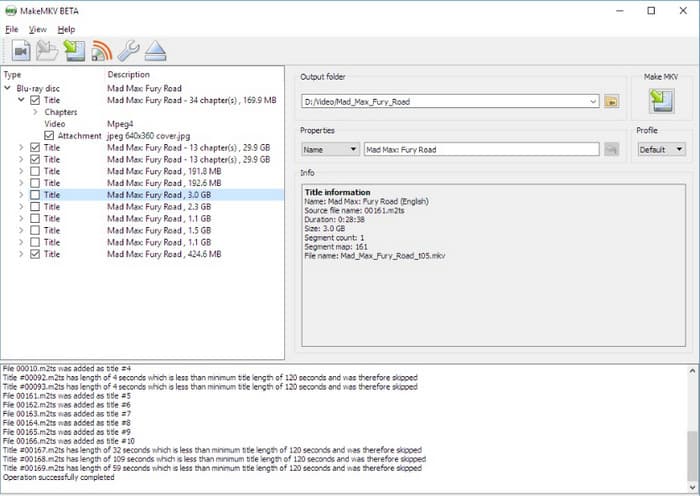
Step 2 Click the Titles you want to save under Types. You can also select what files and tracks you want to save under each title.
You May Need to Know: When you can see the tree structure of your DVD content, that means MakeMKV has successfully bypassed the copy protection.
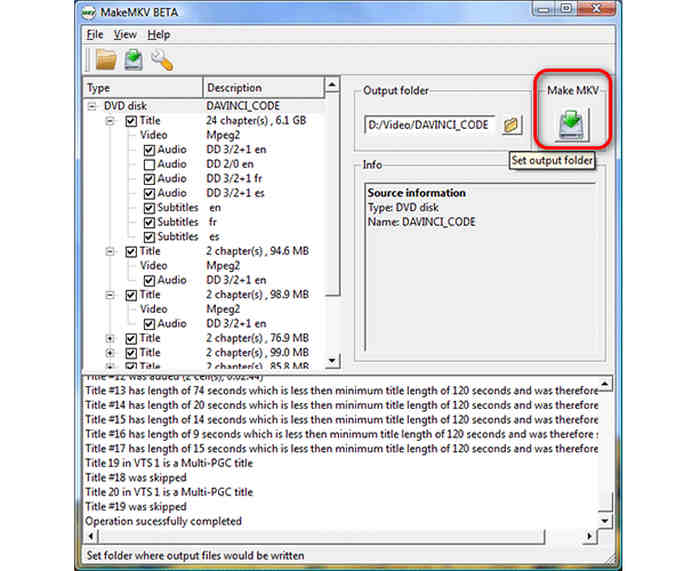
Step 3 Click the Make MKV button to rip your copy-protected DVD to a lossless MKV file.
- Free and powerful.
- Output lossless video and audio quality.
- Easy-to-use with clear interface.
- Only support MKV output.
- No video editing features.
Method 4. VLC
Platform: Windows, macOS, and Linux
Best for: Ripping DVDs and directly playing them
VLC Media Player can also convert media files. As a free and open-source DVD and Blu-ray ripper, although it cannot directly rip DVDs with copy protection, you can manually add decryption library files for free. Just search for corresponding decoding files on the internet, and then you can easily free rip copy-protected DVDs. VLC also offers many popular and standard output profiles, like MP4, MP3, FLAC, etc. You can also customize codecs, frame rate, resolution, and video effects.
Main Features of VLC Media Player
- Rip DVD and Blu-ray discs, ISO images, and folders.
- Adjust video effects, codecs, resolutions, and many other parameters.
- Offer a powerful media player feature to play physical and digital files.
- Provide and standard and common video and audio output presets.
How to Rip Copy-Protected DVD with VLC
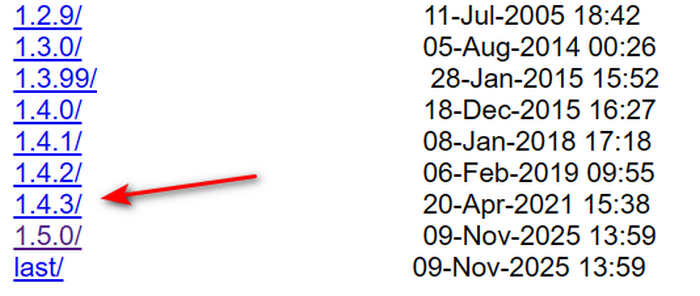
Step 1 Download and install VLC Media Player on your computer. Visit download.videolan.org/pub/libdvdcss/ to download the libdvdcss file. you can select the version 1.4.3, a very stable version.
Important Update: The official libdvdcss download page - download.videolan.org/pub/libdvdcss/ no longer provides precompiled .dll files. Instead, it mainly offers source code and generic packages. This change is likely due to legal concerns related to DVD decryption in some regions, so users are expected to compile the library themselves or obtain the .dll from third-party sources.
Step 2 Put the downloaded or compiled .dll file in the VLC installation directory. The default path is C:\Program Files\VideoLAN\VLC if you didn't change it when installing VLC.
Step 3 Launch VLC Media Player and click the Media menu. Select the Convert/Save button to access the app's converting feature.
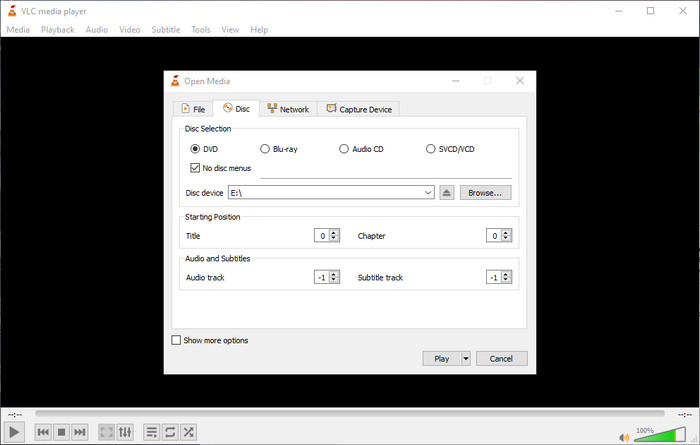
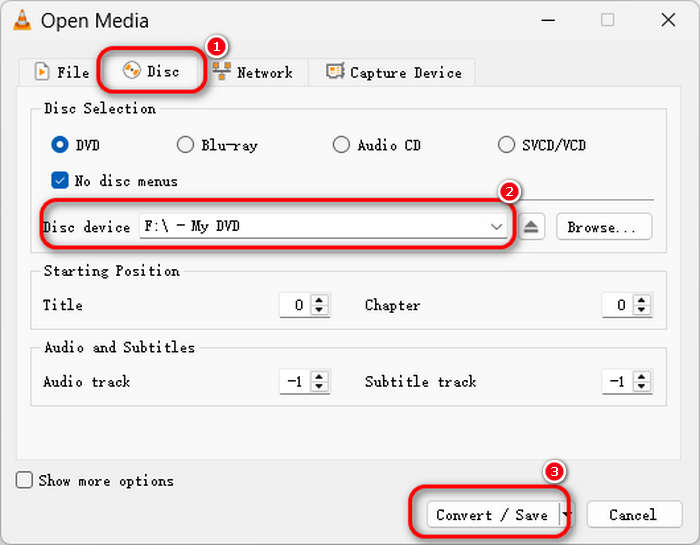
Step 4 On the next window, click Disc, choose the DVD, open the disc drive device, set the title, and click Convert/Save.
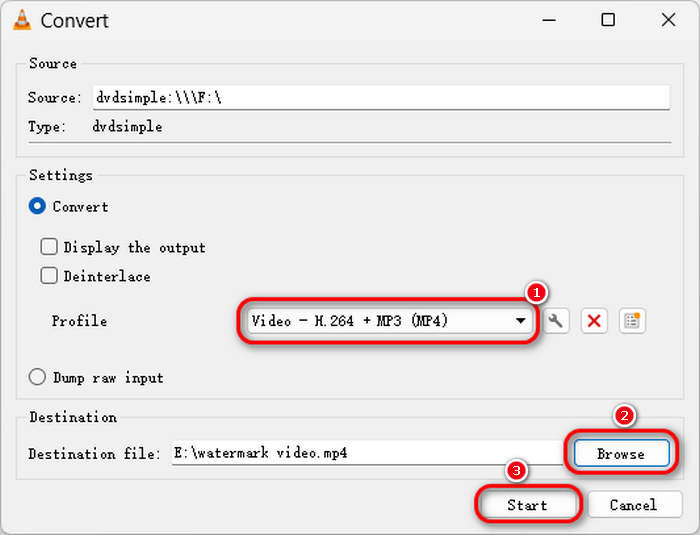
Step 5 Click the Profile dropdown button to select an output preset, such as Video - H.264 + MP3 (MP4). Then, click the Browse button to select an output folder. Finally, click the Start button to decrypt and rip the copy-protected DVD in VLC.
- Clear conversion panel with understandable on-screen prompts.
- Free but robust.
- Available on Windows, macOS, Linux, and even on mobile phones as a player.
- Versatile playback features.
- No GPU acceleration for re-encoding.
- No built-in decryption methods.
Method 5. DVD Shrink
Platform: Windows and Linux (old versions)
Best for: Deal with simple encryptions on old OS.
DVD Shrink remains a legendary tool for ripping copy-protected DVDs, prized for its ability to compress dual-layer discs (DVD-9) into standard DVD-5 format. While its re-authoring features allow for significant file size reduction, it is important to note that it can only rip old copy protections, like CSS, on DVDs. For modern, structurally protected discs (such as ARccOS or RipGuard), DVD Shrink typically requires a secondary background decrypter to function reliably in a contemporary workflow.
Main Features of DVD Shrink
- Bypass CSS, region codes, UOPs, and Macrovision.
- Compress DVD-9 to DVD-5.
- Compress digital media files.
How to Rip Copy-Protected DVD with DVD Shrink
However, its calibration capacity to re-author DVDs and work out any extra part, including advertisement or menu, is a plus, which none of its rivals offers. Although new versions of DVD Shrink were released quite some time ago, it still provides a lightweight method for users who wish to compress and back up their older DVDs quickly. You can use the steps below to rip DVDs with copy protection.
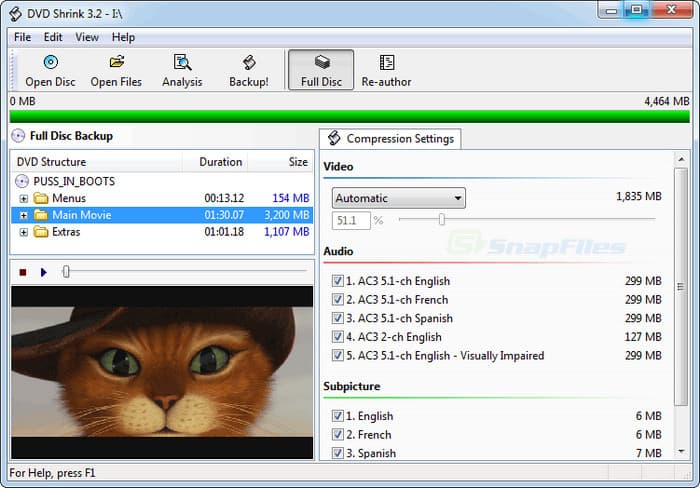
Step 1 Download the zip file of the DVD Shrink to your computer, click Open Disc to upload the disc file to the app, and click OK.
Step 2 On the right side, choose the compression setting you want to attach to your video and the other settings you can manipulate or optimize here.
Step 3 When done, click the Back-Up button, choose the Target Device, and click OK to start processing.
- Lightweight and easy to use.
- Simple interface with easy workflow.
- Free but powerful.
- Support different input media file formats.
- Only deal with DVDs and encryptions before 2004.
- Only support MPEG-2 output codec.
Bonus: Quick Fixes about Common DVD Ripping Errors
1. Encryption Errors
Current DVDs come with enhanced copy protection methods, which regular software cannot easily penetrate. For instance, some free software, such as MakeMKV or DVD Shrink, cannot handle such encryption. To rip copy-protected DVDs with new encryption methods like 99-Title or ARccOS, you can use Tipard DVD Ripper.
2. Region Code Issues
DVD region codes restrict playback to specific areas. Instead of exhausting the limited hardware region changes (usually 5) on your DVD drive, it is more efficient to use software like MakeMKV or HandBrake (with libdvdcss). These tools strip region locks during the ripping process, creating a region-free backup compatible with any device.
3. Slow Ripping Speed
Slow DVD ripping is often caused by outdated software, hardware bottlenecks, or damaged discs. To boost ripping speed, close background applications, ensure your optical drive is clean, and select balanced output settings (avoiding ultra-high encoding presets that tax the CPU). Using high-performance software like Tipard DVD Ripper or MakeMKV can also significantly optimize the process through hardware acceleration and superior decryption engines.
4. Audio and Video Out of Sync
Audio-video desync typically occurs due to incorrect frame rate or sample rate configurations during the ripping process. To prevent this, ensure your software is set to Keep Original for both frame rate and audio settings. Professional tools like VLC provide built-in synchronization offsets, allowing you to calibrate and fix timing issues either during the rip or in post-processing.
5. Crashes or Freezing
Common ripping failures often stem from incompatible disc formats, insufficient system resources, or outdated software. To resolve this, ensure your ripping tool is up to date and meets your OS requirements.
6. Incomplete Ripping Process or Missing Sections
These errors often come from incomplete decryption or using overly simplistic ripping tools that ignore complex copy protections. To ensure a 1:1 backup, verify that your software supports Full Disc mode, which preserves menus, subtitles, and bonus features. This prevents the accidental loss of essential metadata and disc structures when you rip copy-protected DVDs.
Which Method is Best for Handling Copy Protection?
| Software | Bypasses CSS/Region Codes? | Handles Advanced Protections? (Disney/99-Title) | Method Used | Decryption Reliability |
|---|---|---|---|---|
| Tipard DVD Ripper | Yes (Native) | Excellent | Built-in decryption engine updated for 2026 schemes. | High: Handles 99-title and structural protections automatically. |
| HandBrake | No (Native) / Yes (with plugin) | Limited | Requires external libdvdcss library to be manually installed. | Medium: Often fails on advanced Disney/Sony protections. |
| MakeMKV | Yes (Native) | Superior | Direct disc access with frequent beta key updates for new keys. | High: The industry standard for bit-for-bit decryption (Remux). |
| VLC Media Player | No (Native) / Yes (with plugin) | Poor | Uses libdvdcss primarily for playback, not dedicated ripping. | Low: Frequently encounters "scrambled" errors during conversion. |
| DVD Shrink | Yes (Basic) | Obsolete | Uses legacy CSS decryption from the early 2000s. | Very Low: Fails on almost all modern protections post-2010. |
DVD Copy Protection - What You Should Know
When a DVD has copy protection, it means it is a commercial DVD. Commercial DVDs employ multiple layers of Digital Rights Management (DRM) to prevent unauthorized duplication. To successfully convert these to MP4, a software needs to bypass the following:
- CSS (Content Scramble System): An older encryption method that has been widely cracked, allowing many tools to bypass it easily.
- Region Codes: Restrict playback to specific geographic areas, which can be circumvented by software that removes these locks during ripping.
- APS (Analog Protection System): APS is a DVD copy prevention system that adds pulses to analog video signals to corrupt the automatic gain control circuit of recording devices.
- ARccOS: A structural protection method that creates fake sectors and errors on the disc, making it difficult for ripping software to read the content without specialized handling.
- 99-Title Protection: A method that creates multiple fake titles on the DVD, confusing ripping software and causing it to fail or produce incomplete rips.
Legal Warning: Ripping DVDs may be subject to copyright laws in your country. This "rip copy-protected DVD" guide is for personal archival and educational purposes only. We do not support the distribution or piracy of copyrighted material. Always check your local regulations regarding "Fair Use" before bypassing DRM.
FAQs of Ripping Copy-Protected DVDs
What does it mean if a DVD is copy protected?
A copy-protected DVD contains built-in technical measures, known as Digital Rights Management (DRM), designed to prevent unauthorized duplication. The most common method is CSS (Content Scramble System), which encrypts the video data so it can only be read by authorized players. These "digital locks" ensure that users cannot simply copy-paste files from the disc to a computer or distribute the content digitally.
Can HandBrake rip copy protected DVDs?
HandBrake cannot natively rip copy-protected DVDs or Blu-rays. You need to manually download and add library .dll files to enable decryption. Maybe you'll also need to manually compile the necessary components.
Can you borrow a DVD from the library and burn my own copy?
Generally speaking, borrowing a DVD from a library to burn a copy is a violation of copyright law. When you borrow a DVD, you are granted a temporary license for private viewing only, not for reproduction or ownership of the digital data.
Conclusion
This article shows how to rip DVDs with copy protection with 5 popular tools. Some of them, like Tipard DVD Ripper, can natively handle encrypted content, while others, like VLC and HandBrake, require decryption libraries. The key factor is that they can work stably and effectively.
More Reading
About the Author

 Click here to join the discussion and share your comments
 Tipard DVD Ripper