

- Part 1. How to Rip Copy-Protected DVD to Windows/Mac Computer
- Part 2. How to Rip DVD to Computer with WinX DVD Ripper
- Part 3. How to Rip DVD to Computer on HandBrake
- Part 4. How to Rip DVD to Computer with VLC Media Player
- Part 5. How to Copy DVD to Computer with CloneDVD
- Part 6. How to Rip DVD to Computer with MakeMKV
- Part 7. How to Rip DVD to Computer with Freemake Video Converter
- Part 8. FAQs of Ripping DVD to Computer
Key Takeaways:
Don't let your cherished DVD collection collect dust. Whether it's a rare 90s classic or a sentimental family video, moving those bits from plastic to your hard drive ensures they last forever. In this 2026 updated guide, we've tested 15+ tools to find the most efficient ways to rip DVDs to MP4, MKV, and ISO, even with tough encryption.
- Best Overall: Tipard DVD Ripper - AI-Powered 4K Upscaling & Super-fast Speed
- Deep Customization: HandBrake - Excellent Customization for Mobile Presets
- Best for Lossless Ripping: MakeMKV - 1:1 Bit-for-bit Remuxing
While streaming dominates, physical media remains the only way to truly "own" your favorite films without worrying about licensing removals. However, disc rot and the fall of DVD player hardware make digitization a necessity. Modern tools now allow you to not only copy DVD to computer but also upscale 480p content to 4K using AI enhancement, making classic movies look stunning on 2026 displays.
To streamline your viewing experience, the best solution is to copy DVD to computer with subtitles. In this guide, we will explore the most efficient ways to digitize your DVD collection. By relocating your movies to your hard drive, you can enjoy your favorite films instantly, anytime, and anywhere. Discover how to rip DVD to computer into a seamless digital media hub.
- Part 1. How to Rip Copy-Protected DVD to Windows/Mac Computer
- Part 2. How to Rip DVD to Computer with WinX DVD Ripper
- Part 3. How to Rip DVD to Computer on HandBrake
- Part 4. How to Rip DVD to Computer with VLC Media Player
- Part 5. How to Copy DVD to Computer with CloneDVD
- Part 6. How to Rip DVD to Computer with MakeMKV
- Part 7. How to Rip DVD to Computer with Freemake Video Converter
- Part 8. FAQs of Ripping DVD to Computer
Part 1. How to Rip Copy-Protected DVD to Windows/Mac Computer
For users who value time and visual fidelity, Tipard DVD Ripper remains the industry leader. Unlike traditional converters, it utilizes AI-driven upscaling to breathe new life into jagged 480p footage. Tipard DVD Ripper can help you rip DVD to lossless MKV format or re-encode the DVD to MP4, MKV, AVI, with higher video quality optimized for modern displays, like TVs, iPhone, iPad, Samsung, and more. Moreover, it can automatically bypass copy protections, including region codes, CSS, AACS, 99-Title, and more encryptions.
This rip-DVD-to-computer software supports hardware acceleration (NVIDIA, Intel, AMD, and Apple Silicon) to rip DVD to computer 60× faster with low CPU usage. Also, it can maintain all DVD content, like videos, audio, subtitles, etc. You can also rip all DVD videos and merge them into a single video on Windows 10/11 and macOS. Check the steps below to learn how to rip DVDs to a computer quickly and easily.
Main Features of Tipard DVD Ripper:
- Download DVD to computer with full GPU acceleration on Windows and Mac.
- Rip DVDs with subtitles, audio tracks, and all titles and chapters.
- Back up DVD to computer as ISO image or DVD folder (Video_TS).
- Rip DVD to many digital formats like MP4, MOV, MKV with H.264/HEVC/ProRes, and more codecs.
- Easily handle different types of DVD encryptions and region codes.
- Offer AI upscaling to highly enhance the DVD video resolution and bitrate.
Steps to Copy DVD to Computer with Tipard DVD Ripper
Step 1 Get Tipard DVD Ripper
Download Tipard DVD Ripper and launch it. Insert your DVD into your DVD drive, and then connect the drive to your PC or Mac.
Step 2 Load DVD
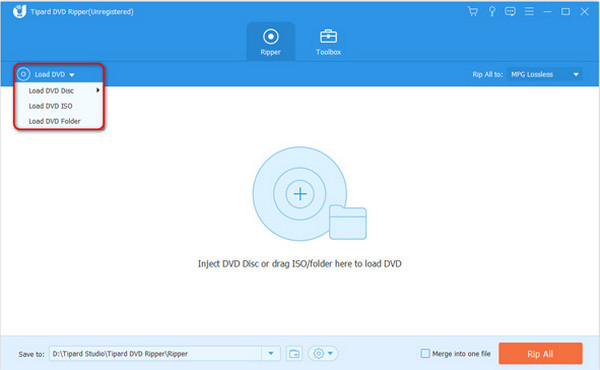
Go to the Ripper panel and click the Load DVD button on the upper-left corner of the interface. Choose your DVD, ISO, or DVD folder to import.
Step 3 Select Output Format
Locate the Rip to Video/Audio selection, then click the dropdown button to select ISO or DVD folder as the output mode.
You can also click the Output Format dropdown to select a video or audio format for the output, such as 1080p HD or HEVC MP4.
Double-click on a video preset to select it.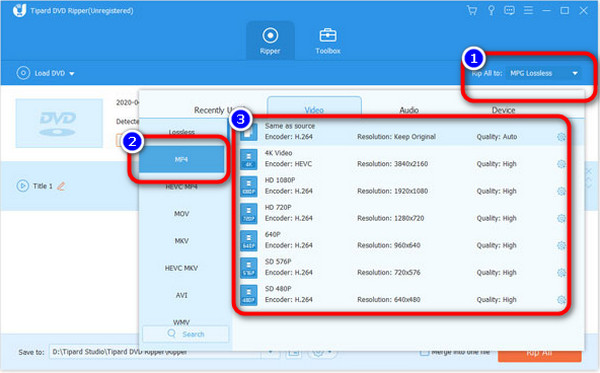
Step 4 Rip DVD to Computer
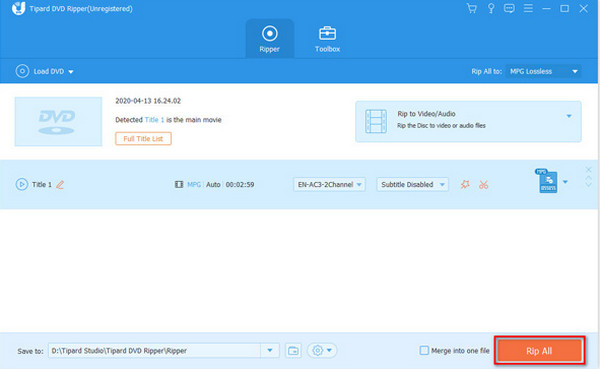
Click the Save to dropdown button to select a folder to save your output. Then, click the Rip All button. That's how to rip DVD to computer with Tipard DVD Ripper.
- Fast and stable DVD ripping performance.
- Support many output formats, like digital video files, ISO image, or DVD folder.
- Clear interface and easy workflow.
- Offer video editing features, like crop, trim, merge, and filters.
- The interface can be more stylish.
Expert Verdict:
Tipard DVD Ripper has strong disc decoding and re-encoding capabilities. It can deal with different types of homemade or encrypted DVDs. It supports a large number of output formats in different presets, which are widely compatible with common players and devices. It also supports deep customization in video codec, resolution, bitrate, and more. But it will recommend the most compatible and high-quality preset for your chosen format.
Part 2. How to Rip DVD to Computer with WinX DVD Ripper
WinX DVD Ripper can rip DVDs on Windows 10/11 and macOS effectively. This lightweight but effective software can offer stable and fast DVD ripping. You can also customize the video codec, audio codec, resolution, audio, and subtitle tracks.
We've tested it on both Windows and Mac, and we found that the Mac version can rip DVDs faster. However, this program doesn't offer too many video codecs. When we rip DVD to computer, the default MP4 preset has only the H.264 codec, which can be restrictive for users who want deep customization.
Steps to Rip DVD to Computer with WinX DVD Ripper
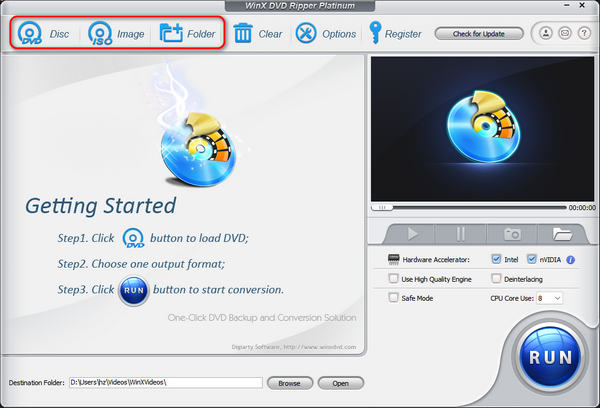
Step 1 Launch WinX DVD Ripper on your computer. Click the Disk, Image, or Folder button at top to load your DVD.
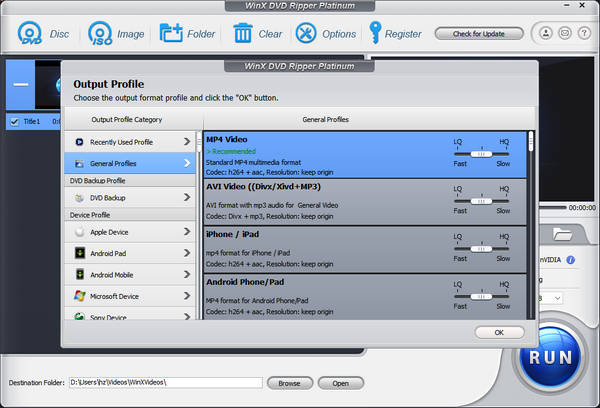
Step 2 Then, you can select a video format as the output format, like MP4 Video or AVI Video.
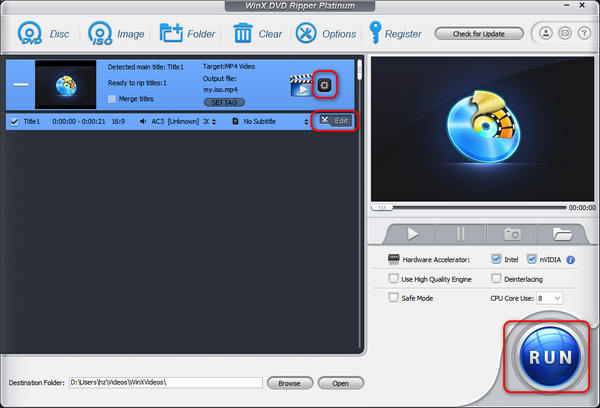
Step 3 You can click the Settings button to adjust the video codec, resolution, frame rate, etc., or the Edit button to edit your DVD movie. Finally, click the Run button to copy DVD to computer with full subtitles in WinX DVD Ripper easily.
- Support GPU acceleration and work stable.
- Clear interface with easy workflow.
- Offer many common and standard output presets.
- Keep high video quality when ripping DVD to a video.
- The output presets have low customization.
- Doesn't support HEVC or AV1 video codec.
Expert Verdict:
WinX DVD Ripper has strong decryption technology. Many newly released discs can be easily ripped. It also supports different output formats for specific purposes, like mobile playback, disc backup, and more, which can be very friendly for different users. However, the customization feature is not that satisfactory. You may find it difficult to find the customization feature, and it doesn't let you customize too much.
Part 3. How to Rip DVD to Computer on HandBrake
Another program you can use to rip DVDs and Blu-rays to a computer is HandBrake. It can not only convert videos, but also rip DVDs to digital formats and save them on your computer. HandBrake is available on Windows, macOS, and Linux, a widely compatible open-source decoding program.
HandBrake also offers great customization when you want to edit output video codec, resolution, frame rate, audio bitrate, and manage the chapters. However, it only supports MP4, MKV, and WebM, the three containers. By the way, if your DVD has protection like CSS, you should download HandBrake libdvdcss or other library files to remove encryption and then copy DVD to your computer.
Steps to Copy DVD to Computer with HandBrake
Step 1 Go to the main webpage of HandBrake to download and install it. Then, launch HandBrake on your computer.
Step 2 Insert your DVD into the optical drive of your computer. After that, select the DVD on HandBrake interface.
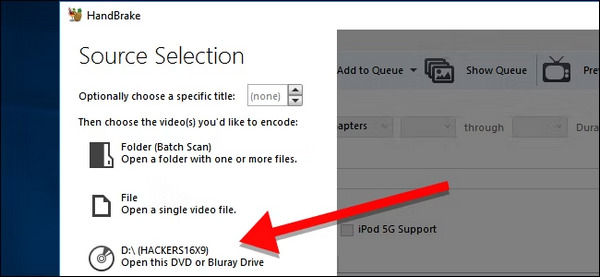
Step 3 From the Title menu, select your desired DVD titles, which are the videos on your disc, to copy and add to Queue. If you just select the main movie (the longest video) and don't want to rip other videos, you don't need to add it to queue.
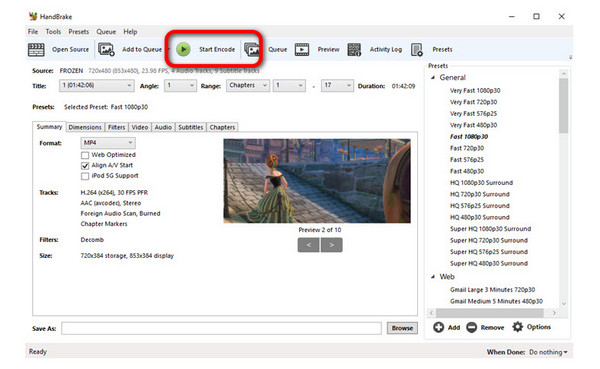
Step 4 Click the Preset dropdown button to select a preset, like Very Fast 1080p30. You can also click the Format button to select a desired output format, and then click Video to customize the video encoder, resolution, frame rate, and other parameters.
Step 5 To start ripping the DVD, click the Start Encode button, and let HandBrake do the process. That's how to rip DVD to computer with HandBrake.
- Free, open-source, and cross-platform.
- Support GPU acceleration.
- Provide great customization.
- Doesn't work on protected DVDs.
- Not convenient to manage videos in a DVD.
Expert Verdict:
HandBrake is a very nice and powerful free and open-source media encoder. You can deal with disc ripping with this program without lag or error. It also provides many presets for different common mobile phones and displays. However, the output format is limited, and it doesn't have a leading format in video editing: MOV. This can be a drawback of this legendary video converter. However, if you only need to rip a DVD to your computer, HandBrake is still very reliable.
Part 4. How to Rip DVD to Computer with VLC Media Player
VLC Media Player is another useful program to rip DVDs and Blu-rays with subtitles to a computer. It's free, open-source, and even supports GPU acceleration. You can quickly back up DVDs to computer without taking up many system resources. This rip DVD to computer software offers a very widely compatible MP4 profile with H.264/HEVC video codec and MP3 audio codec. You can play the ripped video on almost all devices.
VLC Media Player also offers great customization on output video preset. You can adjust the video codec, resolution, frame rate, etc. However, those features are not easy to find for beginners. Also, it doesn't have real video editing tools, so you cannot trim videos in VLC or do other edits. But if you can ignore those drawbacks, VLC is still a good choice for extracting DVD to computer.
Steps to Save DVD to Computer with VLC
Step 1 Download and install the VLC Media Player on your computer. Then open it after the installation.
Step 2 Navigate to the Media menu and click the Convert / Save button.
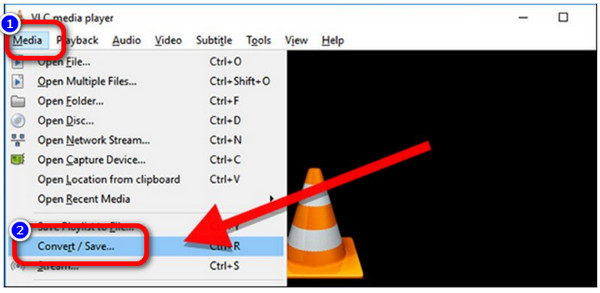
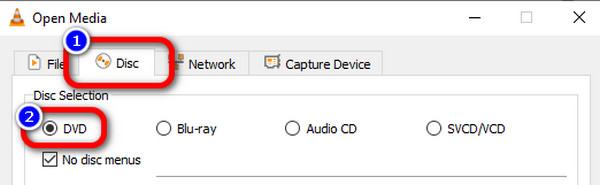
Step 3 When the new interface appears, click the Disc button. Then, make sure the Disc device field points to your DVD drive after you choose the DVD. To continue, click the Convert / Save button at the bottom.
Step 4 Click the Profile dropdown button. We recommend Video – H.265 + MP3 (MP4) because this codec has a higher compression rate and good video quality.
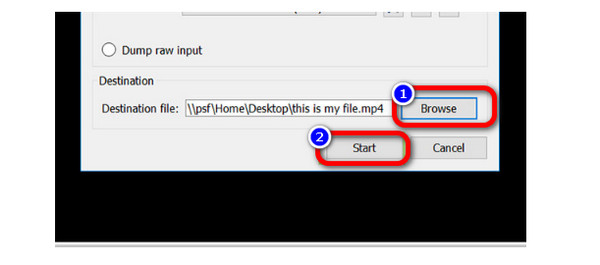
Step 5 Click the Browse button to select a location and set a filename for the output video. Then, click the Start button to begin the DVD-ripping process. That's how to save DVD to computer with VLC.
- Support GPU acceleration on Windows, macOS, and Linux.
- Free and open-source.
- Support a large number of video codecs.
- Cannot natively rip copy-protected DVDs or Blu-rays.
- The conversion and customization features are not easy to find for beginners.
Expert Verdict:
Although many users know that VLC can convert multimedia files, its conversion feature is less competitive, for it doesn't well support GPU-accelerated decoding. Although it doesn't have AI upscaling, which is an important demand in this 1080p and 4K era. However, it still offers very compatible and standard output MP4 profile that you can use to digitize your physical DVDs to a digital format and save it on your PC or Mac.
Part 5. How to Copy DVD to Computer with CloneDVD
Maybe you just need to create ISO from DVD and save it on your computer. Then, you can try CloneDVD. It can easily rip DVD to computer and maintain high video quality of your DVD video. Also, you can adjust the settings to compress the DVD if you consider a small consumption of your storage. Check how to convert DVD to computer with the steps below.
Steps to Copy DVD to Computer with CloneDVD
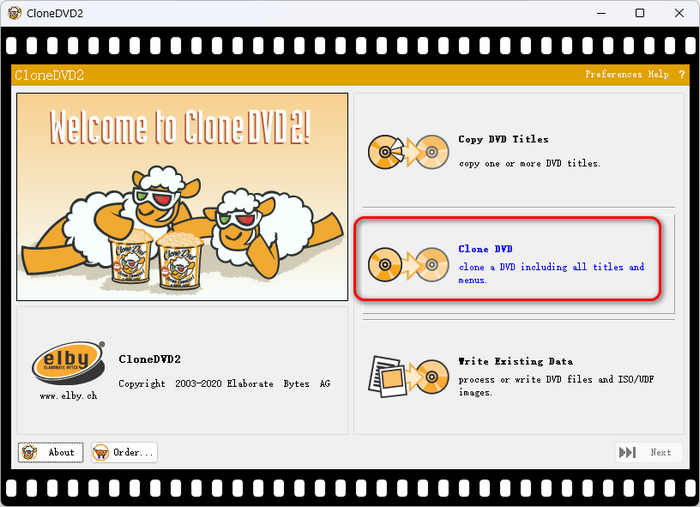
Step 1 Open CloneDVD and insert your DVD into your computer. Click the Clone DVD button on the main interface.
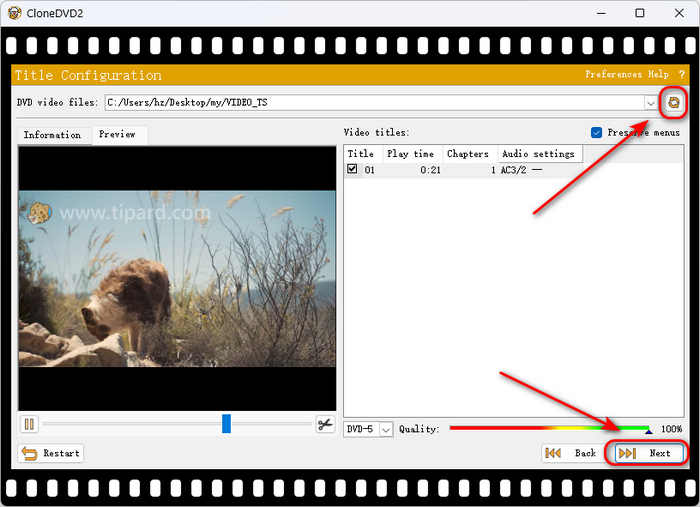
Step 2 Click the Browse button in the top right corner to select your DVD drive. Then, click the Next button in the bottom right corner to continue ripping DVD to computer.
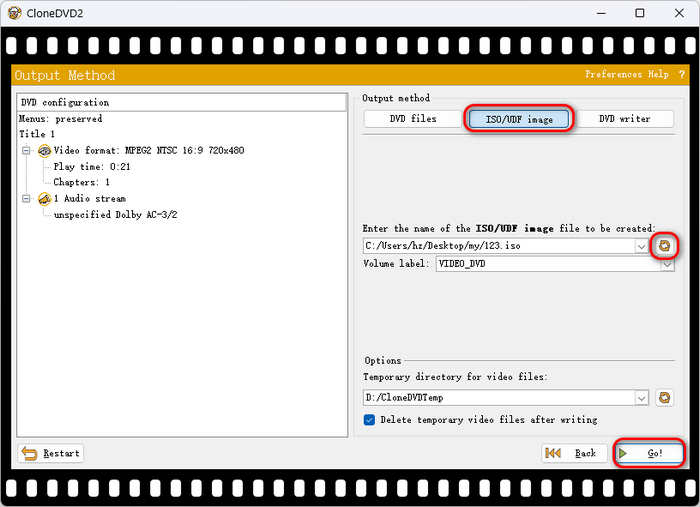
Step 3 You only need to keep going and finally choose ISO/UDF image. Then, click the Browse button to name your ISO image and choose a destination for it. Then, click the Go button to rip DVD to computer as an ISO file.
- Fast transcoding with hardware acceleration.
- Lightweight and stable.
- Support lossless 1:1 DVD copying.
- Cannot decrypt DVDs.
- Only available on Windows.
Expert Verdict:
CloneDVD is an elite, high-speed transcoding engine best suited for users who have moved beyond simple DVD backups and want a future-proof, 4K-ready media library. It is overkill for basic DVD copying but unrivaled for high-compression digital conversion. However, CloneDVD doesn't have native decryption methods.
Part 6. How to Rip DVD to Computer with MakeMKV
MakeMKV is a powerful solution for ripping DVDs to computer on Windows, macOS, and Linux, with lossless video quality. It features a clean, intuitive interface and delivers consistent performance. By directly extracting raw data and structures from the disc, it relies solely on your optical drive rather than the GPU, ensuring minimal system impact. However, keep in mind that standard DVD resolutions often fall short of modern high-definition displays. You should weigh the need for a bit-for-bit MKV backup on your computer against the benefits of AI-enhanced transcoding, which can significantly optimize your collection for today’s 4K monitors.
Steps to Rip DVD to Computer with MakeMKV
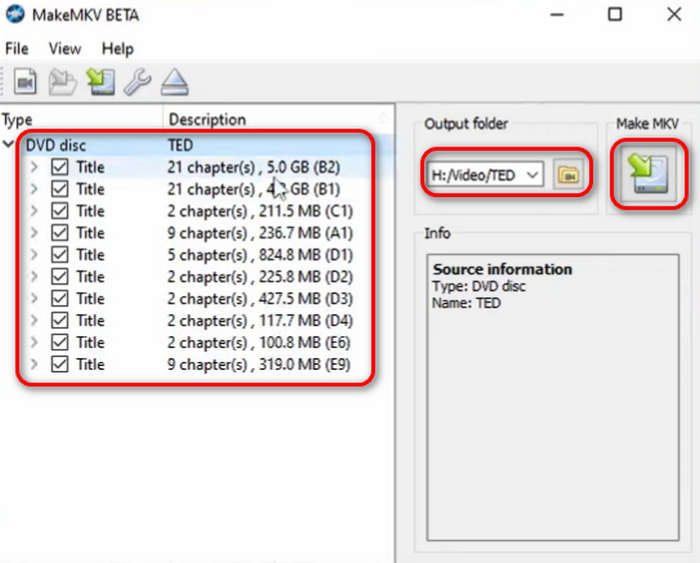
Step 1 Connect your DVD to your computer. Open MakeMKV and click the Load Disc button on the interface to load your DVD.
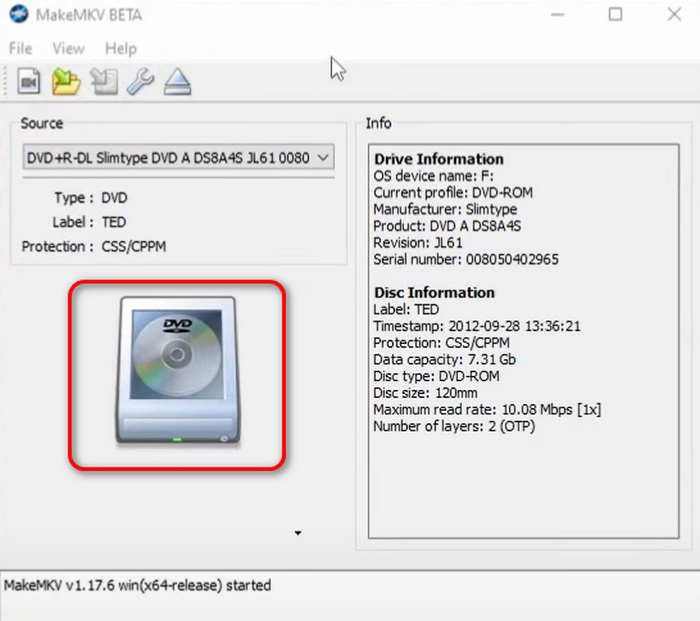
Step 2 Now, you can choose a destination for your converted DVD file. Then, click the Make MKV button to rip DVD to computer as an MKV file.
- Support 1:1 lossless copy.
- Offer strong decryption capability.
- Keep video, audio, subtitles, and everything in a DVD.
- Rip DVD to only MKV format.
- The program is heavy, and the workflow is slow.
Expert Verdict:
If you want to rip encrypted DVDs to your computer, MakeMKV can be very helpful, for it can deal with many common encryption methods on DVD. MakeMKV only supports lossless remuxing, and you can get an MKV file with original DVD content, which is very useful for raw file editing. However, you'll need to manually upscale the MKV file if you want to play it on today's high-res displays. Also, MakeMKV usually fails to deal with homemade DVDs.
Part 7. How to Rip DVD to Computer with Freemake Video Converter
Freemake Video Converter is a fantastic way to rip DVD to computer in many video formats. You can convert your DVD to MP4, MKV, AVI, etc., so you can watch DVD movies on many devices and displays. You can also easily customize the output video codec, resolution, and frame rate. Of course, it offers some video presets for you to quickly rip DVD to computer.
Steps to Rip DVD to Computer with Freemake Video Converter
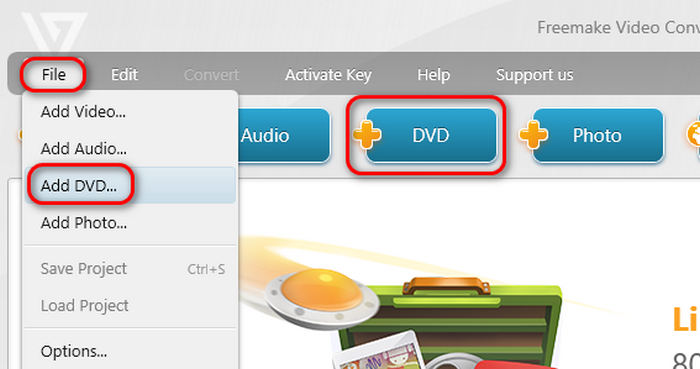
Step 1 Insert your DVD into your computer. Launch Freemake Video Converter and click the File button, and then the Add DVD button to load your DVD disc. You can also just click the DVD button to start ripping DVD to computer with Freemake Video Converter.
Step 2 After that, just click the to AVI or to MP4 buttons on the bottom side to rip DVD to computer as a digital video.
- Clear interface with simple workflow.
- Support GPU acceleration.
- Offer video customization and editing features.
- Doesn't support ISO and DVD folder as input or output.
- Doesn't support HEVC codec.
Expert Verdict:
Freemake Video Converter is still very reliable for DVD ripping. It can bypass many common and legacy DVD copy protections. The H.264 output codec and higher resolutions can upscale the DVD quality while reducing the file size. Although it doesn't have other special features or AI upscaling, Freemake can help you quickly copy a DVD to your Windows or Mac computer.
Part 8. FAQs of Ripping DVD to Computer
Is HandBrake or MakeMKV better?
It depends. HandBrake has strong disc and video re-encoding capabilities, but it cannot remux (lossless ripping) DVD to a digital format or decrypt DVDs. MakeMKV supports lossless ripping and DVD decryption, but it cannot upscale DVD movies to 1080p or 4K (optimized for today's displays) resolutions. If you want all the advantages of HandBrake and MakeMKV, Tipard DVD Ripper is a good choice.
What is the best quality DVD rip format?
The definition of the best DVD rip format depends on whether your priority is perfect archival quality or device compatibility. If you prefer lossless remuxing, MKV is the best format. If you want to upscale the DVD movies while reducing the file size, MP4 (H.264/HEVC) is the best format.
Are DVDs 480p or 720p?
DVDs are 480p (NTSC) or 576p (PAL). DVD's resolution makes it look blurry in today's 1080p and 4K displays. So you don't need to pursue lossless ripping in 2026. Just use HandBrake or Tipard DVD Ripper to re-encode and upscale DVD videos to modern formats, like MP4, MOV, MKV, with modern parameters.
Conclusion
This article features the 7 best methods for ripping DVDs to a computer. Each program has been rigorously tested for stability, performance, and high-speed execution.
For users seeking deep customization and extensive control over video parameters, such as codec, format, and resolution, Tipard DVD Ripper is the premier choice. It effortlessly bypasses complex encryptions, including CSS, AACS, and 99-Titles, allowing you to copy DVDs to Windows or macOS with ease.
More Reading


About the Author

 Click here to join the discussion and share your comments
 Tipard DVD Ripper