

- Part 1. Why Is Converting DVD to MP4 Important?
- Part 2. How We Test the DVD to MP4 Converters
- Part 3. Top 3 Methods to Convert DVD to MP4
- Part 4. Comparison of the Top 11 DVD to MP4 Converters
- Part 5. 8 Other Ways to Convert DVD to MP4
- Part 6. Pro Tips for Better DVD to MP4 Conversion
- Part 7. FAQs of Converting DVD to MP4
Key Takeaways
This article tests and introduces 11 workable ways to rip DVDs to MP4 format. The overall best method is Tipard DVD Ripper. It can easily bypass all types of encryptions and let you remux or transcode DVDs to MP4 with full hardware acceleration. If you want a free and open-source DVD to MP4 converter, HandBrake is a good choice, and it can also supports GPU acceleration and many output presets. If you want an all-in-one disc ripper with strong decryption capabilities, select DVDFab.
"Last month I moved into a much smaller apartment and finally had to admit defeat: there's just no room for my DVD shelf anymore. I've got around 200 discs boxed up now. My plan is to convert them to MP4 so I can keep everything on an external drive. But I'm kind of stuck: some tools I tried make the files huge, others drop subtitles, and the encoding time feels endless." - from Reddit.
DVDs can become damaged, scratched, or simply stop working over time. They also take up a lot of physical space and require a player, which can be inconvenient. Converting DVD to MP4 is a smart solution, as MP4 files are compact, compatible with almost all devices, and easy to share. In this guide, we'll walk you through 11 methods to convert DVDs to MP4 so that your videos will be safe and accessible whenever you need them.
- Part 1. Why Is Converting DVD to MP4 Important?
- Part 2. How We Test the DVD to MP4 Converters
- Part 3. Top 3 Methods to Convert DVD to MP4
- Part 4. Comparison of the Top 11 DVD to MP4 Converters
- Part 5. 8 Other Ways to Convert DVD to MP4
- Part 6. Pro Tips for Better DVD to MP4 Conversion
- Part 7. FAQs of Converting DVD to MP4
Part 1. Why Is Converting DVD to MP4 Important?
- Device Compatibility: Most modern laptops, smartphones, and tablets no longer have disc drives. MP4 works natively on almost any screen.
- Physical Preservation: DVDs degrade over time (disc rot) and are easily scratched. Digital files stay "perfect" forever.
- Storage Efficiency: MP4 uses modern codecs (H.264/H.265) to shrink file sizes by 50-80% without noticeable quality loss.
- Portability: After converting DVD to MP4, you can carry an entire movie library on a single thumb drive or phone, rather than lugging around physical cases.
- Easy Management: Digital files allow for instant searching, better organization (metadata/covers), and seamless streaming via Plex or NAS.
Part 2. How We Test the DVD to MP4 Converters
Independent & Authentic Evaluation: Our testing and reviews are conducted completely independently. Every piece of DVD to MP4 software mentioned has been personally installed and rigorously tested by our editorial team. We do not accept paid rankings or "pay-for-play" reviews. Our conclusions are based solely on our first-hand experience and real-world performance data, ensuring that the advice you receive is honest, unbiased, and reliable.
- Selection of Source Media: We use a diverse range of physical DVDs, including old home movies (hand-recorded), commercial Hollywood titles with complex CSS/Disney X-project protections, and scratched discs to test error-correction capabilities.
- Performance Benchmarking: Testing is performed on standardized hardware (e.g., Apple M-series and Intel/Nvidia rigs) to measure real conversion speeds, CPU/GPU utilization, and hardware acceleration efficiency.
- Visual Quality Analysis: We perform side-by-side comparisons between the original VOB files and the output MP4s at different bitrates, specifically checking for deinterlacing artifacts, motion blur, and color accuracy.
- UX & Workflow Audit: Our team evaluates the software from a user's perspective, focusing on the UI's minimalist design, the intuitiveness of the "one-click" conversion process, and the flexibility of advanced parameter settings.
- Cross-Platform Verification: The generated MP4 files are tested across multiple devices, including iPhones, Android tablets, Smart TVs, and NAS systems, to ensure 100% playback compatibility.
Our Testing Environment: To ensure the accuracy and reproducibility of our benchmarking results, all DVD to MP4 converters are tested in a controlled environment using the following hardware configurations:
- Windows Test Bench: Intel Core i7-12700K CPU, 32GB RAM, Nvidia RTX 3060 GPU, running Windows 11 Pro.
- Mac Test Bench: Apple M1 Pro chip with 16-core GPU, 16GB unified memory, running macOS Monterey.
- Disc Drive: ASUS BW-16D1X-U.
Part 3. Top 3 Methods to Convert DVD to MP4
To convert a DVD to MP4, insert your DVD disc into an optical drive. Then, use DVD and Blu-ray ripping software to start converting DVD to MP4. There are some key aspects you should know after the conversion:
- Format change: The videos will usually become MP4 format with H.264/HEVC codec from VOB format with MPEG-2 codec.
- Subtitle and audio tracks: Subtitles and audio tracks can be kept in an MP4 container.
- Hardware acceleration: Converting DVD to MP4 can be faster if the ripping software supports hardware acceleration.
- Decryption: Some professional DVD ripping software can bypass encryptions like CSS or region codes.
Now, let's check our most favored three methods to convert DVD to MP4: Tipard DVD Ripper, HandBrake, and DVDFab. They have strong GPU acceleration and can enhance the video quality. If you want to remux the DVD to MP4 without quality loss, you can choose Tipard DVD Ripper and DVDFab.
1. Rip DVD to MP4 with Tipard DVD Ripper - Editor's Top 1 Pick
Don't let DVD encryption slow you down. Tipard DVD Ripper can convert DVD to MP4 easily, offering fast conversions to MP4 and more via advanced hardware acceleration. Whether you need to customize the resolution or select a specific codec (H.264/HEVC/AV1), you have total control over your output MP4 video. It can also remove encryptions like CSS, AACS, APS, and region codes.
Tipard DVD Ripper is a professional DVD to MP4 converter, but it can also let you DIY the output MP4 file. You can manually adjust the video bitrate, frame rate, resolution, and audio parameters, which is a good choice for advanced and pro users.
You can choose to remux DVD to MP4 with original video and audio parameters for editing use. For most users, transcoding DVD to MP4 format with modern parameters is a widely needed feature. It can compress DVD to MP4 with small size and high qualtiy, best for modern displays and mobile phones.
Platform: Windows 7 and above; macOS 10.12 or above
Best for: Rip DVD to MP4 with HEVC or AV1 codec in 1080p and even 4K quality and remove encryption.
Key Features of Tipard DVD Ripper
- Convert DVD to digital with HEVC codec, 1080p and 4K resolution, and many device-supported presets.
- Support GPU acceleration for 120× faster ripping speed than other common DVD rippers.
- Remove encryptions, copy-protection, and region locks on all types of DVD discs and ISO, and VIDEO_TS folders.
- Offer video editing features like clip, rotate, flip, filters, color-grading, and more.
- Easily convert DVD to MP4 without quality loss or audio video synchronization issues.
- Convert interlaced DVD to progressive MP4 for smooth playback.
Why We Select It
Tipard DVD Ripper stands out with its superior GPU acceleration, making it the fastest performer among the 11 tested DVD to MP4 rippers. What's more user-friendly is that it offers a wide array of compatible MP4 presets, including HEVC, 4K, and device-specific profiles. We can seamlessly convert DVD to MP4 for high-quality playback on popular platforms or devices.
How to Rip Copy-Protected DVD to MP4 with Tipard DVD Ripper:
Things to prepare: Put your DVD to a disc drive, and then connect it to your computer. Maybe your computer has a built-in disc drive, and then you just need to put the DVD into it.
Step 1 Get Tipard DVD Ripper
Download and install Tipard DVD Ripper on your Windows or Mac computer. Then, launch it.
Step 2 Load Your DVD
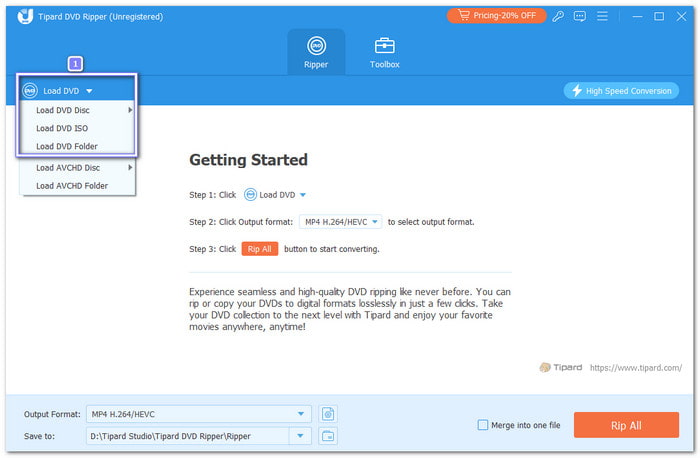
Click the Load DVD button on the top left side. Then, select Load DVD Disc, Load DVD Folder, or Load DVD ISO to load your DVD.
Step 3 Select Titles You Want
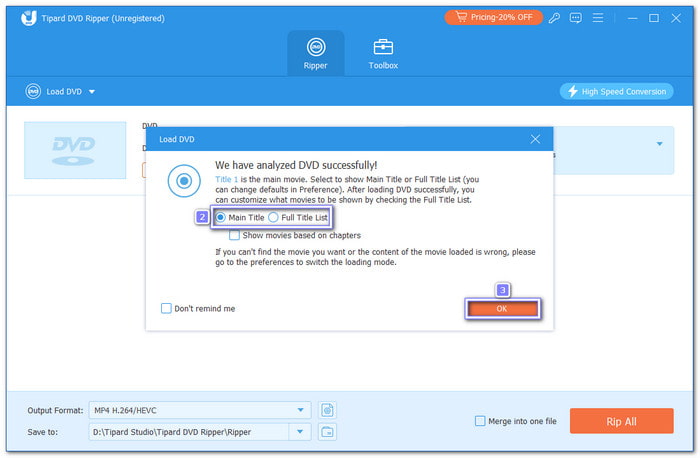
Tipard DVD Ripper will find the main movie for you, and you can also choose Full Title List to display all videos in the DVD. After that, click the OK button to go on to the next step.
Step 4 Choose MP4 Format and Adjust Settings
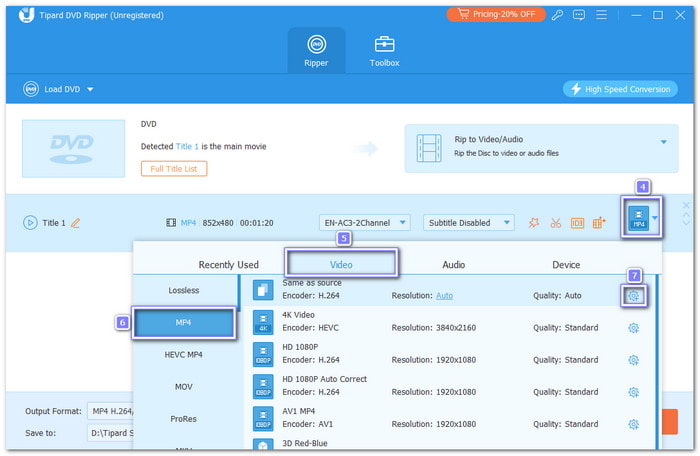
Click the Output Format dropdown button to select an MP4 format. Tipad DVD Ripper offers many high-quality and common MP4 presets, like HEVC MP4, and 4K Video. You can also click the Customize Profile button to adjust the video resolution, codec, frame rate, and other settings for your MP4.
- Video Codec: H.264 for wide compatibility, HEVC (H.265) for better compression and quality, or AV1 for future-proofing.
- Resolution: 1080p is ideal for most displays, while 4K is best if you have a UHD TV or want to future-proof your library.
- Framerate: Same as source to maintain original motion smoothness, or 30fps for better compatibility with older devices.
- Bitrate: 5-10 Mbps for 1080p, 15-25 Mbps for 4K to balance quality and file size.
- Audio Codec: AAC or AC3 with a bitrate of 192-320 kbps for clear sound.
Step 5 Rip Your DVD to MP4
Click the Rip All button, and then Tipard DVD Ripper will rip your DVD to MP4 quickly with multiple subtitles and audio tracks. You can go to the destination folder to check your MP4 video.
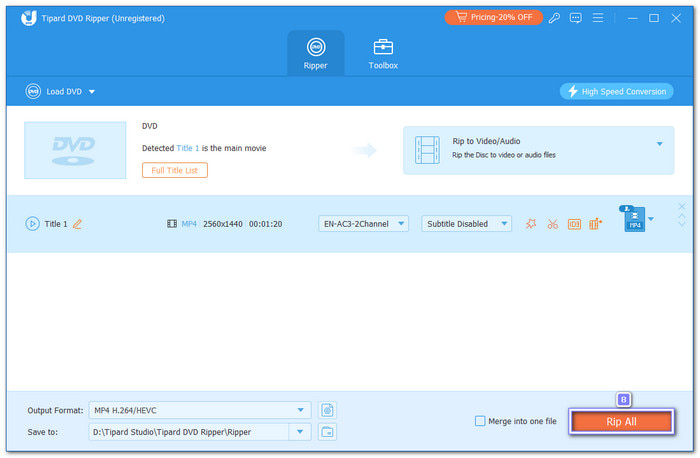
Tipard DVD Ripper can help you convert DVDs to digital, ISO, and DVD folder, not only MP4 format; you can pick AVI, MOV, MKV, WMV, or even MP3 if you just want the audio file.
Legal Disclaimer: This software is intended for personal, non-commercial use only. By using this DVD ripper to rip DVDs, you agree to comply with all applicable copyright laws in your country. Unauthorized distribution, public performance, or commercial exploitation of copyrighted content is strictly prohibited. The user assumes all legal responsibility for any potential infringement resulting from the misuse of this tool.
- Fast DVD ripping.
- Clean interface with easy workflow.
- Support a large number of MP4 presets.
- Offer AI-driven video enhancement tools.
- The video editing features are not easy to find.
2. Rip DVD to MP4 for Free with HandBrake
HandBrake is a free and open-source DVD to MP4 converter without watermark. Many users select HandBrake to perform different conversion tasks. It can help you rip MP4 from DVD for free. If you add libdvdcss, you can even rip encrypted DVDs. You can also adjust many video, audio, subtitles, and chapter settings to enhance your video or make it more compatible with a certain standard.
Platform: Windows 10 and 11 (only 64-bit); macOS 10.13 High Sierra or higher; Linux Ubuntu, Debian, Fedora, etc.
Best for: Rip DVD to MP4 for free and adjust the video codec, resolution, audio codec, bitrate, video chapter, and other detailed settings.
Key Features of HandBrake
- Convert DVD to MP4 in H.264 or HEVC with GPU acceleration.
- Easily adjust video codec, dimension, filter, audio codec, bitrate, chapter, and more.
- Allow you to add library files to remove copy protection on DVDs.
- Easily customize video and audio parameters for each video in the DVD.
Testing Result
HandBrake is a powerful and free media converter program. It can quickly convert DVD to MP4 in high quality. It also offers detailed customization features, so we could make the output MP4 file compatible with all types of displays, devices, and platforms.
How to Rip DVD to MP4 for Free with HandBrake:
Notes: If your DVD has an encryption, you need to add corresponding library file to the root directory of HandBrake. For example, if your DVD has CSS encryption, you must download a libdvdcss file.
Step 1 Run HandBrake using your Windows, Mac, or Linux. Click the Source button to load yoru DVD.
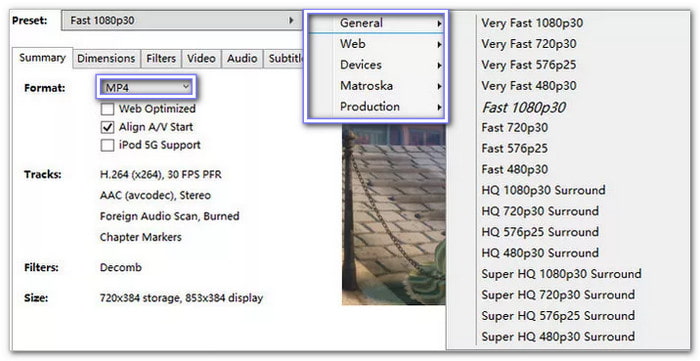
Step 2 In the Summary tab, pick MP4 from the Format box. You can also click the Preset button to select a desired output preset. HandBrake is good at converting DVDs to MP4 with a small size for a mobile phone. Then, click Browse to select a location to save the MP4 file.
Step 3 Finally, click Start Encode, and HandBrake will rip the DVD to an MP4 video for free.
- Free DVD ripping.
- Support library files to remove encrypted DVDs.
- Support GPU acceleration for H.264 and HEVC.
- GPU acceleration is only supported for few video codecs.
- The workflow is not easy for beginners.
HandBrake Best Settings for DVD to MP4 High Quality:
- Video Codec: H.264 or HEVC (H.265) for better compression and quality.
- Framerate: Same as source to maintain original motion smoothness.
- Constant Quality RF: 18-22 for a good balance of quality and file size (lower RF = higher quality).
- Audio Codec: AAC or AC3 with a bitrate of 192-320 kbps for clear sound.
- Subtitles: Burn in or add as separate tracks depending on your preference.
3. Convert from DVD to MP4 with DVDFab
DVDFab is an all-in-one multimedia solution program. Converting DVD to MP4 is just a part of its capabilities. It can convert your DVD to MP4 with HEVC or H.264 codec or for playback on Plex. This program is also good at offering high audio quality so you can enjoy your movies with excellent sound. DVDFab also provides some basic video editing features for your output video. However, although it can easily rip a DVD, there's no other powerful features that can enhance your video experience. It's also packed with many other features that you may don't need. That will make this DVD to MP4 converter too heavy.
Platform: Windows 7 or above; macOS 10 or above
Best for: Copy DVD to MP4 file for home theater use.
Key Features of DVDFab
- Transfer DVD to MP4 in lossless or home theater quality.
- Supoort GPU acceleration and AI video upscaler.
- Display detailed info about your DVD and output video, like format, codec, resolution, and more.
- Offer different video quality options for your output video.
- Batch convert DVD to MP4 on Windows 10/11 and macOS.
Testing Result
DVDFab is often considered the "heavyweight" in the disc-burning industry. In our testing, it delivered exceptional output quality and handled complex copy protections with ease, though its interface and background processes consume more system resources than its competitors.
How to Export DVD to MP4 with DVDFab
Step 1 Download, install, and launch DVDFab on your computer. Click the Add Source button to select your DVD.
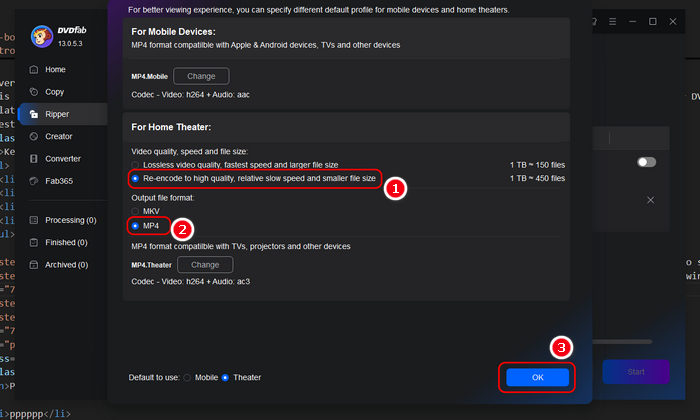
Step 2 It will analyze your DVD. Then, you can select MP4 as the output format on a pop-up window. You also need to select the output video quality. Here, we recommend Re-encode rather than Lossless because DVD's resolution is low compared with today's 1080p and 2K videos. Then, click the OK button to confirm.
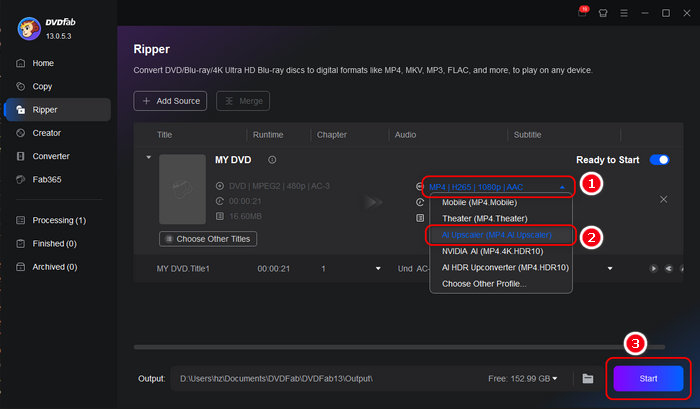
Step 3 Click the output video drodpwon button. You can select AI Upscaler (MP4 AI Upscaler) because it will upscale the video to 1080p resolution. Finally, click the Start button to convert from DVD to MP4 with GPU acceleration.
- Fast DVD ripping.
- Offer detailed on-screen prompts.
- The interface is stylish and user-friendly.
- It's difficult to find the video editng features.
- The program is heavy and packed with other features.
Part 4. Comparison of the Top 11 DVD to MP4 Converters
Here is a simple comparison table to compare the 11 DVD to MP4 converters. We use an 8.7 GB DVD file to test each DVD ripper, and the output video resolution is set to 1920:1080. You can choose your desired one based on their ripping speed, output file size, and other factors.
| DVD to MP4 Converters | Output Size | Remove Encryption | Speed | Total CPU Usage | |
|---|---|---|---|---|---|
| Tipard DVD Ripper | 1.3 GB | CSS, 99-Title, APS, AACS, and all region codes | 5m17s (GPU acceleration) | 15%-20% | |
| VLC | 2.5 GB | No | 23m38s | 60%-70% | |
| HandBrake | 2.4 GB | Yes (need library file) | 7m11s (GPU acceleration) | 25%-30% | |
| Winx DVD Ripper | 1.7 GB | Yes | 6m22s (GPU acceleration) | 15%-22% | |
| Freemake Video Converter | 1.7 GB | No | 7m12s (GPU acceleration) | 17%-23% | |
| Leawo DVD Ripper | 1.4 GB | Yes | 6m11s (GPU acceleration) | 15%-20% | |
| Any Video Converter | 1.8 GB | Yes | 7m10s (GPU acceleration) | 15%-23% | |
| DVDFab | 1.3 GB | Yes | 8m26s (GPU acceleration) | 19%-27% | |
| Movavi Video Converter | 1.4 GB | Yes | 7m26s (GPU acceleration) | 18%-30% | |
| EaseFab DVD Ripper | 2.0 GB | Yes | 9m14s (GPU acceleration) | 17%-23% | |
| Shutter Encoder | 1.8 GB | No | 5m56s (GPU acceleration) | 50%-65% | |
| Show MoreShow Less | |||||
Part 5. 8 Other Ways to Convert DVD to MP4
1. Convert DVD to MP4 for Free with VLC
VLC is a famous multimedia player that you can use on most computers, like Windows, Mac, and Linux. It's also a good DVD to MP4 converter. VLC can rip different types of DVDs to MP4 with a common H.264 & MP3 preset. HEVC is also supported.
Platform: Windows 7 and above; macOS 10.7 Lion and later; all major Linux distributions
Best for: Rip DVD to MP4 and other video formats for free without needing a fast processing speed
Key Features of VLC Media Player
- Convert DVD to MP4 with H.264 or HEVC codec for free.
- Allow you to adjust the output video resolution, frame rate, and other parameters.
- Easily play your MP4 videos after DVD ripping.
Unfortunately, VLC cannot rip a copy-protected DVD, and the DVD ripping feature is not easy to find. There's also no GPU acceleration in VLC DVD ripping. But it's still a good choice if you want to rip DVD for free and would like to wait for its processing.
Testing Result
VLC is free and stable for converting DVDs to digital or converting videos. However, it takes up so many CPU resources. You'll need to wait for a long time to get your output MP4 videos. However, the output video has high quality, so you can still enjoy the movie with seamless playback.
How to Rip DVD to MP4 for Free with VLC:
Step 1 Launch VLC and put your DVD in the DVD drive, and connect the drive to your computer.
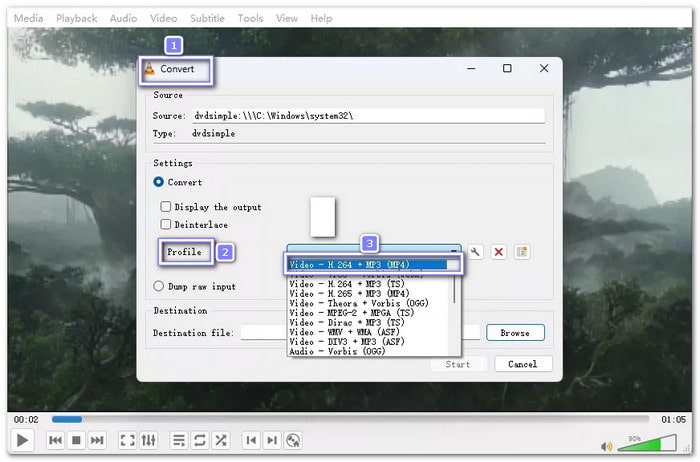
Step 2 Click Media, and select Convert/Save, and then press the Disc button to load your disc.
Step 3 Once your DVD is loaded in VLC. Click the Convert/Save at the bottom.
Step 4 Locate the Profile section. The default output format should be Video - H.264 + MP3 (MP4). You can also click the dropdown button to select an HEVC MP4 preset.
Step 5 Click Browse to choose a location to save the MP4 file. After that, click the Start button, and VLC will start converting your DVD to an MP4 file for free.
- Free DVD and Blu-ray ripping.
- Output high quality videos.
- Available on Windows, macOS, and many Linux versions.
- Can't rip copy protected DVDs.
- The DVD ripping feature is difficult to find.
2. Rip DVD to MP4 with WinX DVD Ripper
WinX DVD Ripper has been around for a long time as an excellent DVD to MP4 ripper. It is good for converting commercial DVDs to MP4 and other video formats in high video quality. You can also use it to deal with scratched discs or new DVD movies. It has a free version, but the premium version helps you rip encrypted DVDs better. It keeps getting updates, you can rip copy-protected DVDs to MP4 with old or new encryptions.
Platform: Windows 2000 and above; macOS 10.5 Leopard or above
Best for: Rip commerical DVDs to MP4 with modern and high-quality video codecs.
Key Features of WinX DVD Ripper
- Rip home-made and commercial DVDs to MP4 with H.264, HEVC, and AV1 codecs.
- Remove many DVD encryptions like Sony ARccOS and Disney X-project DRM.
- Allow you to rip DVD to ISO image or VIDEO_TS and AUDIO_TS folders.
- Support MP4 output presets compatible with many popular devices like iPhone, iPad, and Android phones.
Testing Result
WinX DVD Ripper has a simple interface, so we can quickly digitize DVDs. The output MP4 video has crisp video and audio quality. It's playable on all types of modern devices and displays.
How to Convert DVD to MP4 with WinX DVD Ripper
Step 1 Launch WinX DVD Ripper, put your DVD into your disc drive and connect it to your computer, and then click Disc at the top left to load the DVD.
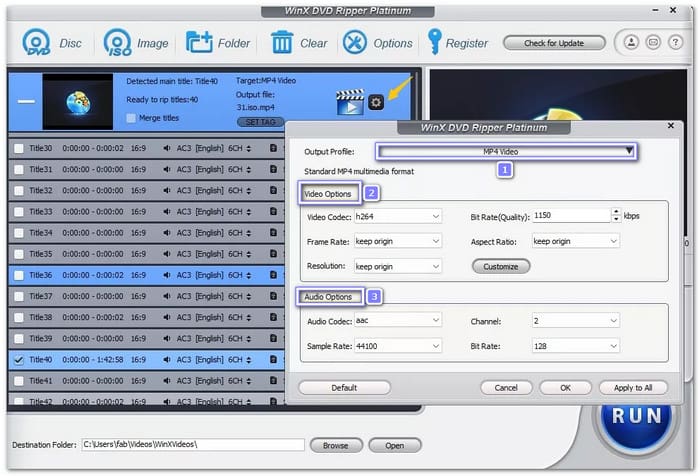
Step 2 You will see the Output Profile display; pick MP4 Video as the output, and WinX DVD Ripper will use H.264 and AAC for the video and audio by default.
Step 3 Now, you can customize the files in the DVD if you want; you can change subtitle tracks, trim and crop video, change sound track, and fine-tune video or audio clarity.
Step 4 Turn on Intel or Nvidia Hardware Acceleration to make it 5× faster, and then click the Browse button to select a folder to save your MP4 file. Click the Run button to start ripping DVD to MP4 quickly.
- Fast DVD ripping with GPU acceleration.
- Able to remove many new DVD encryptions.
- The MP4 presets are compatible with many popular digital devices and platforms.
- The interface is a bit messy, making it difficult to locate certain features.
3. Rip DVD to MP4 with Freemake Video Converter
Freemake Video Converter is another free DVD to MP4 ripper, but with some limits. It supports many digital output formats, and you can change DVDs to MKV, AVI, and, of course, MP4. You can even change the subtitle and audio tracks in your DVD. It can also save videos to DVD folders or ISO, in case you need that. However, the free version of this DVD to MP4 converter will add a watermark to your video.
Platform: Windows Vista and above
Best for: Rip DVD to MP4 with a quick and easy workflow.
Key Features of Freemake Video Converter
- Convert DVD to a common MP4 preset - H.264 and AAC.
- Able to rip all videos in a DVD to MP4, not just the main movie.
- Offer a simple video clipping feature.
Testing Result
With the on-screen prompts, we can quickly do a workflow to convert a DVD to digital. The output MP4 video has high quality with seamless playback. However, if you want to customize the conversion parameters, you may find it difficult to find the needed options on the interface.
How to Change a DVD to an MP4 File using Freemake Video Converter
Step 1 Get Freemake Video Converter installed on your computer and open it to get started.
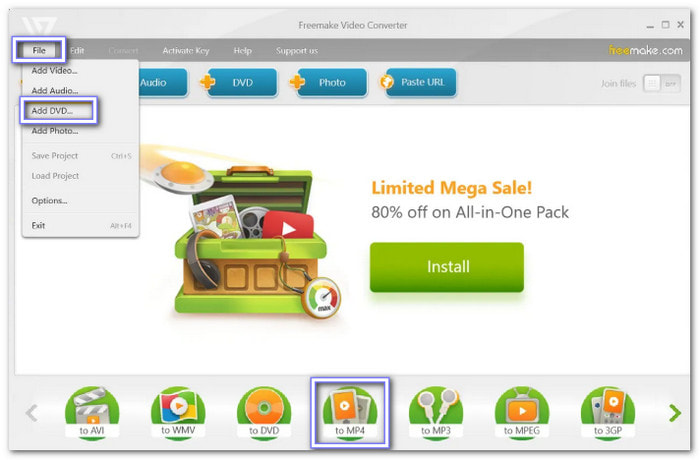
Step 2 Click the DVD button at the top. Then, select your disc drive. Clck the OK button.
Step 3 At the bottom, select MP4. Then, you can click the Preset dropdown list to select a desired preset, such as 1080P or 720P.
Step 4 Finally, click the Save to button to select a folder to save your MP4 file. Click the Convert button to change DVD to MP4 easily.
- Simple interface with easy workflow.
- Fast DVD ripping.
- Rip DVD to MP4 for free.
- Add watermark to video in the free version.
- HEVC and 4K is not supported.
4. Rip DVD to MP4 in Leawo Prof. Media
If you have protected DVDs, Leawo DVD Ripper, or Leawo Prof. Media, can rip them to many digital formats like MP4, MKV, or MOV, so that you can watch DVD movies on phones, tablets, or computers. This DVD to MP4 converter can also help you trim, crop, or add a watermark to videos. However, this program is now packed with many other disc and video features. If you only want to rip DVD to MP4, Leawo Prof. Media may offer too much for you.
Platform: Windows 7 and above; macOS 10.13 or above
Best for: People who have versatile needs on DVD ripping, burning, copy, and more.
Key Features of Leawo DVD Ripper
- Rip DVD to MP4 with H.264/H.265 codec and high resolution up to 4K.
- Support Intel GPU acceleration for MP4 output.
- Support input from DVD discs, folders, and ISO images.
- Offer simple video editing features like crop and clip.
Testing Result
From our test, Leawo Prof. Media can offer a high-quality output MP4 file with smooth playback. However, the interface and workflow are really difficult to understand. For example, it's complicated to find the HEVC codec and change the resolution.
How to Rip a DVD into MP4 with Leawo Prof. Media
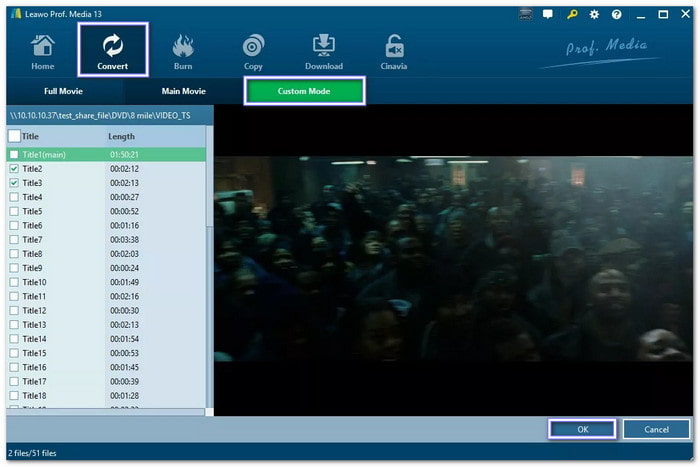
Step 1 Open the Leawo DVD Ripper, go to Convert, and click Add UHD/Blu-ray/DVD.
Step 2 Pick your DVD from a disc, folder, or ISO, and after that, choose Full Movie, Main Movie, or Custom Mode.
Step 3 MP4 is set as the default. You can also click the Output Profile dropdown button to select H.265 MP4 or edit the MP4 preset.
Step 4 For the last step, click the green Convert button to start. You can see how long it takes on the screen, and you can pause or stop anytime if you need to.
- Fast DVD ripping.
- Offer general MP4 presets and easy workflow.
- Remove DVD encryptions easily.
- It's not easy to change output video codec.
- Not a dedicated DVD ripping program.
5. Transfer DVD to MP4 with Any Video Converter
Any Video Converter is an all-around program, not just a video converter. It can also rip DVDs into MP4 and other formats, and offers you many practical video editing features, like trim, clip, rotate, and filters. This DVD to MP4 converter freeware also supports GPU acceleration and HEVC codec, so you can quickly copy DVD to MP4 file on Mac or Windows.
Platform: Windows 11 and 10; macOS 10.15 or above
Best for: View detailed information about the input DVD and output MP4 video.
Key Features of Any Video Converter
- Convert DVD to MP4 in H.264, HEVC, or AV1 codec.
- Support GPU acceleration.
- Upscale output video by up to 4 times.
- Offer many other multimedia editing features.
Testing Result
Any Video Converter remains a versatile contender in our 1080p conversion test. It offers a solid balance between features and output quality, though its resource management is less optimized than dedicated rippers.
How to Save DVD as MP4 with Any Video Converter
Step 1 Download and install the free version of Any Video Converter. Launch it, and you will see all its features.
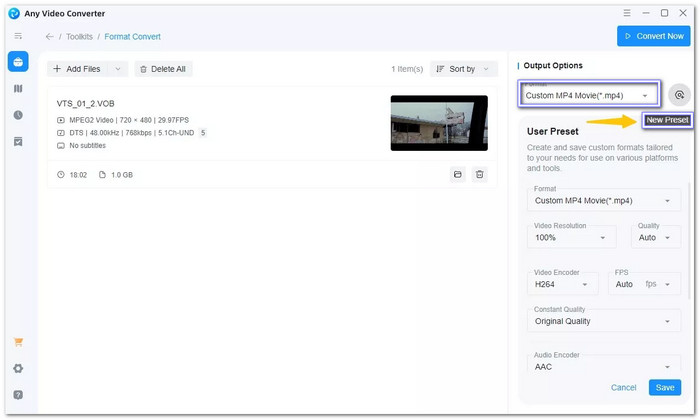
Step 2 Click Format Convert to go to the converter. Click the Add Media Files button to select your DVD.
Step 3 On the right side, you will see all the custom settings. Select MP4 in the Container box. Then, you can also change the video encoder to HEVC and upscale the video resolution.
Step 4When you have finished customization, click the Convert Now button at the top right. It may ask you to pay for more, but you can click Continue to still convert DVD to MP4 free.
- Fast DVD ripping.
- Upscale output video in high resolution.
- Very understandable interface and easy workflow.
- Extract DVD to MP4 for free.
- Not a dedicated DVD to MP4 ripper.
- The program is heavy and takes up a lot of system resources.
6. Convert DVD to MP4 with Movavi Video Converter
Movaivi is a famous video editor. Its Video Converter can help you easily transfer DVD to MP4 file in high quality. It supports H.264 and H.265 codec. You can directly choose an MP4 preset to Upscale DVD to 1080p resolution, which is proper for today's displays. Moreover, Movavi offers many practical and easy-to-use video editing features. You can use them to enhance your DVD movie so that you can watch it in the best quality in home theater.
Platform: Windows 11 and 10; macOS 10.15 or above
Best for: Convert DVD to MP4 video with many high-quality video presets.
Key Features of Movavi Video Converter
- Transfer DVD to MP4 format in H.264/HEVC and 1080p or 4K quality.
- Support GPU acceleration.
- Easily edit subtitles and audio tracks.
- Offer many other high-quality and popular video presets.
Testing Result
Movavi is renowned for its SuperSpeed conversion technology. During our evaluation, it lived up to its reputation for file-to-file conversion, though the initial scanning of DVD structures was slightly slower than Tipard. Its interface remains one of the most user-friendly for beginners. It would be better if the CPU usage could decrease.
How to Transfer DVD to MP4 with Movavi Video Converter:
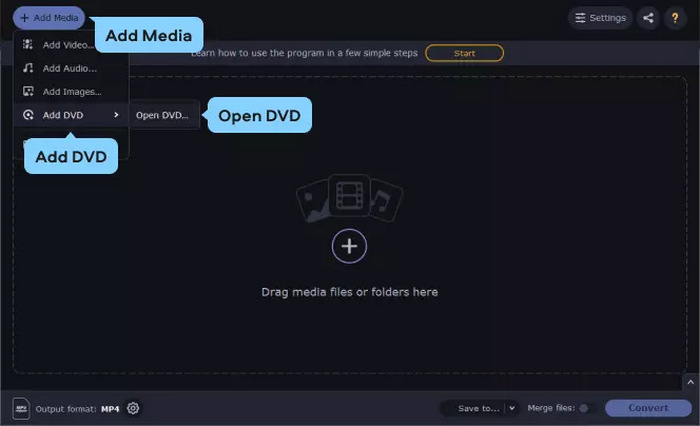
Step 1 Download, install, and launch Movavi Video Converter on your computer. Click the Add Media button at top left. Then, select Add DVD, and then Open DVD to load your DVD.
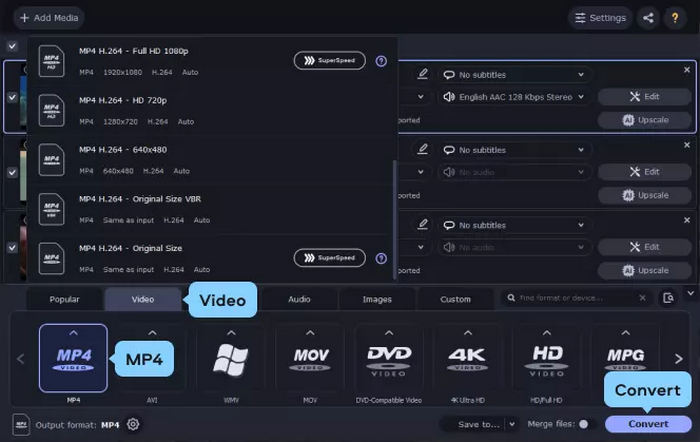
Step 2 Select the Video tab at bottom. Then, select MP4. Now, you can select a desired MP4 preset, like MP4 H.265 - Full HD 1080p.
Step 3 You can also adjust the audio and subtitles tracks. Finally, click the Convert button to convert DVD to MP4 easily.
- Stylish interface with simple workflow.
- Offer high-quality output video presets.
- Fast DVD ripping.
- The program is too heavy.
- It requires a purchase to keep using it.
7. Convert DVD to MP4 with EaseFab DVD Ripper
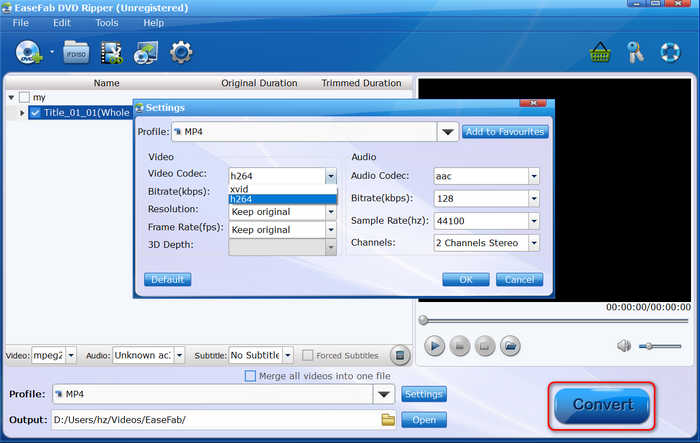
EaseFab DVD Ripper is a simple and efficient tool to convert your DVDs to MP4 format. Although it's not popular, it offers sufficient and practical functions in DVD ripping and video conversion. You can rely on GPU acceleration to quickly rip DVD to MP4. However, you can only select H.264 or Xvid codec for your MP4 video.
Platform: Windows 7 or higher; macOS 10.13 or above
Best for: Quickly rip DVD to a simple H.264 MP4 file without needing a ultra-high video quality.
Key Features of EaseFab DVD Ripper
- Support H.264 and Xvid codec for MP4 format.
- Support DVD ISO and IFO files.
- Offer simple video editing features, like trim, crop, watermark, and video tune.
Testing Result
EaseFab is a straightforward, lightweight utility designed for users who want a no-frills ripping experience. While its interface feels a bit dated compared to modern suites like Tipard, it provides a stable performance with a very small installation footprint.
How to Convert DVD to MP4 with EaseFab DVD Ripper
Step 1 Download, install, and launch EaseFab DVD Ripper on your computer.
Step 2 Click the Load DVD button on the top left side to load your DVD.
Step 3 Click the Profile dropdown button to select MP4 as the output format.
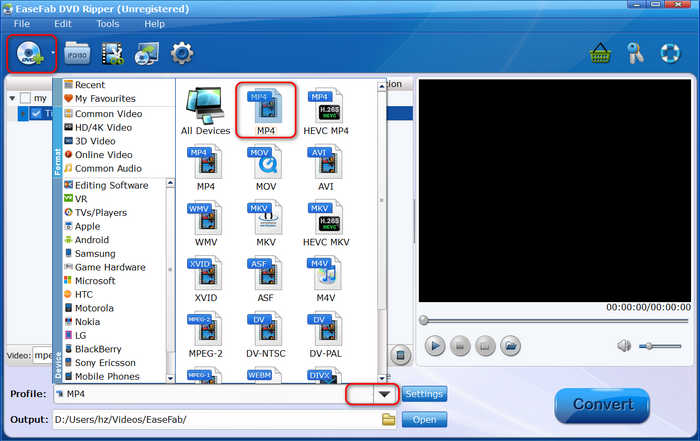
Step 4 Unfortunately, this DVD to MP4 converter only support H.264 video codec. Just click the Convert button to convert your DVD to an MP4 file.
- Offer quick and easy workflow.
- Support 4K and UHD video resolutions.
- Easily back up your DVD to ISO or VIDEO_TS folder.
- Don't support HEVC or AV1 codec.
- The interface is a bit outdated.
8. Convert DVD to MP4 with Shutter Encoder
Shutter Encoder is a very popular and open-source multimedia encoder. It can also help you rip DVD to MP4 easily. All the features in this program have detailed information and professional terminologies. You can convert DVD to MP4 format step by step. It supports H.264 and HEVC codecs. You can also upscale your DVD video to MP4 format. However, Everything about ripping or conversion will be done yourself. It doesn't offers quick presets. If you are not familiar with video encoding, it might be a bit challenging to extract DVD to MP4 with Shutter Encoder.
Platform: Windows 7 or above; macOS 10.10 or above; many Linux versions
Best for: Users who want detailed control over the DVD to MP4 conversion process.
Key Features of Shutter Encoder:
- Support H.264, HEVC, AV1, and many other video codecs in MP4 container.
- Totally customizable encoding settings.
- Highly upscale your DVD movies to high resolution MP4 like 4K and even 8K.
- Offer many simple and professional video editng features.
Testing Result
Shutter Encoder is a powerhouse designed for tech-savvy users and video editors who need total control over their encodes. Since it is built on the raw FFmpeg engine, it prioritizes processing depth over user comfort, resulting in a tool that is highly capable but extremely resource-heavy.
How to Convert DVD to MP4 with Shutter Encoder
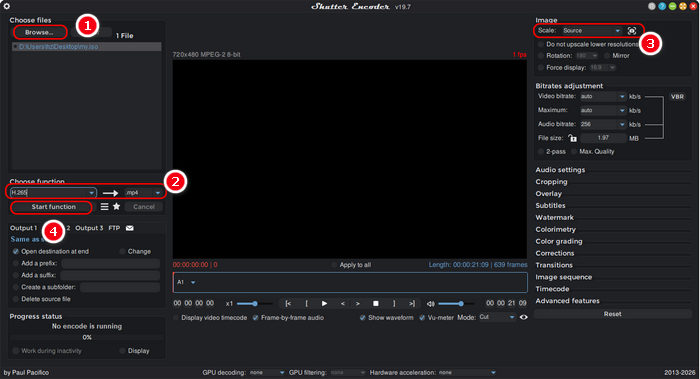
Step 1 Download, install, and launch Shutter Encoder on your computer. Click the Brose button to load your DVD. You can also import a DVD ISO or .vob file in the VIDEO_TS folder.
Step 2 Click the dropdown button under Choose function. Here, you should select a video codec, like H.265, under Output codecs.
Step 3 Click the Scale dropdown button to select a desired resolution, like 1920:1080.
Step 4 You can see the output format is set to .mp4 by default. Just click the Start function button to quickly convert DVD to MP4 file.
- Support a large number of video codecs and formats.
- Totally free and open-source.
- Offer rich features compared with other paid DVD to MP4 converters.
- Fast DVD ripping.
- It's difficult to use for beginners.
Part 6. Pro Tips for Better DVD to MP4 Conversion
Remux vs. Transcode:
Understanding the difference between these two methods is key to balancing quality and compatibility.
Remuxing (The Lossless Route): This process strips the original video and audio streams from the DVD (VOB) and places them into a modern container like MP4 or MKV without changing the underlying data.
- Pros: Zero quality loss and near-instant processing.
- Cons: Files remain large, and the aging MPEG-2 codec may not be supported by some mobile devices.
Transcoding (The Efficient Route): This involves re-encoding the video into a modern codec like H.264 or HEVC.
- Pros: Dramatically smaller file sizes and universal compatibility.
- Cons: Slight quality loss (though often imperceptible) and requires significant CPU/GPU power.
Other Settings to Consider
- Choose the Right RF/CRF Value: Instead of fixed bitrates, use Constant Rate Factor (CRF). For DVD-to-MP4, a value between 18 and 22 is the "sweet spot" where you get maximum visual fidelity without unnecessarily large files.
- Enable Deinterlacing Filters: DVDs are often recorded in an interlaced format (480i), which causes "combing" lines during fast motion. Always enable "Deinterlace" filters to convert the footage into smooth 480p progressive video.
- Preserve Original Aspect Ratio: DVDs use non-square pixels. Ensure your converter is set to "Keep Aspect Ratio" to prevent "stretched" or "squashed" faces on modern 16:9 widescreen displays.
- Leverage Hardware Acceleration: If you have a large library, look for tools that support NVIDIA NVENC, AMD VCE, or Intel QuickSync. This can speed up the transcoding process by up to 5x compared to using the CPU alone.
- Test with a Short Chapter: Before batch-converting your DVD to MP4, test your settings on a single 2-minute chapter. Check the audio sync and subtitle rendering to ensure the output meets your expectations.
Part 7. FAQs of Converting DVD to MP4
Can you convert DVD to MP4 with Windows Media Player?
No. Windows Media Player can't convert DVD. It can only play DVD. You can resort to Tipard DVD Ripper for converting DVD to MP4.
What is the best free software to convert DVD to MP4?
VLC and HandBrake are two of the best free software options for converting DVD to MP4. If you prefer more features, Shutter Encoder is also a good choice. But if you want an easy but powerful DVD to MP4 converter, Tipard DVD Ripper is highly recommended.
Do people still use DVDs in 2026?
Yes, people still use DVD in 2025. DVDs and a DVD player can still offer high-quality and easy playback and immersive viewing experiences.
Conclusion
You can transfer DVD to MP4 to watch the movie anywhere. DVDs may fade away, but MP4s will still play smoothly and easily. This article offers 11 excellent DVD to MP4 converters based on our patient tests. Tipard DVD Ripper is our most recommended one. It can offer high-quality and popular MP4 presets. You can enjoy very fast DVD ripping with powerful GPU acceleration. It's a nice choice if you want to enjoy high-quality movies on a big display.

Rip DVD to 500+ Video/audio formats with AI Upscaling
100% Clean & Safe
100% Clean & Safe

More Reading

About the Author

 Click here to join the discussion and share your comments
 Tipard DVD Ripper