

Key Takeaways:
This article offers six ways to convert DVD to a digital format. Tipard DVD Ripper can transcode or remux all types of DVDs (with encryptions) to a digital format with high quality. If you are a pro and prefer flexible customization, Handbrake is your choice. If you want a fast and simple workflow, you can choose Freemake Video Converter.
While physical DVDs have long been the gold standard for movie collections, their vulnerability to scratches and the physical space they occupy make them less practical in the streaming era. The most effective solution is to convert DVDs to digital formats, transforming your physical library into a versatile, portable media hub. By digitizing your discs, you can enjoy your favorite films on a computer, smartphone, or tablet without the need for a bulky disc player. In this guide, we will explore the most efficient tools and step-by-step methods to help you achieve a seamless, high-quality transition from plastic to pixels.
Part 1. Shortlist of the Six DVD to Digital Converters
1. Tipard DVD Ripper: Best for high-speed, high-quality lossless conversions - This professional tool offers up to 30× faster ripping speeds and supports over 500 output formats while maintaining 1:1 original quality.
2. HandBrake: Best for advanced users seeking comprehensive open-source control - As a renowned open-source transcoder, it provides extensive custom settings for bitrate and resolution to digitize unprotected DVDs for free.
3. VLC Media Player: Best for casual users needing a quick, multi-purpose solution - Beyond its role as a media player, this versatile software offers a straightforward way to extract video content from discs without installing additional tools.
4. Fandango at Home (formerly Vudu): Best for budget-conscious mobile users and convenience seekers - Its unique Disc to Digital service allows you to scan physical DVD barcodes and unlock digital copies in the cloud for a small fee.
5. DVDFab DVD Ripper: Best for handling encrypted discs and diverse regional codes - his powerful utility excels at bypassing complex copy protections and offers a built-in editor to customize videos during the conversion process.
6. Freemake Video Converter: Best for beginners looking for an intuitive, streamlined interface - This DVD to digital converter provides a modern and simplified workflow that makes converting DVDs to popular formats like MP4 accessible to users of all skill levels.
Part 2. How to Choose Your DVD to Digital Method
Selecting the right method to convert DVD to digital requires balancing cost against your specific needs for video quality, storage efficiency, and device compatibility.
1. Free vs. Paid: Professional Stability vs. Manual Control
The choice between free and paid DVD digitizers often comes down to the reliability of the final output rather than just the initial price tag.
- Optimized Device Compatibility: Paid DVD to digital converters typically offer curated profiles specifically tuned for popular playback devices like iPhones, Android tablets, and Smart TVs. In contrast, while free or open-source software offers immense customization, it often lacks these fine-tuned guardrails. Even when using common containers like MP4 or MKV, improper manual settings in free tools can result in files that are unplayable or prone to stuttering on standard hardware.
- Safety Parameter Thresholds: Professional DVD to digital converters provide "Safety Parameter Thresholds", pre-defined limits for bitrate, frame rate, and encoding levels. These features allow you to customize your video without crossing technical boundaries that would cause hardware decoding failures. Open-source software often requires deep technical knowledge to avoid these pitfalls, whereas paid solutions ensure a safe output that balances performance and quality.
2. Remux vs. Transcode: Quality vs. Portability
Understanding how the data is processed will determine your storage requirements and where you can watch your movies.
- Remux (Lossless Passthrough): Remuxing extracts the original video and audio streams from the DVD and places them into a modern container (like MKV) without changing the underlying data. It can offer 100% identical quality to the original disc and near-instant processing. However, files remain very large (up to 9GB), and the aging MPEG-2 codec used on DVDs may not be supported by all modern mobile devices or streaming apps.
- Transcode (Compression & Conversion): Transcoding uses modern codecs (such as H.264 or HEVC) to re-encode the video into a more efficient format. It significantly reduces file size while maintaining excellent visual fidelity, ensuring the video is highly portable and compatible with virtually any screen. However, this process is more resource-intensive, requiring a capable CPU or GPU to complete the conversion efficiently.
Part 3. Six Ways to Convert DVD to Digital
1. Tipard DVD Ripper
Compatible Operating Systems: Windows & Mac
Tipard DVD Ripper offers the most reliable and efficient solution for converting DVDs to digital formats on Windows and macOS. It supports a vast array of output options, allowing you to transform any DVD into various video and audio formats, including MP4, MOV, MKV, AVI, and over 500 others, ensuring seamless playback on any device.
Leveraging advanced GPU hardware acceleration (Intel, NVIDIA, AMD), Tipard DVD Ripper delivers processing speeds up to 30 times faster than standard DVD to digital converters without compromising output quality. It is engineered to handle a wide range of source types, from homemade discs and DVD folders to ISO image files. Crucially, it can bypass regional restrictions and encrypted titles, making it ideal for digitizing complex commercial discs. For those seeking archival perfection, the software also provides a 1:1 lossless backup mode, preserving the original structure and audio-visual integrity of your media.

- Easily convert DVD to common and standard digital formats like MP4, MKV, MOV, ProRes, AVI, and more.
- Utilize advanced GPU hardware acceleration to digitize DVDs without taking much CPU.
- Allow you to remux DVDs or compress and enhance DVDs with AI upscaling.
- Help you to convert DVD disc to ISO image or Video_TS and Audio_TS folder.
- Offer professional video editing features like clip, crop, rotate, and AI-powered video enhancement tools.
Steps to Convert DVD to Digital with Tipard DVD Ripper:
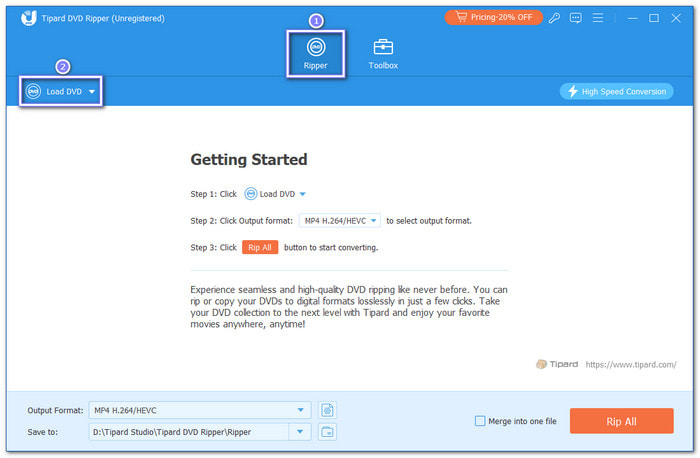
Step 1 Get Tipard DVD Ripper
Download, install, and launch Tipard DVD Ripper on your computer. Put your DVD into the disc drive or use an external drive and connect it to your computer.
Step 2 Load Your DVD
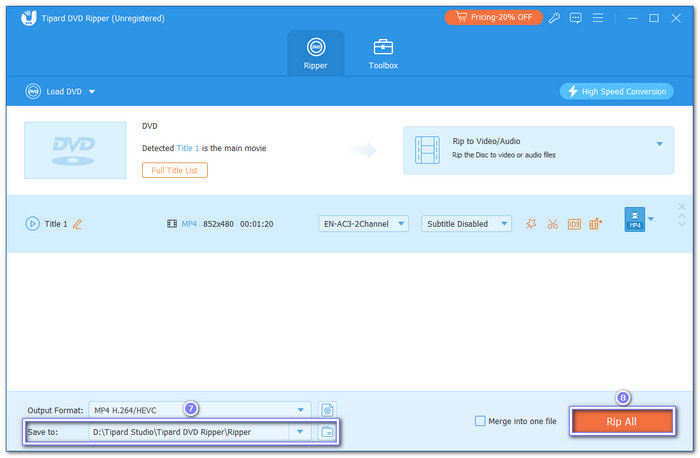
Click the Load DVD button to load your DVD. You can select full title lists or just choose the main movie.
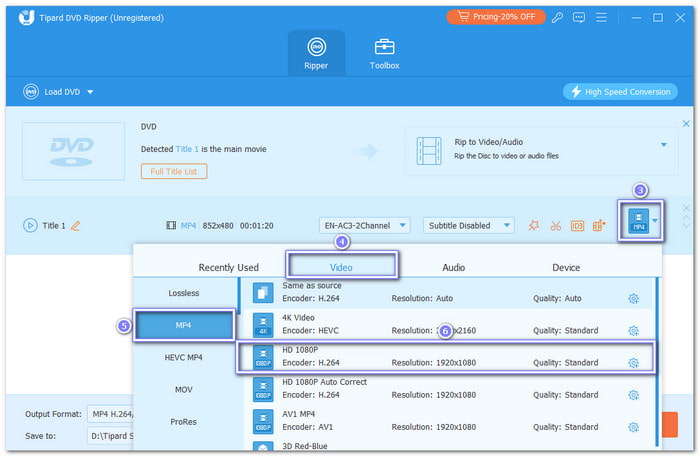
Step 3 Choose Output Format
Click the Out Format drop-down menu at the bottom right side to select a desired output digital format. You can convert your DVD into MP4, MOV, MKV, MP3, or other types. You can even pick your desired resolution, such as 4K, HD 1080P, HD 720P, etc.
Tips for Converting DVD to a Digital Format:
- Tipard DVD Ripper supports converting DVDs to lossless MKV or MPG formats, preserving the original video and audio streams. This lossless approach is ideal for archival purposes or users who intend to edit the footage in post-production software.
- For superior compatibility and storage efficiency, you can convert DVDs to MP4 or MOV using H.264, H.265, or AV1 codecs. These formats can compress large DVD-5/9 discs to approximately 1-2 GB without noticeable quality loss. Additionally, you can upscale the output to 1080p or 4K to ensure better visual clarity on modern high-resolution displays.
Step 4 Start the DVD to Digital Conversion
Lastly, click the Save to dropdown menu to select a destination folder, and click the Rip All button to start the DVD to digital format conversion process.
Then, you can watch the digitized DVD movie on your computer, mobile phone, tablet, TV, or any other device without needing a DVD player.
2. HandBrake
Compatible Operating Systems: Windows, Mac & Linux
HandBrake is a premier open-source transcoder renowned for providing granular control over the digitizing process. It allows users to convert DVDs into universal digital formats like MP4, MKV, and WebM with highly customizable encoding settings. While HandBrake does not natively bypass copy protections, its functionality can be extended with the libdvdcss library to handle many encrypted discs. A standout feature is its extensive library of optimized device presets, which allows users to balance file size and visual fidelity with a single click when converting DVD to a digital format, making it a powerful bridge between professional-grade adjustments and everyday convenience.
Key Features of HandBrake:
- Digitize DVDs to MP4, MKV, and WebM formats for free.
- Allow you to flexibly adjust the output digital video parameters, like bitrate and resolution.
- Provide many common and rare output digital presets, especially for mobile phones like iPhones and Samsung phone.
- Support for handling encrypted DVDs with the libdvdcss library.
- Preview your output video before digitizing your DVD.
Steps to Digitize DVD with HandBrake:
Step 1 Launch HandBrake and insert the DVD into your computer's optical drive.
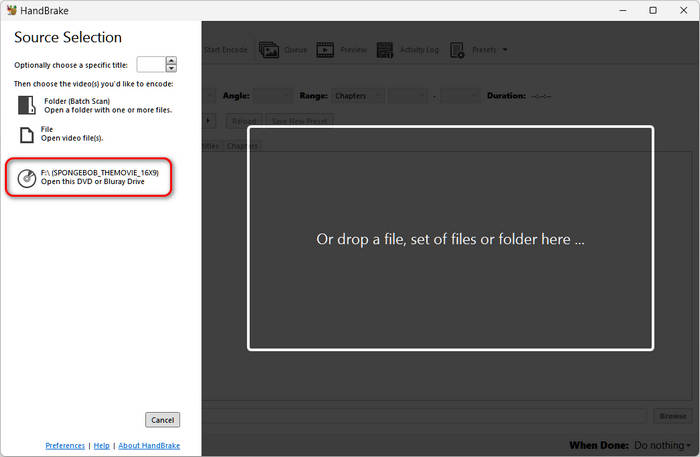
Step 2 In the Source Selection panel, select the recognized DVD to allow the software to scan its content.
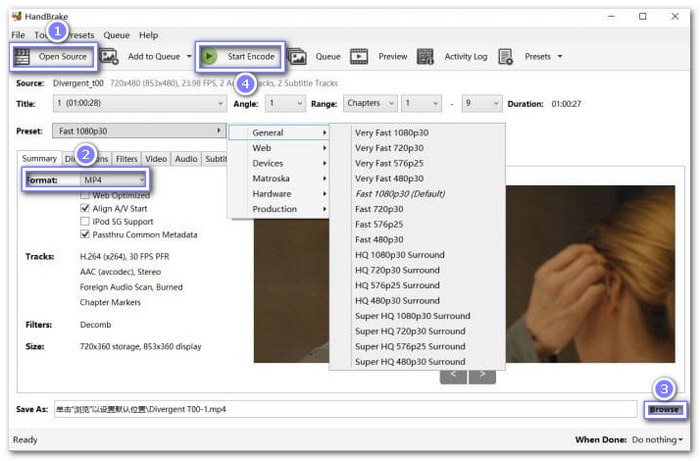
Step 3 Open the Title drop-down menu and select the content you wish to digitize; HandBrake usually identifies the main movie automatically.
Step 4 Select a Preset tailored to your device or quality preferences. Then, click Browse to define the output destination and filename.
Step 5 Click the Start Encode button to begin converting your DVD to digital. Once the process is complete, you can locate your new digital file in the designated folder.
3. VLC Media Player
Compatible Operating Systems: Windows, Mac & Linux
VLC Media Player is an excellent, "no-install-required" alternative if it is already your primary media player. While primarily designed for playback, VLC includes a robust transcoding engine that can convert DVDs into popular digital formats such as MP4, MKV, MOV, AVI, and WMV. Unlike many basic DVD to digital converters, it allows for manual adjustment of encoding parameters, including bitrate, frame rate, and resolution, giving you control over the final file size. Notably, VLC can bypass certain CSS and region-code protections using its internal libraries. While the conversion process is generally slower than dedicated rippers and lacks batch processing, it remains a highly reliable, cost-free solution for occasional digitization.
Key Features of VLC Media Player:
- Convert DVDs to many digital video and audio formats, like MP4, AVI, MP3, and more.
- Support rich customization features and options, like resolution, bitrate, codec, format, and more.
- Offer a DVD player feature and many playback effects.
- Allow you to convert multiple DVDs to digital format.
- Provide many other conversion features, like video conversion and .m3u8 conversion.
Steps to Convert DVD to Digital with VLC:
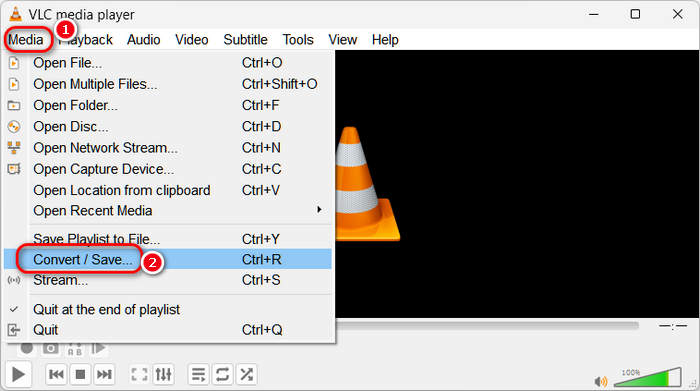
Step 1 Insert the DVD into your optical drive and launch VLC Media Player. Navigate to the Media menu and select Convert / Save (or press Ctrl+R).
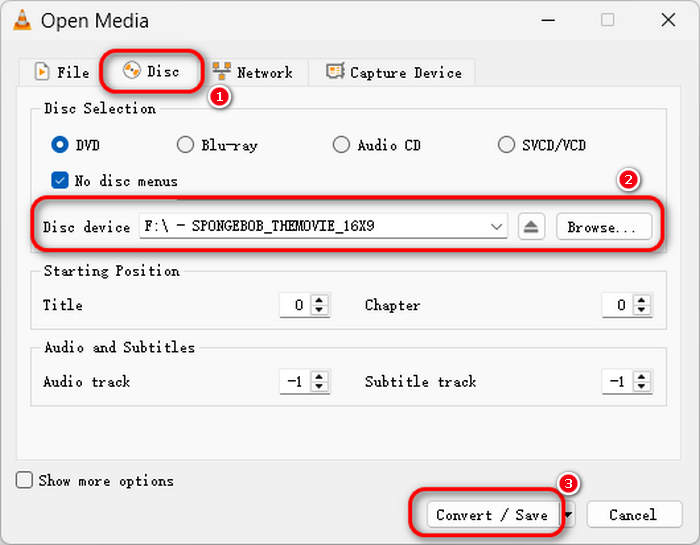
Step 2 Switch to the Disc tab and ensure your DVD drive is selected. We recommend checking No disc menus to avoid conversion errors. Here, you can also specify the starting Title, Chapter, and preferred audio/subtitle tracks.
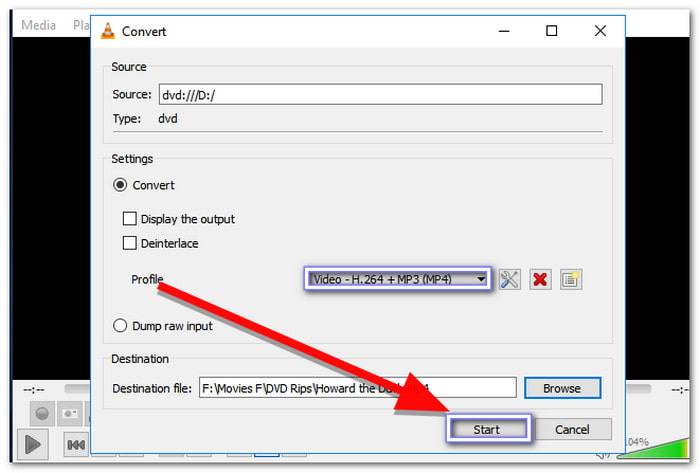
Step 3 Click Convert / Save to proceed. Under the Profile section, select your desired output format (e.g., Video - H.264 + MP3 (MP4)). Then, click Browse to set the destination folder and filename.
Step 4 Click Start to convert DVD to a digital format for free. VLC will process the disc in real-time; once the progress bar finishes, your digital video will be ready in the designated folder.
You May Also Like:
4. Fandango At Home
Compatible Operating Systems: Android & iOS
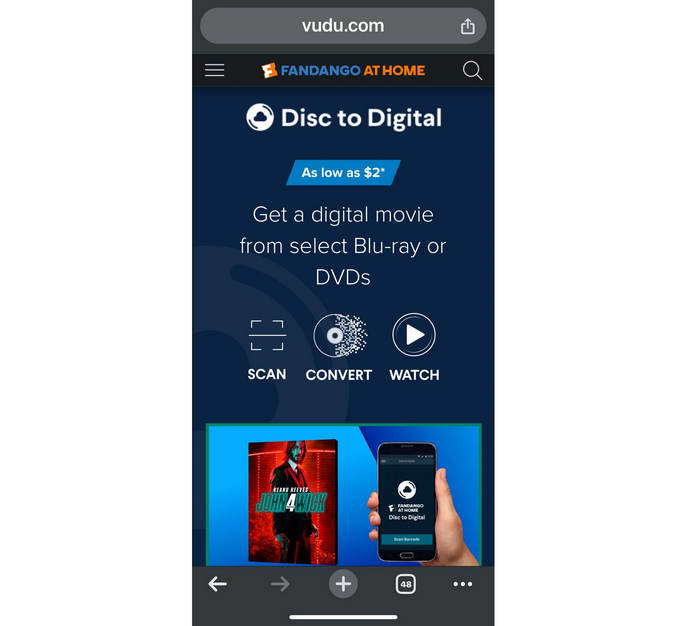
For users seeking a direct mobile solution without ripping your DVD to computer, Fandango at Home (formerly known as Vudu) offers a streamlined "Disc to Digital" service for Android and iOS. Unlike traditional DVD-to-digital ripping methods that require an external optical drive, this app allows you to digitize your collection by simply scanning the UPC barcode on your physical DVD case. Once scanned and verified, a digital copy is added to your cloud library, enabling you to stream or download your movies anywhere, anytime. Note that this service requires a small per-disc fee (typically $2 for SD-to-SD or $5 for SD-to-HDX upgrades) and is currently limited to authorized titles from participating studios within the United States.
Key Features of Fandango At Home:
- Offer computer-free workflow and cloud-based library access.
- Allow you to convert SD movies to higher resolution.
- Provide a legal and affordable method to convert DVD to digital.
- Support synchronization across devices, like smart TVs, mobile phones, and tablets.
Steps to Convert DVD to Digital with Fandango At Home:
Step 1 Android users can open the Fandango at Home app and find "Disc to Digital" in the menu. Due to App Store restrictions, iOS users must visit [vudu.com/disc](https://www.vudu.com/disc) via a mobile browser (Safari or Chrome) rather than using the app for scanning.
Step 2 Sign in to your account. If you are a new user, ensure you have a valid payment method (Credit Card or PayPal) on file, as Fandango at Home requires this to verify your billing address before the first scan.
Step 3 Enable Location Services on your phone. The system uses GPS to ensure your physical location matches the billing address on your account to prevent unauthorized use. (Note: PO Boxes are not supported as billing addresses.)
Step 4 Use your smartphone's camera to scan the UPC barcode on the DVD's case. The system will instantly check if the title is eligible for conversion (Disney and certain other studios may be excluded).
Step 5 Choose your preferred resolution: SD (Standard Definition) or HDX (High Definition). Once the small conversion fee is paid, the digital movie will be added to your library for instant streaming on any device.
5. DVDFab
Compatible Operating Systems: Windows & Mac
DVDFab DVD Ripper is a powerhouse in the industry, specifically designed to handle even the most complex copy protections and all DVD regions. It allows you to digitize your DVD collection into more than 100+ video and audio formats, including specialized profiles for over 260 devices. Beyond simple conversion, it features a robust built-in video editor for cropping, trimming, and color adjustment, as well as the ability to extract high-fidelity theater audio (such as TrueHD or DTS-HD). It is an ideal choice for users who demand a high-speed, flexible DVD to digital workflow to ensure their media is accessible on any modern platform. Follow the steps below to master the process of converting your DVDs into high-quality digital files.
Key Features of DVDFab:
- Offer a quick selection between remuxing and transcoding.
- Provide many common and rare output video and audio digital formats.
- Automatically decrypt your commercial or old DVDs.
- Feature a robust built-in video editor for cropping, trimming, and color adjustment.
- Highly keep the original video and audio quality.
Steps to Convert DVD to Digital with DVDFab:
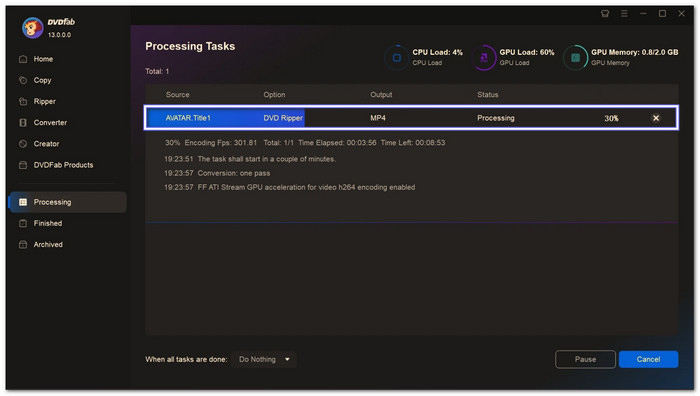
Step 1 Launch DVDFab and select the Ripper module. Insert your disc into the optical drive, and the software will automatically scan and load the DVD titles onto the main interface.
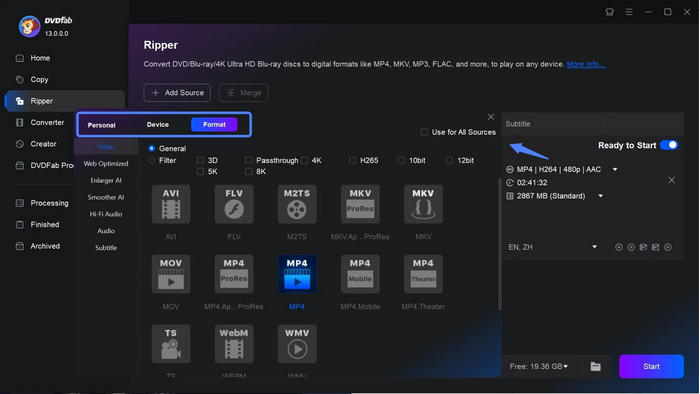
Step 2 Click Choose Other Profile followed by Format to select your target digital container (e.g., MP4 or MKV). You can also navigate to the Device tab to select a profile specifically optimized for your smartphone or tablet model.
Step 3 Select the specific chapters, audio tracks, and subtitles you wish to preserve. For further customization, use Advanced Settings to adjust codecs or Video Edit to trim, crop, and apply personalized watermarks.
Step 4 Click the Folder button at the bottom to define a designated destination on your computer for the output file.
Step 5 Click the Start button to initiate the conversion. Leveraging its built-in hardware acceleration, DVDFab will rapidly process the disc; once finished, your digital movie will be available in the selected folder.
6. Freemake Video Converter
Compatible Operating Systems: Windows
Freemake Video Converter provides a modern and intuitive approach for digitizing DVDs into MP4 and other universal formats. It strikes an excellent balance between simplicity and control, allowing users to fine-tune audio streams and subtitle tracks to suit their preferences. This DVD to digital converter software is an ideal choice for those seeking a streamlined DVD-to-digital solution that maintains essential customization options without the complexity of professional-grade tools. Its polished interface ensures a seamless conversion workflow, making the transition from physical media to digital files both efficient and accessible.
Key Features of Freemake Video Converter:
- Support many standard DVD discs and ISO images.
- Allow you to adjust audio streams and subtitle tracks.
- Offer many common output digital video formats with H.264 and MPEG-4 codecs.
- Provide a simple interface with easy workflow.
Steps to Convert DVD to Digital with Freemake Video Converter:
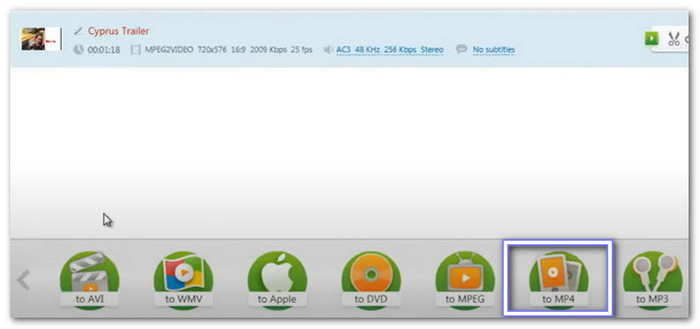
Step 1 Launch Freemake Video Converter and click the DVD button at the top to load your DVD.
Step 2 Click the to MP4 button at the bottom. Freemake Video Converter will get your DVD ready to convert to a digital file.
Step 3 Choose where to save it. Then, click Convert and wait. Soon, you will have your DVD as an MP4 on your computer.
Part 4. How We Tested The DVD to Digital Converters
To provide you with the most reliable and up-to-date software evaluations, we go beyond official specifications. Every tool featured in this guide has undergone rigorous hands-on evaluation by our technical team. Below is our testing methodology and our commitment to transparency.
Our Testing Integrity Statement
Every performance metric and conversion speed mentioned is derived from manual tests conducted by our editors in real-world environments. We do not rely on manufacturer-provided data. If a tool fails to handle a complex disc or produces poor quality, we report it honestly.
Our Testing Criteria
We used a 7.75GB commercially encrypted DVD-9 as our primary test source, evaluating each tool based on four pillars:
- Decryption Capability: We tested the software’s ability to bypass CSS, Region Codes, and Disney 99-title protections to ensure it can handle any disc in your collection.
- Conversion Efficiency: With GPU Hardware Acceleration enabled, we measured the actual time taken to verify "high-speed" claims.
- Visual Fidelity: We compared output files against the original on 4K displays to check for artifacts, macroblocking, or loss of detail.
- System Stability: We monitored CPU and RAM usage to ensure the software runs smoothly without causing system lag or crashes.
Test Bench Specs
- OS: Windows 11 / macOS Sequoia
- Hardware: Intel i7-13700K / Apple M3 Pro / RTX 4070 GPU
- Drive: External DVD Writer (6× speed)
Part 5. Troubleshooting DVD to Digital Conversion Issues
Despite using top-tier DVD-to-digital conversion software, you may occasionally encounter hurdles during the digitization process. Below are the most common issues and how to resolve them quickly.
1. The Software Fails to Read or Load the DVD
If your disc isn't showing up or the software hangs during the initial scan, try these fixes:
- Check for Physical Damage: Inspect the disc for deep scratches, fingerprints, or dust. A gentle wipe with a microfiber cloth often resolves read errors.
- Update Decryption Libraries: Many free tools like VLC or HandBrake require external libraries (like libdvdcss) to read encrypted discs. Ensure these are up to date.
- Try a Different Drive: If you are using an external USB DVD drive, ensure it is plugged directly into your computer rather than a USB hub to ensure it receives sufficient power.
2. The Output Video is Choppy or Has "Lining"
This is usually a result of Interlacing, a common characteristic of older DVD content.
- Enable Deinterlacing: Within your DVD-to-digital conversion software's video settings, look for a "Deinterlace" filter (such as Yadif or Decomb). This merges the lines into a smooth, progressive image.
- Adjust Frame Rate: Ensure the output frame rate matches the source (typically 23.976, 25, or 29.97 fps) to avoid stuttering.
3. Audio and Video are Out of Sync
It is frustrating when the audio doesn't match the action on screen. This often happens with heavily protected or damaged discs.
- Change the Wrapper: If MP4 is giving you sync issues, try converting to MKV. MKV is a more robust container that handles variable frame rates better.
- Check for Multi-Angle Titles: Some DVDs have multiple versions of the same movie (angles). Ensure you have selected the correct "Main Title" in the source selection menu.
Part 6. FAQs of Converting DVD to Digital
What is the best way to convert DVDs to digital?
Tipard DVD Ripper is the best way to convert DVDs to digital. It combines rock-solid stability with the rare ability to upscale legacy DVDs into high-bitrate 4K files. Its elite decryption engine handles any protected disc, ensuring a fast, high-fidelity digitizing process every time.
Does Walgreens convert DVDs to digital?
Walgreens does not directly convert physical DVDs to digital files at its photo kiosks; instead, its Home Movie to Digital service focuses on digitizing legacy analog media such as VHS tapes, 8mm film, and old camcorder cassettes. While the service can transfer these older formats onto a DVD or a USB drive, it is not designed to bypass the copyright encryption found on commercial movie DVDs to create digital MP4 or MKV files. For digitizing a retail DVD collection, you would typically need to use third-party software like Tipard DVD Ripper or DVDFab on your own computer, or utilize a specialized mobile service like Fandango at Home.
Does Best Buy convert DVD to digital?
Best Buy does not offer a service to convert commercial DVDs to digital files, as their Home Movie Transfer service is exclusively designed to digitize legacy analog media like VHS tapes and film reels.
Conclusion
It is not hard to do a DVD-to-digital conversion these days. There are many tools you can use. But you still need the right digital format. That is why Tipard DVD Ripper is your best pick. It makes DVD-to-digital conversion simple and fast, offering numerous digital formats you can pick from.
More Reading

About the Author

 Click here to join the discussion and share your comments
 Tipard DVD Ripper