

Key Takeaways:
If you want to copy your DVD content to a USB flash drive, you need to convert DVD to USB format, like standard MP4, MKV, AVI, etc. You can also directly copy all the files in a home-made DVD and paste them to a USB, but the original video format of DVD (VOB format with MPEG codec) is not widely compatible with modern devices and platforms. Moreover, if your DVD has encryption, you cannot directly do that.
- Tipard DVD Ripper: Transfer copy-protected DVD to USB flash drive.
- Direct Copy: Copy home-made DVD to USB.
- DVD to USB Service: Transfer DVD to USB without a computer.
Sharing movies via a USB drive is significantly more efficient than lugging around fragile DVDs. Whether you're binge-watching during a long-haul flight or sharing media with friends, digitizing your physical collection ensures your favorite films are always just a plug-and-play away.
With modern laptops and smart TVs increasingly ditching internal disc drives, learning how to transfer DVD to USB has become a must-have skill for any movie enthusiast. If you’re looking for a high-quality, hassle-free way to future-proof your multimedia library, read on to discover the ultimate 2026 solutions.

Part 1. Why You Should Convert DVD to USB
- Convenience of Access: USB drives are far more versatile than DVD discs. They are smaller, lighter, and easier to carry. You can use a USB drive with TVs, computers, Xbox consoles, and many other devices.
- No Need for a DVD Drive: Today's most Windows PCs and Macs no longer include a DVD drive. Even on older models, the DVD drive may no longer function properly. Therefore, when you convert DVD to USB, you don't need to have an external disc drive to play the movies.
- Large Capacity in USB: USB drives offer much greater storage capacity than DVDs. By converting DVDs to a USB flash drive, you can carry an entire DVD series on a single USB, instead of bringing multiple discs.
- Access and Playback: DVDs often come with copyright restrictions and DRM protections, so that some devices may fail to play them. Therefore, why not convert DVD to USB for higher compatibility?
- Editing and Customization: With digital files on a USB drive, you can easily edit and customize them - for example, creating playlists, converting DVDs to MP4, or adding subtitles to MP4.
- Backup: Converting DVDs to a USB drive also helps back up your media files, protecting them from loss or damage.
| Feature | DVD Ripper (Software) | Direct Copy (File Transfer) | Local DVD-to-USB Service |
|---|---|---|---|
| How it Works | Converts DVD data into digital video files (MP4/MKV). | Manual "Drag & Drop" of VIDEO_TS folders. | Professional shop handles the digitizing process. |
| Playability | High. Compatible with most Smart TVs and devices. | Low. Requires specific software like VLC. | High. Delivered in standard digital formats. |
| File Size | Flexible (Compressed). | Large (4GB - 9GB per disc). | Moderate (Standardized). |
| Copy Protection | Bypasses CSS and Region Codes. | Fails on commercial movie DVDs. | Varies by provider policies. |
| Effort | Moderate (Setup required). | Low (Simple transfer). | High (Requires physical travel/shipping). |
| Typical Cost | Free to $50 (One-time). | Free. | Expensive ($10 - $30 per disc). |
Part 2. Transfer DVD to USB Flash Drive with a DVD Ripper
Most commercial DVDs are encrypted with DRM (Digital Rights Management) to prevent unauthorized copying. If you're wondering how to convert a DVD to USB while bypassing these complex restrictions, Tipard DVD Ripper is specifically designed for this task. It offers a seamless way to decrypt CSS, Region Code, and other protections, ensuring your physical collection is transformed into high-quality digital files compatible with any USB-enabled device.
When transferring DVDs to a USB flash drive for playback, you may also need to convert the DVD content to common digital formats like MP4, MOV, or MKV, which are best formats and settings for TV displays. The original DVD videos (.VOB files) may not be compatible with your TV or smartphone, which is another reason why a DVD-to-USB converter is essential.
Tipard DVD Ripper can quickly convert DVDs into video formats compatible with USB drives, TVs, smartphones, computers, and other media-playing devices. With full hardware acceleration, it allows fast decoding, editing, and encoding of your videos. You can also take advantage of practical editing features such as trimming, cropping, rotating, applying filters, and more.

- Easily decrypt and rip copy-protected DVDs with any region code.
- Convert DVD to USB-supported formats like MP4, MKV, MOV, AVI.
- Support full GPU acceleration to convert DVD to USB compatible format.
- Offer practical video editing features like crop, clip, rotate, filters, etc.
Step 1 Get Tipard DVD Ripper
Download Tipard DVD Ripper for free by clicking the download button above. Launch it after installation.
Step 2 Load Your DVD to Tipard DVD Ripper
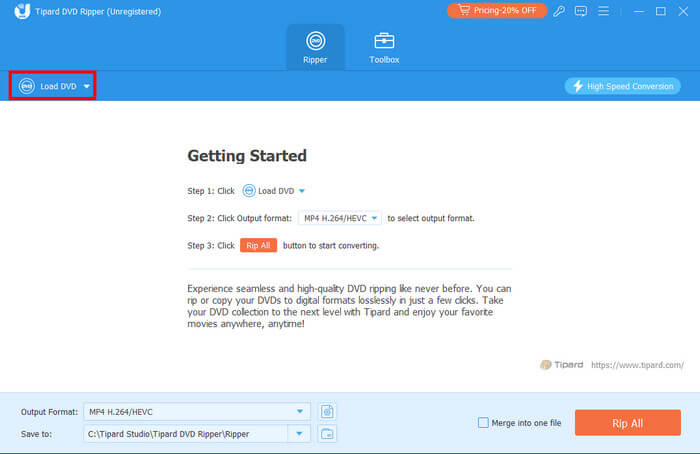
Click the Load DVD button on the top left side and then select your DVD.
- Old computers and laptops may have built-in disc drives.
- Modern computers don't have a built-in disc drive, which means you'll need to get an external disc drive.
Step 3 Choose Output Format
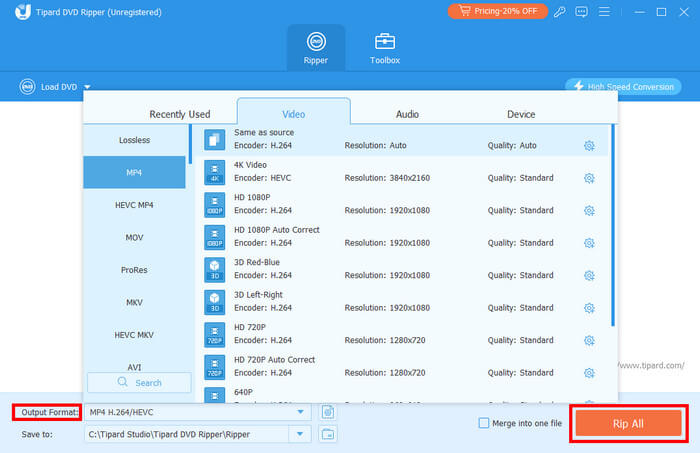
Then, you can choose the format of the output video by clicking the Output Format in the bottom left corner. Here you have many choices like MP4, MOV, MKV, AVI, etc. Select your favorite one. After selection, click the Rip All button in the bottom right corner to convert the DVD movie to a digital video.
Before ripping, you can also make adjustments, like adding watermarks to the video and crop or rotate the video as you like.
- You can select a format preset that is optimized for specific devices, like game console, Apple TV.
- To save your USB's storage, you can select a format that supports HEVC codec.
Step 4 Transfer DVDs to USB Stick
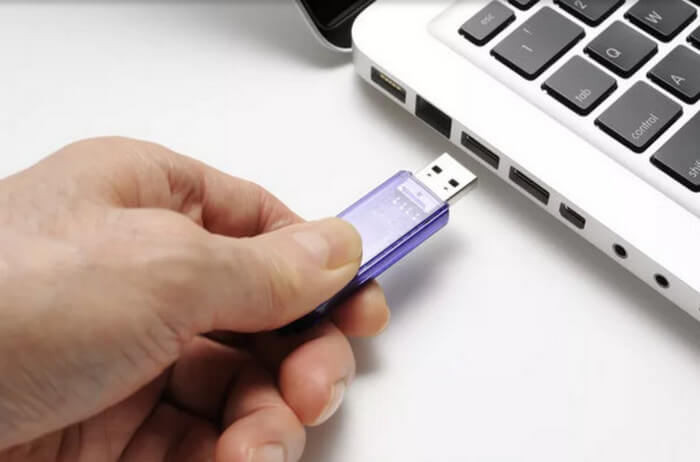
Now, you can transfer DVDs to your USB stick without worrying about encryption or region locks. Simply copy and paste to move your videos to the USB quickly and easily.
Part 3. Transfer DVD to USB Drive via Direct Copy
If you have a DVD without DRM protection, you can copy its movies from your computer and paste the files directly to a USB drive. Keep in mind that only unprotected DVDs can be copied this way. Please read the guide below to learn how to transfer DVD to USB flash drive.
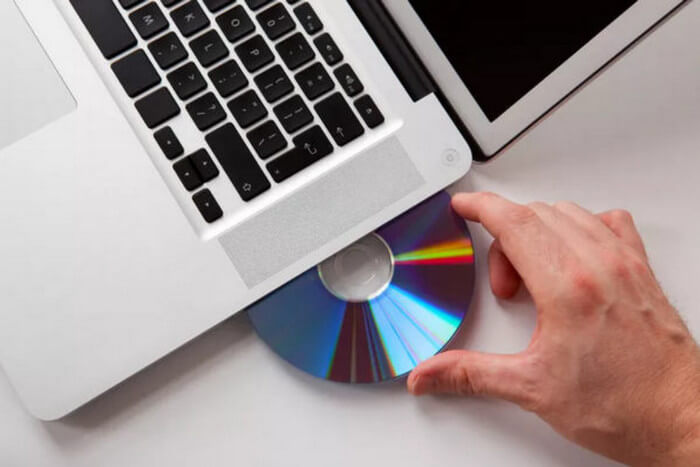
Step 1 Insert DVD disc to computer
Start your computer and insert the DVD. Then open your DVD disc in File Explorer and locate the files you want to transfer to your USB drive.
Step 2 Connect USB to computer
Next, connect your USB drive to the computer. Make sure it has enough free space to store the DVD files before copying the movies.
Step 3 Transfer DVD movies to USB
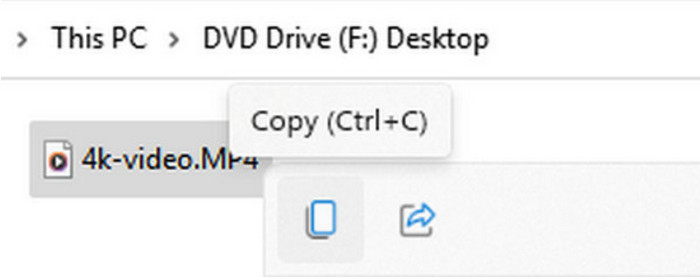
Select the DVD files, click the Open button, and then right-click to copy them. Open your USB drive folder, choose the desired location, and right-click to paste the files. This will successfully transfer your DVDs to the USB drive.
Note: What USB Drive Do You Need?
You should also pay attention to the type of USB drive you use. Since a DVD typically holds around 4GB or more, make sure your USB has enough capacity to store a high-quality movie when copying DVDs to it.
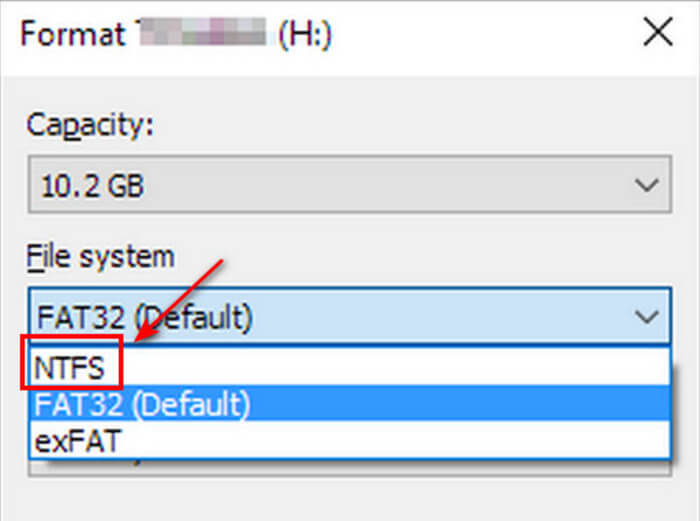
Additionally, the default USB format, FAT32, does not allow files larger than 4GB. To store a full DVD movie, you should format your USB drive to NTFS, which has no single-file size limit. Simply right-click your USB drive in This PC and select Format to change it to NTFS. After that, you can easily copy DVDs to your USB drive.
- FAT32: The max file size is 4 GB; Compatible with Windows, Mac, TV, Linux, and many other universal devices.
- NTFS:The max file size is 16 TB; but it's only well compatible with Windows; Read-only on Mac/Linux without software.
- exFAT: The max file size is nearly infinite; well compatible with all types of universal devices.
Part 4. Transfer DVD to USB Drive Without a Computer - DVD to USB Service Near Me
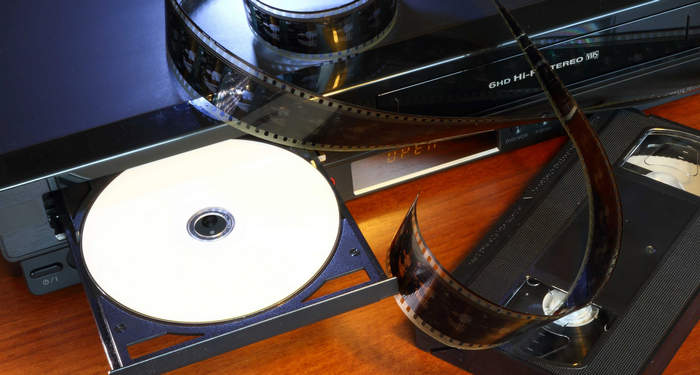
Many DVD-to-USB services allow you to transfer DVDs to a USB drive without using a computer. They can even help you create an ISO from a DVD for bootable USBs or video backups. You can check if there is a DVD-to-USB service near you, such as CVS Photo, Forever Studios, or Walmart Photo. However, not all locations of these stores may offer DVD-to-USB transfer services, so it’s best to confirm the details with them in advance.
Part 5. FAQs of DVD to USB Flash Drive
How do I convert my DVD movies to digital?
You should prepare a disc drive and a computer. Insert your DVD into the disc drive and then connect the drive to your computer. Then, use a DVD ripper software like Tipard DVD Ripper to rip and convert your DVD movies to a digital format like MP4, MKV, or AVI.
How to connect old DVD player to computer?
Make sure your old DVD player is still working. A key factor in transferring DVDs can be the compatibility of the connection port. You may need to purchase an adapter to connect your DVD player to your computer.
Is it worth converting DVDs to digital?
Converting DVDs to digital is worthwhile because it makes your movies easier to play, back up, and manage, while being compatible with more devices.
Conclusion
You've learned how to transfer DVD to USB flash drive in 3 ways, making it easier to share movies with friends. First, convert DVD to USB format, then transfer the files without any restrictions. When you want to enjoy a movie on a big TV screen, you can simply copy DVDs to USB and play them directly on your TV. Don't forget that Tipard DVD Ripper can convert all types of DVDs into video formats compatible with TVs, smartphones, and other media devices.
More Reading


About the Author

 Click here to join the discussion and share your comments