

Takeaways:
The fastest way to rip a protected DVD to ISO in 2026 is using Tipard DVD Ripper due to its 30× GPU acceleration. For Mac users seeking a free built-in tool, Disk Utility remains the top choice for non-encrypted discs.
Physical DVDs are prone to degradation, scratches, and data corruption over time. Moreover, with modern laptops and PCs increasingly ditching internal disc drives, accessing your media library is becoming a challenge. The most reliable solution is to create ISO from DVD on Mac and Windows. By digitizing your collection into a 1:1 disc image, you can enjoy seamless playback directly on your computer or easily burn the ISO to a new DVD for secure backup and sharing.

In this article, you can learn 7 excellent ways to convert DVD to ISO easily. You will quickly make ISO images even if you are a beginner. Check the guide below and start your ISO image creation right away!
Part 1: Comparison of 7 Ways to Create ISO from DVD
You can check the comparison of the 7 powerful methods to create ISO from DVD. You can choose the one you prefer to easily rip DVD to ISO image.
| Products | Best for | Bypass Copy Protection | Speed | Platform |
|---|---|---|---|---|
| Tipard DVD Ripper | Rip video DVD to ISO with high video quality. | Yes | 5/5 (with GPU acceleration) | Windows/Mac |
| BurnAware | Rip homemade DVD to ISO for sharing DVD movies. | No | 4/5 | Windows/Mac |
| Freemake Video Converter | Make ISO from DVD and convert video formats. | No | 2/5 | Windows |
| iSODisk | Create an ISO from a DVD quickly and easily. | No | 3/5 | Windows |
| Disk Utility | Rip DVD to ISO or video seamlessly on Mac. | No | 3/5 | Mac |
| PowerISO | Create ISO from DVD for bootable USB. | No | 4/5 | Windows/Mac |
| DVD to ISO | Beginners who don't know clearly how to rip DVD to ISO. | No | 3 | Windows/Mac |
Part 2: 4 Ways to Create ISO from DVD on Windows 11/10
Check 4 ways to create ISO from DVD on a Windows computer. You can back up your DVD on your computer so that the content is difficult to be broken. You can also share your DVD video with others easily.
Way 1. Easily Create ISO from Encrypted DVDs on Windows 11/10/8/7
If you are looking for an exceptional program to help you create ISO from DVD, you can use Tipard DVD Ripper. It is accessible to Mac and Windows and can rip DVD to ISO easily. With GPU acceleration on decoding and encoding, you can quickly generate ISO from DVD. In our test, it only takes 5 minutes and 12 seconds to rip a dual-layer movie DVD (5.8 GB) to an ISO image.
You can copy full content in a DVD to an ISO image or select your desired videos and chapters to create an ISO from the DVD. Also, you can convert or upscale the DVD video to any other digital format. Maybe you can convert DVD to MP4 in HEVC codec and 1080p or 4K resolution.

- Convert DVD to ISO image with the best video and audio quality.
- Copy all DVD chapters or choose your desired chapters.
- Rip DVD to ISO with GPU acceleration and bypass copy protections or region codes.
- Allow you to convert DVD to videos with practical editing features.

Preparation: Insert your movie DVD to an optical drive and connect it to your computer. Ensure that the DVD is recognized.
Step 1 Load Your DVD to Tipard DVD Ripper
Download and install Tipard DVD Ripper on your Windows computer. Click the Load DVD Disc button in the top left corner. Then, you can start creating ISO from DVD with this program.
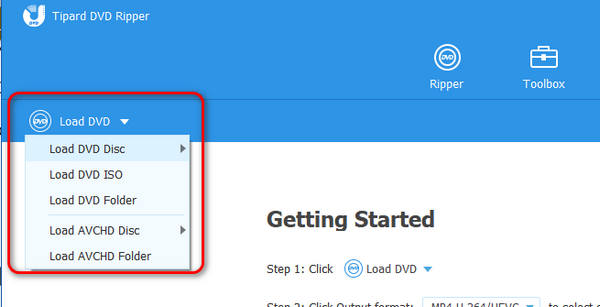
Step 2 Select ISO Image as the Output Format
Your DVD should be loaded. Click the dropdown button on the right side to choose an ISO output option. Then, click the Rip All button to create ISO from DVD quickly.
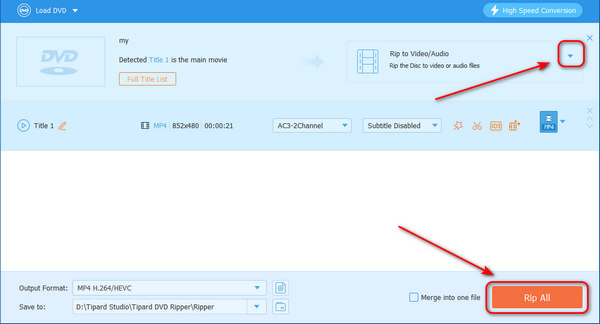
Why We Select It: During our internal benchmarking, we found that Tipard DVD Ripper can quickly make ISO file from a DVD disc. It supports almost all types of DVDs, like DVD-R, DVD+R, DVD+RW, DVD-RW, single layer DVD (DVD-5) or dual-layer DVD (DVD-9). The single workflow and understandable on-screen prompts can help beginners to easily create ISO from DVD without stuttering.
Way 2. Make ISO Image File from DVD with BurnAware Free
For Windows users seeking a native way to convert DVD to ISO on Windows 11, 10, and older versions, BurnAware Free is an excellent lightweight choice. This ISO burner allows you to create precise ISO images from physical DVD discs without taxing your system resources, making it perfectly compatible with both high-end workstations and budget PCs.
The interface of this DVD to ISO image creator is exceptionally intuitive, enabling even beginners to navigate the workflow without professional guidance. Beyond its rapid burning and conversion speeds, BurnAware Free serves as a versatile toolkit for creating audio CDs, MP3 discs, and DVD videos, as well as extracting audio tracks. It is truly a multi-functional ISO management utility.
However, there are a few limitations to consider. BurnAware Free is exclusive to the Windows ecosystem; therefore, you will need a BurnAware alternative if you want to make ISO file from DVD on macOS. Furthermore, while the basic version is free, some advanced features are locked behind a premium subscription. To get started, follow the step-by-step guide below to create an ISO image from your DVD using BurnAware Free.
Step 1 Download BurnAware Free on your Windows computer. Then, after the installation process, launch the program to view the main interface.
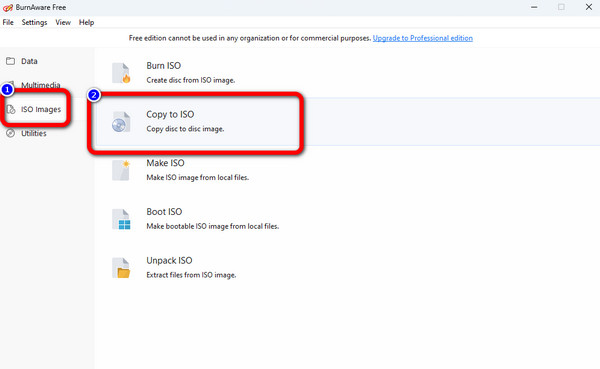
Step 2 Afterward, go to the left interface and click the ISO Images menu. Then, select the Copy to ISO button from the center interface.
Step 3 Select the Copy button to load the DVD on the upper part of the interface. After that, click the Browse button on the center interface to set the folder where you want to save the converted file.
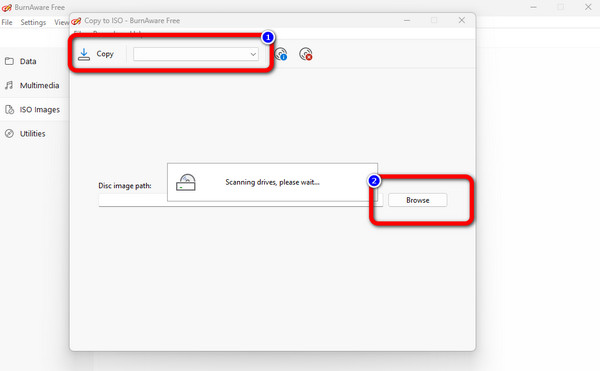
Step 4 Then, click the Copy button to start creating the ISO file from your DVD. You will see a pop-up message when the converting procedure is done. After that, you can get your ISO file in your assigned folder.
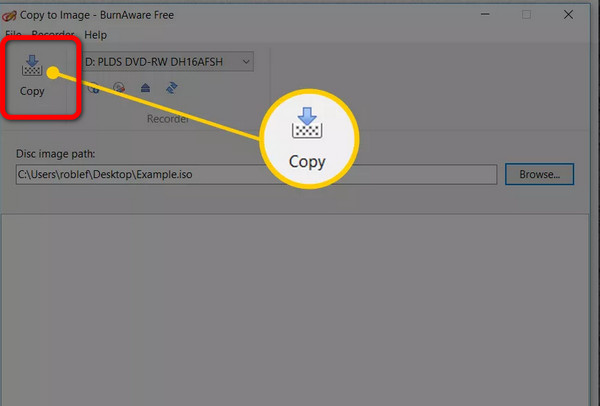
Notes: BurnAware Free can also help you burn ISO to a DVD. However, it's not compatible with latest Windows OS. You can use newer burning software, like Cisdem DVD Burner, to add the ISO to another DVD.
You May Also Like:
Way 3. How to Make ISO File from DVD via Freemake Video Converter
Freemake Video Converter is very suitable for Windows computers, so, if you want to create ISO image from DVD disc on Windows, Freemake Video Converter can offer you free but powerful help, and the most important thing is, it is free. When using it, you can find Freemake can also help you convert MP4 to ISO, burning ISO directly from multimedia files.
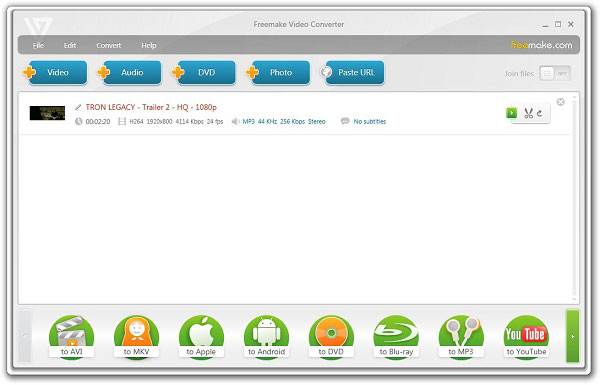
Step 1 Open Freemake and click the DVD button on the top side to load your DVD. Then, to create ISO from DVD, you should click the to DVD button on the bottom side.
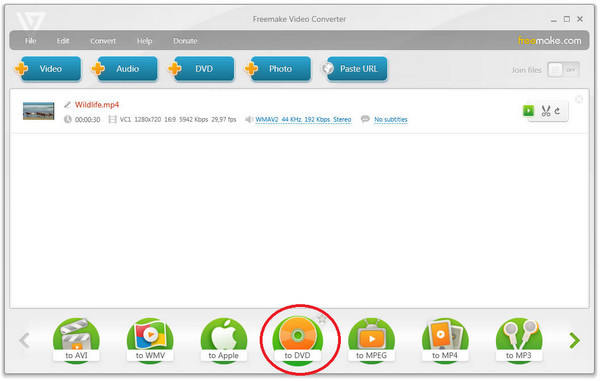
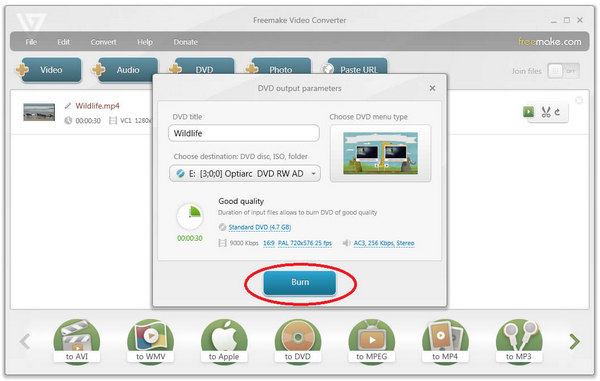
Step 2 After you set all settings of the ripped DVD, you should choose a folder on your hard drive, and then click the Burn button to rip the DVD to ISO with Freemake.
Way 4. How to Create ISO File from DVD with ISODisk
If you want to make it very simple and fast, you can choose ISODisk without hesitation. It could be considered as the easiest tool for creating ISO images from DVD discs with 1:1 quality. It is so easy to use whether you are a professional or beginner. Just follow the on-screen guides and prompts to create ISO file from DVD.
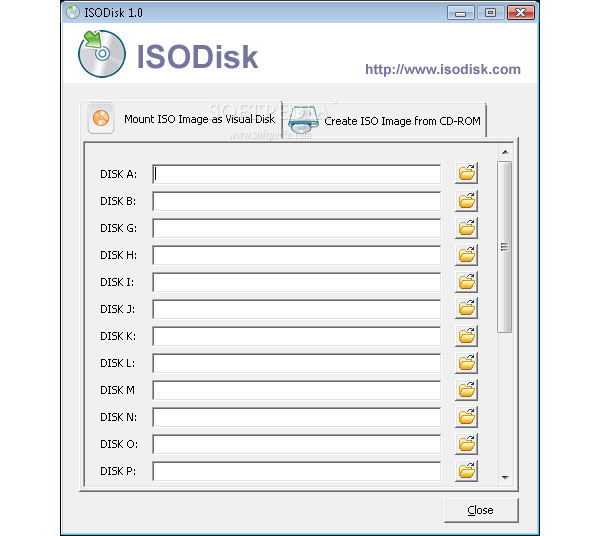
Step 1 Download ISODisk on computer
Just like others, you need to download ISODisk first, the App Store, its official website. And then install and launch the program on your computer.
Step 2 Insert A DVD Disc and Create ISO Image File
Insert a DVD disc into your computer, and choose the drive where your DVD disc is located, ISODisk will create ISO image files from it automatically. And then you can find the created ISO from DVD. for it directly rips the DVD to your computer.
Part 3: 3 Ways to Rip DVD to ISO on Mac
In this part, we will teach you how to make ISO from DVD using Mac. Your Mac computer can also help you rip DVD to ISO image. Although there are no as many programs as on Windows, you can still use 3 excellent methods to create ISO from DVD on Mac.
Way 1. Easily Rip DVD to ISO on Mac with Disk Utility
You can use the Disk Utility function to convert your DVD to ISO. If you need to become more used to the program, grab the opportunity to view the guide. Disk Utility is a default way of creating an ISO file from a DVD without extra installation. Also, the process of copying or conversion is simple. You can quickly create ISO from DVD with the GPU acceleration technology.
But, if you are new to Mac, the DVD to ISO creation process can be challenging because you may need to take time to get used to macOS. So, you can easily get an ISO from DVD on Mac with Disk Utility by checking and follow the steps below to rip DVD to ISO.
Step 1 Open your Mac and navigate to the Disk Utility. After that, the interface will appear on the screen. Go to the File > New Image option and select the Image from (name of the DVD).
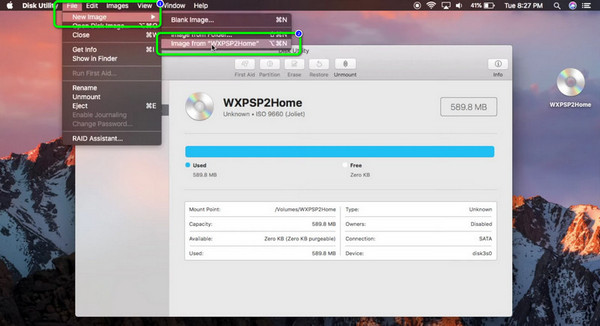
Step 2 Then, a mini interface will pop up on the screen. Go to Save As and type the name of your file. After that, select the Format option and choose the DVD/CD Master. To save the file to ISO, click the Save button and await the creation process.
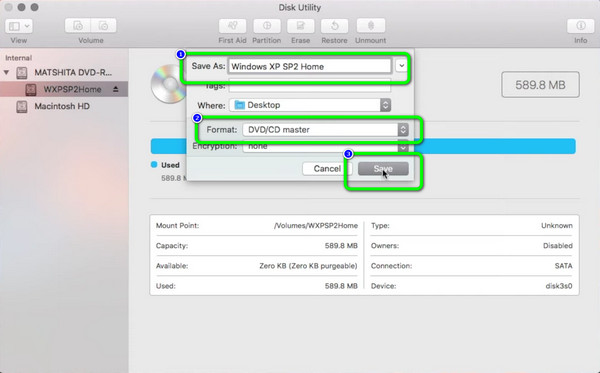
You May Need to Know: Disk Utility cannot bypass DRM. If you encounter a 'Permission Denied' error, you likely need a ripper with decryption capabilities like Tipard DVD Ripper.
Way 2. Create ISO from DVD with PowerISO
PowerISO is available on both Windows and Mac. It can help you rip DVD to ISO image easily. After you load your DVD, you can follow the on-screen instructions to do that quickly. The ripping speed is also fast. Check how to create ISO from DVD with PowerISO.
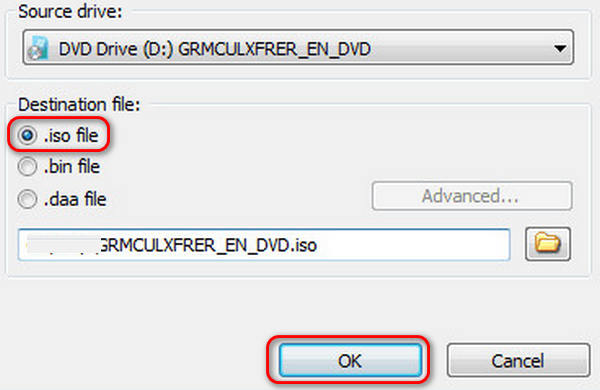
Step 1 Connect your DVD disc to your Mac and then open PowerISO. Click the Copy button, and then the Make CD/DVD/BD Image File button to start creating ISO from DVD disc.
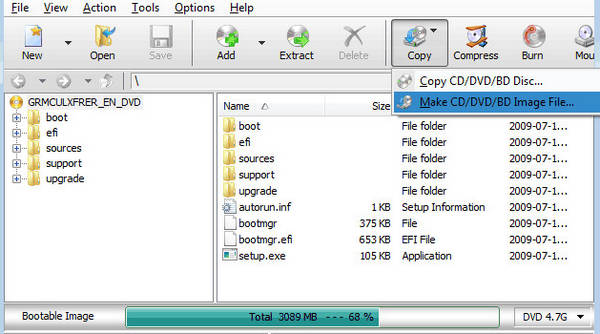
Step 2Then, you can choose .iso file and choose a file location for the coming ISO file. Finally, click the OK button to create ISO from DVD.
Way 3. How to Rip DVD to ISO on Mac with DVD to ISO
There's a very lightweight program on both Windows and Mac - DVD to ISO. This lightweight program can rip DVD to ISO at a very fast speed and won't take much memory, making a convenient way to rip DVD to ISO image. However, this program cannot offer other features, and you can only choose the ISO output format.
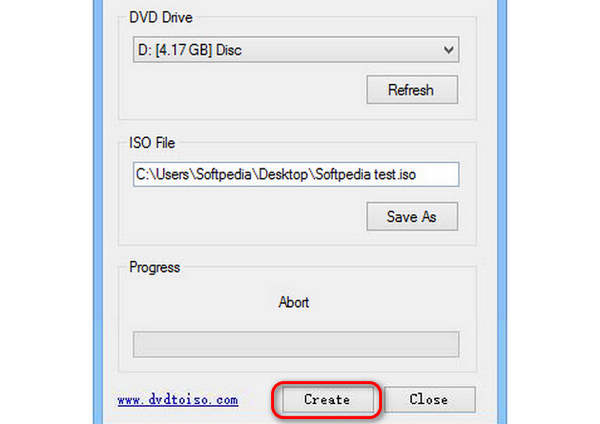
Step 1 Load your DVD on your Mac. Launch DVD to ISO, and it will detect your DVD drive. You can select it in the DVD Drive tab.
Step 2 In the ISO File tab, you can choose a file destination to hold your ISO image. Finally, you only need to click the Create button to rip DVD to ISO on Mac easily.
Part 4. FAQs of Creating ISO from DVD
Can Rufus create an ISO from a DVD?
No, Rufus cannot help you make ISO file from DVD. It can help you write ISO files to USB drives. You can resort to an alternative like Tipard DVD Ripper.
How to create ISO file from DVD in Windows 11?
Many DVD to ISO creators compatible with Windows may be able to create ISO on Windows 11. If you want a program with the best performance and stability, Tipard DVD Ripper is a great choice.
How to turn disc image file into ISO?
To turn a disc image file into an ISO, you first need to identify its current format (like BIN, NRG, MDF, IMG), then use conversion or disc imaging software to create an ISO.
Conclusion
In this article, you can get 7 ways to create an ISO from a DVD effectively on Windows 11/10 and Mac. It's very easy to convert DVD to ISO with these programs as long as you have a built-in or external disc drive. Tipard DVD Ripper offers a clean interface with easy workflow and high-tech GPU acceleration. You can easily create ISO from your DVD quickly or convert DVD to different multimedia formats with 1080p or even 4K quality.
More Reading



About the Author

 Click here to join the discussion and share your comments