

- Part 1: How to Convert MP4 to ISO File in High Quality
- Part 2: How to Convert MP4 to ISO with Freemake Video Converter
- Part 3: How to Convert MP4 to ISO File with Windows DVD Maker
- Part 4: How to Convert MP4 to ISO Free with DVDStyler
- Part 5: How to Convert MP4 to ISO Online with Converter365
- Part 6: Comparison of the 5 MP4 to ISO Converters
- Part 7: FAQs of How to Convert MP4 to ISO
Key Takeawayss:
It is very easy to convert MP4 to ISO as long as you have a burner progra1m that support Fis-to-Disc, such as Tipard DVD Creator. It can automatically convert your MP4 videos to DVD-supported format - .vob container with MPEG-2 codec. Check the simple workflow below:
- Launch Tipard DVD Creator, click Add Files to import MP4.
- Click Next, select a DVD menu, and click Burn.
- Select Save as ISO and then click Start.
Converting MP4 to ISO is a seamless process crucial for preserving and organizing video content. You can store your MP4 videos in a DVD structure, which is like DVD authoring. ISO is the best format to store DVD/Blu-ray menu, chapters, chapter skips, audio tracks, subtitles, and more. It's very smart to convert MP4 to ISO because you can save it as a durable digital format and easily burn it to disc afterwards.
Then, how can you burn MP4 to ISO? You must find the right program because although many programs can burn MP4 to DVD, they may not support the ISO image output. This article will show you 5 excellent ways to convert MP4 to ISO image on Windows and Mac.

- Part 1: How to Convert MP4 to ISO File in High Quality
- Part 2: How to Convert MP4 to ISO with Freemake Video Converter
- Part 3: How to Convert MP4 to ISO File with Windows DVD Maker
- Part 4: How to Convert MP4 to ISO Free with DVDStyler
- Part 5: How to Convert MP4 to ISO Online with Converter365
- Part 6: Comparison of the 5 MP4 to ISO Converters
- Part 7: FAQs of How to Convert MP4 to ISO
Part 1: How to Convert MP4 to ISO File in High Quality
Do you want to quickly create an ISO image while keeping good quality? Based on our test, Tipard DVD Creator is a reliable choice to convert MP4 to ISO image with high quality and stable structure. It offers an easy conversion process that can also preserve MP4 videos in a standardized ISO format, ensuring compatibility with optical media.
Tipard DVD Creator can also add a DVD menu for your MP4 videos to author a DVD ISO image. You can also enjoy great customization on the DVD menu, such as splitting chapters, adding and editing subtitles, and customizing the menu image and BGM. What's more important is that it can convert MP4 to ISO file quickly and accurately. That's how our test standards focus on the most.
Key Features of Tipard DVD Creator
- Support Fit-to-Disc to automatically adjust your MP4 video parameters to fit the disc format.
- Convert MP4 videos to ISO image with optional free menu templates.
- Edit your MP4 videos and manage MP4 titles and chapters with ease.
- Quickly create ISO from MP4 in high quality with GPU acceleration.
- Can also convert MP4 to Blu-ray ISO file in HD quality.
Best for: Amateurs and professionals who want to burn or author disc, ISO, and disc folder with fast speed and stable performance.
Steps to Burn MP4 to ISO with Tipard DVD Creator
Step 1 Download and install Tipard DVD Creator
The first step you need to take is to download and install Tipard DVD Creator. Click the Free Download button below to download and install a proper version. Then, launch it.
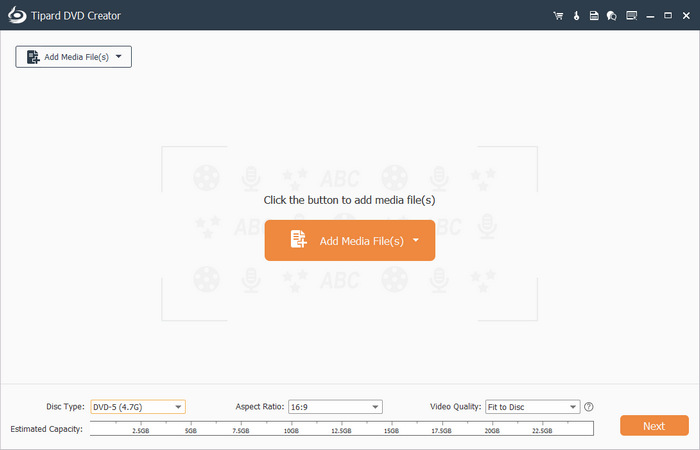
Step 2 Add MP4 files
You can choose DVD Disc or Blu-ray Disc. Note that Blu-ray ISO is bigger than DVD ISO. Then, click the Add Media Files button to add your MP4 videos to this ISO creator.
Step 3 Customize ISO
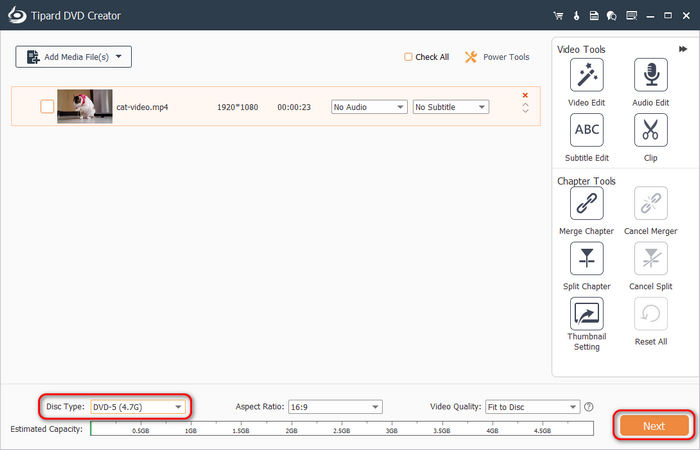
Your MP4 videos have been added. You can choose a Disc type on the bottom left side, like DVD5 and DVD9 or BD25 and BD50.
You can also adjust the video aspect ratio and quality. You can also use the Video Tools and Chapter Tools to edit the MP4 videos and ISO structure. Then, click the Next button to go on.
- Aspect Ratio: Modern MP4 files are almost 16:9. Ensure the aspect ratio is the same as your MP4 file, or the playback will be stretched.
- DVD-5 or DVD9: DVD-5 is for single-layer DVDs, while DVD9 is for dual-layer DVDs.
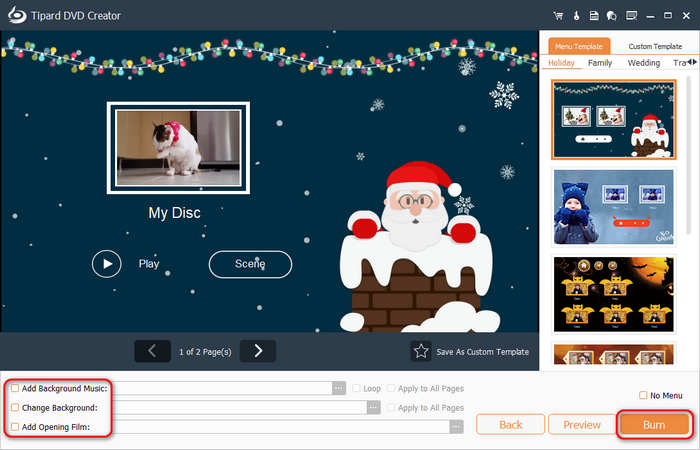
Step 4 Add a menu
In this panel, you can choose a DVD menu template. You can also change the background music and photo, and add an opening film with the tools on the bottom left side. You can also rename each title (MP4 video) and change its position on the menu. Then, click the Burn button to go on.
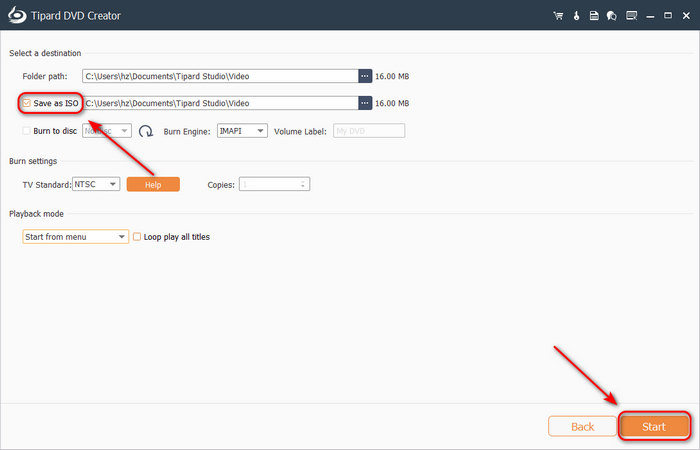
Step 5 Choose ISO output
This is the final and most important step. You should choose Save as ISO on the top left side and choose a destination folder on your computer. Then, click the Start button on the bottom right side to convert MP4 to ISO file.
- TV Standard (NTSC vs. PAL): If you are in the North America or Japan, you should choose NTSC. If you are in Europe or China, you should choose PAL.
- ISO Image vs. Data ISO: DVD player hardware or software cannot play data ISO files.
Why We Select It: Tipard DVD Creator can offer easy-to-understand on-screen prompts and features to help you manage titles and chapters in a DVD or Blu-ray ISO image. For example, the Split Chapter can work as an MP4 cutter to split a video into multiple chapters, which is iconic in a movie DVD or Blu-ray. Moreover, it utilizes GPU acceleration, so you can convert MP4 to ISO image very fast while taking little RAM and CPU. It's a lightweight, powerful, and versatile choice for you to burn disc or ISO.
Part 2: How to Convert MP4 to ISO with Freemake Video Converter
If you want to convert MP4 to ISO file, you can try Freemake Video Converter. This program offers a clean and guiding interface that can help you easily import MP4 and export an ISO image. It can also help you author DVD or Blu-ray ISO, and then you can burn it directly to a disc. You can also add and customize the DVD menu. Although it has no advanced editing features, it supports the ISO output format, which is just what you want.
Key Features of Freemake Video Converter
- Offer a clear and intuitive interface.
- Add and customize menu for DVD or Blu-ray ISO.
- Offer mini DVD, DVD-5, and DVD-9 capacities.
Best for: Quick processing and wide input support.
Convert MP4 to ISO with Freemake Video Converter
Step 1 Launch Freemake Video Converter and click the Video button on the top left side to add your MP4 videos to this program. You can click the Edit button to edit your MP4 videos before converting them to ISO. Then, click the to DVD button on the bottom side.
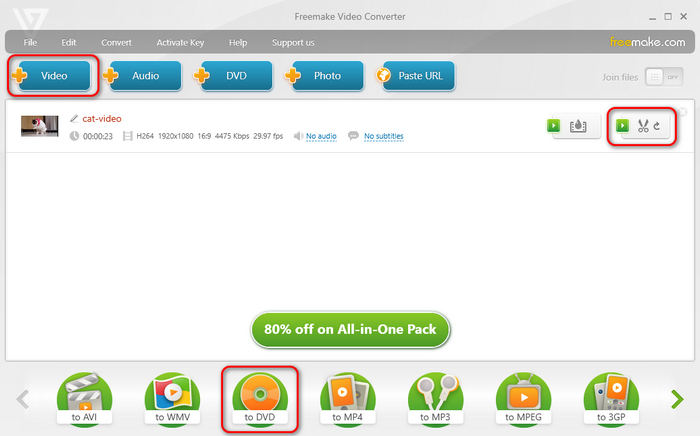
Step 2 This is the crucial step. You can click the NO MENU button to add a DVD menu. Then, click the destination dropdown button and choose Create ISO. Then, you can choose a folder on your computer to convert MP4 to ISO for free easily.
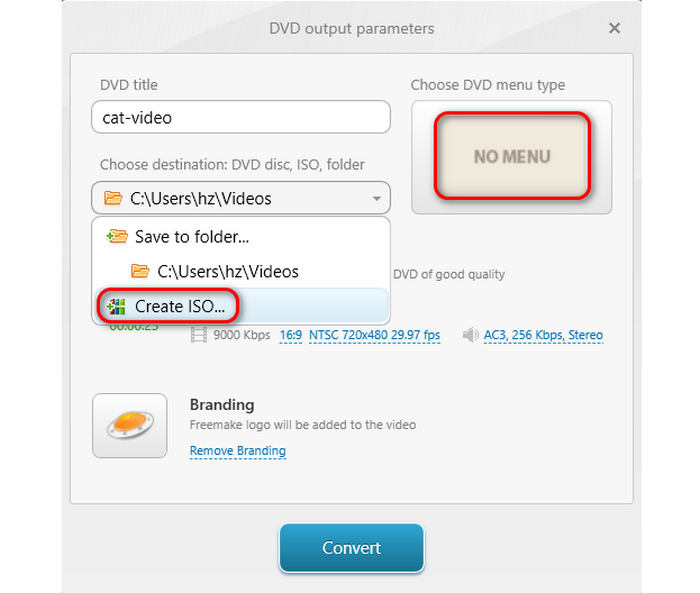
Step 3 Finally, click the Convert button to burn an ISO. It will add a Freemake watermark if you choose to convert MP4 to ISO free. To remove the watermark, you need to pay for Freemake Video Converter.
Part 3: How to Convert MP4 to ISO File with Windows DVD Maker
Windows DVD Maker (not the built-in program in Windows) is also an excellent way to convert MP4 to ISO file. Its interface is very easy to understand, so you can quickly add and process your MP4 videos and create an ISO image. It also offers a DVD menu feature so you can create DVD structure for your MP4 videos with a fantastic navigation interface. It also offers high burning speed and accuracy.
Key Features of Windows Movie Maker
- Stable, efficient, and easy-to-use.
- Offer magnificent and customizable menu templates.
- Create ISO from MP4 files, supporting a large number of codecs.
Best for: Wide input format support and DVD menu customization.
Create ISO from MP4 with Windows DVD Maker
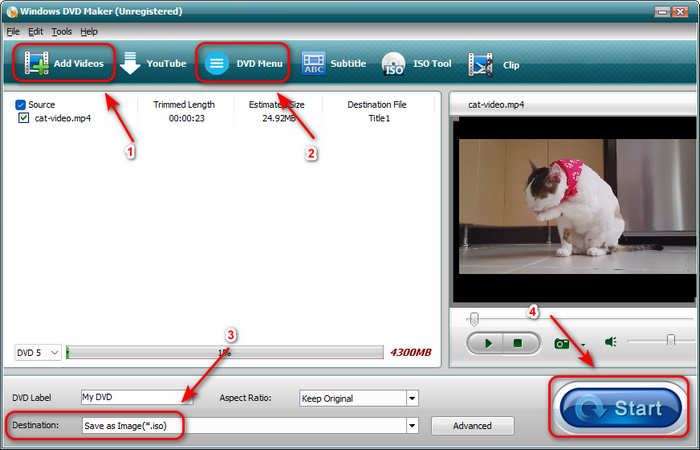
Step 1 Launch Windows DVD Maker and click the Add Videos button to add your MP4 videos to this program.
Step 2 Your MP4 videos are added. You can click the DVD Menu button to choose and edit the DVD menu for your MP4 videos.
Step 3 This is the crucial step. You should choose Save as Image from the Destination dropdown list on the bottom left side. Then, choose a destination folder for your ISO image. Finally, click the Start button to convert MP4 to ISO file easily.
Part 4: How to Convert MP4 to ISO Free with DVDStyler
DVDStyler is also a fantastic way to convert MP4 to ISO free. This program can help you make an ISO with versatile video and ISO format settings, which can help you convert MP4 to ISO like a pro! Moreover, you can make an ISO or DVD with a small capacity, which will save storage space on your computer. This MP4 to ISO converter can also increase the video and audio bitrate to offer a nice watching experience!
Key Features of DVDStyler
- Cross-platorm - Windows, macOS, and Linux.
- Offer great customization on DVD menu usually found only in commercial software.
- Automatically transcode your MP4 videos to DVD standard MPEG-2 VOB format.
Best for: Making animated DVD menu background and detailed ISO structure customization.
Convert MP4 to ISO in DVDStyler
Step 1 Launch DVDStyler. It will prompt you to create a new project. Here, you can set format for your DVD ISO. You can choose a disc capacity, video and audio bitrate, aspect ratio, and audio format, etc. You can also open an existing DVDStyler project.
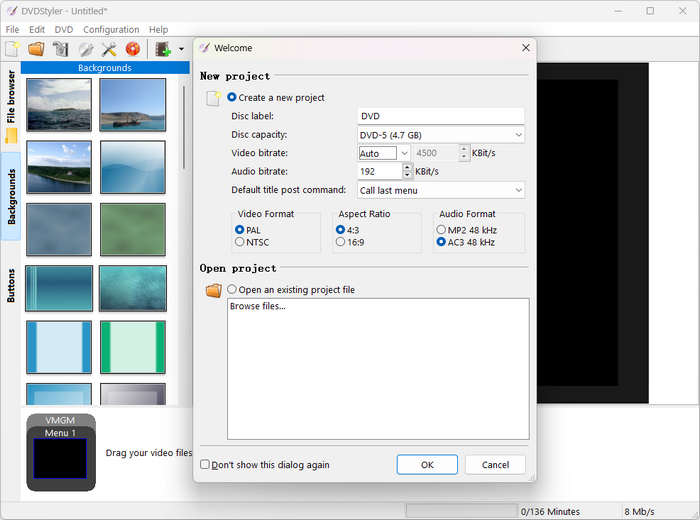
Step 2 After that, you can choose a DVD menu. Then, click the Add File button to import MP4 videos to this program. You can see your MP4 videos in the timeline at bottom. Then, click the Burn button.
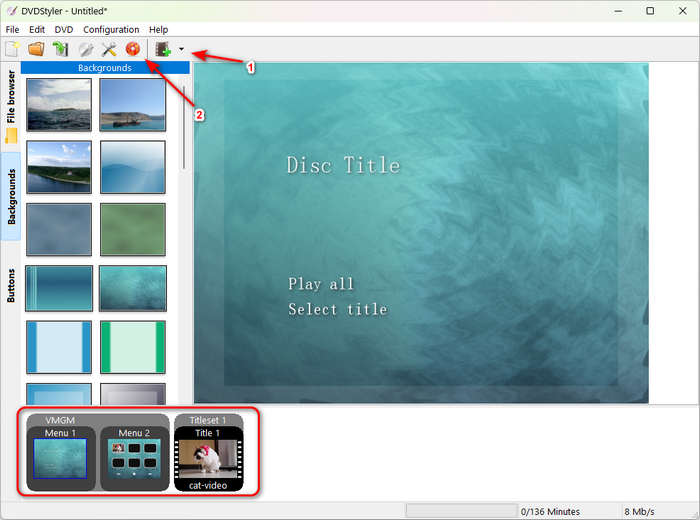
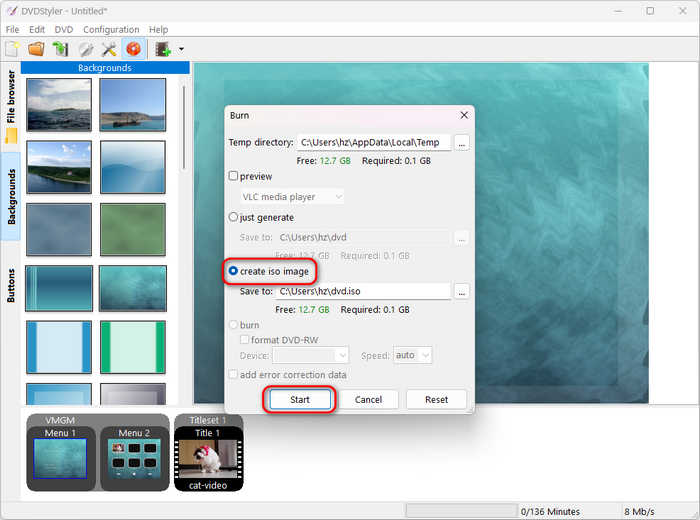
Step 3 On the popup window, you should choose create iso image and click the Start button to convert ISO to MP4 easily.
Part 5: How to Convert MP4 to ISO Online with Converter365
Don't you want an MP4 to ISO converter online for free? Try Converter365. It can quickly convert your MP4 file to ISO file. You don't need to install any desktop program. However, it cannot add DVD menu or split your video into multiple chapters. If you only want an ISO image, it's worth choosing this convert MP4 to ISO freeware.
Key Features of Converter365
- Free online without installation.
- Offer an intuitive interface and simple workflow.
- Provide many other practical and versatile editing and conversion features free online.
Best for: Quickly making an ISO image without needing a menu or customized ISO structure.
Convert MP4 to ISO in Converter365
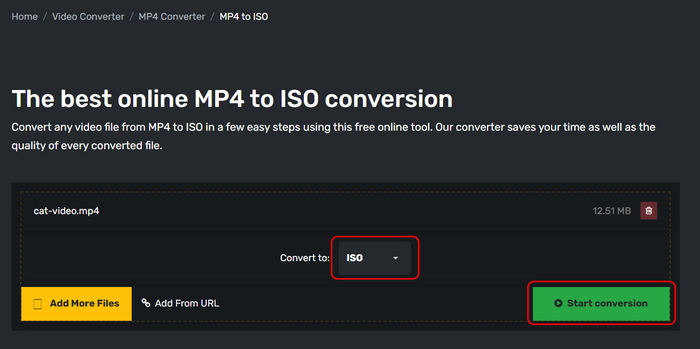
Step 1 Go to Converter365 and click the Add File button to add your MP4 file to this online tool.
Step 2 Choose ISO as the output format. Then, click the Start conversion button to convert MP4 to ISO free online.
Part 6: Comparison of the 5 MP4 to ISO Converters
Now, you can check a brief but conclusive overview of the 5 ways to convert MP4 to ISO format. Maybe you can make your final choice from this comparison table.
| Platform | Add DVD Menu | Conversion Speed | Editing Features | |
|---|---|---|---|---|
| Tipard DVD Creator | Windows and Mac | Yes | Very fast | Clip, rotate, enhance video and audio; merge and split chapters; add subtitles and audio; etc. |
| Freemake Video Converter | Windows | Yes | Fast | Trim, rotate, and merge videos. |
| Windows DVD Maker | Windows | Yes | Medium | Clip videos. |
| DVDStyler | Windows, Mac, and Linux | Yes | Medium | NO |
| Converter365 | Online | NO | Medium (based on network condition) | NO |
Part 7: FAQs of How to Convert MP4 to ISO
Can I convert MP4 to ISO in HandBrake?
No, you can't. HandBrake cannot burn videos to ISO or DVD. Instead, you can convert ISO to MP4.
Can I convert MP4 to ISO in VLC?
No, you can't. VLC can play many video and audio formats. It can also rip DVDs to many video formats. However, VLC cannot convert MP4 to ISO or DVD.
Can 7zip create ISO?
No, it can't. 7zip can only compress a file or multiple files into an data .iso file, not a video ISO file. You can rather use Tipard DVD Creator or DVDFab to create a video or audio ISO image.
Conclusion
It's really easy to convert MP4 to ISO on your computer. You don't need to prepare a DVD or disc drive, only your computer and your MP4 video. This article offers you 5 MP4 to ISO converters you can choose from.
If you want a fast and versatile ISO creator, don't miss Tipard DVD Creator. It offers excellent video and chapter editing features to enhance your MP4 videos and ISO structure. You can also add and customize your DVD menu. What's most important is that it can convert MP4 to ISO quickly with GPU acceleration.
More Reading



About the Author

 Click here to join the discussion and share your comments
 Tipard DVD Creator