

- Part 1: How to Convert MP4 to DVD on Mac in High Quality
- Part 2: How to Burn MP4 to DVD on Mac with iDVD
- Part 3: How to Burn MP4 to DVD on Mac in Cisdem DVD Burner
- Part 4: How to Burn MP4 to DVD on Mac with DVDFab DVD Creator
- Part 5: How to Burn MP4 to DVD on Mac with Burn
- Part 6: Comparison of the Five MP4 to DVD Burners on Mac
- Part 7: FAQs of Burning MP4 to DVD on Mac
Key Takeaways:
In general, burning MP4 to DVD has three steps:
- Convert MP4 to DVD-compatible format.
- Set DVD menu and customize (which is also authoring).
- Burn or author DVD.
Tipard DVD Creator for Mac can work well for burning MP4 to DVD on Mac because of the following key factors:
- Fit to Disc: It can automatically convert any MP4 file to DVD-compatible format.
- Free Menu Templates: You can select from many free DVD menu templates and customize the background image and music.
- Hardware Acceleration: It can quickly burn MP4 to DVD on macOS by making full use of Apple Sillicons.
As of 2026, many Mac users still rely on physical media for secure backups or personalized gifts. However, with the release of macOS Tahoe and macOS Golden Gate Beta and the prevalence of Apple M-series chips (M3/M4/M5), finding a DVD burner that is fully compatible with modern ARM64 architecture is crucial. Whether you're trying to digitize family memories or create a playable movie disc for a home theater, choosing the right software ensures your 1080p or 4K MP4 files are correctly transcoded to the DVD-Video standard.
This article offers 5 ways to convert MP4 to DVD on macOS, like Tipard DVD Creator, DVDFab, iDVD, Burn, etc. This article will review them based on their performances and offer detailed steps on how to burn MP4 videos to DVD on Mac with them. You can pick your desired program and start creating awesome DVD seamlessly with best video and audio quality.
- Part 1: How to Convert MP4 to DVD on Mac in High Quality
- Part 2: How to Burn MP4 to DVD on Mac with iDVD
- Part 3: How to Burn MP4 to DVD on Mac in Cisdem DVD Burner
- Part 4: How to Burn MP4 to DVD on Mac with DVDFab DVD Creator
- Part 5: How to Burn MP4 to DVD on Mac with Burn
- Part 6: Comparison of the Five MP4 to DVD Burners on Mac
- Part 7: FAQs of Burning MP4 to DVD on Mac
Part 1: How to Convert MP4 to DVD on Mac in High Quality
Tipard DVD Creator for Mac is a powerful and professional DVD burner software to burn MP4 to DVD on Mac. It helps you burn MP4 to DVD disc/folder/ISO files on Mac. You can choose DVD-5 and DVD-9 capacities, and it supports DVD-R, DVD+R, DVD-R DL, DVD+R DL, DVD-RW, and DVD+RW.
Besides, this MP4 to DVD creator can edit videos freely and customize the DVD menu with ease. What's more, you can choose many themes for your videos, empowered to freely add background music and images to videos. This MP4 DVD creator is your best choice.
Supported OS: Mac OS X 10.7 or above and Windows 7 or above
Test Result: In our 2026 benchmark test on a MacBook Pro (M4 Chip, macOS Tahoe and macOS Golden Gate Beta), Tipard DVD Creator for Mac stood out as the most efficient authoring suite. Leveraging Apple Silicon hardware acceleration (VideoToolbox), it completed the complex transcoding of a 4.2 GB HEVC (1080p HD) MP4 file in just 5 minutes, with the total burning process to a physical DVD-9 disc taking approximately 16 minutes. The software maintained exceptional stability during batch tasks, and the output video preserved the original's high bitrate without noticeable artifacts or audio-sync drift.
- Burn MP4 videos to DVD in high video and audio quality.
- Add multiple DVD titles and split multiple DVD chapters.
- Add a DVD menu and customize the background image and music.
- Support DVD disc, ISO, and folder outputs.

How to burn MP4 to DVD Mac with Tipard DVD Creator for Mac
Things to prepare: an optical disc drive that supports DVD; a blank or rewritable DVD disc; a connecting cable (if your disc drive isn't built into your Mac); Tipard DVD Creator for Mac
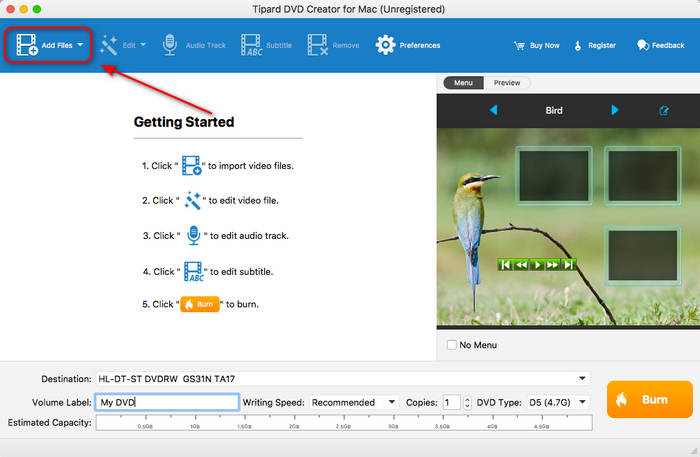
Step 1 Download and install Tipard DVD Creator for Mac on your Mac and launch it. Insert a blank disc into your disc drive and connect it to your Mac. Then, click the Add Files button at the top left to add your MP4 videos to this program.
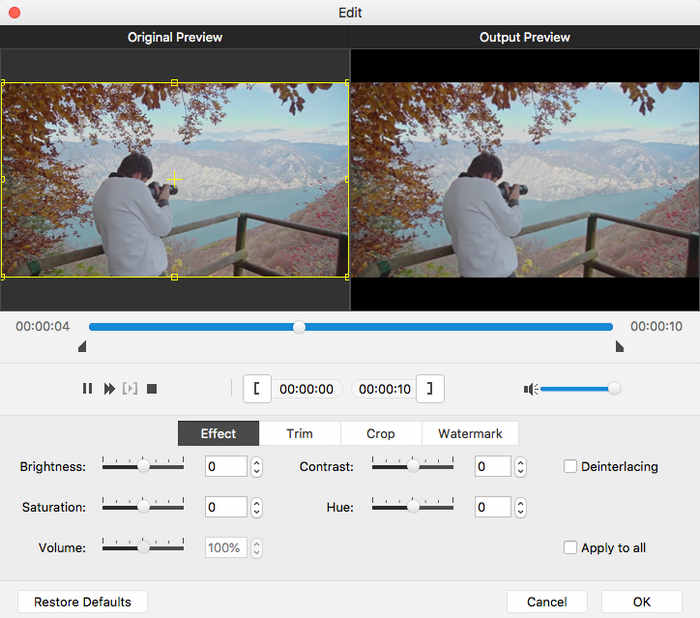
Step 2 Before burning MP4 to DVD on Mac, you can click the Edit button at top to edit your MP4 videos. Tipard DVD Creator for Mac can help you trim MP4 videos, crop and flip videos, add image or text watermark, and adjust brightness, saturation, hue, and more. You can also adjust the subtitle and audio tracks.
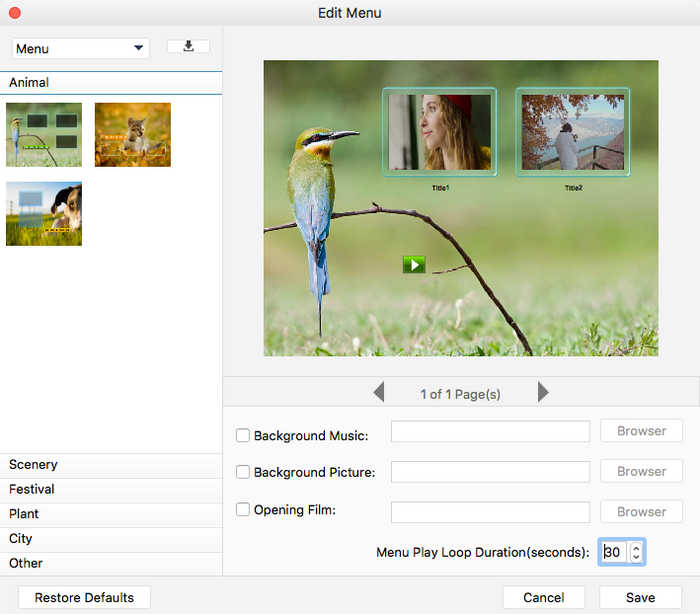
Step 3 Locate the DVD menu on the right side. You can select a free DVD menu here. Click the Edit Menu button to change a menu template. You can also change the DVD menu BGM and image, and rearrange the position of each MP4 video.
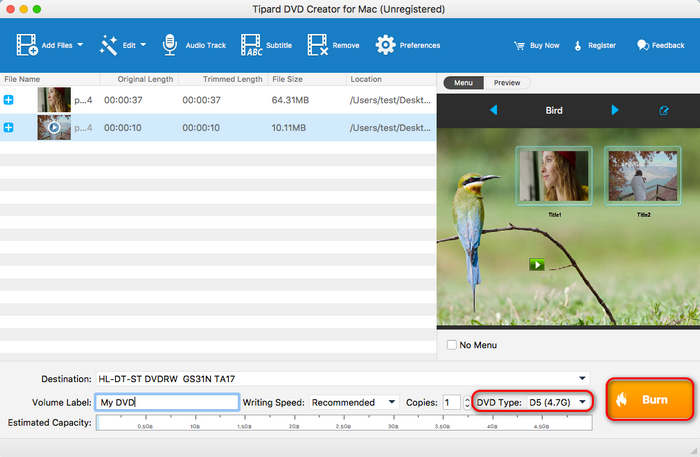
Step 4 Go back to the main interface. You can choose a desired DVD capacity, such as D5 or D9 (DVD-5 or DVD-9). Then, click the Burn button to create DVD from MP4 on Mac easily.
Why We Choose It: Tipard DVD Creator for Mac works stable on Mac OS X 10.7 or above. macOS Tahoe and macOS Golden Gate Beta users can also burn MP4 to DVD with it. We added a 4.2 GB MP4 video, and it could still work stably and fast. We could also easily adjust the video tone with a preview window. What's more, it's really not easy to find an MP4 to DVD burner like it that can create disc, ISO, and folder. Some of them can only burn disc and ISO. Moreover, Tipard DVD Creator for Mac works well on both burning and authoring.
Part 2: How to Burn MP4 to DVD on Mac with iDVD
How do I burn MP4 to DVD on Mac without paying? If your Mac still has iDVD, it's a good choice for you to burn MP4 to DVD on Mac for free. It offers an animated DVD menu and other magnificent menu templates. The reliable DVD burning techniques can support many input video formats and perform a stable and accurate burning process. If your macOS is older than Mac OS X 10.6, then iDVD is a good choice to burn MP4 to DVD on Mac for free.
Supported OS: Mac OS X 10.11 or lower
Key Features of iDVD:
- Simple and fast DVD creation.
- Offer motion menus and Drop Zones to decorate the DVD menu.
- Burn MP4, MOV, AVI, and many other formats to a DVD.
Test Result: On an old MacBook, iDVD can easily burn MP4 videos to DVD. It can also add and customize DVD menu. iDVD can add videos and projects from iMovie, supporting MPEG-4, MOV, AVI, MP3, and other formats or codecs. However, iDVD doesn't support modern codecs like H.265/HEVC or AV1. So, although iDVD is a free MP4 to DVD creator, you can only use it on old macOS and deal with old MP4 videos.
How to Create DVD from MP4 on Mac in iDVD
Step 1 Launch iDVD, and you'll be prompted to create a new project. You can select New Project or Open Project if you have an existing one. Then, you can adjust the DVD settings, like video format, aspect ratio, and DVD capacity.
Step 2 Now, you can choose a DVD menu. You can preview the menu and change the background photo and audio.
Step 3 Click the Media button to add your MP4 videos to iDVD. You can also import MP4 videos from iMovie and iTunes.
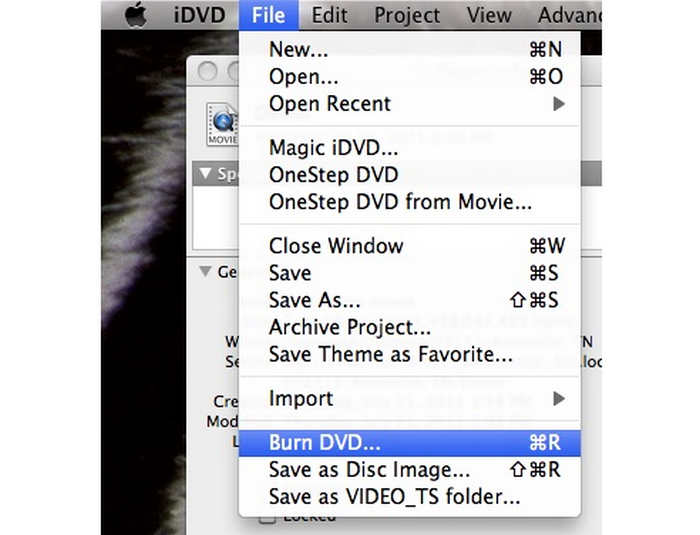
Step 4 Now, your MP4 videos are added, so you can adjust the DVD chapters and titles easily. Finally, insert your blank DVD disc into your Mac and click the Burn button to burn MP4 to DVD on Mac.
Part 3: How to Burn MP4 to DVD on Mac in Cisdem DVD Burner
Cisdem DVD Burner is also an excellent way to convert MP4 to DVD format on macOS. It supports many video formats, including MP4. You can also make a custom DVD menu before burning. Moreover, it offers some basic video editing features to trim your MP4 videos to make a full preparation before you create DVD from MP4 on Mac.
Supported OS: macOS 10.13 or later and Windows 10 or later
Key Features of Cisdem DVD Burner:
- Support a large number of input and output formats.
- Create DVD menu or directly burn MP4 to DVD as a data disc.
- Fashion interface and simple workflow.
Test Result: Cisdem DVD Buner can quickly burn a large MP4 video to your DVD disc, ISO, or folder. An 4.2 GB MP4 video can be burned to a DVD in 10 minutes. It also has a stylish and understandable interface. You can quickly burn or author videos to DVD with the prompt on its interface. Also, the ouput DVD file has high video quality and seamless playback.
How to Create DVD from MP4 in Cisdem DVD Burner
Step 1 Insert a blank DVD disc into your disc drive and connect it to your Mac computer. Then, click the Add Videos button to add your MP4 videos to Cisdem DVD Burner. You can also drag and drop your MP4 files into this program.
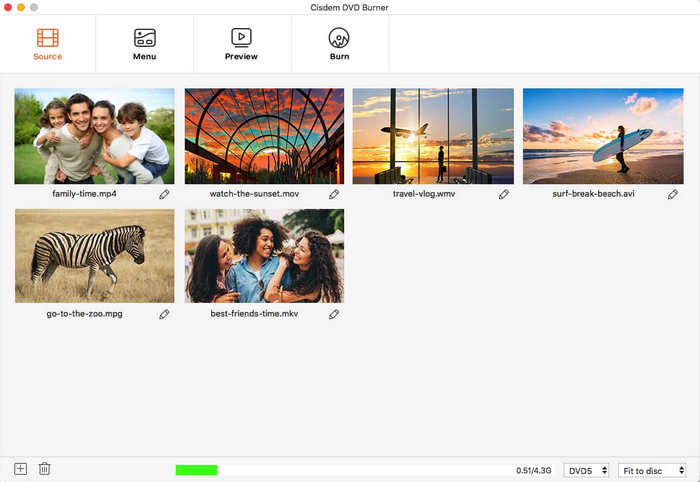
Step 2 Click the Menu tab on the top side to choose a DVD menu for your MP4 videos. You can adjust the title names, chapter thumbnails, and background photo and audio.
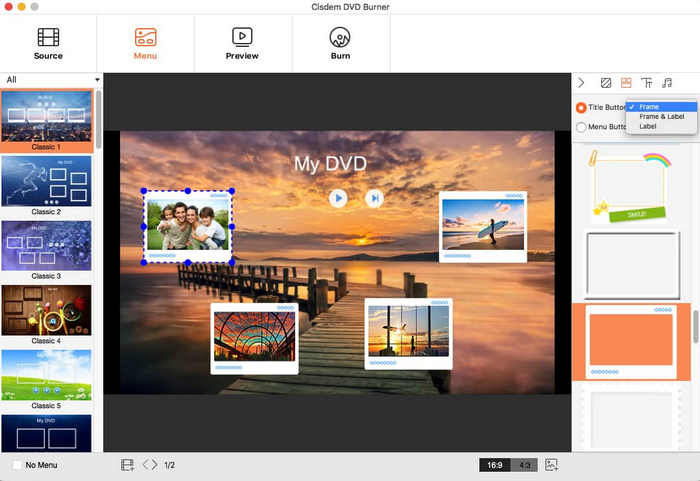
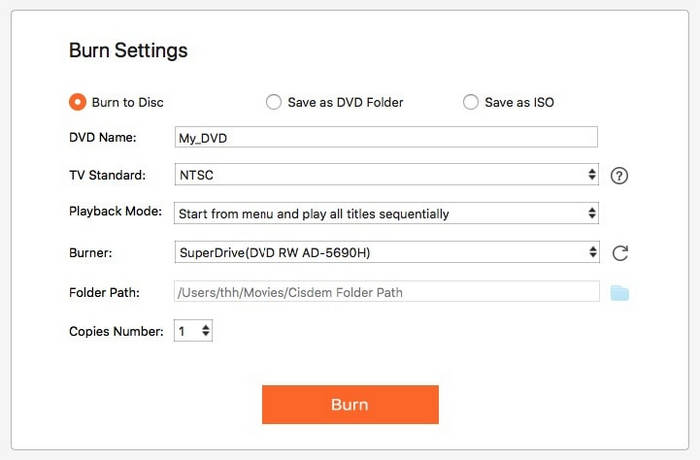
Step 3 You can click the Preview button to preview your MP4 DVD playback. Finally, choose the Burn tab on the top side to adjust the burning settings. After your customization, you can click the Burn button to burn MP4 to DVD Mac with Cisdem DVD Burner.
Part 4: How to Burn MP4 to DVD on Mac with DVDFab DVD Creator
DVDFab offers a DVD creator for Mac users. It has a clean and neat user interface that can guide you to author a DVD easily. It supports MP4 format; you can edit your MP4 videos after importing. You can also choose a nice DVD menu for your MP4 videos. What's impressive about this Mac MP4 to DVD converter is that it can perform a fast and stable DVD burning process. It must be a good choice to convert MP4 to DVD format on a Mac.
Supported OS: macOS 10.13 or higher and Windows 7 or above
Key Features of DVDFab DVD Burner:
- It's an all-in-one DVD and Blu-ray creation and ripping program.
- Offer many excellent free DVD menu templates and multiple DVD capacities.
- Help you generate title name and image.
Test Result: DVDFab has a very stylish interface. it has many powerful features for DVD and Blu-ray. You can convert MP4 to DVD format on Mac in fast speed. We tested a 4.2 GB MP4 video, and it takes only 5 minutes to author it. DVDFab can also help you directly burn MP4 to DVD as a data disc, not changing the format from MP4 to VOB. However, DVDFab doesn't offer much video editing features and DVD customization features. It's also not that easy to find some certain features on its interface.
How to Convert MP4 to DVD on Mac in DVDFab
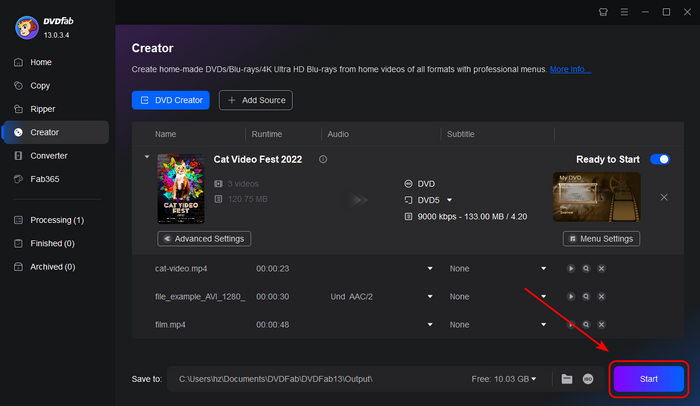
Step 1 Insert your blank DVD disc into your Mac computer with a disc drive. Launch DVDFab and choose the Creator feature. Click the Add Source button to add MP4 videos to this program.
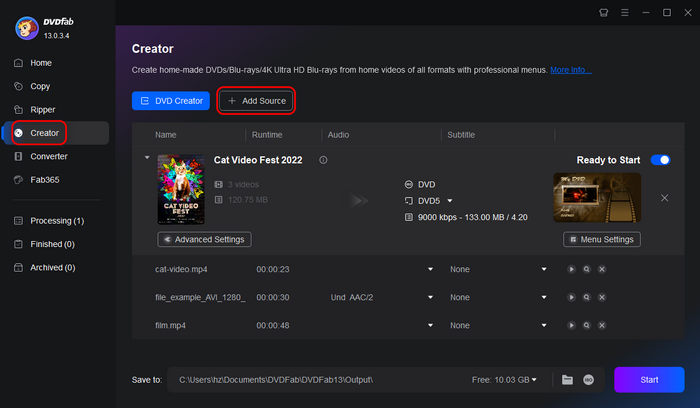
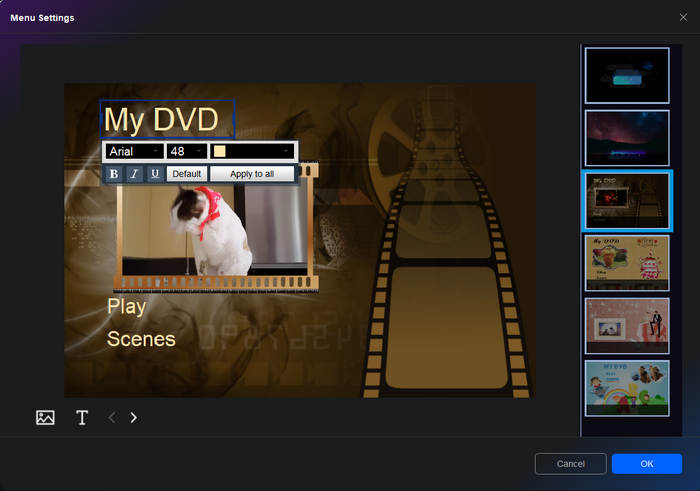
Step 2 Click the Advanced Settings button to adjust the DVD format, including DVD capacity, aspect ratio, etc. Then, click the Menu Settings button to choose a DVD menu for your MP4 videos. You can also click the title to change the title name. Then, click the OK button to confirm.
Step 3 Finally, choose your disc drive in the Save to tab. You can also choose a local folder on your computer to create a DVD folder from MP4 videos. Then, click the Start button to burn MP4 to DVD on Mac with DVDFab.
Part 5: How to Burn MP4 to DVD on Mac with Burn
Don't you want to burn MP4 to DVD Mac for free? You can choose the Burn app on Mac. It's an open-source DVD burner that offers powerful and stable burning ability. You can input many types of video formats, including MP4. Moreover, this free MP4 to DVD creator can add DVD menus or titles, which means it's also a DVD authoring software. Therefore, it must be a good freeware to burn MP4 to DVD on Mac.
Supported OS: macOS 10.9 or higher
Key Features of Burn:
- Burn video to DVD, burn audio CD, burn data disc, and copy DVD.
- Offer a simple interface with fast and understandable workflow.
- Provide interactive DVD menu templates.
Test Result: Burn is really a good convert MP4 to DVD Mac freeware. It's burning speed is also very fast. We tested on a 4.2 GB MP4 video, and it takes 6 miuntes to burn it to a DVD disc. It's interface is kind of dated but still very easy to understand. It also has a data DVD burning feature. Anyway, if you want to burn MP4 to DVD Mac free, Burn is a good choice.
How to Burn MP4 to DVD on Mac with Burn
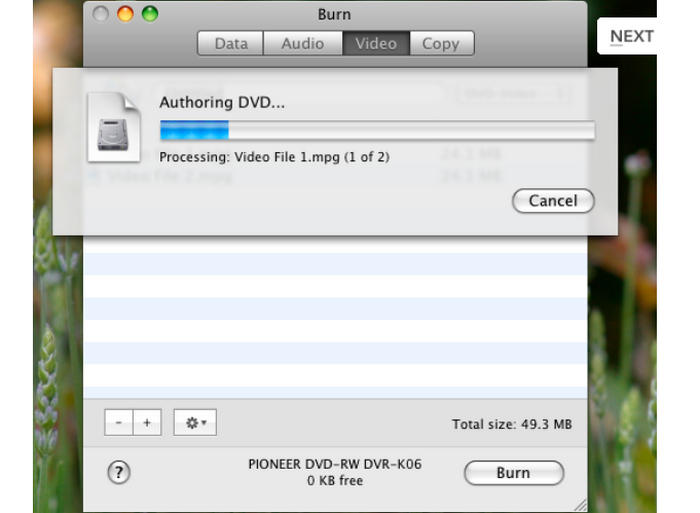
Step 1 Insert your blank DVD disc into your Mac via an external or built-in disc drive. Go to the Video tab and choose the DVD-Video option. Click the Add button to add your MP4 videos to this program.
Step 2 Burn may prompt you to convert your MP4 videos to a DVD format, such as MPEG-2. You should click the Convert button.
Step 3 Choose your disc drive as the output destination and click the Burn button to burn MP4 to DVD on Mac.
Part 6: Comparison of the Five MP4 to DVD Burners on Mac
Those above are the best 5 programs you can use to create DVD from MP4 on Mac. You can also view the comparison table below to find your favorite MP4 to DVD creator quickly.
| Main Features | Supported Input | Output Format | DVD Menu Customization | Compatibility | |
|---|---|---|---|---|---|
| Tipard DVD Creator for Mac | Burn or author multimedia files, ISO, and folders to DVD; edit videos for DVD creation; create DVD ISO or folder for backup. | MP4, AVI, MKV, MOV, and 500+ video/audio formats; HD, 1080p, 4K, and even 8K videos; ISO and DVD folders (VIDEO_TS and AUDIO_TS) | DVD disc, ISO, and DVD folders; DVD-5 and DVD-9 |  |
Mac OS X 10.7 or above (macOS Tahoe and macOS Golden Gate Beta included) |
| iDVD | Burn videos to DVD disc, ISO or VIDEO_TS folder. | MP4, AVI, MKV, etc. | DVD disc, ISO, and folder |  |
mMac OS X 10.11 or lower |
| Cisdem DVD Burner | Burn or author videos to DVD or ISO or DVD folder. | MP4, MOV, MKV, and more popular video formats | DVD disc, ISO, and folder | |
macOS 10.13 or later |
| DVDFab DVD Creator | Video to DVD burning; editing videos for DVD burning; Customize DVD menu. | MP4, MKV, MOV, AVI, MPEG, and more media formats | DVD disc, ISO, and folder | |
macOS 10.13 or higher |
| Burn | Burn data, audio, and video DVD, CD, or Blu-ray | Data, info, videos like MP4, MKV, AVI, and audio files like MP3, FLAC, etc. | DVD disc, ISO, and folder | |
macOS 10.9 or higher |
Part 7: FAQs of Burning MP4 to DVD on Mac
Can I burn MP4 to DVD as a data disc on Mac?
Yes, you can. In that case, your MP4 video will stay MP4 format in the disc. But the disc cannot be played on a DVD player, but only work as a data storage for your MP4 video. To do that: 1. Insert a blank disc into your Mac's optical drive. 2. Select Open Finder on th popup window. 3. Drag and drop your MP4 videos into the disc on the desktop, and right-click on it to select Burn. That's how easy you can burn MP4 to DVD on Mac as a data disc.
Does MacBook still have an optical drive now?
No, current MacBook models (MacBook Air or MacBook Pro) doesn't feature a built-in optical drive. The last MacBook model sold by Apple that included a built-in CD/DVD optical drive was the 13-inch MacBook Pro (Mid-2012 model). So, you need to prepare an external optical drive.
Does burning MP4 to DVD change the video format?
Yes, it does. Your input video will be transcode into MPEG-2 codec in VOB format container with SD resolution. DVD burning also put the video in a DVD structure, or it won't play on a DVD player.
Conclusion
There are many ways to burn MP4 to DVD Mac free without restrictions. You can use Burn or iDVD to create DVD from MP4 with excellent stability. You can also use DVDFab or Cisdem to burn DVD with great flexibility.
If you pursue high speed with good quality, Tipard DVD Creator for Mac is a good choice. It can convert MP4 to DVD format on Mac and burn DVD with GPU acceleration, so the process will be very fast. It also offers many video editing features and DVD menu customization features, like crop, clip, video tone, title and chapter managing, which will help you create DVD from MP4 on Mac with great ease.
More Reading

About the Author

 Click here to join the discussion and share your comments