

If you have a stack of DVDs and try to watch them on Windows 10, you might notice they will not play immediately. Windows does not always include DVD software due to licensing costs, leaving many users stuck. Learning how to play DVDs on Windows 10 provides practical solutions to this problem. This article guides you through preparing your system, walking through the playback steps for Windows and Mac, and addressing common questions so you can watch your DVDs easily.
Part 1. Things to Prepare Before Playing a DVD on Windows or Mac
Before you play a DVD on Windows 10 or watch a DVD on macOS, a few basic requirements must be in place. Preparing these items first helps prevent playback errors, missing media support, or hardware issues. Here are the things to prepare:
1. A Working DVD Drive
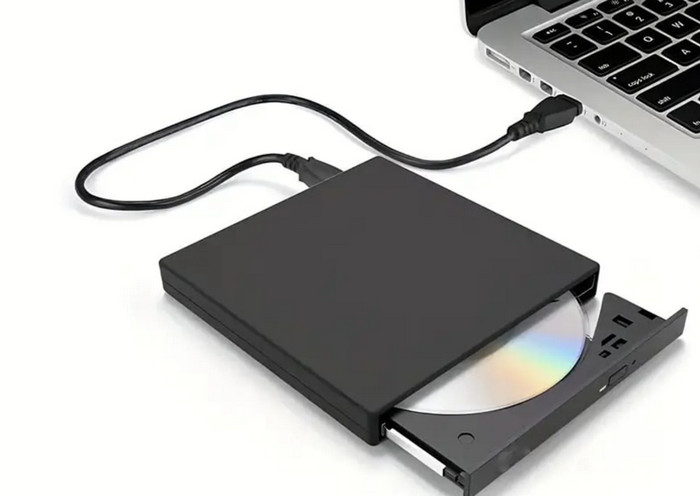
Most modern laptops and desktops no longer include a built-in DVD drive. If your computer does not have one, an external USB DVD drive is required, which is often the first concern users face when asking how do you play a DVD on a PC using newer hardware.
2. A Supported DVD Disc
Always check that the DVD is clean, scratch-free, and readable. Physical damage or region restrictions can prevent playback, which is a common issue for users learning how to play DVD on Mac for the first time.
3. Reliable DVD Playback Software
Windows 10 and macOS do not consistently include licensed DVD playback tools. Installing a trusted media player is essential for decoding video, audio, and menus correctly, especially if you are figuring out how to play DVD on Windows 11 without built-in support.
4. Updated System and Drivers
Keeping your operating system and optical drive drivers up to date helps prevent disc recognition errors. Most of the issues associated with playback failures that come with playing a DVD on Windows 11 can be linked to the use of old drivers as opposed to problematic discs.
5. Sufficient System Resources
DVD playback relies on stable CPU performance and available memory. Closing background applications can improve playback reliability, which is often overlooked by users asking how do I play a DVD on a Mac on older or slower systems.
Part 2. How to Play DVD on Windows and Mac
1. Tipard Blu-ray Player
Tipard Blu-ray Player is a professional media playback software designed for DVD and Blu-ray discs on modern computers. It is a viable alternative to the user who wants to know how to play a DVD on a PC when the default system players cannot operate because they do not have the required licenses or codecs. The software is platform-friendly and easy to operate, as well as being more stable.
Platform Supported:
- Windows and up to the latest
- macOS and up to the latest
Key Features:
- Plays DVDs protected by encryption and region codes
- Supports DVDs, DVD folders, and ISO files
- Avoids common playback issues caused by system limitations
- Requires no additional codecs or extensions
- Utilizes GPU acceleration to deliver high-quality and smooth playback
- Suitable for both beginners and advanced users
How to Use Tipard Blu-ray Player:
Step 1 Download now and install the software on your computer by clicking the download button that we have here. Follow the installation process, set up, and launch it.
Step 2 Connect the external disc drive to the PC, but if there is already a pre-built driver, then you can skip this step.
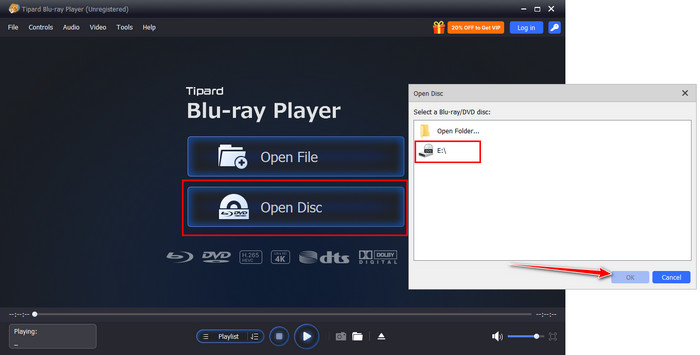
Step 3 Put the DVD into the disc driver, click the Open Disc on the interface, click the E:\ with the name of the disc, then click OK.
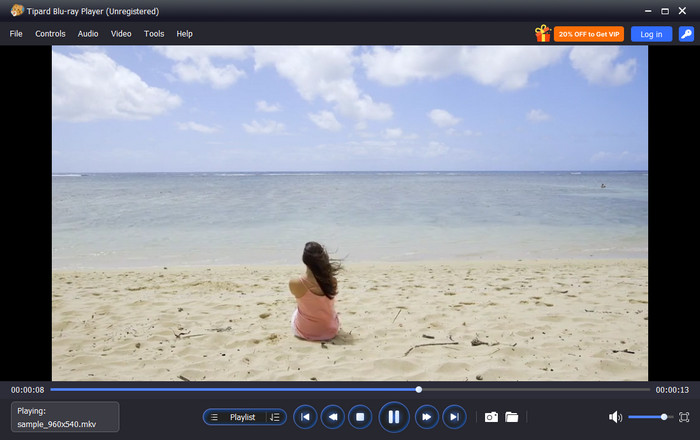
Step 4 After that, the DVD file will automatically be played on your computer screen like a standard portable DVD player.
- Simple and clean interface
- Smooth playback without lag
- Works on Windows and macOS
- No complex setup required
- The free version has feature limitations
- Not intended for disc authoring
2. Leawo Blu-ray Player
Leawo Blu-ray Player is a no-cost media player that supports DVD playback on both Windows and macOS. It is often chosen by users who ask how can I play a DVD in Windows 10 when the system does not include built-in DVD support. The software focuses on basic playback, disc compatibility, and ease of access.
Key Features:
- Supports DVD and Blu-ray disc playback
- Basic DVD menu navigation
- Compatible with DVD folders and ISO files
- Works without additional codec installation
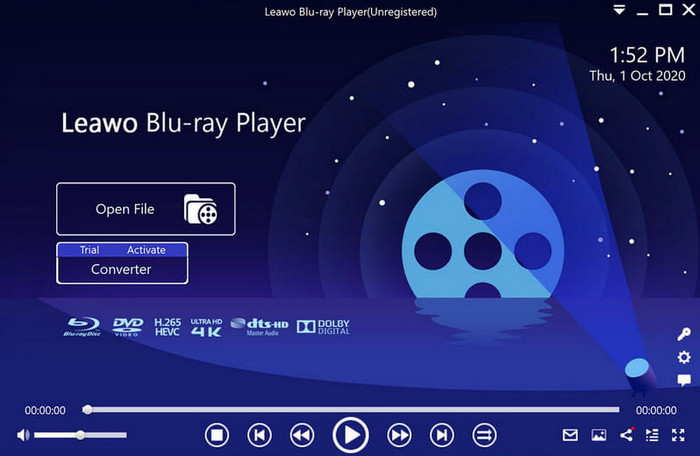
Steps on How to Use It:
Step 1 Download and install Leawo Blu-ray Player on your computer.
Step 2 Insert the DVD into your built-in or external DVD drive.
Step 3 Launch the software and click Play Disc on the main interface.
Step 4 Select the DVD drive and start playback.
- Free to use for DVD playback
- Simple interface for beginners
- Supports both Windows and macOS
- Displays ads during playback
- Limited advanced playback controls
Part 3. FAQs of Playing DVD on Windows and Mac
1. Why won't my DVD play on my Mac?
A DVD might not work on a Mac since the latest versions of macOS do not have the support of built-in DVD support. Problems can also result when playback parts are missing, the region is limited, or damaged discs are used, or incompatible external drives are used. These issues are usually addressed with the help of good DVD player software.
2. Why is my DVD player not permitted on my Mac?
This is shown most often when the macOS blocks out-of-date or incompatible playback tools. The system security rules or even the licensed support have prevented the use of some older DVD apps.
3. Can I play a DVD without an optical drive?
Yes, there is still the ability to play DVDs without an in-built optical drive. An external USB drive in which you have saved your computer files can be used as an option. A portable DVD player is another alternative, and it does not depend on any computer or operating system.
Conclusion
The initial experience of DVD playback on the modern computer can be confusing, but the answer can be very simple. DVDs can be easily watched both on Windows and on Mac with the appropriate DVD drive, suitable software and a couple of steps of setup. There are no special tools or technical abilities to start with. Once everything is ready, you can play DVD for free on Windows 10 and enjoy your movies without extra cost or hassle.
More Reading



About the Author

 Click here to join the discussion and share your comments
 Tipard Blu-ray Player