

Discs can wear out with time, so many users move their videos to safer digital files. The hard part is choosing tools that are safe, stable, and easy for beginners. Some users also deal with slow reads, file errors, or noise from old drives.
Learning the basics of DVD copy gives you a clear start and helps you avoid failed transfers. This guide aims to help you in simple terms with useful insight. Next, you will see top software picks, steps you can follow at home, and answers to common searches.
Part 1. Top DVD Copier Software Reviews
DVDs can get damaged or worn out over time. Backing up your discs keeps your videos safe. Choosing the right DVD copy software helps you avoid errors and failed transfers. In this section, we look at the top tools for home and professional use. Each program is checked for ease of use, speed, and output quality. You will see the strengths and limits of each software and which one works best for different needs.
1. Tipard DVD Cloner
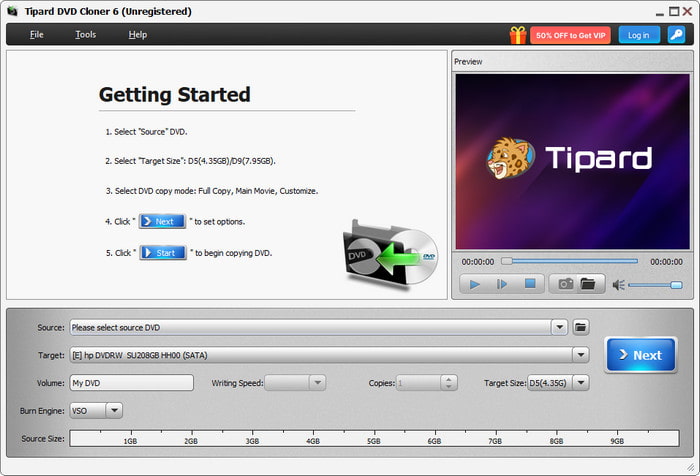
Tipard DVD Cloner offers the best mix of speed, clarity, and stability. It provides users with steady results, even when working with old or scratched discs. Its clean layout makes the process simple for beginners and steady for advanced users. Tipard also runs well on older systems, which helps users who still depend on DVD copy software on Windows XP machines. It stands out for strong read control, fast output, and clear copy modes. This makes it the best choice for anyone who needs a trusted tool for daily backup tasks.
- Clear and simple layout
- Strong handling of damaged sectors
- Light system load
- Several copy modes
- Works with older Windows versions
- The free version has limits
2. DVDFab DVD Copy
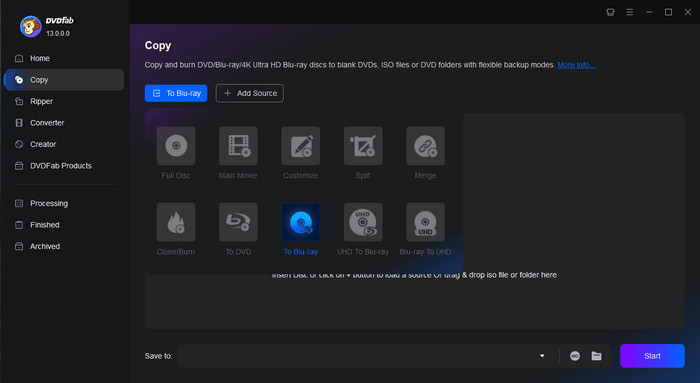
DVDFab DVD Copy is a powerful tool with many advanced features. It supports a wide range of formats and gives steady output for clean discs. It works best on newer systems due to its heavy system use. The layout offers many options, which may feel complex for beginners. Still, it performs well as a full-featured DVD copier for users who need more control.
- Many copy modes
- Clear output quality
- Wide format support
- Heavy on system resources
- Paid version needed for the full set of tools
- Steeper learning curve
3. WinXDVD
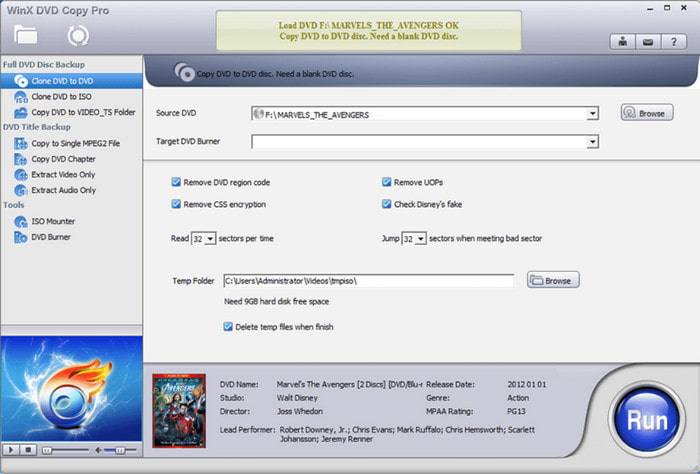
WinXDVD is simple, easy to learn, and friendly for light backup work. It gives steady results on most discs and runs well on mid-range systems. Slower drives may drop the read speed, but the output stays clear. It serves well as a basic DVD copy software option for users who want quick and clean results without complex settings.
- Easy for beginners
- Fast setup
- Good quality for clean discs
- Slow on older drives
- A few advanced features
- Not built for badly scratched discs
4. Burn4Free
Burn4Free is a free and lightweight choice for simple backup needs. Long movies may take more time to process, and the layout may feel outdated, but they remain useful for small tasks. It works best as an entry-level DVD copy program for users who need a quick or short-term solution.
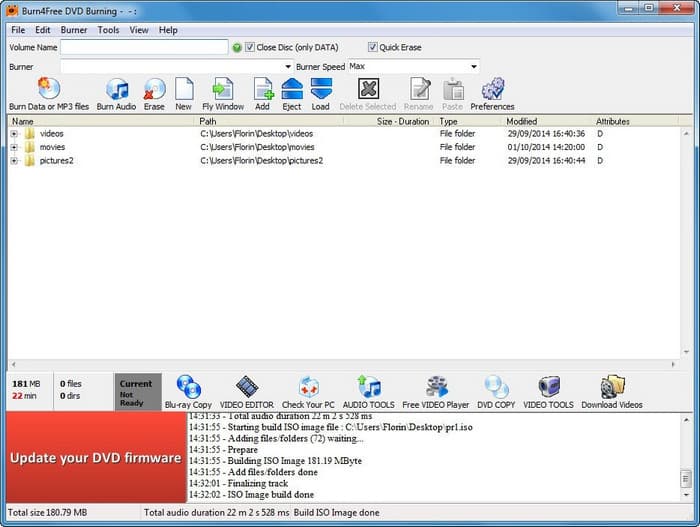
- Free to use
- Very light on the system
- Easy for basic copying task
- Old interface
- Slower processing on long files
- Lacks advanced repair tools
5. DVD-Cloner XR
DVD-Cloner XR offers fast performance and a clean, modern layout. This DVD-to-DVD cloner handles several copy modes and produces stable files. The cost is higher than others, and some features require paid upgrades, but it is still strong as a premium DVD-to-DVD copy software for users who want a polished tool.
- Modern design
- Fast and stable output
- Several copy modes
- Higher price
- Add-ons cost extra
- Trial has limits
Part 2. Detailed Steps for Copying a DVD at Home
If you want a simple and reliable way to back up your discs, Tipard DVD Cloner is the best choice. It is easy to use, works with old and new DVDs, and offers stable copying with minimal errors. It also supports multiple copy modes like Full Disc, Main Movie, and Customize, making it ideal for home users.
Step 1 Launch the dvd copy software on your computer so you can load and prepare your disc for copying.
Step 2 Click the File button at the top left or use the Source dropdown. Select your DVD, ISO file, or DVD folder so the program can read the content.
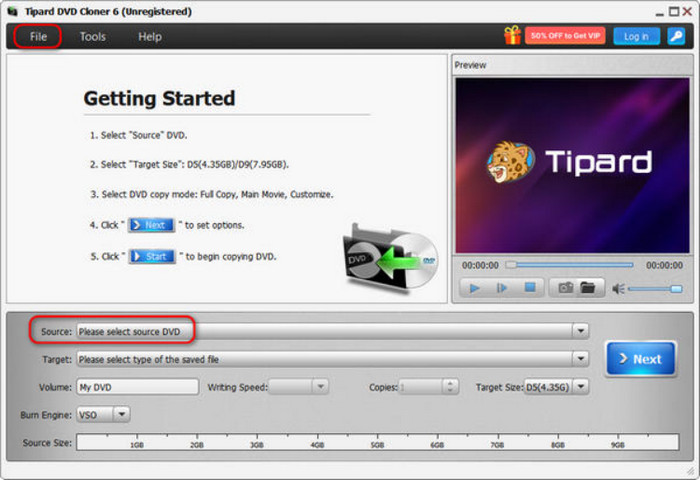
Step 3 Pick Fully Copy if you want everything. Select Main Movie if you only need the main title. Use Customize if you want to choose specific chapters or audio tracks. After selecting, click Next.
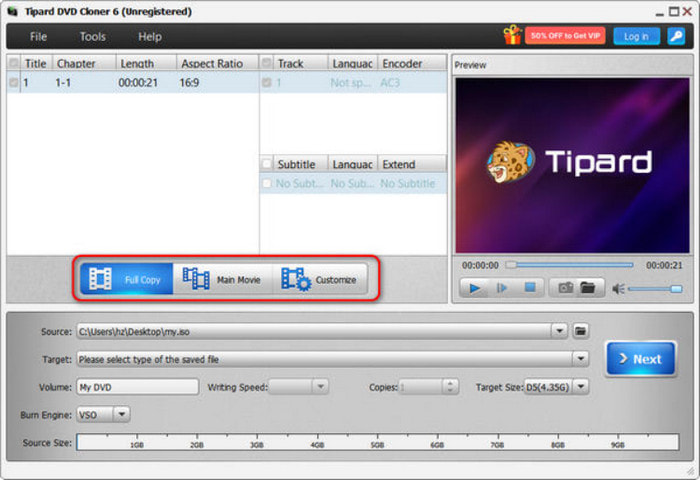
Step 4 Use the Target dropdown to choose a blank DVD or save the copy as an ISO file or DVD folder on your computer.
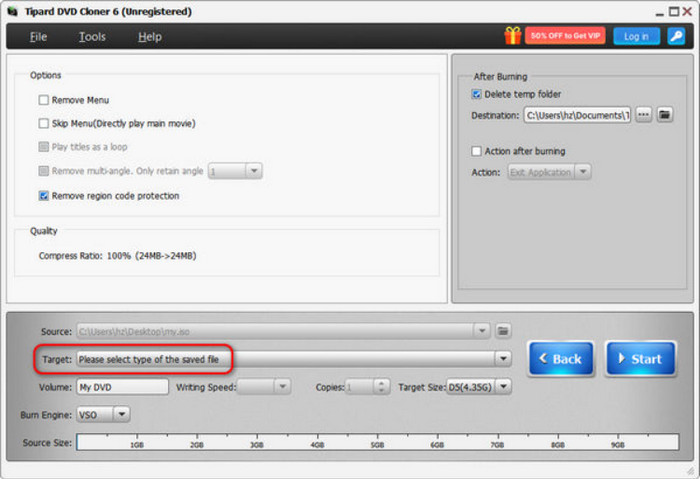
Step 5 Click Start. The software will read the source and create a copy according to your selected mode and output.
Step 6 After the process finishes, play the new DVD or ISO to ensure that the video, audio, and menus work as expected.
Part 3. Common Searches of DVD Copiers
Many people have questions about DVD copiers. Most searches focus on the same things. People want to know how to copy DVDs safely. They also ask which software is easy to use. Others want to know what tools work best at home or for business. This section will answer these common questions and help you choose the right solution.
1. What About Online DVD Copiers?
We do not recommend online DVD copiers. They make you upload your disc to a remote server, which can risk your privacy. Uploading large files can take a long time, and the process may fail if the server has problems. Overall, online DVD copiers are slow, risky, and not reliable for backing up discs.
2. What About DVD Copier Hardware?
When people search for a “DVD Copier” on Amazon, they often mean standalone DVD duplicators. These are machines made for copying many discs at once. They can feed discs automatically and check copies for errors. They work well for businesses but cost a lot. Most home users do not need them.
3. What About DVD Copier Apps?
Real DVD copying apps for smartphones do not exist. Phones do not have DVD drives or the right system access to copy discs. Some apps can extract video from DVD files on your phone, but they cannot copy a full DVD. For real backups, you need desktop software or hardware.
Conclusion
Using the right DVD copier makes backing up DVDs safe and easy. Tipard DVD Cloner is fast, stable, and simple to use. Choosing the right copy mode and target helps avoid errors. For home or small backups, a good dvd copier keeps your videos safe and clear.
More Reading
About the Author

 Click here to join the discussion and share your comments
 Tipard DVD Cloner