

Maybe you are still one of the people who take videos and store them on a DVD to play on the TV or a home theater. That's a great pleasure and joy sharing or watching DVDs on a DVD player. Among all video formats, MKV can keep the most audio and subtitle tracks, which is very good for burning or authoring a DVD.
Therefore, if you have MKV videos and want to play them on a DVD player, you can convert MKV to DVD to enjoy high quality and an exciting watching experience. How can you do that? Just check the 5 ways to burn MKV files to DVD in this article.

Part 1: Things to Prepare Before Burning MKV to DVD
Matroska Multimedia Video or MKV is a multimedia container that allows users to incorporate files like videos, subtitles, audio, and images in a single file. When you burn MKV to DVD, the MKV format will be changed to a DVD-supported format, like VOB or MPEG. Therefore, you should choose a reliable DVD burner that can keep the high video quality of your previous MKV files. There are 4 things you need to prepare to make MKV to DVD format successful.
1. Prepare MKV Files
Ensure that your MKV videos are playable. If you have videos in other formats, it's also feasible to burn them to DVD. A reliable DVD burner software can convert different videos to the DVD format together.
2. DVD Disc and Storage
You should have a blank DVD disc or a rewritable disc. The amount of storage space for a DVD will depend on the sizes of your MKV files to burn. A single-layered DVD disc usually holds 4.7 GB, while a double-layered DVD can store up to 8.5 GB of data.
3. Reliable DVD Authoring Software
To burn MKV to DVD, you should have reliable software to perform the work efficiently. We will move on to the next part to introduce you to the best MKV to DVD burning software to burn MKV to DVD.
Part 2: 5 Excellent Ways to Burn MKV to DVD on Windows and Mac
Let's quickly dive into the 5 best MKV to DVD converters that are most popular this year.
1. Tipard DVD Creator
Topping the best free MKV to DVD converters is the sleek and efficient Tipard DVD Creator. It allows users to convert any video format, including MKV, MP4, MOV, MTS, and other popular or rare formats, to DVD or Blu-ray.
Before burning your MKV videos on the DVD, Tipard DVD Creator lets you add a touch of creativity to your project by customizing DVD menu navigation, background music, and photo. Moreover, this program also features a video editor where you can trim, rotate, and even add filters to your files to make them crisper. To burn MKV to DVD on Mac or Windows easily with Tipard, you can follow the guide below.
Key Features of Tipard DVD Creator
- Allow you to keep or change the multiple audio and subtitle tracks in MKV files.
- Offer many video editing and DVD structure customization features.
- Provide many magnificent and free menu templates for DVD or Blu-ray burning.
- Offer a clear interface and easy-to-understand workflow.
How to Burn MKV to DVD with Tipard DVD Creator
Step 1 Install the best MKV to DVD converter
Download and install Tipard DVD Creator on your Windows or Mac computer and launch it. Insert your blank DVD disc into your disc drive and connect it to your computer.
Step 2 Import MKV files
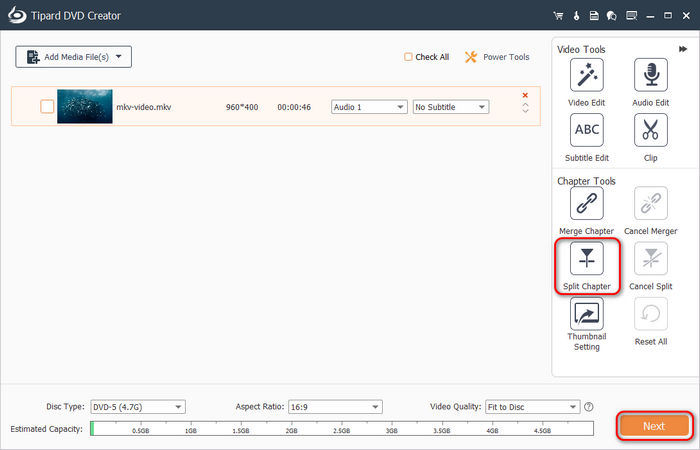
Click the Add Media Files button at the center of the screen to add your MKV files. Then, you can use the Video Tools and Chapter Tools on the right side to edit your MKV videos. For example, you can use the Split Chapter feature to split your MKV video into multiple chapters. Then, click the Next button to continue.
Step 3 Customize DVD menu
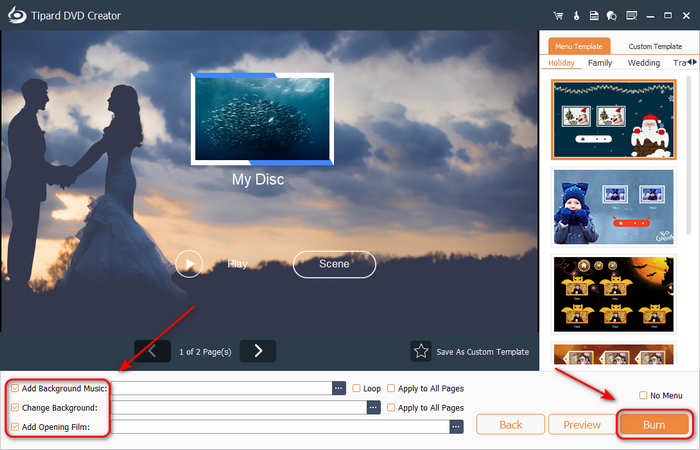
This is an important step. You can choose a free DVD menu template. Then, you can change the position of the control buttons and videos on the menu. From the bottom left side, you can also change the background music and image, and even add an opening film for your DVD. Then, click the Next button to continue.
Step 4 Burn MKV to DVD
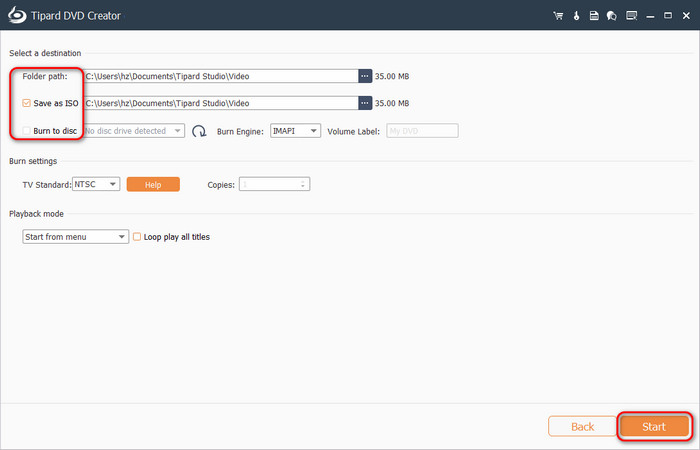
This is the final step. You can choose to burn MKV to DVD disc, ISO image, or a DVD folder. Then, click the Start button to start the process. A notification box will appear stating that the process is finally complete.
- Offer chapter makers and many video editing tools.
- Customize DVD menu background photo and music.
- Support DVD-5 and DVD-9 capacities.
- Burn MKV to DVD disc, ISO image, and DVD folder.
- The interface can be more fashionable.
2. Freemake Video Converter
Freemake Video Converter is a feature-rich software that allows you to do various things, including burning MKV files to DVD. You can efficiently store your video, audio, and subtitle tracks in an MKV file and add a DVD menu and split chapters. However, Freemake can only be accessed on Windows devices, and the interface may be confusing, especially when you want to add a free menu and customize the DVD structure.
Key Features of Freemake Video Converter
- Quickly add MKV files and select DVD as the output.
- Offer many free DVD menu templates.
- Let you trim your MKV videos before burning.
- Burn MKV to DVD-5 or DVD-9.
How to Burn MKV to DVD with Freemake Video Converter
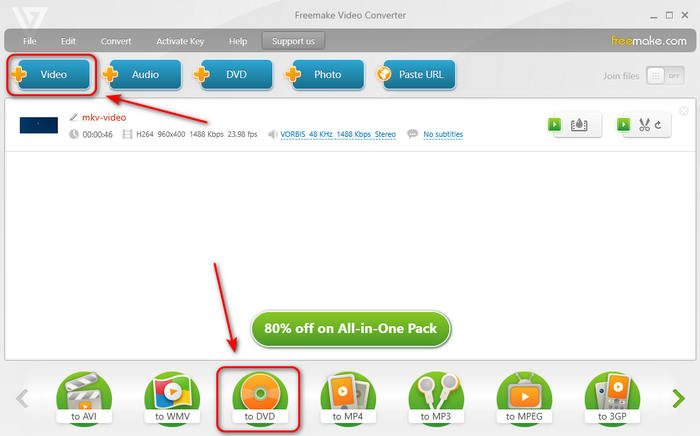
Step 1 Launch Freemake Video Converter and click the Video button on the top left side to add your MKV video to this MKV to DVD converter. You can use the editing features to edit your MKV video in advance. Then, click the to DVD button on the bottom side.
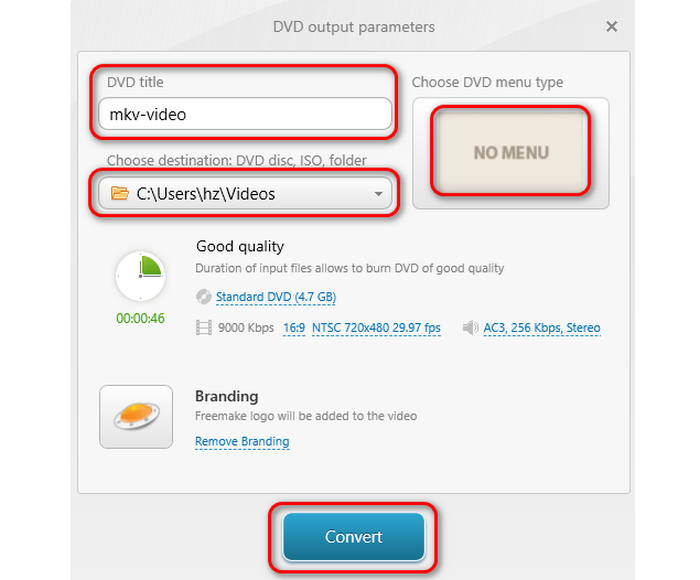
Step 2 In this window, you can click the Menu button to choose a free DVD menu. You can also change the menu background. Then, you can change the title name, and then choose a destination and output format, including DVD, ISO, or DVD folder. Finally, click the Convert button to burn MKV file to DVD easily.
- Offer customizable DVD menu templates.
- Offer advanced video editing features.
- Support DVD, ISO, and folder output formats.
- The DVD editing features are not noticeable.
- It will add a watermark to your DVD.
3. DVDStyler
DVDStyler is the best free MKV to DVD converter on Mac computers. It offers rich video and DVD editing features. You can adjust the DVD capacities, aspect ratio, and video/audio bitrate. You can also choose a free DVD menu before burning MKV to DVD. But you cannot use your own image as the background. It only supports a simple and static DVD menu.
Key Features of DVDStyler
- It's free and feature-rich.
- Customize video settings in DVD.
- Support mini DVD capacity.
How to Burn MKV to DVD with DVDStyler
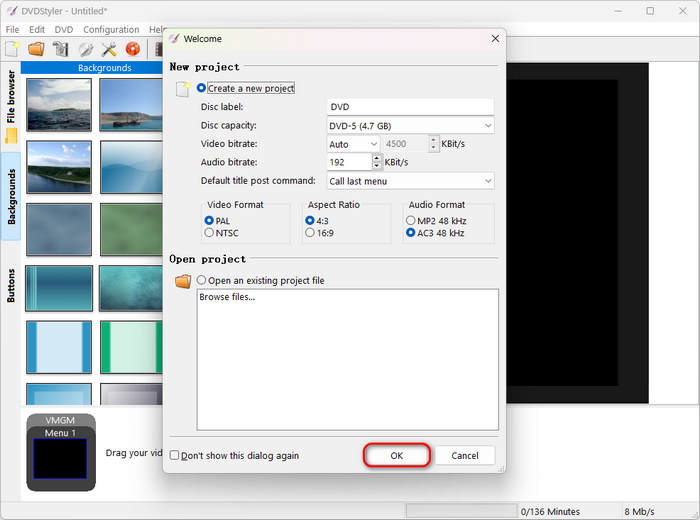
Step 1 Launch DVDStyler, and it will ask you to create a new project. You can customize the DVD settings, including bitrate, aspect ratio, audio format, etc. Then, click the OK button to create your project.
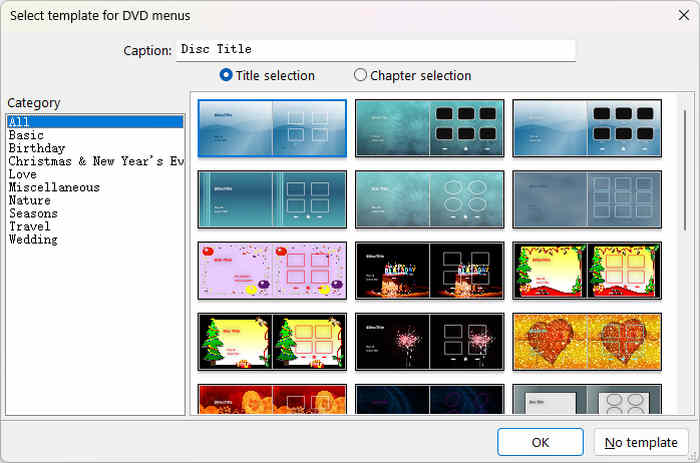
Step 2 In this step, you can choose a DVD menu. However, you cannot change the menu background or add a BGM. You can also choose no DVD menu but just burn MKV file to DVD format without authoring features.
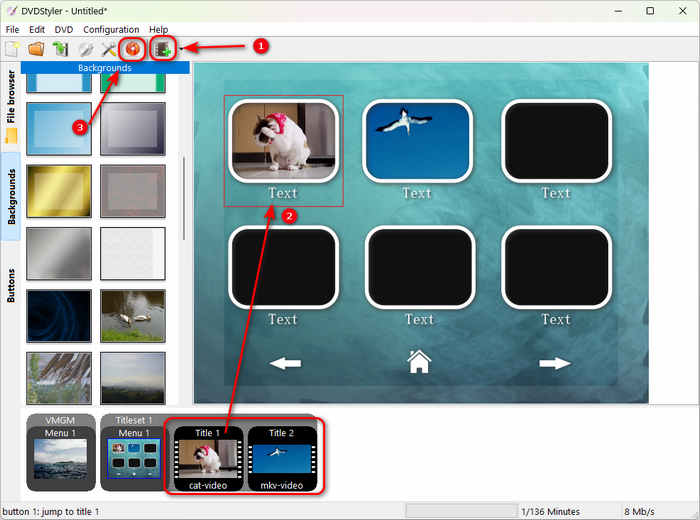
Step 3 This is an important but difficult step. Click the Add File button on the top side to add your MKV video to this program. Then, you can drag the video to the chapter box on the menu. You can also double-click the chapter box to edit it. Finally, click the Burn button to convert MKV file to DVD format easily.
- Offer rich DVD editing features.
- Offer many DVD menu templates.
- Allow you to add a main menu and multiple submenus.
- No video editing feature for your MKV video.
- It's difficult to arrange the DVD menus and chapters.
4. Windows DVD Maker
Windows DVD Maker, developed by TopWin, is not that popular but a robust program that can burn MKV to DVD on Windows 10 or 11 easily on Windows computers. It has a neat and understandable interface that guides you to add MKV files, choose and adjust the DVD menu, and burn MKV to DVD free. Not like other free and popular DVD burners, Windows DVD Maker works smoothly and stably on all Windows versions.
Key Features of Windows DVD Maker
- Offer video and chapter editing features for your MKV and DVD.
- Provide multiple free DVD menu templates.
- Allow you to adjust the burning speed.
How to Burn MKV to DVD with Windows DVD Maker
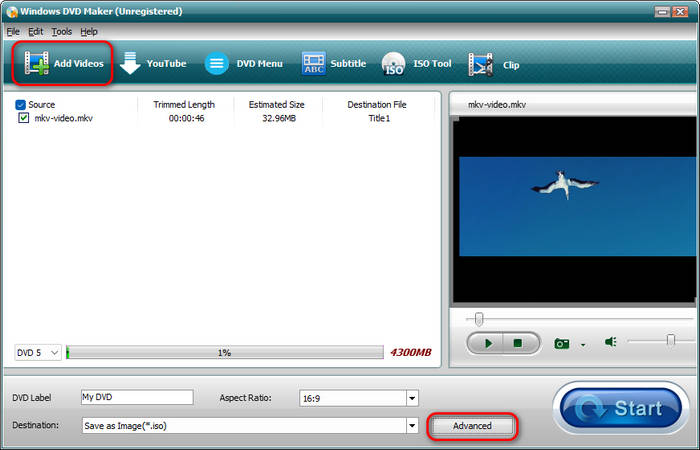
Step 1 Launch Windows DVD Maker and click the Add Videos button on the top left side to add your MKV files to this program. Then, you can click the Advanced button on the Destination tab (you can also choose output format here) to edit your DVD.
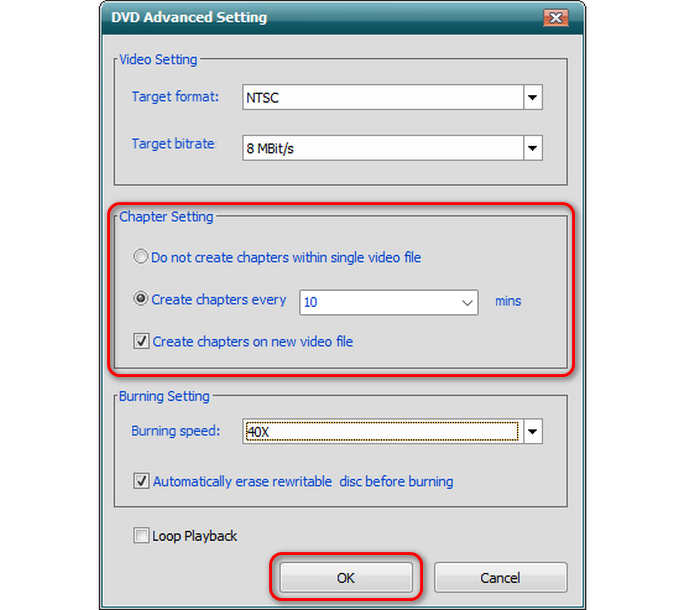
Step 2 In this window, you can adjust the DVD format and bitrate before burning MKV to DVD. What's more important is that you can split your MKV videos into multiple chapters here. Then, click the OK button to confirm.
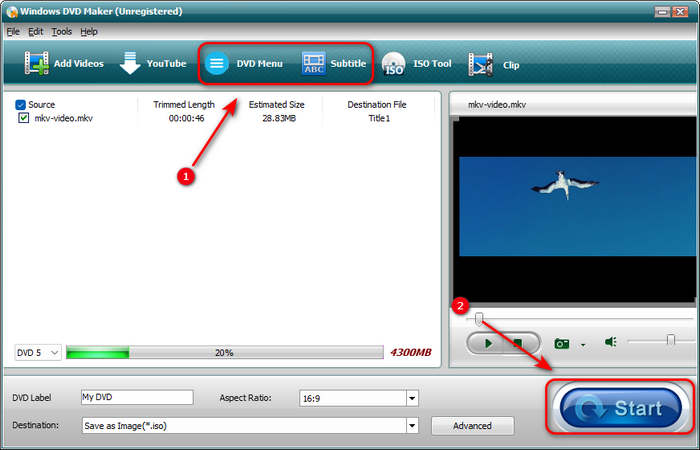
Step 3 This program automatically adds a DVD menu for you. You can also click the DVD Menu button to choose another DVD menu. You can also click the Subtitles button to add subtitles to your MKV video. Finally, click the Convert button to convert MKV file to DVD format easily.
- Clear interface with easy workflow.
- Work smoothly without lag or crash.
- Quickly burn videos to DVD.
- The DVD menu is not very customizable.
- It's not easy to find the chapter editing feature.
5. DVDFab DVD Creator
One of the reliable programs to burn MKV to DVD on Windows 11/10 and Mac devices is DVDFab. This exemplary tool supports over 200 video formats like MKV, MP4, M2TS, and more, and burns them to your desired DVD capacities like DVD-5 and DVD-9.
Moreover, DVDFab offers different free and stylish menu templates, making it a next-level approach to burn MKV file to DVD. However, the price of DVDFab is high, and it includes many other features in the program, which makes the program too heavy.
Key Features of DVDFab
- Can help you generate an video title image.
- Offer many DVD capacities like DVD-5 and DVD-9.
- Provide rich editing features like crop, clip, rotate, etc.
How to Burn MKV to DVD with DVDFab
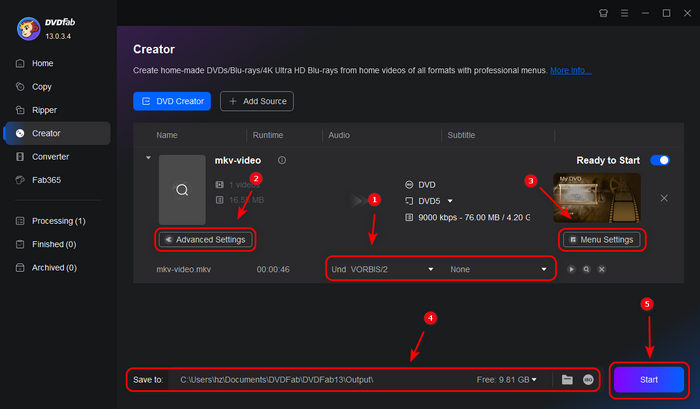
Step 1 Launch DVDFab and choose the Creator tab. Then, click the Add Source or the Add button in the middle to import your MKV videos to DVDFab.
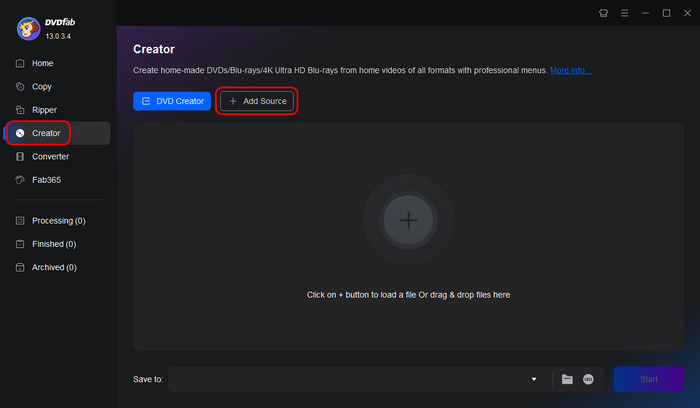
Step 2 In this window, you can directly adjust the DVD capacity, DVD audio, and subtitle tracks. You can click the Advanced Settings button to adjust the DVD aspect ratio and bitrate.
You can also click the Menu Settings button to choose a free DVD menu template and adjust the background image. Finally, choose your disc drive in the Save to section and click the Start button to burn MKV to DVD.
- The interface is understandable and fascinating.
- Allow you to choose and adjust the DVD menu.
- Support DVD, Blu-ray, and 4K UHD Blu-ray output formats.
- No chapter editing features.
- The price is high and doesn't match its features.
Part 3: Comparison of 5 MKV to DVD Converters
You can also directly view the comparison table of the 5 MKV to DVD converters. Maybe you can easily find your desired way from the table.
| Platform | DVD Menu | Split Chapter | |
|---|---|---|---|
| Tipard DVD Creator | Windows and Mac | Offer customizable DVD menu templates | Easily split videos to chapters or merge them |
| Freemake Video Converter | Windows | Offer free DVD menu templates | Can only split chapters |
| DVDStyler | Windows and Mac | DVD menu templates are not customizable | No |
| Windows DVD Maker | Windows | DVD menu templates are not customizable | Can only split chapters |
| DVDFab | Windows and Mac | Offer free DVD menu templates | No |
Part 4: FAQs about Burning MKV to DVD
Is MKV or MP4 better for DVD?
Neither MKV nor MP4 can be directly put in a DVD. They will be transcoded to VOB format in the MPEG-2 codec.
Can I burn MKV to DVD with HandBrake?
No, you can't. HandBrake can convert videos and rip DVDs, but it cannot burn video MKV or any other video to DVD. It has no DVD burning or authoring feature.
Can I burn MKV files to DVD online?
No, you can't. There are online tools that can convert MKV to DVD formats like VOB or MPEG, but they cannot burn or author a DVD.
Conclusion
These five programs can help you burn MKV to DVD with unique features and an ultimate user experience. However, if you want to quickly burn MKV file to DVD, Tipard DVD Creator is a good choice among the 5 best MKV to DVD burning software. It has rich DVD menu, chapter, and title editing features. It also works very quickly and smoothly to burn MKV to DVD format.
More Reading


About the Author

 Click here to join the discussion and share your comments
 Tipard DVD Creator