

Despite the rise of streaming platforms, some people still have collections of DVDs filled with favorite movies, personal recordings, or TV shows, but since iPads don't have disc drives, playing them directly isn't possible. This is where the DVD ripping process comes in handy. This procedure is ideal if you want to watch your DVDs on an iPad with a compatible format. So, if you are looking for the best way to convert your DVD to your iPad device, you must visit this post. We are here to give you various methods for a successful video playback. Without anything else, see this guide post and learn how to rip a DVD to an iPad effectively.

Part 1. Can an iPad Play a DVD
Can you play a DVD on an iPad? Well, the answer is no. You cannot directly play a DVD on your IPad since it does not have a built-in disc drive. Plus, the hardware required to read/detect optical discs. With that, if you want to watch any DVD content on your device, the best thing to do is to convert it first into an iPad-compatible format, such as MP4, MOV, M4V, HEVC, and H.264. Then, you have to transfer the converted file through apps, such as cloud storage, Finder, iTunes, or cables. With that, you can enjoy your favorite videos without encountering any issues.
If you are interested in learning the most reliable methods to rip and transfer DVD onto your iPad device, you can start reading all the information from the preceding sections.
Part 2. How to Rip DVD to iPad Compatible Format
Want to play a DVD on your iPad? In that case, the best solution you can do is to rip it to an iPad-compatible format. If you need the best DVD ripper, you can use Tipard DVD Ripper. This free-to-use program is perfect for achieving your objectives since it has various features to offer. It can give you a smooth ripping process for an instant result. Plus, it can handle both iPad and iTunes support formats, making it ideal for all users. The best part here is that you can upscale the videos up to 4K for a better video playback. You can even access AI-powered technology to enhance your overall content.
Furthermore, you can utilize various editing features to improve your videos. You can modify/change the aspect ratio or crop the video based on your preferred size, trim, add filters for a slight beautification, rotate, insert a watermark, and more. You can also convert your DVDs into different digital formats, such as MP4, M4V, MKV, MOV, AVI, FLV, VOB, and many more. With that, if you need an exceptional editor and ripper, look no further than Tipard DVD Ripper.
Operating System: Windows and Mac
Features:
- The program can offer a fast ripping process for an instant result.
- It supports various DVD types, such as DVD-RAM, DVD-R DL, DVD-RW, etc.
- It can save a DVD to ISO and a DVD folder, ideal for preserving data.
- The software can support 500+ video formats.
- It can provide various video editing features for improving videos for better video playback.
You can follow and check the simple instructions below and get insights on how to rip a DVD to an iPad successfully.
Step 1 Click the button below to start downloading Tipard DVD Ripper on your Windows or Mac. After that, start launching it to begin the DVD ripping procedure. Use the buttons below to gain instant access to the program.
Step 2 After you open its main interface, proceed to the Ripper section. Then, open your DVD file by tapping the Load DVD button.
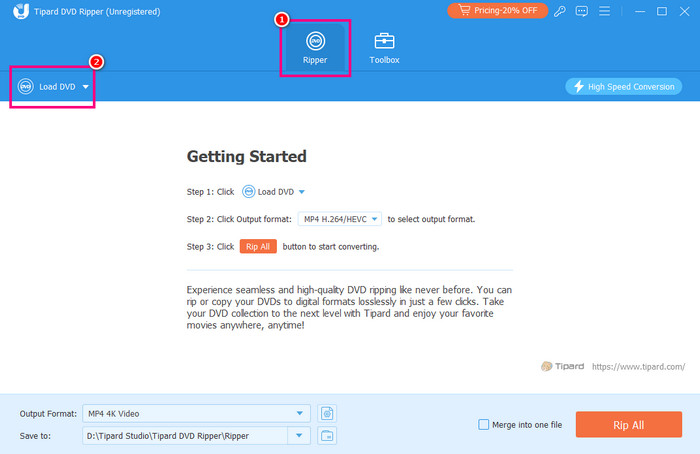
Step 3 Navigate to the Output Format section and start selecting your preferred format. You can choose MP4, MOV, M4V, and HEVC, since these are the formats that iPad supports.
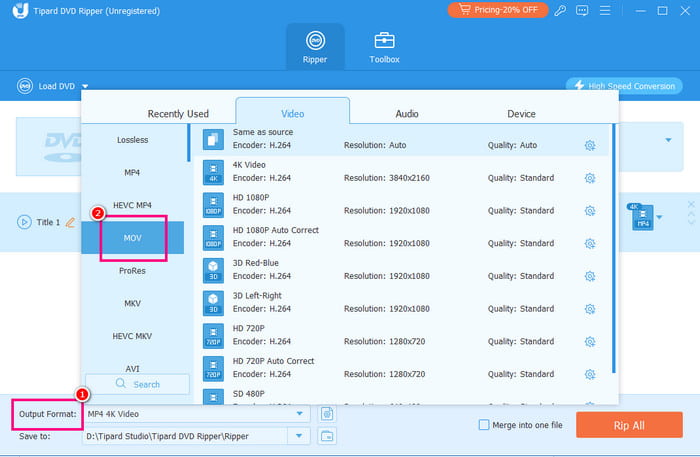
You can also select the 4K resolution under the quality section for a satisfying video playback.
Step 4 For the last process, click the Rip All button below to start ripping and digitizing your DVD.
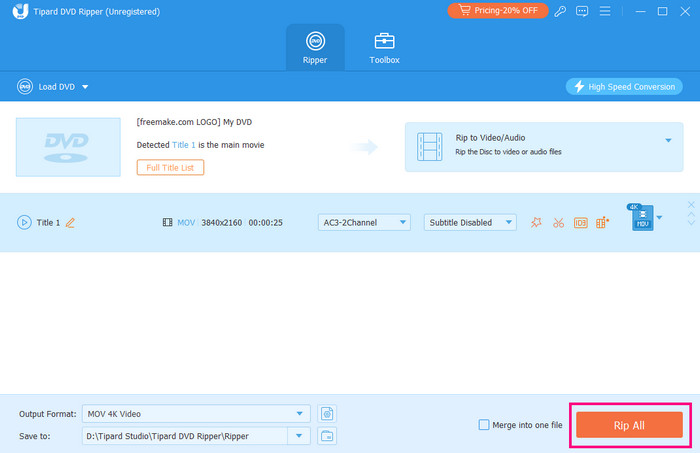
Once the ripping process is done, you can now start opening the video on your video player and enjoy a smooth video playback.
Why We Selected It
With this excellent ripper, you can tell that you can achieve the result you need after the ripping process. The program has a comprehensive user interface, a fast ripping process, and an AI-powered tool for an accurate output. You can even rip a DVD to an iPhone using this process. With that, we can conclude that Tipard DVD Ripper is among the programs you can rely on.
Part 3. How to Transfer DVD to iPad
Can you transfer a DVD to an iPad? Well, if you have already converted your DVD, then transferring it to your iPad device is a possible task. You can check the steps below to transfer a DVD to your iPad easily.
Method 1. Transfer via USB Cable
One of the most effective solutions you can use to transfer the converted DVD to your iPad is to rely on a USB cable. With this helpful method, your computer can detect your iPad. After connecting the two devices, you can begin browsing the converted DVD and transfer it to the iPad via the copy-and-paste method. Take note that the cable you use is suitable for transferring files since some cables can only be used for charging purposes. After the process, you can start watching the video.
Method 2. Transfer via iTunes
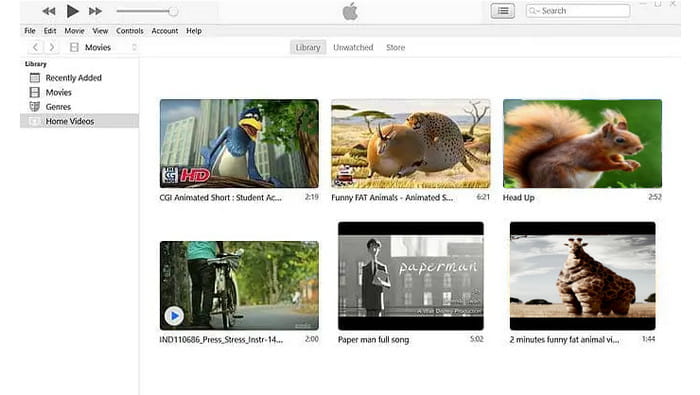
You can also transfer or import a DVD to iTunes. All you need is to sync your iTunes to your iPad. Then, browse the converted DVD and add it to your iTunes Library. Once done, you can check your iTunes and view the video. If it is already there, then you can start watching it without any issue. Take note that for effective syncing, you must use the same Apple ID/account.
Conclusion
Converting a DVD to an iPad is the ideal way for better video playback. With that, you can use all the recommended methods from this post to obtain your main goal. You can use Tipard DVD Ripper to smoothly turn your DVD into various video formats, such as MP4, M4V, MOV, and more. You can access various editing tools, like cropper, rotator, trimmer, filter, and more, to get a better version of the video. The good part here is that you can save the video with 4K resolution, making the ripper remarkable.
More Reading

About the Author

 Click here to join the discussion and share your comments
 Tipard DVD Ripper