

Videos are a big part of digital life, and picking the right format is important. The format you choose affects video clarity, file size, and which devices or platforms can play it. Among the many options, MOV and MP4 are two of the most popular and widely used formats.
In this guide, you will learn learn everything about MOV vs. MP4, covering their perks, key differences, and best uses. Not only that, but you will also learn a basic way to convert MOV to MP4 and vice versa.

Part 1. MOV vs MP4 - Quick Shot Comparison
When you want to save or share a video, you often see MOV and MP4 formats. What do you think about them? Is MOV better than MP4, or is MOV the same as MP4?
They look similar, but have key differences.
MP4 is a video file format that works on almost all devices. It is popular for sharing and streaming. It keeps good video clarity while keeping the file size small.
MOV is a format made by Apple. It works best on Apple devices and programs like QuickTime. MOV files can keep high video clarity, but they are usually larger than MP4 files.
Quick shot comparison:
- MP4: Smaller files, works everywhere, good for online sharing.
- MOV: Bigger files, best for Apple users, high quality for editing.
Part 2. MOV vs MP4 - Detailed Comparison
For a closer look, we will show a table to find out what is the difference between MOV and MP4 across different factors.
| Factor | MOV | MP4 |
|---|---|---|
| File Extension | .mov | .mp4 |
| Developer | Apple | Moving Picture Experts Group (MPEG) |
| Quality | Very high | High but slightly lower than MOV |
| File Size | Larger | Smaller |
| Compatibility | Best on Apple devices | Works on almost all devices |
| Video Codec Support | MOV supports ProRes, H.264, HEVC | MP4 supports H.264, H.265, HEVC |
| Audio Codec Support | AAC, ALAC | AAC, MP3 |
| Editing | Better for professional editing | Works fine, but less flexible |
| Compression | Less compressed | Highly compressed |
| Streaming | Less used online | Very popular for streaming |
| Show MoreShow Less | ||
Explanation of complex factors:
- Codec support: MOV can use Apple's ProRes codec. It keeps high quality for editing. MP4 usually uses H.264 or H.265. These keep clarity good but compress files more.
- Compression: MP4 files are smaller because they use high compression. MOV files stay larger to keep details, but you can use tools to compress MOV files.
- Compatibility: MP4 is compatible with the majority of video players, iOS, Android, and Windows. MOV is most compatible with Apple products.
- Editing: MOV files are easier to edit because they keep more video data. MP4 works for simple editing, but it can lose clarity if edited many times.
Part 3. Common Uses of MP4 and MOV
Now that you know the difference between MP4 and MOV, you might be curious about how each format is actually used. Both formats are popular, but they work best in different situations. Learn all that below!
Common Uses of MP4
- Streaming Videos Online: MP4 is an excellent format for online video viewing. Its compact size makes it compatible with streaming technologies like as MPEG-DASH and HLS. Additionally, it runs smoothly on web browsers.
- Social Media Platforms: Websites like YouTube, Facebook, Instagram, and TikTok prefer MP4. It uploads quickly, plays smoothly, and loses little clarity during automatic compression.
- Sharing & Playing Anywhere: MP4 works on phones, tablets, computers, and almost any device. It is also run on Windows, Mac, Android, and iOS. It makes sharing videos easy.
- Video Storage: MP4 balances clarity and file size. It is perfect for storing videos on devices or hard drives where space is limited.
- Mobile Devices: Most phones and tablets use MP4 for recording, playing, and sharing videos.
Common Uses of MOV
- Professional Video Editing: MOV can keep separate tracks for video, audio, subtitles, and more. It makes it a favorite in editing programs like Final Cut Pro and Adobe Premiere Pro.
- High-Quality Videos: MOV can use less compressed or even lossless formats like Apple ProRes. It keeps the original clarity intact, which is essential for professional projects.
- Archiving Videos: When you need to save the best possible clarity for future editing or long-term storage, MOV is a good choice because it is less compressed.
- Apple Devices: MOV is the default format on iPhones and iPads. It works perfectly with QuickTime and other Apple software.
- Layered Projects: MOV supports multiple tracks. It is useful for complex videos with separate audio, subtitles, or multiple camera angles.
Part 4. How to Convert MOV to MP4 or MP4 to MOV
With Tipard Video Converter Ultimate, you can easily convert MOV to MP4 or MP4 to MOV. It supports both formats for input and output, so you do not need a separate converter. It can handle everything!
It also supports batch conversion. It means you can convert many video files at the same time. Even better, the conversion speed is up to 60× faster. Fast, right? In just a short time, your converted videos are ready to use or share.
Step 1 Download & Install Tipard Video Converter Ultimate
Go to the official Tipard Video Converter Ultimate website. Download the installer for Windows or Mac. Once done, open the program and get ready to convert your video.
Step 2 Import MOV or MP4 Files
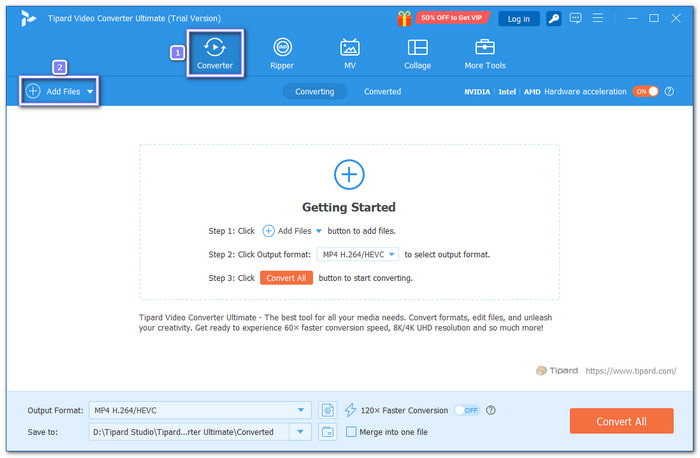
Import your MOV or MP4 file by clicking the Add File button. You can also select and drop the videos into the main screen. If you have many files to convert, you can add them together.
Step 3 Choose MP4 or MOV as the Output Format
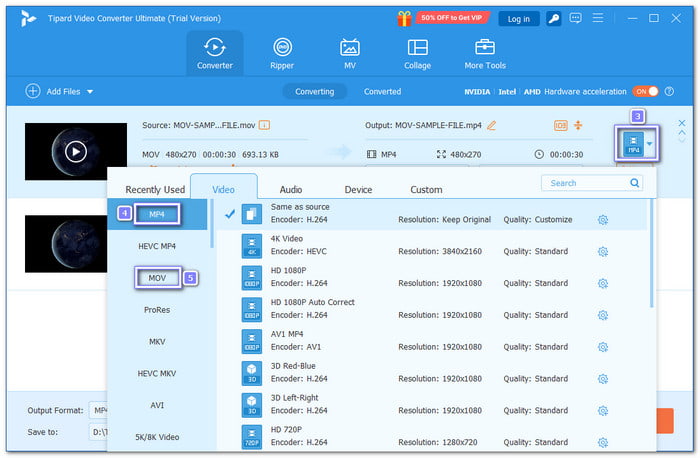
Look at the right side of the screen and open the Output Format menu. Head to the Video section and select MP4 or MOV.
Step 4 Adjust Video & Audio Settings
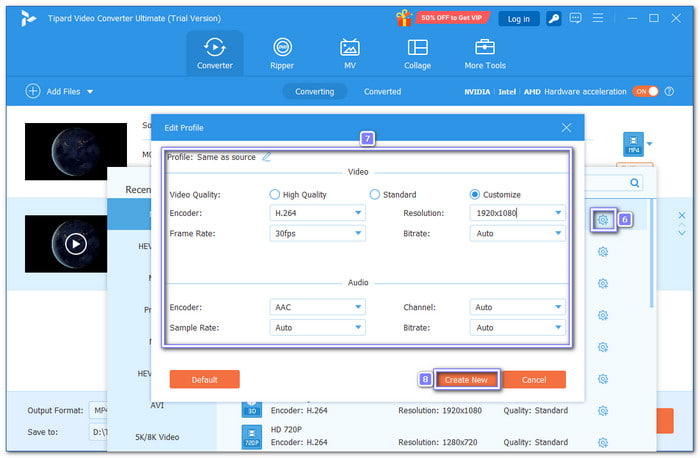
Click the Cogwheel button to customize your settings.
For Video, choose an encoder like H.264, H.265, XVID, or AV1. Set the resolution, frame rate, and bitrate based on your needs. For Audio, select an encoder such as AAC, AC3, MP3, OPUS, PCM, or FLAC. You can also adjust channels, sample rate, and bitrate.
Once finished, press the Create New button to save your custom profile.
Step 5 Start the Conversion Process
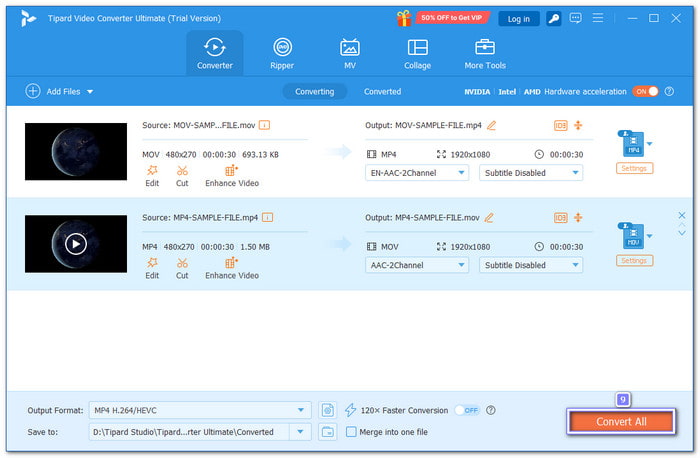
Hit the Convert All button to begin converting MOV to MP4 or MP4 to MOV. Once finished, the converted video will be saved to your local folder. Please open it and enjoy your new video!
Additional Information: Aside from converting videos, Tipard Video Converter Ultimate can also help you edit MP4 videos, as well as MOV. You can crop unwanted parts, trim the video length, apply filters to enhance the look, and even add a watermark to protect or brand your video.
Conclusion
Is MOV or MP4 better? The answer really depends on where you will use or share your video. MP4 is best for online sharing, streaming, and playback on most devices. MOV is better for editing and keeping high video clarity, especially on Apple devices.
If you want to enjoy the benefits of both formats, you can freely use Tipard Video Converter Ultimate. It is the best offline converter made for ease of use, fast speed, and high-quality output.
More Reading
About the Author

 Click here to join the discussion and share your comments
 Tipard Video Converter Ultimate