

An image to GIF converter is a powerful tool that turns static photos into engaging, animated visuals. Whether for social media, tutorials, email campaigns, or personal projects, GIFs add motion and creativity to your content. This guide explores the best converters, pro tips, and answers common questions for seamless GIF creation.
Part 1. Why Convert Images to GIFs?
They can instantly liven up content, and when still images are turned into animated GIFs, still images attain an added dimension of emotion and movement. These work wonders in illustrating ideas, capturing attention, or showing and sharing a moment.
- Social Media: On platforms where content is competed for with attention spans, GIFs are a great tool in any arsenal because they capture attention instantly and can loop without any user interaction.
- Tutorials & Demos: GIFs cut down the length of a tutorial and demonstrate instructions in steps without the user having to watch a long video.
- Email Marketing: GIFs are an eye-catcher and add a more animated touch to an email, thus promoting offers or even updates in a more effective manner.
- Personal Use: GIFs are a wonderful way of reliving and sharing memories.
Part 2. In-Depth Image to GIF Converter Showdown
1. Tipard Video Converter Ultimate [The Best All-Rounder]
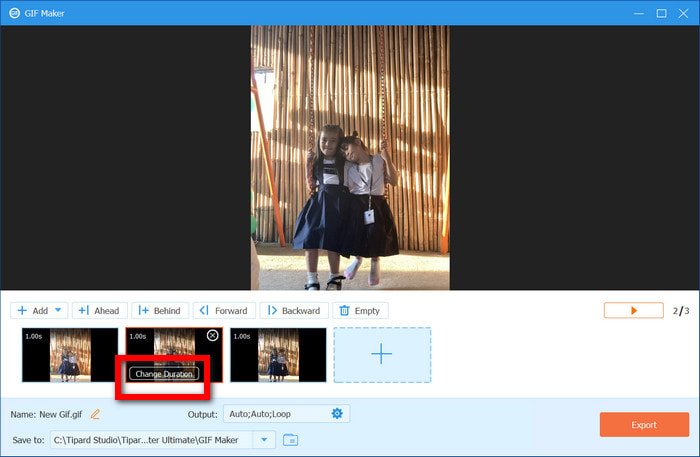
Offering one of the most versatile options is Tipard Video Converter Ultimate. It serves not only as a video and DVD converter; it also has the unique addition of a GIF Maker that can create high-quality GIFs from photos and videos. What sets Tipard apart from the competition is the level of quality offered and the simplicity of the software. Users of all experience levels can create GIFs without much stress.

- Ability to create GIFs from photos and videos seamlessly.
- Over 500 supported media file types and formats such as PNG, JPG, BMP, and MP4.
- Includes features that allow the user to crop, rotate, trim, and filter.
- Ability to edit frame rate and duration for smoother GIFs.
- Users have a chance to preview the GIF before it is finalized.

- Great for beginners; it is very user-friendly.
- Efficient with processing time due to GPU acceleration.
- Provides flexibility with the control of timing, frame, and effect.
- Batch processing.
- It may have more features than a typical user needs.
Best For: Professionals, marketers, and content creators who value customizable, high-quality animations and wish to produce GIFs from videos or images.
2. Ezgif
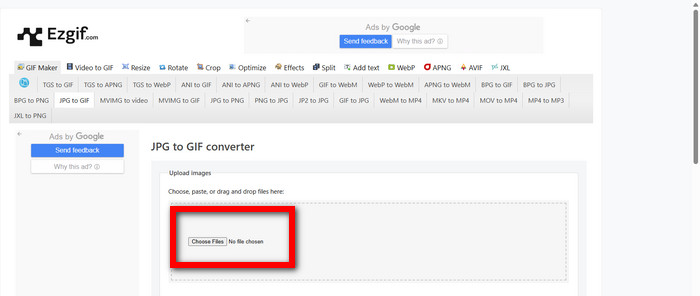
Ideal for straightforward, hassle-free conversions of images to GIFs, Ezgif offers a basic but functional interface. Since it is a web-based app, it requires no downloads and can be accessed from virtually any device, but it is most effective and efficient for smaller projects.
Key Features:
- Upload images or video clips directly in the browser.
- Rearrange frames and adjust GIF size and speed.
- Basic editing tools like crop, resize, and rotate.
- Preview GIFs before downloading.
- User-friendly web application that requires no downloads.
- Completely free of charge.
- Rapid processing with small projects.
- Not all users will be satisfied with the quality, especially with more intricate, multi-frame animations.
- Lacks advanced editing features.
Best For: Casual users or students who need quick GIFs for social media or small projects without any software purchase.
3. Cloudinary
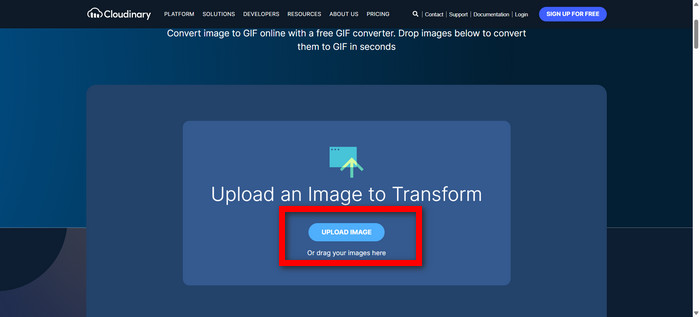
Cloudinary offers a wide array of features and is not limited to just GIF creation. In fact, it is a full cloud-based media management platform, and Cloudinary’s GIF creation is simply a small component of a larger offering. For marketers and developers,
Key Features:
- Tracks each conversion timestamp for each GIF created, visible in your dashboard for tracking GIFs created by your visualisation URL.
- Designed to increase performance on distributed systems.
- Optimises for web and mobile.
- Scalably handles images and video assets.
- Automated, increasing performance on distributed systems.
- Fully describes integrations with web services and applications.
- Expediting cloud-based services requires creating an account.
Best For: Digital marketers and developers managing streamer, video, and media assets in bulk, needing automated GIF conversion and stream optimisation.
4. Clipfly
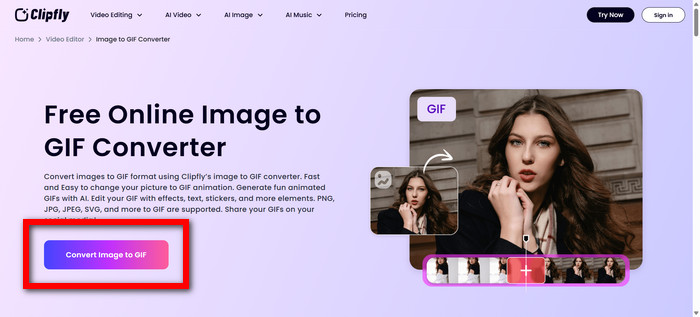
Clipfly has operated a fully online GIF creator that focuses on greater creation time and ease of use. Pre-made GIFs are in, and the portal has the needed customization to make for a solid finish.
Key Features:
- Untimed on creation with drag and drop templates.
- Moderation variable in GIFs to allow overlay of text.
- Text moderation is provided to allow GIF text.
- Moderately inept overlay with the option for revised filters.
- Some filters and overlays are provided.
- Overall, it has ease of use for less time.
- Relatively stable internet connection.
- Editing for complex GIFs is severely limited.
- Relatively stable internet connection needed.
Best For: Social media creators and casual users who want attractive GIFs quickly with minimal effort.
5. Adobe Photoshop
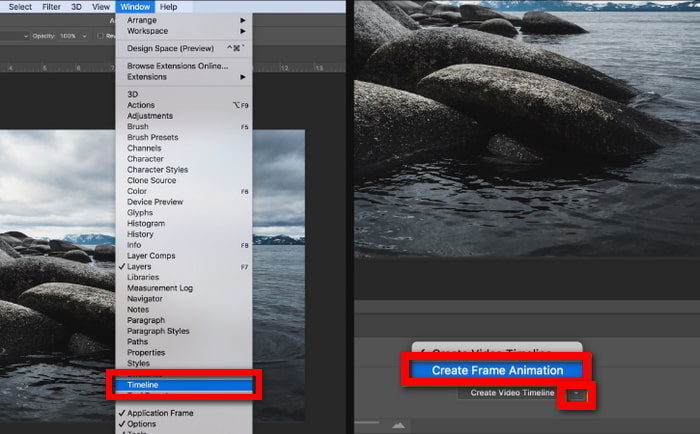
Adobe Photoshop has been a standard GIF creation tool for many years. Learning it can be a hefty task, along with the subscription; however, for those in the industry, full control is needed, including the ability to remove text from images in Photoshop.
Key Features:
- Not many are in the industry due to the control needed when it comes to every small detail.
- Best Time, Control, and Features in Advanced editing.
- Overall best for the Pro of the industry.
- Highly complex ideas can be generated in the industry.
- Unmatched editing is provided.
- Smooth and highly animated GIFs are of the highest degree.
- Steep learning curve for beginners.
- Requires a paid subscription.
- Not designed for quick or batch GIF creation.
Best For: Graphic designers and professional content creators who need detailed, high-quality GIF animations and are comfortable with advanced software.
Part 3. Pro Tips to Make a GREAT GIF
Making a GIF may be easy, but it requires talent to make it great. Use the tips below to make your GIF look professional, captivating, and ready for use across various platforms.
1. Keep it Short
A great GIF gets the message across in the shortest time possible. A duration of 3 to 6 seconds is ideal for social media to keep the audience focused and avoid unnecessary extensions.
2. Control Your Speed
A smooth loop requires frame delay adjustment. A fast frame rate is perplexing; a slow rate and your message will lose its purpose, so maintain a good sync with your message.
3. Size Matters
Make sure to resize your GIF according to the platform you will use. For instance, Instagram Stories are vertical while Twitter is a compact horizontal plan.
4. Less is More
Don’t bombard your GIF with excessive text, numerous effects, or transitions. Simplicity is key. Make sure your main point is communicated effectively and clearly.
Part 4. FAQs of Image to GIF Converter
What is the AI that transforms photos into GIFs?
Using AI tools, GIFs are created by smart algorithms that analyze photos and frames, producing seamless, looping animations. Static GIFs are created from pictures, and it is done quickly and efficiently.
How do I convert a JPG file to GIF?
To convert a JPG to GIF, use Tipard Video Converter Ultimate. Simply upload your JPG or a sequence of pictures, set the frame rate, and adjust the duration and size. The result is a high-quality GIF that can be exported and shared on various social media platforms.
How can I convert a regular image to an animated one?
Using Tipard Video Converter Ultimate, still images can be animated by layering several pictures or applying motion effects. You can also convert video to GIF, time all visual elements, add multiple filters, and sync looping for a seamless animation.
Conclusion
Effectively converting a photo to GIF requires choosing the appropriate tool. Best practices, even on online platforms, will produce animations that engage your audience and provide ease of use for social media, tutorials, emails, and personal projects.
More Reading
About the Author

 Click here to join the discussion and share your comments
 Tipard Video Converter Ultimate