

- Part 1. How to Convert Video to GIF on Windows and Mac
- Part 2. How to Convert Video to GIF on iPhone and Android
- Part 3. How to Convert Video to GIF Free Online
- Part 4. Side-by-Side Comparison of the Video to GIF Makers
- Part 5. Pro Tips to Get the Best Quality GIFs from Videos
- Part 6. FAQs of Converting Video to GIF
Key Takeaways
- Tipard Video Converter Ultimate is the top choice for Windows and Mac. It supports many formats and full control for GIF creation.
- Shortcuts and GIPHY make GIFs fast and easy on mobile devices. You can edit and share in a few taps.
- Ezgif and FreeConvert work online. They let you convert, trim, and adjust GIF settings without installing software.
- Simple settings are necessary for good GIFs. For smooth results, use short clips, clear videos, and the appropriate frame rate.
Ever watch a video and think, "Why is this moment so perfect to share?" That laugh or surprise should not just fade away. Why not turn it into a GIF? GIFs are small, fun, and easy to send anywhere.
Right in this post, we will teach you how to turn a video into a GIF using your computer, phone, or web. Not only that, but we will also share helpful tips to help you get the best quality animated image from your videos.

- Part 1. How to Convert Video to GIF on Windows and Mac
- Part 2. How to Convert Video to GIF on iPhone and Android
- Part 3. How to Convert Video to GIF Free Online
- Part 4. Side-by-Side Comparison of the Video to GIF Makers
- Part 5. Pro Tips to Get the Best Quality GIFs from Videos
- Part 6. FAQs of Converting Video to GIF
Part 1. How to Convert Video to GIF on Windows and Mac
Do not miss out on the trend, convert video to GIF using Tipard Video Converter Ultimate. It supports all video input formats and codecs like H.264, H.265, and MPEG-4. The good thing about it is that you can convert a full video or select a specific duration for your animated image.
It also lets you fine-tune resolution, bitrate, frame rate, and other settings for better clarity. It even supports batch conversion, which makes things faster if you have many videos you wish to convert.
Step 1 First thing you need to do is to download and install Tipard Video Converter Ultimate on your Windows or Mac computer.
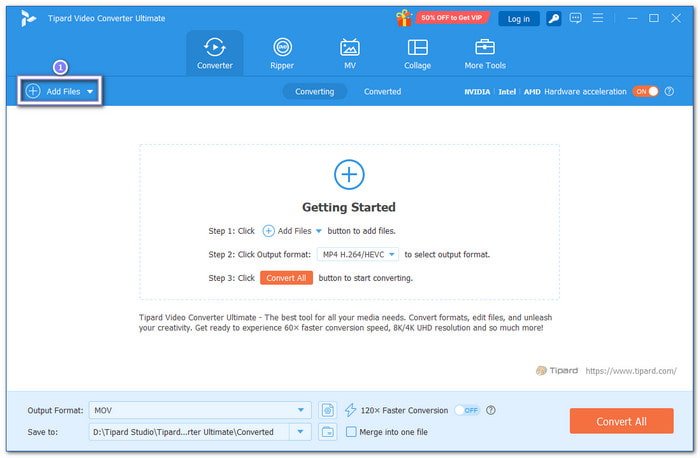
Step 2 To load your video, you can click the Add File button or directly drop it into the main interface. It does not matter if it is MP4, MOV, AVI, MKV, or WMV, as it supports them all.
If you have many videos you want to turn into an animated image, you can import them all together and get the converted output at once.
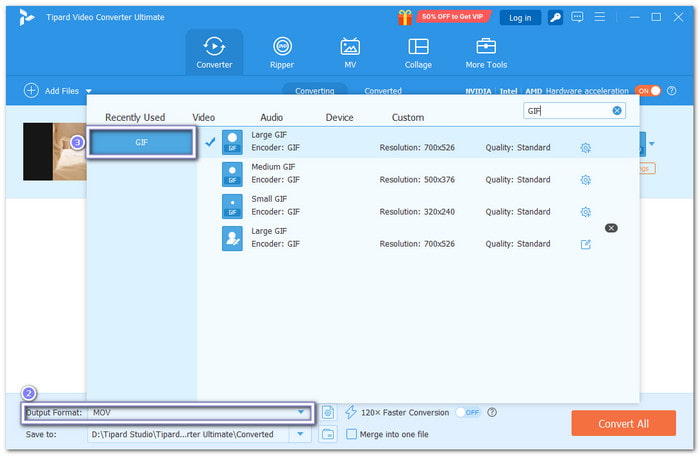
Step 3 To change your video format, open the Output Format menu, type GIF into the search bar, and select it.
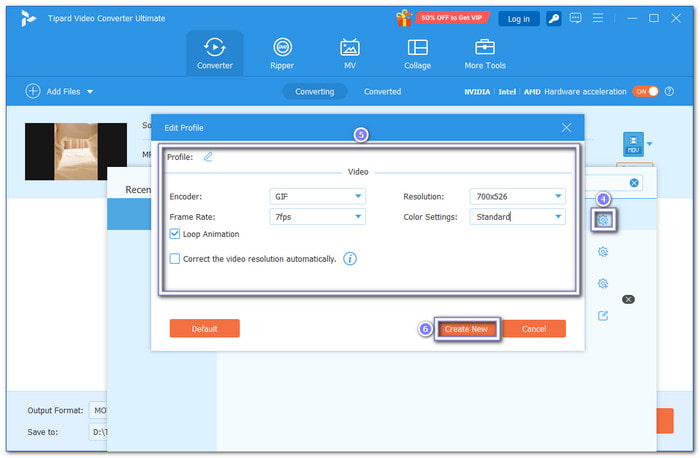
Step 4 What is impressive about Tipard Video Converter Ultimate is that it also allows you to customize the resolution, frame rate, and color settings of your output on the Custom Profile button.
There is also a Loop Animation option, so ensure to enable that. When done, hit the Create New button to apply your changes.
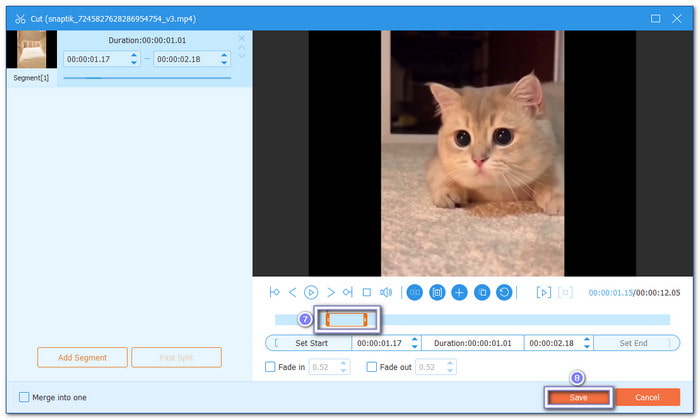
Step 5 To make sure only the section you want is converted into an animated image, open the Cut tool. Then, drag the side handles to keep the desired portion of the video. Once done, press the Save button.
Step 6 You are now ready to click the Convert All button. After a few seconds, Tipard Video Converter Ultimate will turn your video into a GIF and save it to the selected output folder. Check it now!
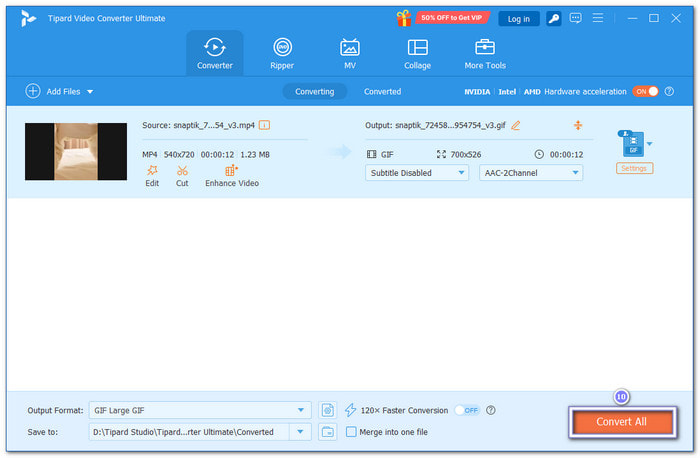
Additional Details: You can also use Tipard Video Converter Ultimate to edit GIFs by rotating, cropping, applying filters, text, etc.
Part 2. How to Convert Video to GIF on iPhone and Android
1. Shortcuts App (iPhone)
Change videos to GIFs using a built-in iPhone feature. The Shortcuts app lets you immediately convert clips from your Photos. It trims the video and processes it into a GIF in seconds. The final file is saved right in your Photos or Files for easy access and sharing.
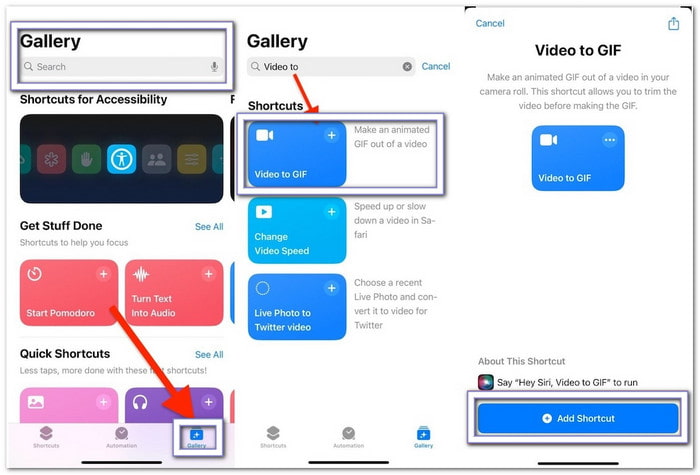
Step 1 Open the Shortcuts app on your iPhone.
Step 2 Go to the Gallery tab. Search for Video to GIF. Tap it, then press the Add Shortcut button.
Step 3 Open the shortcut you added. Then, choose the video you want from your Photos.
Step 4 Trim the video if needed. Cut it to the part you want to turn into an animated image.
Step 5 Run the shortcut. After it finishes, your GIF will be saved in your Photos app. You can also move it to Files if you want.
2.GIPHY (iPhone and Android)
GIPHY is a popular app for turning videos into fun GIFs. It supports both iPhone and Android. You can pick a video from your gallery, then edit it with trims, captions, stickers, and filters. It also lets you share GIFs directly to social apps or save them for later use. Learn how the GIPHY video-to-GIF conversion works below!
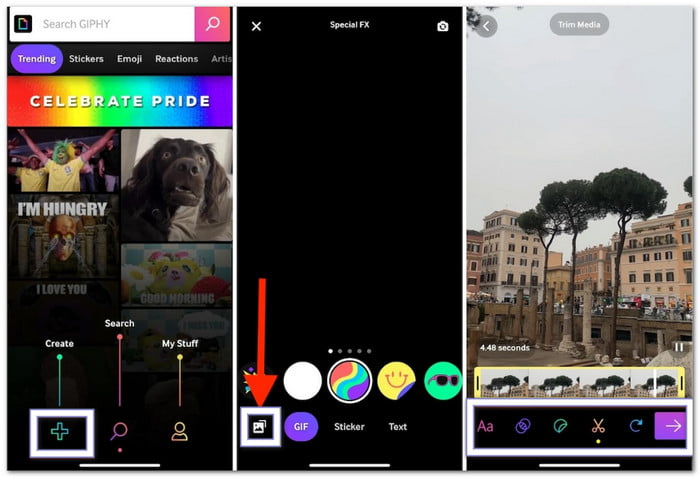
Step 1 Install the GIPHY app on your phone. Open it and sign in to your account.
Step 2 Tap the Add button. Allow access to your camera and gallery when asked.
Step 3 Select a video from your gallery that you want to turn into a looping image.
Step 4 You can now edit your video. You can trim it and add text, stickers, or simple filters to improve it.
Step 5 Tap the Next button, then save your GIF or share it directly to social apps.
Part 3. How to Convert Video to GIF Free Online
1. Ezgif
Ezgif is a simple online tool that converts videos into animated GIFs fast. You can upload a file or paste a video link. It also lets you trim, resize, and adjust frame rate before turning your video into a downloadable GIF file.
Step 1 Run your browser and go to the Ezgif website.
Step 2 Select the Video to GIF menu on the homepage.
Step 3 Upload your video from your device. You can also paste a video link if it is from the web.
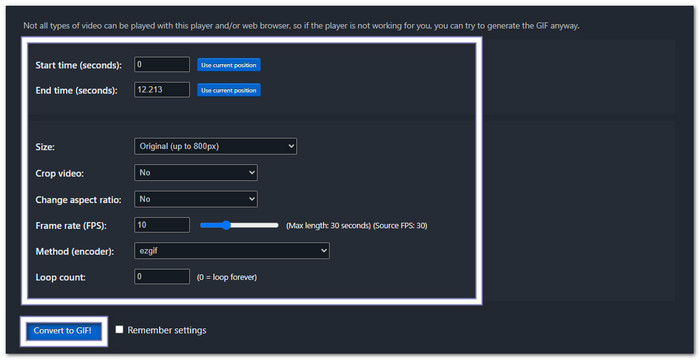
Step 4 It is time to edit your video. Trim it to pick only the part you want. You can also fine-tune size and frame rate for better clarity.
Step 5 Hit the Convert to GIF! Button. Please wait for the process to finish. Then, hit Save to download it to your device.
2. FreeConvert
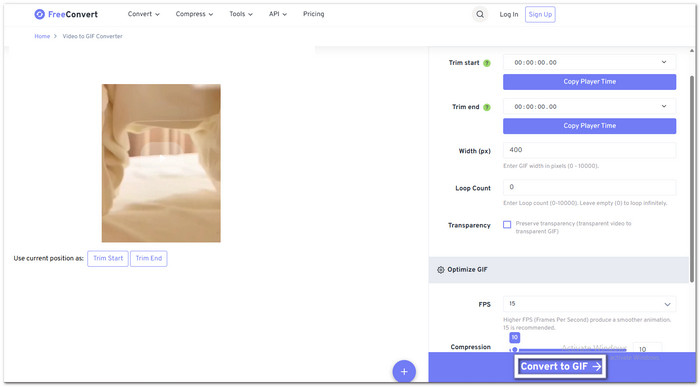
Another online converter that turns video clips into GIFs with more control options is FreeConvert. It allows you to convert MP4, AVI, MKV, or MOV to GIF. It supports trimming, resizing, and FPS adjustment for smoother animation. You can also set loop count, compression, and background settings.
Step 1 Open the FreeConvert website using the same browser you use for Ezgif.
Step 2 Click the Choose Files button and upload your video from your device.
Step 3 Now, set your GIF options. You can trim the start and end time. You can also choose width, loop count, and FPS.
Step 4 You can also adjust advanced settings if needed. You can change compression, background, and transparency for better output.
Step 5 Finally, click the Convert to GIF button. Then, proceed to download your GIF to your device.
Part 4. Side-by-Side Comparison of the Video to GIF Makers
To help you decide faster, here is a side-by-side comparison table of the video to animated GIF makers to see which tool stands out the most.
| Feature | Tipard Video Converter Ultimate | Shortcuts | GIPHY | Ezgif | FreeConvert |
|---|---|---|---|---|---|
| User-friendly | ★★★★★ | ★★★★☆ | ★★★★☆ | ★★★☆☆ | ★★★★☆ |
| Supported Formats | MP4, MOV, AVI, MKV, and more | Limited video support | Common formats | Many formats | Many formats |
| Editing Tools | Advanced trimming and full control | Basic trim | Trim, stickers, text | Trim, resize, effects | Trim, FPS, resize |
| Quality Control | Full control (resolution, bitrate, FPS) | Basic | Medium | Medium | High |
| Batch Conversion | ✓ | ✗ | ✗ | ✗ | Limited |
| Best for | Professional and bulk GIF creation | Quick iPhone use | Social sharing GIFs | Simple online editing | Online conversion tools |
| Show MoreShow Less | |||||
Part 5. Pro Tips to Get the Best Quality GIFs from Videos
You need to understand that a good GIF depends on how you prepare your video. Even a small setting can improve clarity a lot. We want you to have the best animated image, so we have prepared simple tips for you below.
- Start with a clear and high-quality video. A sharp source gives a better GIF output. Avoid blurry clips if possible.
- Keep your GIF short. Trim your GIF; use only the best part of the video. Short GIFs load faster and look smoother.
- Set a good frame rate. Motion is smoother at higher FPS. A good compromise between file size and clarity is between 10 and 15 frames per second.
- Adjust resolution carefully. Do not make it too large. A smaller size helps the GIF play faster and avoid lag.
- Before converting, remove any parts that aren't needed. Cut out unnecessary scenes so that only the crucial parts remain.
- If possible, use tools that allow quality control. It helps you adjust bitrate and compression for a cleaner result.
Part 6. FAQs of Converting Video to GIF
What is the best length for a GIF?
The best GIF length is 2 to 6 seconds. Short GIFs load faster. They also loop smoothly. Keeping it short also helps reduce file size.
Does GIF lose quality?
GIFs use lossless compression, so they do not lose image data. However, they only support 256 colors. It can reduce detail in some videos.
What is the best video resolution for a GIF?
A good GIF size is usually 640×480 pixels. Many platforms also recommend staying under 1200×900 pixels.
Conclusion
So fun learning how to make a GIF from a video, right? From a simple clip, it becomes a short looping animation you can share anytime. If you are a Windows or Mac user, Tipard Video Converter Ultimate is a great tool to try. You can really depend on it when it comes to conversion and editing needs!

All-in-one video toolbox: convert, edit, upscale, enhance, and compress your videos easily
100% Clean & Safe
100% Clean & Safe

More Reading

About the Author

 Click here to join the discussion and share your comments
 Tipard Video Converter Ultimate