

Converting MOV to GIF is a simple yet ideal method to transform your video clips into a lightweight animation. Plus, GIFs are widely used across social media, websites, and messaging platforms since they can capture the attention of users without requiring heavy file sizes. If you are looking for the best methods to convert your MOV to GIF, come here as we offer the best offline and online methods you can follow. After that, we will also give you more insights about the differences between the two formats. Without anything else, read here and learn more.

Part 1. Why Convert MOV to GIF
Why do you need to convert MOV to an animated GIF? Well, there are various reasons why conversion is necessary. Some reasons are:
Looping Visual for Engagement
You must convert the MOV file to GIF if you want to play your video in loop mode. It is perfect for playing and showing short, memorable moments that can grab attention and keep viewers engaged.
Easy Sharing Across Platforms
GIFs are universally supported on social media, websites, and messaging platforms. This way, you can share the file without encountering any compatibility issues, unlike MOV, which requires a specific codec or players.
Smaller File Size
You must convert MOV to GIF if you want to have a smaller file size. GIFs compress video content into lightweight animation, reducing storage and loading times compared with MOV, which is resource-heavy.
Part 2. Top Ways to Convert MOV to GIF
If you want to convert MOV to GIF successfully, you can use all the provided methods in this section.
Method 1. Convert MOV to GIF Using Tipard Video Converter Ultimate
One of the most reliable converters you can use to transcode MOV to GIF is Tipard Video Converter Ultimate. This program allows you to convert your media file while maintaining the quality of the file. The best part here is that you can increase the resolution and frame rate of your soon-to-be GIF file. Plus, the software can offer its batch conversion features. It lets you convert multiple MOV files into GIFs in just a single click, perfect for saving time. Aside from that, Tipard can offer basic editing and AI-driven enhancement features, which can help you improve your video. Lastly, it has a fast conversion process for up to 120× faster and GPU acceleration, making the process faster and smoother.
To turn MOV to GIF, you can follow the instructions below.
Step 1 Download Tipard Video Converter Ultimate by hitting the Free Download buttons below.
Step 2 After that, go to the Converter section and tap the Add Files function to insert the MOV file from your computer.
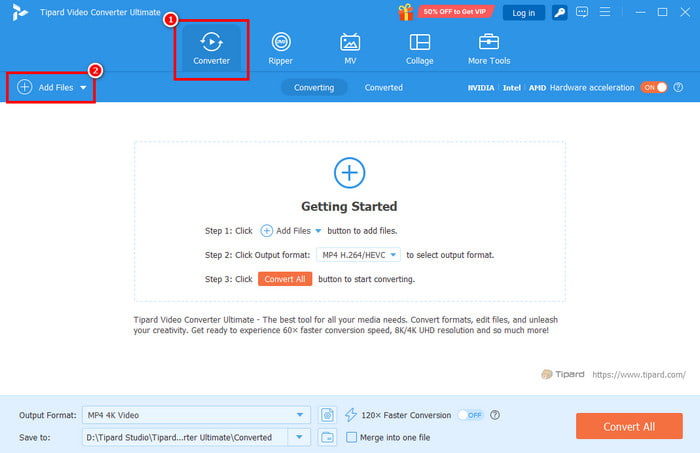
You can add/insert as many MOV files as you want since the converter supports batch conversion.
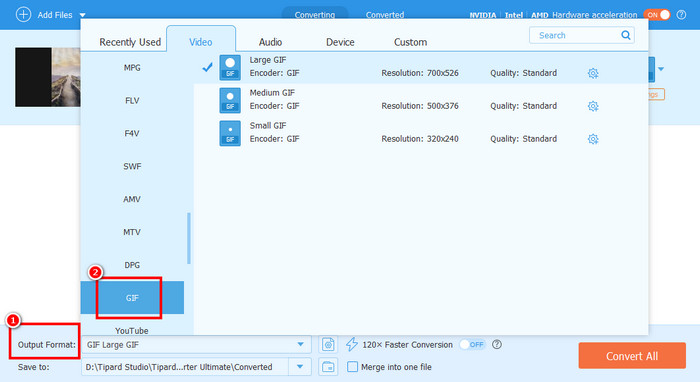
Step 3 Proceed to the Output Format section and select the GIF format. You can even pick/choose your preferred resolution for GIFs.
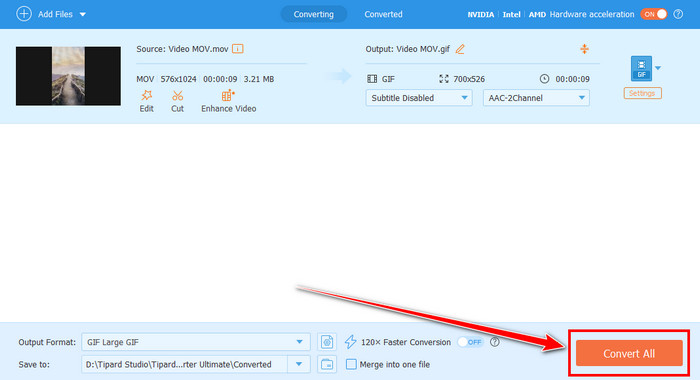
Step 4 Finally, hit the Convert All button to start the MOV to GIF conversion process. After the process, you can start playing your GIF on your computer or share it on other platforms.
Method 2. Convert MOV to GIF Using Adobe Premiere Pro
Another MOV to GIF converter you can access is Adobe Premiere. It is professional-grade video editing software that allows you to create a GIF from a MOV file. What makes this program ideal is its capability to offer advanced video editing features that can improve the overall appearance of your file. When it comes to conversion, you can expect a nice result from this program since it can offer an accurate result after the export process. You can even save the GIF with the best quality for better playback. Thus, if you want to convert a video to a GIF, consider using this program.
You can follow the methods below to start turning MOV to GIF in Adobe Premiere Pro.
Step 1 Download and install Adobe Premiere Pro on your computer. After that, start adding the MOV file to the canvas.
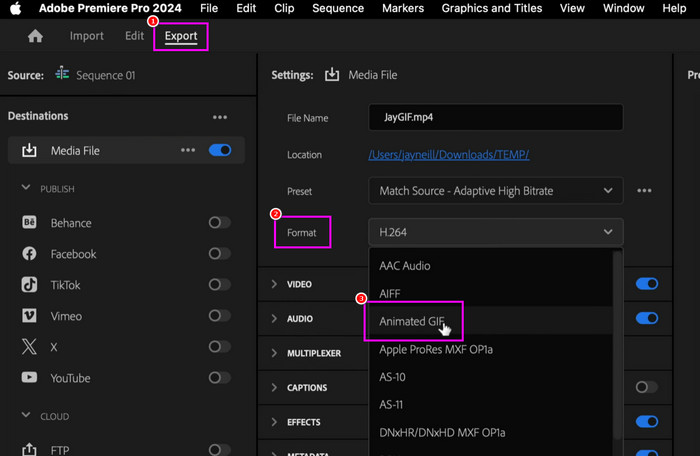
Step 2 Once you have inserted the video into the Timeline section, proceed to the Export button above.
Step 3 Navigate to the Format section and select the Animated GIF option.
Step 4 For the last touch, hit the Export button from the bottom right interface to start saving the file on your desktop.
Method 3. Convert MOV to GIF Using Convertio
If you want to turn .mov to .gif online, we suggest using Convertio. This web-based converter is perfect if you want a simple conversion process. It also has a straightforward layout, allowing you to use all the necessary functions without any trouble. What we like about this tool is that you can convert up to two MOV files and convert them in a single process. Plus, you can save your converted file directly to Dropbox and Google Drive. The only drawback here is that you must have a stable internet connection for better performance.
To know how to convert MOV to GIF using this tool, use the steps below.
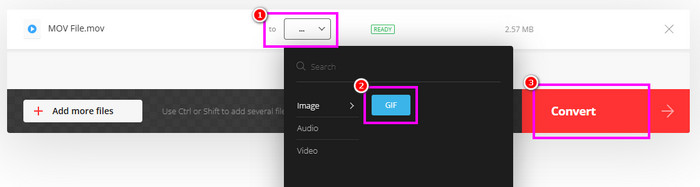
Step 1 Access Convertio on your browser. Then, click the Choose Files button to start uploading the MOV file you want to transcode. You can even upload two files and convert them at the same time.
Step 2 After the uploading process, proceed to the Format section and select the GIF as your desired output format.
Step 3 Click the Convert function to begin the MOV to GIF conversion process. After that, you can start saving the GIF by clicking the Download button.
Method 4. Convert MOV to GIF Using FreeConvert
Another online-based tool you can rely on to smoothly convert a MOV file to a GIF is FreeConvert. From the name itself, you can convert your files for free, making it more accessible to all users. What makes it more powerful is that you can upload the MOV file from various platforms, such as a computer, Dropbox, Google Drive, OneDrive, and a URL. What we like here is that you can resize the video, change the codec, flip the video, adjust the frame rate, and more. The only problem here is that there are various annoying ads showing up on the screen during the conversion process. Overall, we can tell that FreeConvert is among the tools you can use to convert your files.
To convert MOV to GIF instantly, you can check the instructions below.
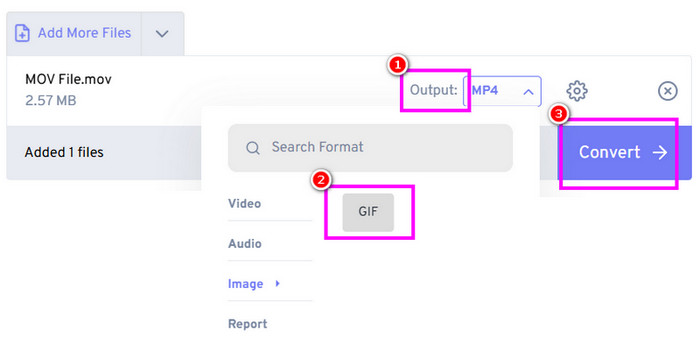
Step 1 The first thing you must do is to access FreeConvert on your browser. After that, tap the Choose Files button to start uploading the MOV file from your desktop.
Step 2 Then, proceed to the Format section and click the GIF. To start converting the MOV file to GIF, hit Convert.
Step 3 Hit the Download button to start saving/keeping the GIF on your device.
Pro Tips: Creative Editing for a Better GIF
Do you want to have a better GIF? Then, you can read all the provided tips below.
- Always customize the FPS. This lets you control the smoothness of your GIF. Note that a higher FPS can create a fluid motion, which is perfect for playback.
- Never forget to optimize the resolution. Scaling down the resolution can help your GIF be lightweight and web-friendly.
- You must set a looping option. You can set several loops based on your needs. An endless loop is perfect for memes, while a limited loop is ideal for presentations.
- You also need to apply effects and filters to the GIF. It ensures that your file will become appealing to the viewers.
- Adding a watermark or branding to your GIF is proof of ownership. This is perfect if you don't want others to use your memes without your permission.
Part 3. MOV vs. GIF: Understanding the Differences
If you want to understand more about MOV and GIF, you can read everything in the table below.
| MOV | vs. | GIF |
|---|---|---|
| Multimedia container supporting video, audio, and effects. | File Type | Bitmap image format supporting animated frames without audio. |
| Uses advanced codecs (H.264, HEVC) for efficient compression. | Compression | Limited compression often results in larger files for longer animations. |
| Larger | File Size | Smaller |
| High-quality | Quality | Lower visual fidelity |
| Plays once | Looping | Loops automatically |
| Perfect for video editing, film, and presentations. | Use Cases | Social media posts, tutorials, memes, and messaging. |
Conclusion
If you want to convert MOV to an animated GIF, you can use all the provided methods from this section. With that, you can get the GIF from your MOV file easily and smoothly. Plus, if you want a fast and smooth process of converting your files, we recommend using Tipard Video Converter Ultimate. With this converter, you can transcode your MOV to GIF and other formats. You can even access various editing features to improve your field, making the program the most powerful converter and editor.
More Reading


About the Author

 Click here to join the discussion and share your comments
 Tipard Video Converter Ultimate