

From games like Fortnite, Minecraft, and Valorant, every match can feel exciting and worth saving. You may want to record your best plays and highlights. To do that, you need a reliable game recorder that can capture your gameplay smoothly.
Good thing, this write-up will present you with the best options you can try. So jump in, press record, and save every clutch moment like a real gamer.

Part 1. Top Recommendations: The 2026 Best Game Recorders
Below are three of the best game recorders to consider in 2026. They are easy to use and can capture gameplay with smooth and clear video.
1. Tipard Screen Capture
A simple game recorder with high-clarity output. It records gameplay, system audio, and microphone sound with smooth performance.
2. OBS Studio
A powerful and free recorder. With numerous helpful settings, it allows live streaming and high-clarity game recording.
3. Bandicam
A lightweight game recorder. It captures gameplay in high clarity while keeping file sizes small and easy to manage.
Part 2. How We Evaluate the 7 Game Recorders
To find the best recorder for games, we used a simple and fair testing process. We focused on the features most gamers need.
- Testing Environment
We tested the recorders on a normal Windows computer with a stable internet connection. We used it in real gaming sessions to see how it performs in daily use. - Testing Standards
We checked simple things like video clarity, smooth recording, sound clarity, ease of use, and how much it affects game performance. - Video Games Tested
We played different game types like action games, racing games, FPS games, and open-world games to see how each recorder works in real play. - Why Trust Us
We tested each game recorder in real situations. We compared them fairly and simply. We focused on honest and basic results that gamers can trust.
Part 3. Master Review of Top 7 Game Recording Software
This master review will show what each game recording program can do. It will cover their main features, strengths, and weaknesses, and real testing results. This way, you can easily see the difference and choose the best game recorder for your needs.
1. Tipard Screen Capture
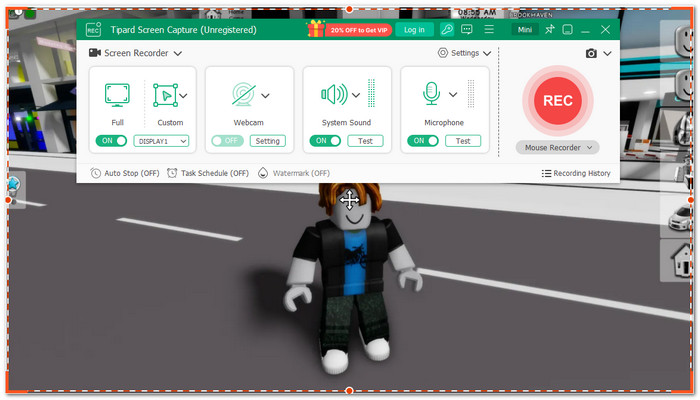
With Tipard Screen Capture, you can record games at up to 120 FPS. This game recorder gives smooth and clear gameplay, even in fast action scenes. It also offers simple editing tools like trimming. It also supports AVI and HEVC codecs to reduce file size while keeping clear video. On top of that, you can easily share your gameplay on social media like YouTube or Facebook with just a few clicks.
Key Features:
- Recording in both a custom area and full screen.
- Webcam recording support.
- System sound and microphone recording.
- Show keystrokes and mouse actions with click sounds.
- Screenshot capture for full screen, selected area, scrolling pages, and pop-up menus.
- Supports many output formats like MP4, MKV, MP3, and FLAC.
- Built-in preview with timeline and speed control.
- No watermark on recorded videos.
- Unlimited recording requires a paid subscription starting at $24.00.
Why we selected it:
It lets you record your game window on Windows and Mac. You can also add your face and voice using a webcam and microphone. On top of that, it delivers smooth, high-quality, and lag-free gameplay recording.
Testing Result:
It recorded smooth gameplay with clear video and synced audio. It showed no lag and stayed stable in FPS, racing, and open-world game tests.
2. OBS Studio
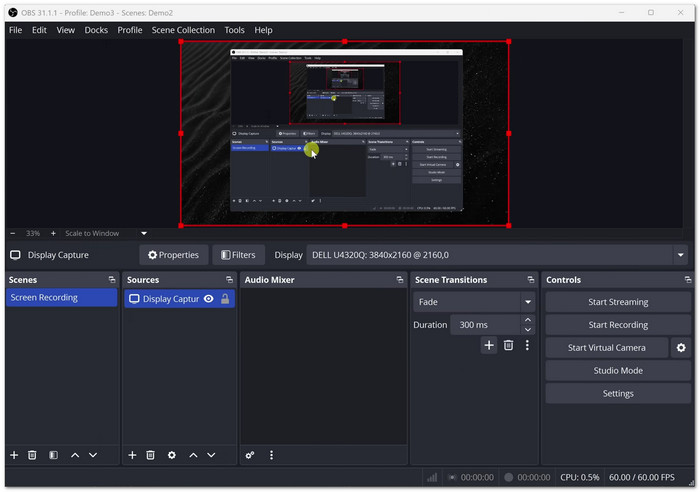
A strong free program built for recording and streaming games with full control. It is one of the best game recording software options for many users. It works on Windows, Mac, and Linux. It is made for users who want flexible settings and smooth capture while playing different types of games.
Key Features:
- Scene switching for various configurations.
- Scene switching for different setups.
- Audio mixer with filters.
- Plugin and customization support.
- Free and open source software.
- Flexible settings control.
- Works with many platforms.
- Needs setup time.
- Some users are experiencing an OBS game capture black screen issue.
Why we selected it:
It gives full control over recording settings. It works well for both simple recording and advanced use.
Testing Result:
It recorded games with high clarity and stable frame capture. It performed best on mid to high-end computers. However, setup took time, but output clarity was strong.
3. NVIDIA ShadowPlay
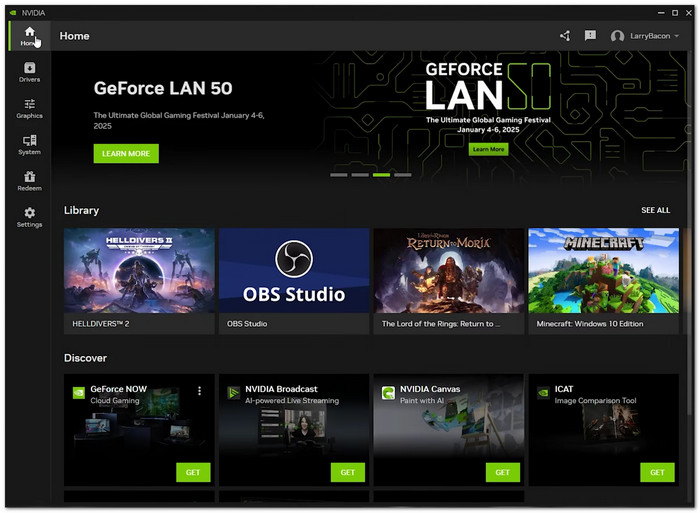
A built-in recording tool for NVIDIA users that uses GPU power to record gameplay. It keeps system use low and records quickly. It is ideal for gamers who want an easy setup and smooth performance while playing.
Key Features:
- Instant replay recording feature.
- One-click hotkey recording.
- GPU-based encoding support.
- Background recording mode.
- Easy to use controls.
- Great for NVIDIA GPU users.
- You can use it to record VR gameplay.
- Only works with NVIDIA cards.
- Limited editing tools.
Why we selected it:
It is because it records smoothly in the background. It is simple and works well without slowing games down.
Testing Result:
It delivered stable recordings with almost no lag. It worked best during fast-action games and kept performance smooth.
4. Action!
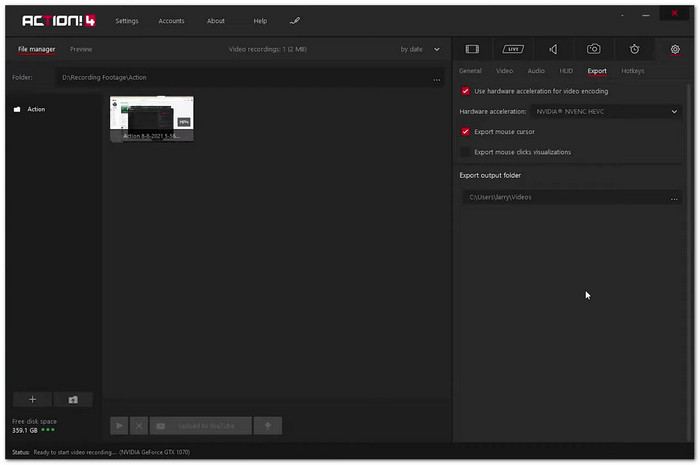
A fast and smooth game recorder designed for high-quality capture. It focuses on strong performance and easy recording. It is often used by gamers who want simple tools with professional-looking results. It makes it one of the best programs to record games for clear and stable gameplay recording.
Key Features:
- High FPS recording support.
- Built-in video trimming tools.
- Low CPU and GPU usage.
- Direct recording to MP4 format.
- Smooth recording performance.
- Easy interface for beginners.
- High-quality video output.
- Only Windows is compatible.
- Few advanced editing tools.
Testing Result:
It produced clear and stable videos even during heavy games. With minimal system usage, it maintained robust performance.
5. Bandicam
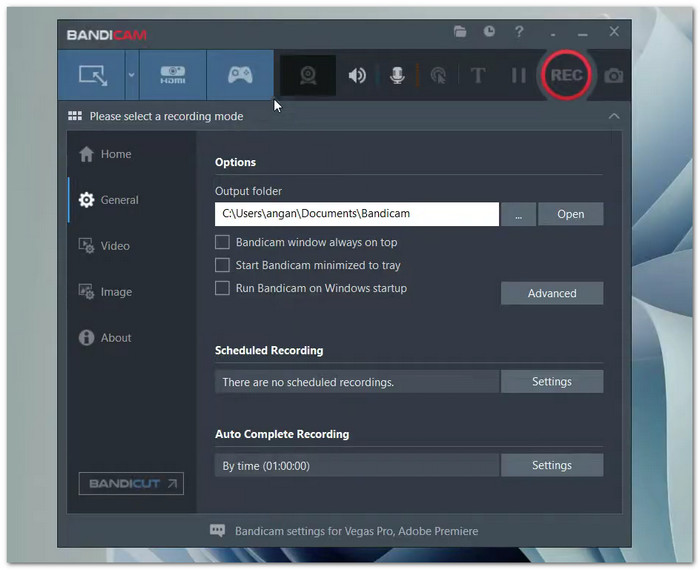
A fast, smooth, and good game recording software designed for high-quality capture. It emphasizes easy recording and powerful performance. Gamers who want easy-to-use tools that produce results that look professional frequently use it.
Key Features:
- Recording mode with high compression.
- DirectX and OpenGL game capture.
- Support for webcam overlay.
- Tools for audio mixing.
- Small file size output.
- Easy recording setup.
- Stable performance during play.
- Paid version for full features.
- Windows only program.
Testing Result:
It recorded games smoothly with smaller file sizes. It stayed stable even during long gameplay sessions.
6. AMD Radeon ReLive
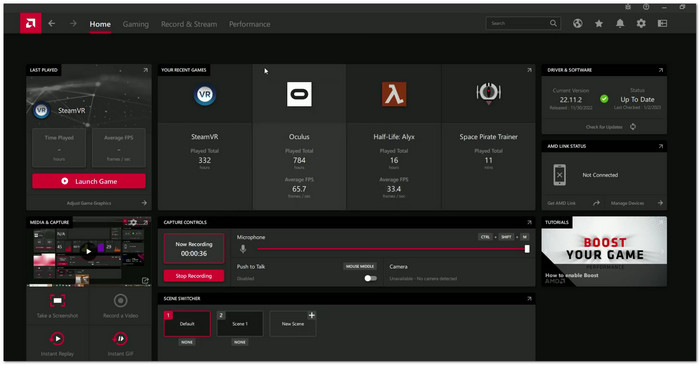
For AMD users, there is an integrated recording program that records gameplay with minimal system impact. Instant replay, streaming, and recording are all supported by AMD software.
Key Features:
- Instant replay recording mode.
- In-game overlay controls.
- Streaming support tools.
- Hotkey recording system.
- Low performance usage.
- Free for AMD users.
- Easy in-game access.
- Only for AMD GPUs.
- Needs driver setup.
Testing Result:
It recorded gameplay with stable performance and low lag. It worked best when used with AMD graphics cards.
7. Xbox Game Bar
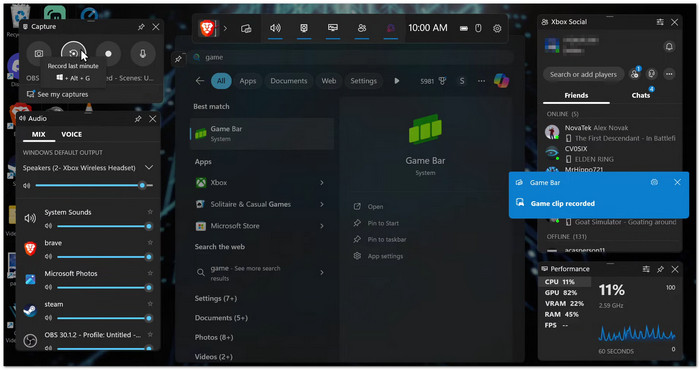
A built-in Windows program for quick game recording and screenshots. It is a screen recorder for games that is simple and easy to use while playing without extra installation. You can use it to record Steam gameplay and much more.
Key Features:
- One-click recording overlay.
- Screenshot capture tool.
- Background recording option.
- Quick shortcut access.
- Already built into Windows.
- Easy to use.
- Fast recording access.
- Limited recording settings.
- Only simple video tools.
Testing Result:
It worked fine for basic recording tasks. It recorded gameplay smoothly but did not have many advanced settings or controls.
Part 4. Technical Tips: Optimizing for 4K/120FPS Game Recording
To record games in 4K and 120FPS, you need the right setup and simple adjustments. The tips below will help you get smooth gameplay and clear video quality.
- Use a strong graphics card: A good GPU is important for 4K and high FPS recording. It helps prevent lag during gameplay and recording.
- Turn on hardware encoding: Use NVENC or AMD encoding if available. It lowers CPU use and keeps recording smoothly.
- Lower in-game settings: Reduce the quality of the graphics, effects, and shadows in the game. While recording, it makes your game run more steadily.
- Set a higher bitrate: For crisper 4K video, use a higher bitrate. Although it requires more storage space, the quality is improved.
- Close unnecessary apps: Before recording, close any programs that are not in use. It enhances performance and releases memory.
Part 5. FAQs of Game Recording Software
How much storage do gameplay recordings use?
Your settings determine the size of the file. At 60 frames per minute, full HD AVI can consume roughly one gigabyte. MP4 has comparable quality but uses less space - roughly 100 megabytes per minute.
Where are game recordings saved?
Game recordings are usually saved in your computer's default "Videos" folder. Some tools also let you choose a custom folder so you can easily find or organize your files.
Can I record a game on my phone?
Yes. You can record mobile games using built-in screen recorders on Android and iPhone. Some apps also support better recording tools for smoother video and better sound.
Conclusion
You have 7 good programs for recording games to choose from. Each one can help you capture your gameplay in different ways.
If you want a simple and strong choice, Tipard Screen Capture is a great pick. It records smooth gameplay with no lag. It gives high-quality video and supports long recordings. Moreover, it works on both Windows and Mac.

Record full screen, portion, window, game, and phone seamlessly without lag
100% Clean & Safe
100% Clean & Safe

More Reading

About the Author

 Click here to join the discussion and share your comments
 Tipard Screen Capture