

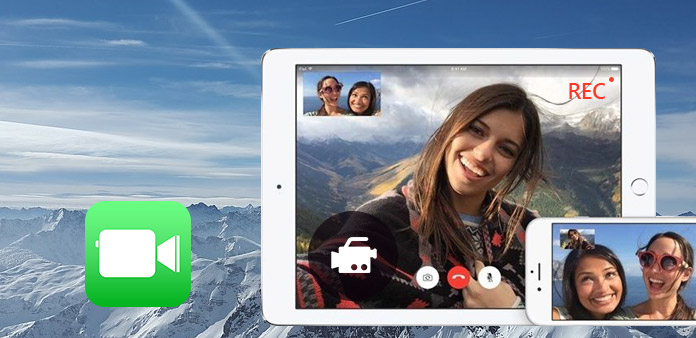
Can you screen record FaceTime? Many users ask this when they need to save calls for work or as a memory. Apple protects privacy, so options are limited. This guide provides safe methods for recording on Mac, iPhone, and iPad. You will learn built-in tools and trusted apps. We also explain notifications and legal rules. Follow the steps to record safely. The article ends with answers to common questions about FaceTime recording.
Part 1. The Crucial Privacy & Legal Disclaimer
Many people ask, Can you screen a record on FaceTime without the person knowing? The short answer is no. Apple designed FaceTime to protect privacy, and all built-in recording methods notify participants when a call is being recorded. Attempting to bypass this is illegal in many countries and may lead to serious consequences.
Always get consent from everyone on the call before recording. Understanding these rules is essential before learning how to record FaceTime safely on Mac, iPhone, or iPad.
Part 2. How to Record FaceTime on Mac
If the FaceTime call is happening on your Mac, then these are the tools and steps you should take to record it successfully:
1. Tipard Screen Capture
Tipard Screen Capture is a strong tool for high-quality recordings. It captures system sound and microphone audio at the same time. For those who want to know how to record FaceTime with audio, Tipard is simple and reliable. It works well for tutorials, work calls, or personal conversations.
Step 1 Download the screen recorder on your Mac by clicking the Mac version we have here. After that, follow the installation process and launch it.
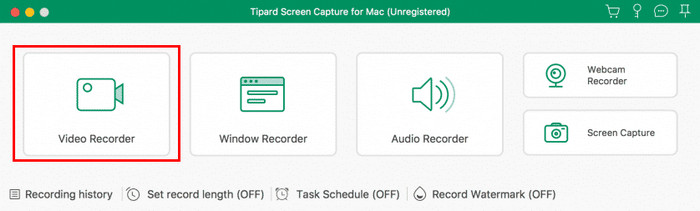
Step 2 On the toolbar, select the Video Recorder since you want to record what is happening on FaceTime.
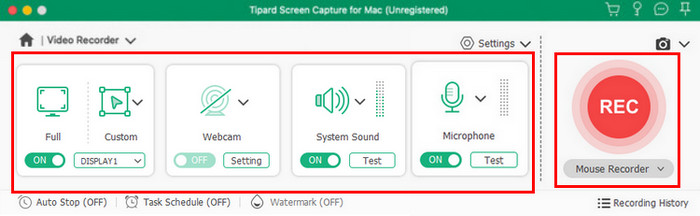
Step 3 Open FaceTime, adjust the recording area fitted to it, activate the microphone, webcam, and system sound to capture everything. Then, click Rec to start the recording.
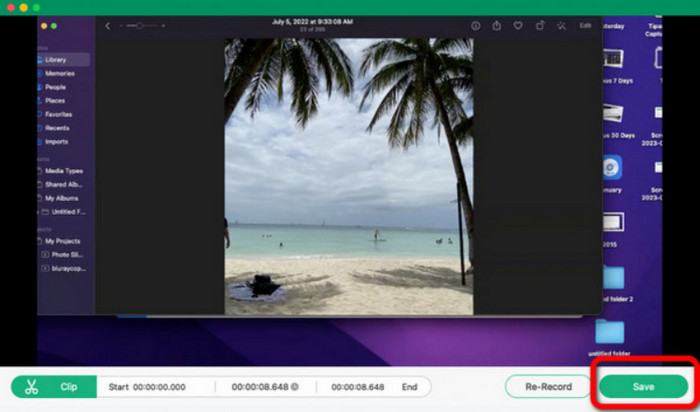
Step 4 To stop the recording, click the red square button and take a quick preview of it before you click the Save.
2. QuickTime Player
QuickTime Player comes pre-installed on all Macs. It allows basic screen and audio recording. For users who want to know how to record a FaceTime call, QuickTime works without installing extra software. It is easy to use and suitable for casual calls or simple recordings.
Step 1 Open your Mac and launch QuickTime Player. You can do this by clicking Finder, choosing Applications from the left panel, and then selecting QuickTime Player.
Step 2 Once QuickTime is open, go to the top menu bar and click File. From the list of options, choose New Screen Recording to start setting up your capture. You will now see two recording choices: Record Entire Screen or Record Selected Portion.
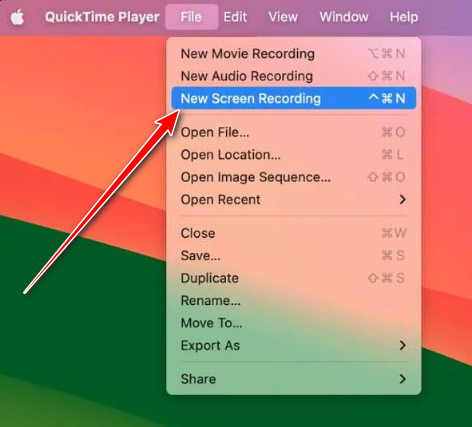
Step 3 Pick the option you need, then hit the Record button to begin capturing your screen. Once you are done, stop the QuickTime Player screen recording by clicking the stop button.
3. macOS Screen Recording
The built-in macOS screen recording can be opened with Shift + Command + 5. It records both video and sound quickly. If you want to know how to screen record FaceTime with sound using only built-in tools, this method is the easiest and fastest option.
Step 1 Press Shift + Command + 5 to open the macOS screen recording toolbar.
Step 2 Pick what you want to record: the entire screen or a selected portion. If needed, click Options to pick a microphone for sound.

Step 3 Click the Record button to start. When finished, tick the Stop button in the top menu bar.
Part 3. How to Record FaceTime on iPhone & iPad
Use these methods of screen recording if the meeting will happen on your iOS or iPad. However, you must remember that using the built-in feature will notify others that you are recording:
1. Screen Recording Feature in Control Center
The built-in screen recorder on iPhone and iPad is simple and quick to use. It can capture both video and microphone input, which helps if you want to know how to hear FaceTime audio on screen recording. The main concern for many users is privacy, since FaceTime notification screen recording is a common question. This tool may alert the other person, so it is best for open and informed recordings.
Step 1 Swipe down from the top-right corner to extend the Control Center. Tap the gray Record button. A three-second countdown will appear before the recording starts.
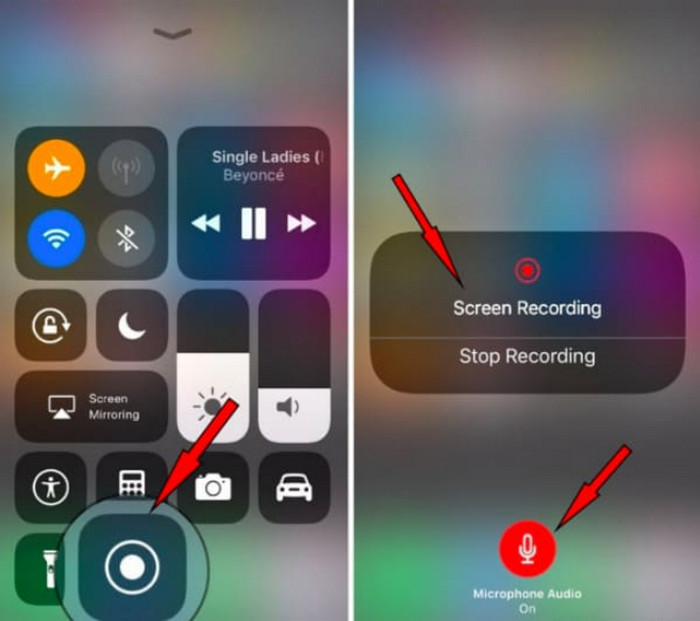
Step 2 Close the Control Center, and your device will begin recording everything on your screen. To stop, tap the Screen Recording bar at the top and choose Stop.
Step 3 Open the Photos app and check your Library to find the saved recording. If you want to know how long you can record on an iPhone with this feature, then the answer depends on your storage space and battery life.
2. DU Recorder
DU Recorder gives smooth performance, flexible quality settings, and strong audio support, making it a popular alternative for users who want more control. It is useful when you want to learn how to record a FaceTime conversation without relying only on built-in features. DU Recorder also keeps your videos local, which helps those who worry about logs or data.
Step 1 Install DU Recorder and make sure the Screen Recording option is added to your Control Center. You can check this in Settings, then Control Center, and Customize Controls.
Step 2 Open the Control Center, long-press the Record button, and choose DU Recorder Live. Turn on the Microphone if you want to capture audio.
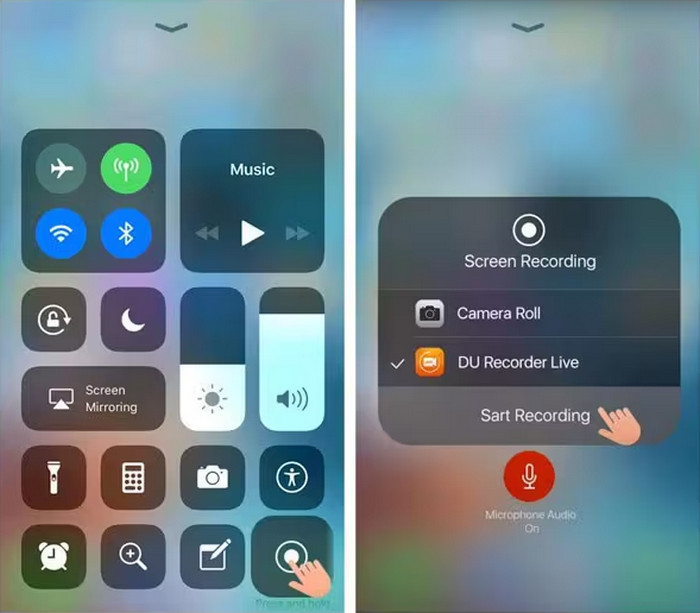
Step 3 When you are done, tap the red status bar or the Record button again to stop. Your video will occur in the Photos app after it saves.
Part 4. FAQs of FaceTime Recording
Can you legally record a FaceTime call?
You can record a FaceTime call only if everyone on the call agrees. Many regions require clear consent before you capture audio or video. This matters when you learn how to record a FaceTime call on an iPhone, because recording without permission may break privacy laws.
Can you tell if a FaceTime call is being recorded?
Yes. Apple adds alerts that make recording clear to all users. This is why many ask does FaceTime notifies screen recording, and the short answer is yes. If you use built-in tools, everyone on the call will see that the screen is being captured.
Why can't you screen record FaceTime?
Some users cannot record due to privacy settings or disabled permissions. In other cases, the audio does not save because the microphone input is not enabled. Many users learn this when trying how to hear FaceTime audio on screen recording, since FaceTime limits certain audio capture features for security reasons.
Conclusion
Learning how to record a FaceTime call is easier when you use the right tools and follow the rules that protect privacy. Mac, iPhone, and iPad all offer built-in recorders, and third-party apps can add more control when needed. The important part is consent. Always inform the other person before you record. With the methods in this guide, you can capture calls for work, study, or personal use safely and clearly.
More Reading


About the Author

 Click here to join the discussion and share your comments
 Tipard Screen Capture