

Need to save a long chat or webpage? A scrolling screenshot on iPhone and Android lets you capture everything in a single shot. This guide also covers Android methods, full-page captures, and advanced tools like Tipard Screen Capture for high-quality recordings.
Part 1. Quick Methods - How to Screenshot on Any iPhone
It only takes a screenshot to capture what is on your iPhone’s screen. This will differ based on whether your device has a Home button or Face ID.
iPhones Without a Home Button
For models from iPhone X and newer, including iPhone 16.
Step 1 Both the Side (Power) button and Volume Up button should be pressed at the same time.
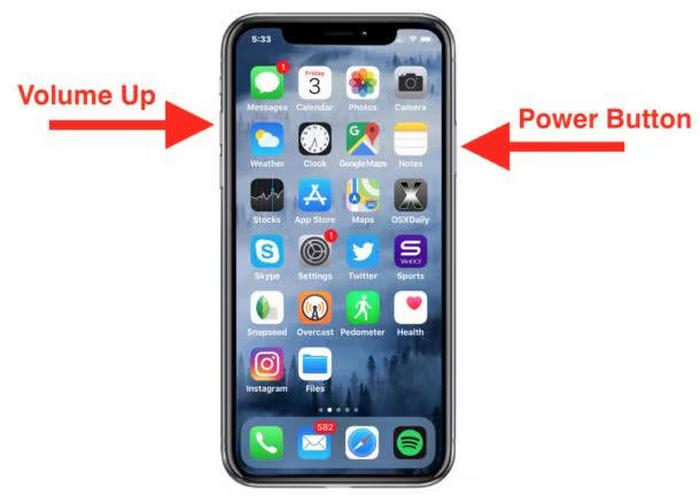
Step 2 Both buttons should be released quickly to prevent triggering a power off or SOS screen.
Step 3 Wait for a screen to flash, and the thumbnail preview should appear in the bottom left.
Step 4 To crop and edit, or add text with Markup, tap the thumbnail. To save automatically, swipe the thumbnail away.
iPhones With a Home Button
For models like iPhone 8 and earlier.
Step 1 Simultaneously, press Home and Sleep/Wake (Power) buttons.
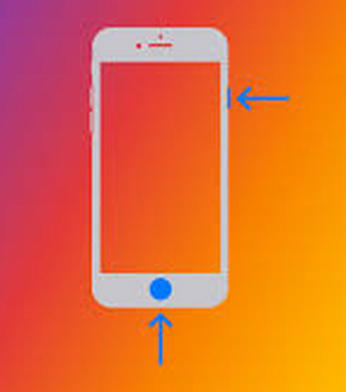
Step 2 When the screen flashes, release both buttons.
Step 3 Either wait for the screenshot to save to Photos or tap the thumbnail preview to make edits/shares.
Part 2. Universal Ways to Screenshot on Android
There are several different methods for capturing the screen on an Android device. While button combinations work for almost every device, some brands offer other gesture-based shortcuts, making screenshots on Android even faster and easier.
Google Pixel 9 and Samsung Galaxy S25, among others, are devices on which the universal method for screenshots will work.
Standard Android Method
Step 1 Press and hold the Power and Volume Down buttons simultaneously.
Step 2 When the screen flashes, release both buttons.
Step 3 Either wait for the screenshot to save automatically, or tap the preview to edit, crop, or share.
Three-Finger Screenshot
Available on models like the Motorola Edge Plus.
Step 1 Access the Moto app or go to Settings to find Moto Actions.
Step 2 Enable the Three-Finger Screenshot option.
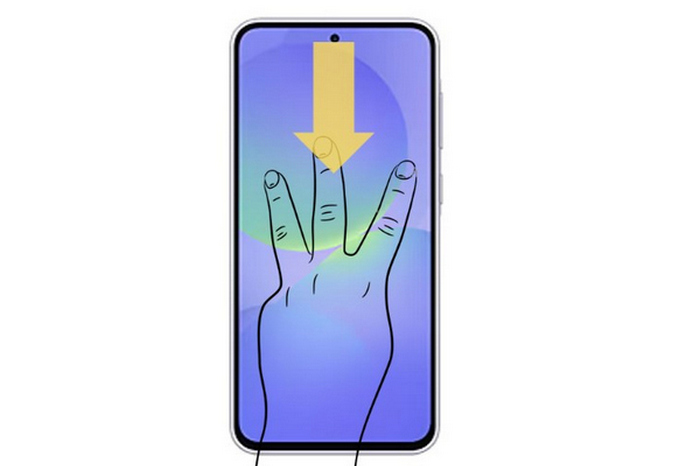
Step 3 To capture the screen, press three fingers down simultaneously.
Step 4 Either edit or save the screenshot from the window that opens.
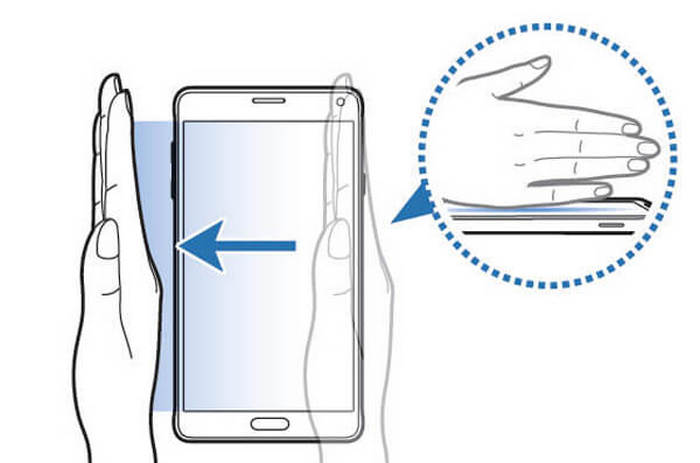
Samsung Palm Swipe Gesture
Available on devices like the Samsung Galaxy S25.
Step 1 Open Settings.
Step 2 Select Advanced features.
Step 3 Tap on Motions and gestures.
Step 4 Enable Palm swipe to capture.
Step 5 To take a screenshot, swipe your palm along the edge of the screen.
Part 3. How to Take a Full-Page Scrolling Screenshot on Android and iOS
Long webpages, chat threads, and documents often span multiple screens. Instead of taking multiple screenshots, both iOS and Android now include built-in scrolling screenshot features, and you can also use screenshot Mac tools to capture an entire page in one file.
Full-Page Screenshot on iPhone
Available in supported apps like Safari.
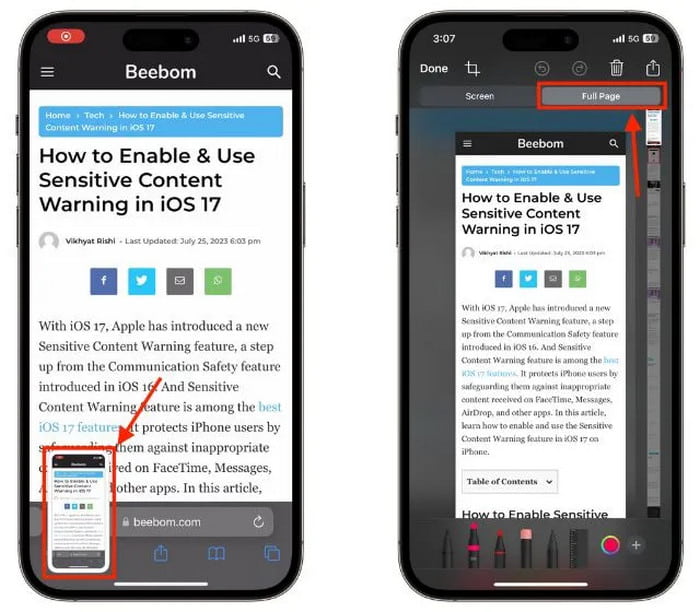
Step 1 Take a screenshot.
Step 2 Before it disappears, tap the screenshot preview on the bottom left.
Step 3 Click the top tab labeled Full Page.
Step 4 Modify the preview if you want.
Step 5 Tap Done to save the file as a PDF.
Scrolling Screenshot on Android
Available on modern devices like the Google Pixel 9 and the Samsung Galaxy S25.
Step 1 Take a screenshot by pressing the Power and Volume Down buttons simultaneously.
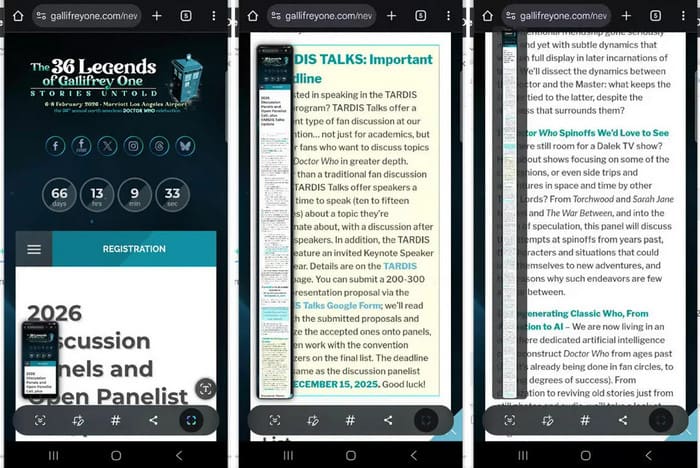
Step 2 Click on either Capture more or Scroll, which shows on some devices.
Step 3 Set the page length to include by dragging the two handles.
Step 4 Save your extended screenshot by tapping Save. It will be stored in your gallery.
Part 4. Why Native Screenshots Might Not Be Enough
The built-in screenshot tools on both Android and iPhone devices have practicality, but also come with various limitations. The method of capturing entire pages works in only a limited set of applications, frequently defaults to saving captures as PDFs, does not support capturing moving images (videos), and does not capture audio. With Tipard Screen Capture, users can capture pages and scroll through content, record audio, and save recordings in 4K resolution.

- Record long webpages, chats, or apps without splitting into multiple screenshots.
- Capture full-screen or a custom area with system sound and microphone.
- Keep original resolution or enhance up to 4K.
- Mirror and record your phone on a larger screen.
- Preview instantly, trim clips, and export as MP4, MKV, MP3, or GIF.
Step 1 Download and Install
You can download the file from the Tipard website. Follow the on-screen installation guide to install the file on either a Windows or a Mac computer.
Step 2 Open the Program
Once the installation is done, open the program and give the interface a few moments to appear.
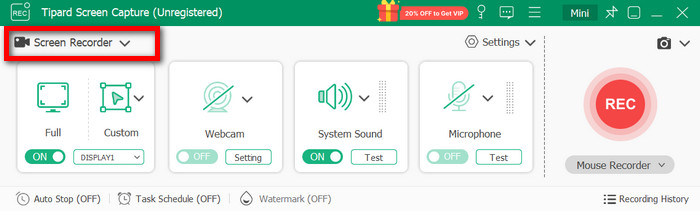
Step 3 Select Screen Recorder
To record the scrolling of a web page, app, presentation, or an entire desktop, choose the Screen Recorder option.
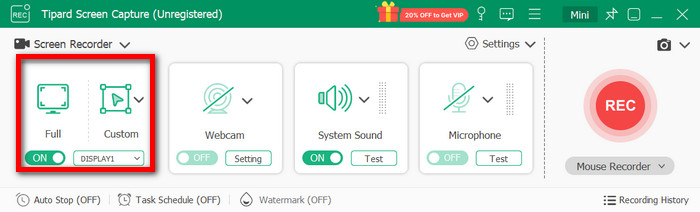
Step 4 Choose the Recording Area
You can either select the Full option, meaning you will record the entire window, or the Custom option, where you can define a specific area. Optional resolution adjustments can also be made.
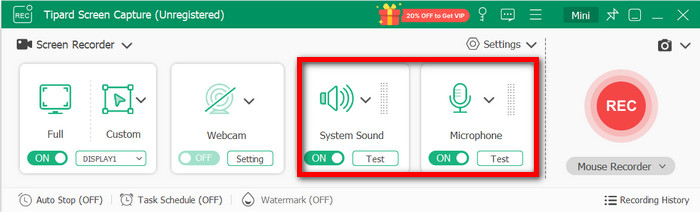
Step 5 Turn On Audio (Optional)
To record the sound from your computer, enable the option for System Sound. Additionally, you can record your own voice through the microphone by using the Microphone option.
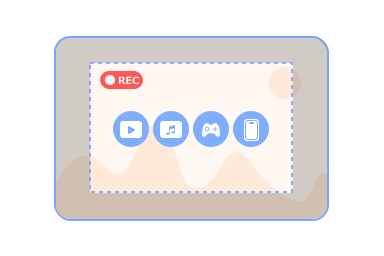
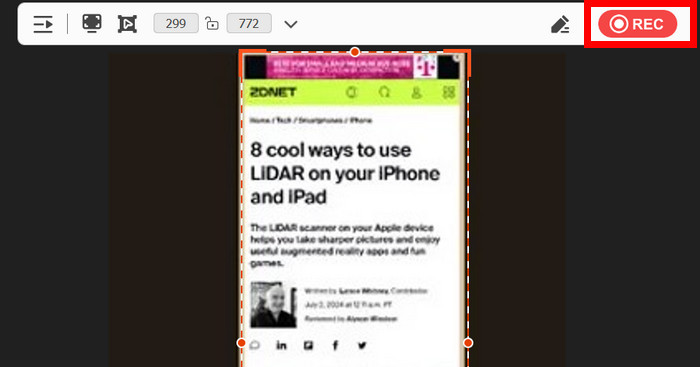
Step 6 Click REC
To record, click REC. You can navigate, scroll, or interact with whatever it is you want to capture. You can also use the basic drawing tools during a recording.
Step 7 Stop and Save
Click Stop when finished. Preview the recording, trim unnecessary parts if needed, then choose your preferred format and save the file to your computer.
Conclusion
Using an iOS and Android scrolling screenshot makes capturing long chats, webpages, or documents efficient and straightforward. Combined with iPhone methods and tools like Tipard Screen Capture, you can record, edit, and save content in high quality, ensuring every detail is preserved and that it is easily shareable.
More Reading




About the Author

 Click here to join the discussion and share your comments