

Did you know you can easily record everything on your Android screen? And right in this post, you will learn how to do Android screen capture video using both the built-in screen recorder and a computer.
You will also discover extra details about screen video recording, like advanced settings, tips, and tricks to make your videos clear and smooth. By the end, you will know how to capture games, apps, or tutorials in high quality.
Part 1. The Built-in Android Screen Capture Video Methods
Every Android phone now has a built-in screen recorder, which makes Android screen capture video easy and convenient. You do not need to install extra apps. You just need to find the feature and turn it on.
Step 1 What you need to do first is unlock your Android phone. Then, swipe down from the top of the screen. If you do not see Screen Recorder right away, swipe down again to expand the full Quick Settings menu.
Step 2 Next, look for the Screen Recorder option. If you cannot find it, tap the Pencil or Edit button and add it to your Quick Settings. Once ready, tap it to continue.
Step 3 After tapping the feature, a small menu may appear. Here, you can choose to record sound from the device, your microphone, or both. Some phones also let you show taps on the screen. Pick the options you need. Then, tap Start.
Step 4 Now, a short countdown will appear. After that, your phone will start recording everything on the screen. Open the app, game, or video you want to capture. Do your task as usual while the recorder runs in the background.
Step 5 Once you are done, swipe down again and press the Stop button in the notification bar. The video will save automatically in your Gallery or Photos app. From there, you can view, edit, or share it anytime.
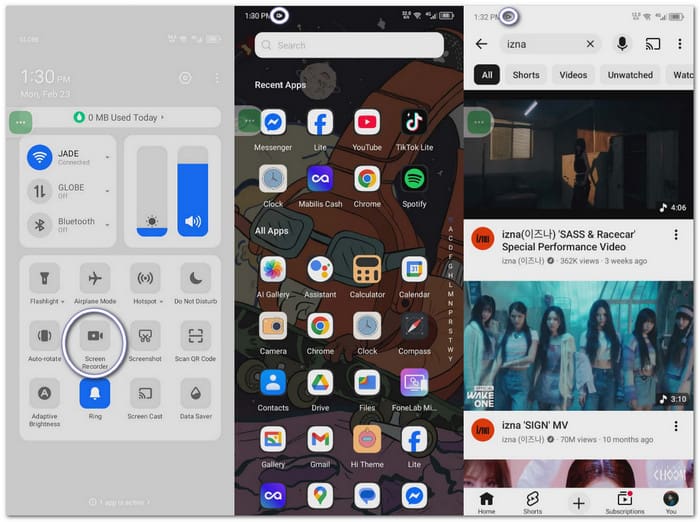
After recording, you can edit using built-in tools. With your phone's gallery editor, you can: trim unwanted parts, crop or rotate the video, adjust brightness and color, and add text or music.
Part 2. Advanced Settings for Screen Video Recording on Android 16
Android 16 gives you more control when you screen record video on Android. It is not just a basic record button anymore. You can set the sound level, video clarity, and even what part of the screen you want to capture. These settings help you get a cleaner and clearer video.
Below are the advanced settings you should know:
1. Audio Source Control
When you start Screen Recorder, you can choose where the sound comes from.
- Device audio records sounds from apps, games, or videos.
- A microphone records your voice.
- The device's audio and microphone can be recorded at the same time.
2. Video Quality & Resolution
Android 16 lets you tweak video clarity on supported devices. You may see options like 720p or 1080p. Some phones also support higher resolution if the screen allows it.
3. Frame Rate Options
Some Android 16 devices allow you to change the frame rate. The standard mode works well for normal tasks, while the higher frame rate works better for gaming.
4. Show Touches on Screen
When enabled, a small circle appears each time you touch the screen. It is great for teaching. Viewers can see where you press. It makes tutorials easy to follow. If you are recording a private task, you can turn this off.
5. Record a Specific App Instead of Full Screen
Android 16 improves privacy and control. You can pick to record the full screen or a single app display.
If you pick a single app, notifications and other apps will not appear. It protects your personal data. It also keeps the video focused.
6. Floating Controls & Quick Stop
While recording, a small floating control or notification appears. You can pause the recording, end the recording, and sometimes draw on the screen.
Part 3. How to Screen Record Video on Android in 4K Quality
Experience true clarity when you screen record video on Android in 4K, and Tipard Screen Capture is the perfect one to make it happen. It also lets you do a voiceover easily on your computer. You can also keep your recordings well-managed on your phone.
In addition, it records your screen smoothly without using many system resources. Whether it is for games, tutorials, or videos, Tipard Screen Capture can help you capture every moment clearly and safely.
Step 1 Acquire and set up Tipard Screen Capture on your computer. Use the official Download buttons from its website.
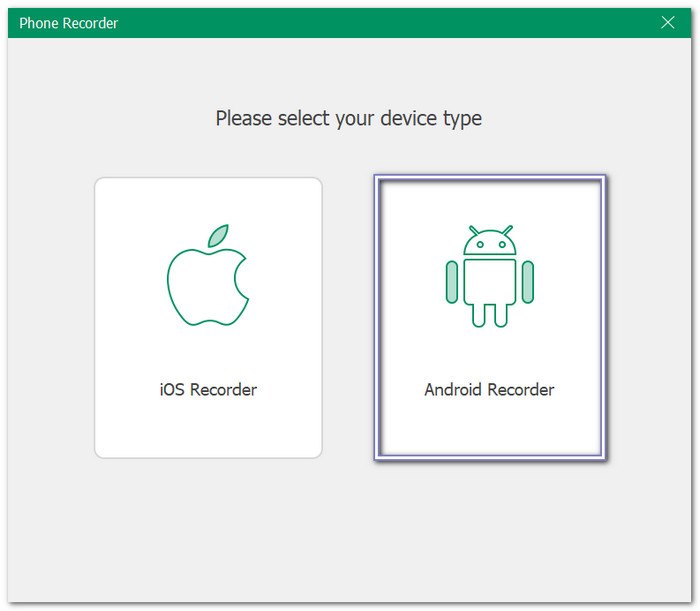
Step 2 On the main screen, select the Phone Recorder option. Then, choose Android Recorder on the next window. Make sure your Android device and computer are connected to the same WiFi network.
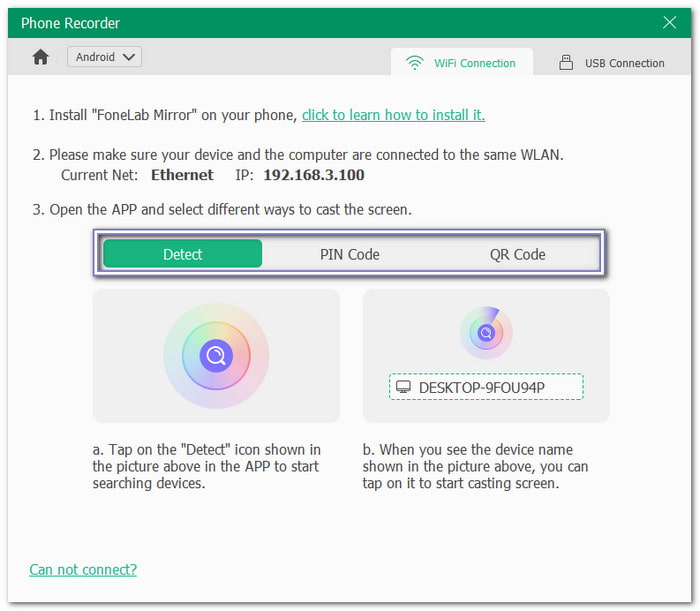
Step 3 Next, grab your Android phone, go to the Google Play Store, and install the FoneLab Mirror app. Once done, open it. You will see connection options like Detect, PIN Code, and QR Code.
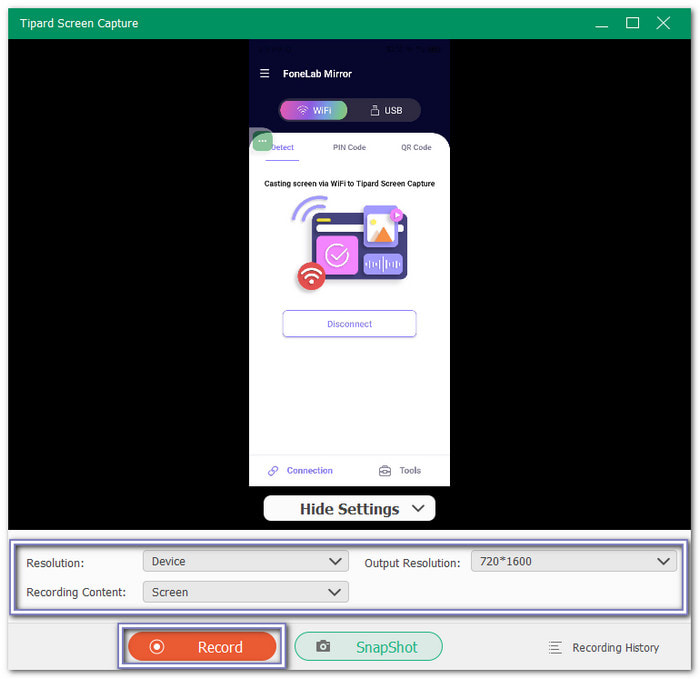
You can choose Detect for an easy setup. All you need to do is press the Search bar and select the name of your computer once it appears. After that, a permission prompt will show on your phone. Tap START NOW to allow screen mirroring.
Step 4 Once connected, your Android screen will appear on your computer. Before recording, you can modify the recording settings and set the resolution to 4K. Then, click the Record button on the computer screen.
After that, play the video, game, or app on your phone. Tipard Screen Capture will capture everything in high quality. You can also take screenshots during recording if needed.
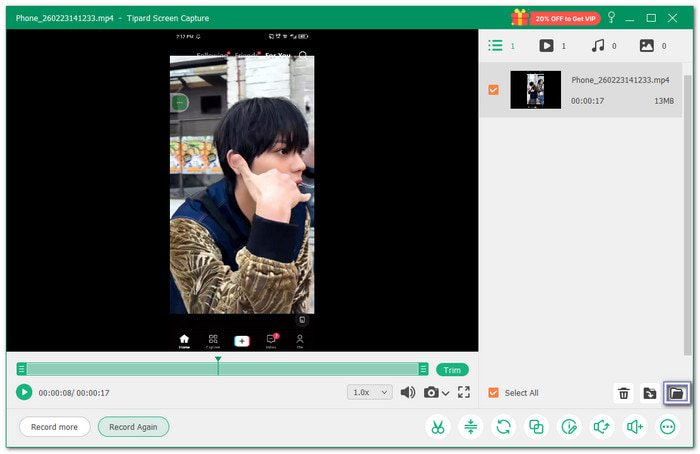
Step 5 When you are done, hit the Stop button. You can now see your recorded video in the preview screen and watch it. To locate where it is saved on your computer, click the Folder button.
Other Highlights: Tipard Screen Capture also lets you record videos on an iPhone. It's built-in iOS recorder makes it easy to capture videos in high quality, add voiceovers, and take screenshots.
Part 4. Tips for Android Screen Capture Video
Before you record your screen, take a short pause. A small setup can make your Android screen capture video clear and smooth. If you plan well, you will avoid common problems. Below are simple tips that can help you.
1. Understand System Sound vs. Microphone
Your phone gives you two main audio choices.
- System sound records audio from inside the phone. It includes game music, app sounds, and video audio.
- The microphone records your voice and the sounds around you.
If you are recording a game and only want the game audio, choose system sound. If you are teaching and need to explain steps, turn on the microphone. You can also use both at the same time. It works well for tutorials.
2. Choose Between Live Commentary & Voiceover
Live commentary means you talk while recording. It feels natural. Because you can complete everything at once, it saves time.
Recording your voice after the screen video is finished is known as voiceover. You have more control as a result. Errors can be corrected. You are able to speak clearly and slowly.
3. Know That Some Apps Block Recording
Not all apps allow screen capture. Streaming services like Netflix use DRM protection. DRM stands for Digital Rights Management. It protects movies and shows from being copied.
If you try to record these apps, you may see a black screen. Sometimes the video saves without a picture. It is normal. The app is blocking the capture on purpose. Some banking and secure apps also block recording to protect your data.
4. Protect Your Privacy
Notifications can appear while you record. Messages and alerts may show on the screen. So, before you begin, switch to Do Not Disturb mode. It maintains the cleanliness of your video. Private information is also safeguarded.
5. Check Storage & Battery
Screen videos can be large. High-quality videos use more space. Check your storage first. Make sure you have enough free space. Also, check your battery level. Recording can drain power fast.
Conclusion
How was your experience recording your screen? Was it easy? If you are not satisfied with the built-in way, you can use Tipard Screen Capture to record in 4K clarity. With 4K, your videos are sharper, brighter, and more detailed. It makes capturing video of the screen simple, clear, and professional every time.
More Reading

About the Author

 Click here to join the discussion and share your comments
 Tipard Screen Capture