

League of Legends is an excellent and entertaining game you can play on your desktop. There are even various streamers that share their gameplay with their viewers. There are also times when you want to record your gameplay so you can watch the highlights or get your collections. However, some users don't have enough idea of what tool to use and how to record their gameplay. Fortunately, this article will give all the details you need. We are here to recommend various gameplay recorders you can use to get your preferred output. Thus, read this tutorial and discover how to record a League of Legends gameplay.

Part 1. Record League of Legends Gameplay in 4K Resolution
Do you want the best League of Legends recorder? In that case, we would like to introduce Tipard Screen Capture. This program can offer its gameplay recorder feature that is capable of capturing your entire gameplay. The best part here is that it can save the video in 4K resolution, allowing you to enjoy the content. It can even support HDR10-bit and 120 FPS, resulting in better video playback. Another thing, the software can support AV1 video codec, which is best for streaming platforms, like YouTube and TikTok. You can also share the recorded gameplay on various social media platforms, making it more ideal for users.
What's more, this recorder has a comprehensive user interface suitable for non-professional users. You can also access various editing functions to improve the final output. Thus, if you need the best game recorder to record your League of Legends gameplay, look no further than Tipard Screen Capture.
Follow the procedures below to start recording your gameplay using the best League of Legends recording software.
Step 1 Download and install Tipard Screen Capture on your Mac or Windows. After that, launch it to begin the gameplay recording process.
Step 2 Then, click the drop-down function and select the Game Recorder feature. Once done, select the League of Legends tab on your screen.
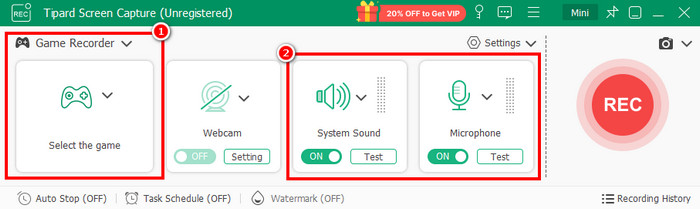
You can also turn on the System Sound and Audio function to record the audio from your device and mic.
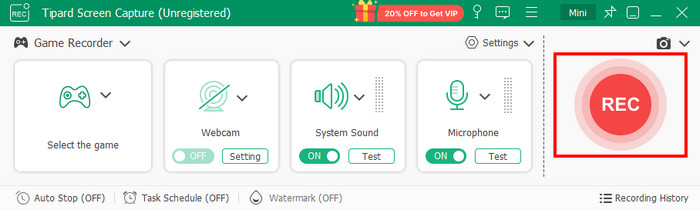
Step 3 You can now start recording your League of Legends gameplay by clicking the REC button. To stop recording the gameplay, tap the Stop button.
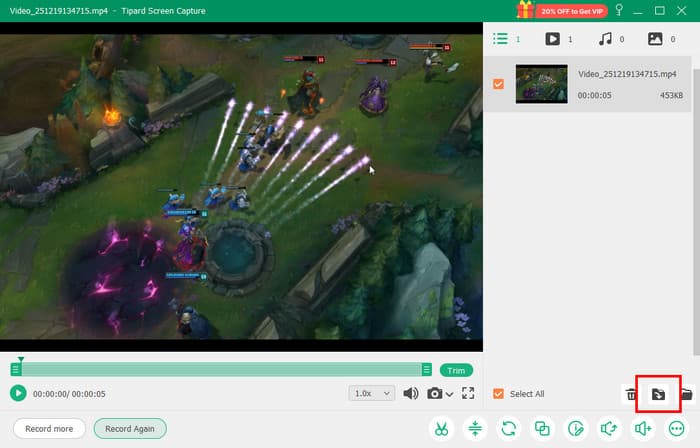
Step 4 When the preview appears, you can try watching the recorded gameplay. If you are satisfied with the output, hit the Export button to save the gameplay on your computer. You can even turn LoL replay to MP4, MKV, WMV, AVI, and any output formats.
Part 2. Record League of Legends Gameplay Using OBS
Want to learn how to record League of Legends with OBS? Well, OBS Studio is a free and open-source program that allows you to share and record your screen based on your preferences. You can capture the whole screen or a particular screen area. What we like here is that you can ensure getting the best quality after the recording process. Thus, if you want to record LoL replay on PC, this program is among the recorders you can access. You can even select your preferred output formats, like MP4, MKV, MOV, and more. The only drawback here is that the software has a confusing user interface, making it complicated for some beginners.
If you want to start recording your LoL gameplay, you can use the simple instructions below.
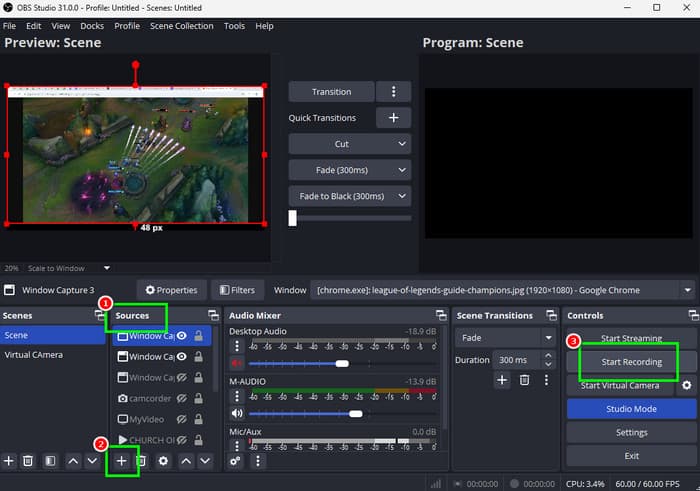
Step 1 Download and install the OBS Studio program on your computer. Then, after setting up everything, you can proceed to the next process.
Step 2 After that, click the + symbol under the Source section. Then, choose the Window Capture option to open the gameplay you want to record.
Step 3 Then, you can now start recording your gameplay by clicking the Start Recording button on the right side of the interface.
Step 4 To finish the recording, hit the Stop Recording button. To check your captured gameplay, proceed to the File > Show Recordings option.
Part 3. Record League of Legends Gameplay via Xbox Game Bar
Another best LoL recorder you can access in the Xbox Game Bar. This tool was designed to capture any games on your screen effectively. What makes it ideal is that it ensures to keep the original quality of the video, allowing you to have a satisfying video playback. Aside from that, this tool is pre-built, so there is no need for you to download any third-party gameplay recorder. To check its capability, see the instructions below.
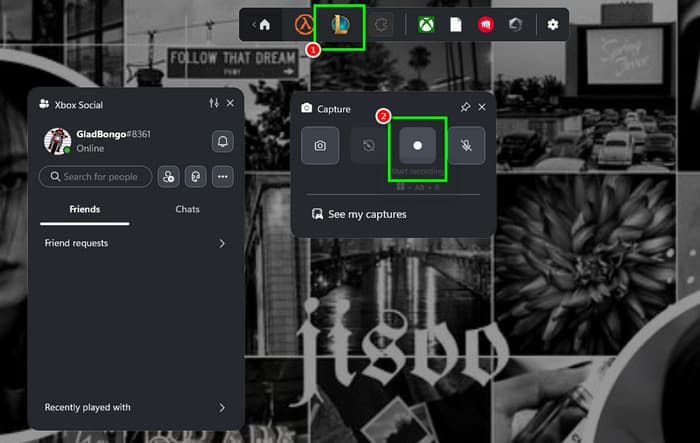
Step 1 On your computer Settings, navigate to the Gaming > Game Bar section and ensure that everything is turned on.
Step 2 Then, you can now press the Windows + G keys to launch the Xbar Game Bar tool.
Step 3 From the top interface, you can click and launch the League of Legends software and log in to your account.
Step 4 Once done, you can begin the recording process by clicking the Record function. Hit the same button to finish the recording.
Part 4. Record League of Legends Gameplay with Medal TV
Medal TV is an exceptional League of Legends gameplay recorder. This software operates as a seamless, low-overhead background process, letting you capture every pivotal moment with a single hotkey. Its genius lies in the 'retroactive recording' of a rolling buffer, ensuring you never miss a clutch outplay, a pentakill, or a critical misplay for review, all while having a negligible impact on in-game performance. Thus, if you want to record everything during your gameplay, consider using this program. To learn how to record a League of Legends gameplay, use the instructions below.
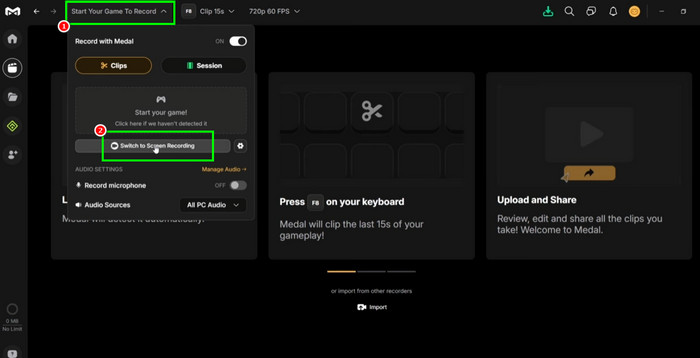
Step 1 Download and launch the Medal TV software on your computer. After that, prepare your gameplay.
Step 2 From the software's interface, click the Start Your Game to Record button. Then, hit the Switch to Screen Recording to begin recording your gameplay.
Step 3 You can tap the Stop Recording function to finish recording your gameplay.
Part 5. Comparison of the Best League of Legends Gameplay Recorders
You can check the comparison table below to get more insights about the best League of Legends gameplay recorder.
| Gameplay Recorders | Tipard Screen Capture | OBS Studio | Xbox Game Bar | Medal TV |
|---|---|---|---|---|
| Ease of Use | Simple | Confusing | Simple | Simple |
| Platform | Windows and Mac | Windows and Mac | Windows | Windows |
| Perfect for | Non-professional and Skilled Users | Skilled Users | Non-professional and Skilled Users | Non-professional and Skilled Users |
| Supported Output Format | MP4, MKV, AVI, FLV, WMV, and more. | MP4, AVI, MOV, MKV, and more. | MP4 | MP4 |
| Offers Editing Features |  |
|
 |
|
Conclusion
If you want to learn how to capture League of Legends replays, you can use all the tutorials we have provided in this post. We ensure that all the methods we have recommended are working well and can help you achieve the result you need. Plus, if you are still unsure what recorder to use, we suggest using Tipard Screen Capture. With this gameplay recorder, you can capture your entire gameplay with the best quality, resulting in better video playback.
More Reading



About the Author

 Click here to join the discussion and share your comments
 Tipard Screen Capture