

Some video files that worked well in the past can be difficult to use today. They may not play smoothly on newer devices or work properly with modern apps, like ASF.
That is why converting ASF to MP4 is one of the most recommended solutions today. It will make your file easier to play, edit, and share.
Ready to learn how easy it is to do? If yes, please keep reading!

Part 1. What Is an ASF File
Some video files do not open easily on modern devices. One of them is ASF. It often needs a converter to play smoothly today.
ASF stands for Advanced Systems Format. It is a video container made by Microsoft. It stores video and audio in one file. It is often used for streaming and older media files. It can also include subtitles. Many modern apps do not fully support it, so users convert it to MP4 for easier playback.
In the next parts, you will learn dependable ways to convert ASF to MP4.
Part 2. How to Convert ASF to MP4 with the Best Video Quality
Getting the best video clarity when converting ASF to MP4 is easy with Tipard Video Converter Ultimate. It lets you improve bitrate, frame rate, and resolution for clearer videos. It supports H.264, HEVC, and AV1 codecs for better MP4 output. The AI upscaling boosts ASF to 1080P, 2K, 4K, or even 8K. Moreover, it supports batch conversion and hardware acceleration for faster processing of many files.
Step 1 Get Tipard Video Converter Ultimate
Open Tipard Video Converter Ultimate on your computer. If you do not have it yet, get it first using the Download buttons below.
Step 2 Add Your ASF File
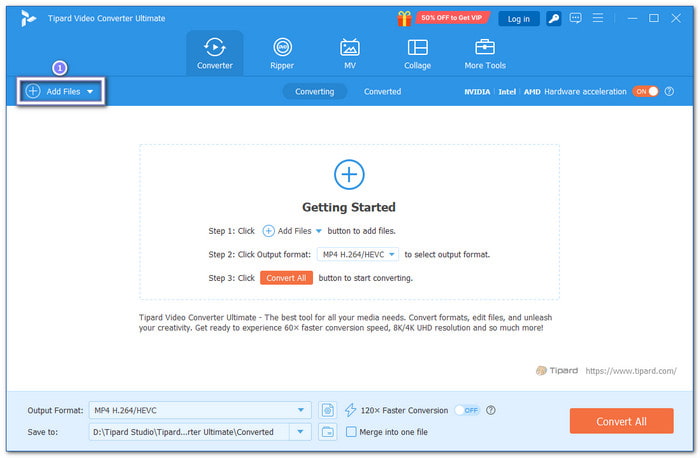
Hit the Add button on the main screen. Select your ASF file from your folder. You can also select and drop it straight into the program. Plus, it supports bulk conversion, so you can import more than one file and convert them all together.
Step 3 Choose MP4 Format
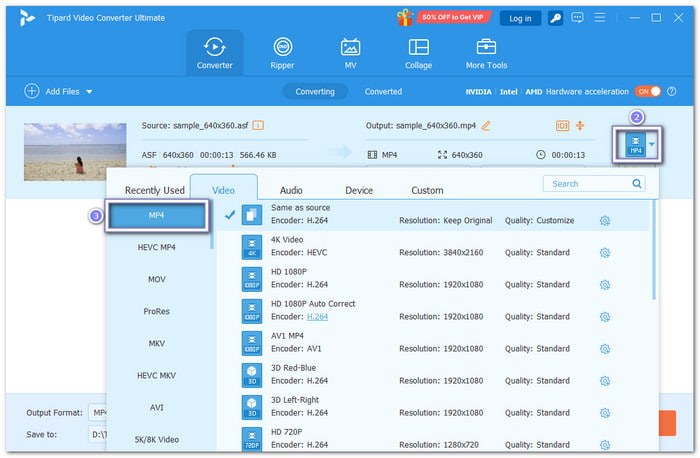
Open the Format drop-down menu, which you can find in the upper right side. Then, in the Video section, choose MP4. Good thing, it is in the first list, so you will not have a hard time looking for it.
Step 4 Adjust Video Quality Settings
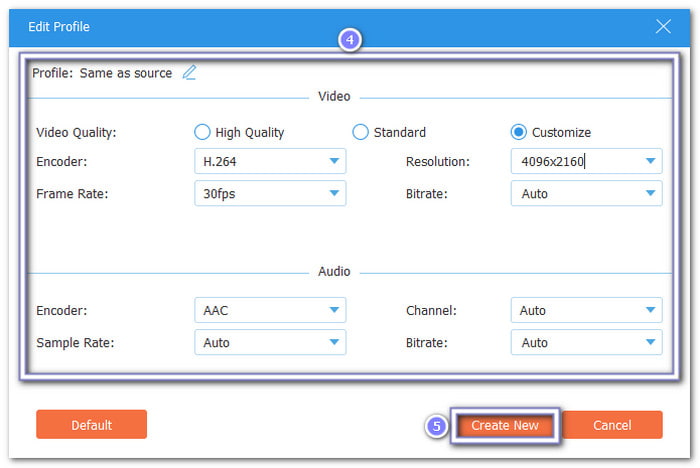
For more control, click Custom Profile. The Bitrate, Resolution, Frame Rate, and Encoder can all be altered here. You can balance file size and clarity with the aid of these settings. To save your settings, click Create New after that.
Step 5 Start ASF to MP4 Conversion
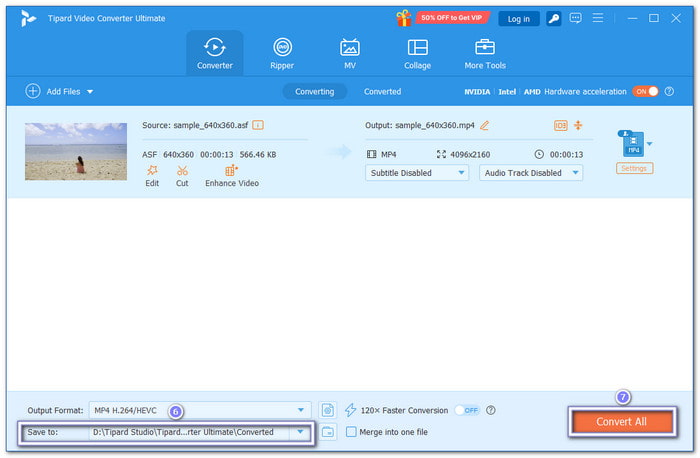
Choose the folder where you want to save the output file. Once settled, click Convert All to start converting ASF to MP4. You will see the progress on your screen!
- It can also convert AVI, WMV, FLV, VOB, SWF, and MTS to MP4.
- Up to 120× faster conversion speed.
- Built-in editor for cropping, filters, and watermark tools.
- Allows easy merging of multiple files into one video.
- Trial version limits each file to 5 minutes only.
Part 3. How to Convert ASF to MP4 with VLC
A free media tool can also change video formats without needing extra apps. It helps users handle many file types, including ASF. It supports easy format switching to MP4 for better playback on most devices. This tool also works as a player, so users can test files before converting them.
Rely on the steps below to master how to convert an ASF file to MP4 with VLC:
Step 1 Open VLC Media Player
Install VLC if you do not have it yet. Then, open it on your computer. Make sure it runs properly before you start.
Step 2 Go to Convert Option
Click the Media menu at the top. Then, choose Convert / Save. It opens the file selection window.
Step 3 Add Your ASF File
Click Add and pick your ASF video file. After that, click Convert / Save at the bottom to continue.
Step 4 Choose MP4 Format
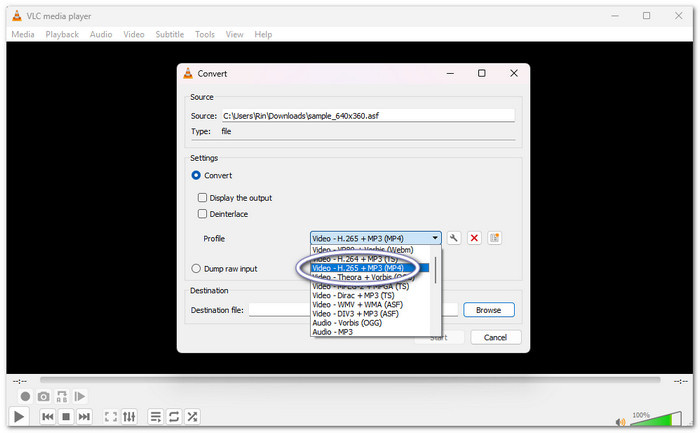
Under Profile, select a format that uses MP4 (H.264 + MP3). It makes the output file playable on most devices and apps.
Step 5 Set Location & Start Conversion
Hit Browse to choose where to save your file. Name it with ".mp4" at the end. Then, press Start, and please wait until VLC finishes the conversion.
- Free and easily accessible.
- Easy features to convert and play.
- Operates on numerous systems.
- Limited advanced settings.
- Output control is basic.
- Sometimes, it is slower for big files.
Part 4. How to Convert ASF to MP4 with FFmpeg
FFmpeg works in the background for fast and direct video changes. Advanced users use it because they want complete control over the format and quality of the output. This tool can convert an ASF file to MP4 with a single line command. It is small, powerful, and works without a heavy interface.
Step 1 Download FFmpeg
Visit the official FFmpeg website. Get the version that is appropriate for your system. Extract the files to a folder after that.
Step 2 Place Your ASF File
Move your ASF video into the same folder where FFmpeg is installed. It makes it easier to run commands.
Step 3 Launch the Command Window
Launch the terminal or Command Prompt within that folder. It allows you to directly type commands for FFmpeg.
Step 4 Enter the Conversion Command
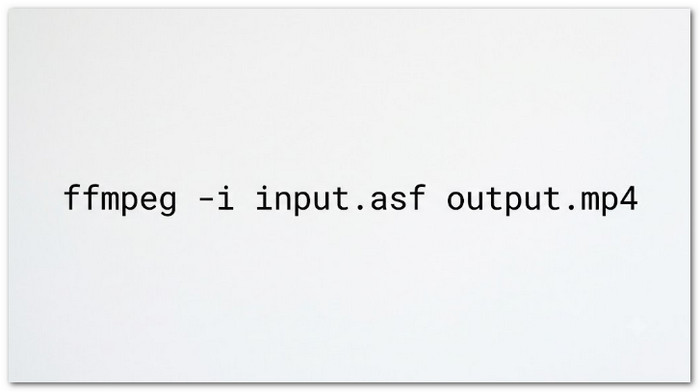
Enter exactly this command: ffmpeg -i input.asf output.mp4. Change "input.asf" to the name of your file.
Step 5 Run & Wait for Output
Press Enter to start conversion. Please wait until it finishes. Your MP4 output file will appear in the same folder.
- Very fast conversion speed.
- Full control over output.
- Lightweight tool.
- Hard for beginners.
- No visual interface.
- Requires command knowledge.
Part 5. How to Convert ASF to MP4 with HandBrake
With its straightforward settings, HandBrake is an easy-to-use video converter that enables users to convert large or mixed-format videos into MP4. It focuses on easy control and clear options for quality and size. It supports ASF files and gives stable results for editing or playback. Many users like it for its simple layout.
Go through the steps below to learn how to convert ASF video to MP4 using HandBrake:
Step 1 Install & Open HandBrake
Download HandBrake from its official website. Install it on your computer. Then, open the program.
Step 2 Load Your ASF File
Drag your ASF file into HandBrake. You can also click Open Source and select the file manually.
Step 3 Select the MP4 Format
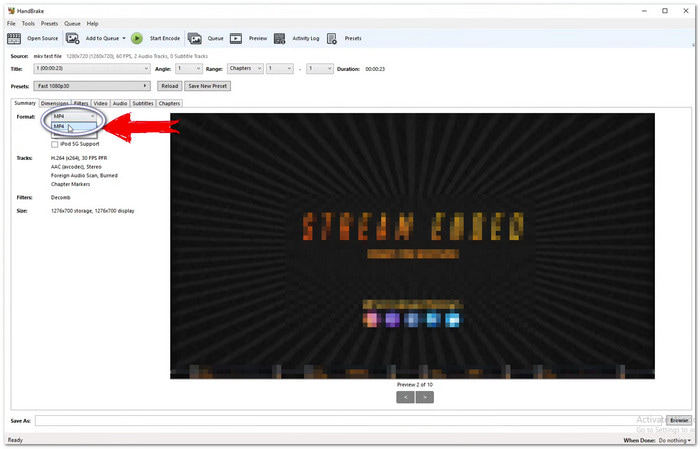
Look at the Format section. Select MP4 as the output format. It makes your file easy to play anywhere.
Step 4 Modify Basic Preferences
Most settings should be left at the default. Verify that the video codec is H.264. If necessary, you can additionally select quality using the slider.
Step 5 Begin the Conversion
Click Browse to choose a save folder. Then, press Start Encode. Please wait until HandBrake finishes processing your MP4 file.
- Easy-to-use interface.
- Good video quality control.
- Allows you to convert M4V, MKV, MOV, and WMV to MP4 or MKV.
- Slower than command tools.
- Fewer advanced codec options.
- Can feel basic for experts.
Part 6. FAQs of Converting ASF to MP4
What is the difference between MP4 and ASF?
MP4 is a modern video format. It works on almost all devices and apps. ASF is an old Microsoft format. It is mainly used for older systems and streaming.
Can you edit an ASF file?
Yes. You can use Tipard Video Converter Ultimate. It lets you edit before converting. You can rotate, crop, apply a filter, trim, and much more for a better output.
How to play ASF files on Windows and Mac?
You can use the VLC Media Player for that. It plays ASF files easily on both Windows and Mac. Just install it and open your file!
Conclusion
Converting an ASF file to MP4 gives better playback, wider support, and easier sharing. We hope the 4 ways above help you, especially Tipard Video Converter Ultimate. It allows you to convert any files, supports batch conversion, and boasts a fast conversion speed.

All-in-one video toolbox: convert, edit, upscale, enhance, and compress your videos easily
100% Clean & Safe
100% Clean & Safe

More Reading


About the Author

 Click here to join the discussion and share your comments
 Tipard Video Converter Ultimate